
How to configure the Ozeki SMS MCP Server in LibreChat
This guide walks you through integrating the Ozeki SMS MCP Server with LibreChat, an open-source chat application that supports MCP servers through its built-in MCP configuration system. By following this tutorial, you will learn how to whitelist your gateway domain in the LibreChat configuration file, restart the Docker container, and register the Ozeki SMS Gateway as an MCP server.
What is an MCP server?
An MCP (Model Context Protocol) server exposes tools that an AI model can call during a conversation. In this setup, the Ozeki SMS MCP Server provides SMS tools such as sending messages and listing incoming SMS. LibreChat connects to the MCP server over HTTP using the Streamable HTTP transport and authenticates using the API key you generated for your MCP user account.
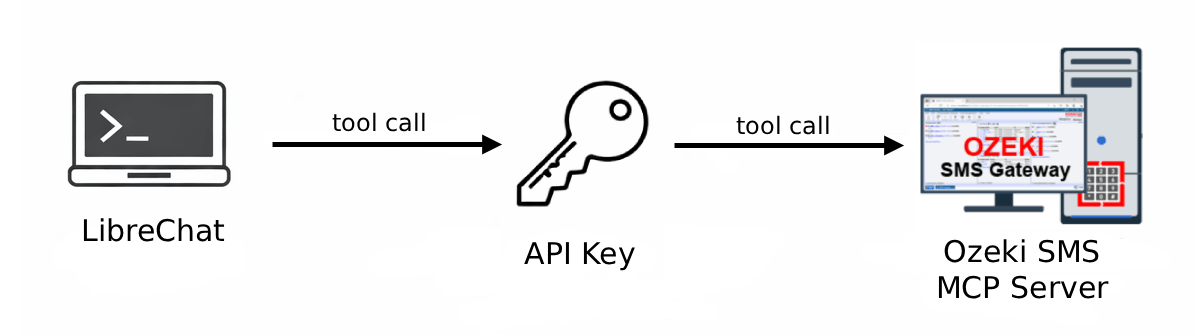
LibreChat MCP server configuration
# Add the gateway address to the allowed domains in librechat.yaml
mcpSettings:
  allowedDomains:
    - "{address}"
    # For example: - "192.168.88.15"

# Restart the Docker container to apply changes
docker compose down
docker compose up -d

# Open LibreChat in your browser
http://localhost:3080/

# Add the MCP server with the following details:
Name: Ozeki
MCP Server URL: http://{address}:9529/mcp
Transport: Streamable HTTP
Authentication: API Key
Steps to follow
We assume Ozeki SMS Gateway is already installed on your system and you have already created an MCP user account with an API key. You will also need LibreChat installed on your system. If you have not set it up yet, follow our LibreChat setup guide.
- Add the gateway address to the allowed domains
- Restart the Docker container
- Add the Ozeki SMS MCP Server
- Connect to the MCP server
Video tutorial
The following video shows how to add the Ozeki SMS MCP Server to LibreChat step-by-step.
Step 1 - Add the gateway address to the allowed domains
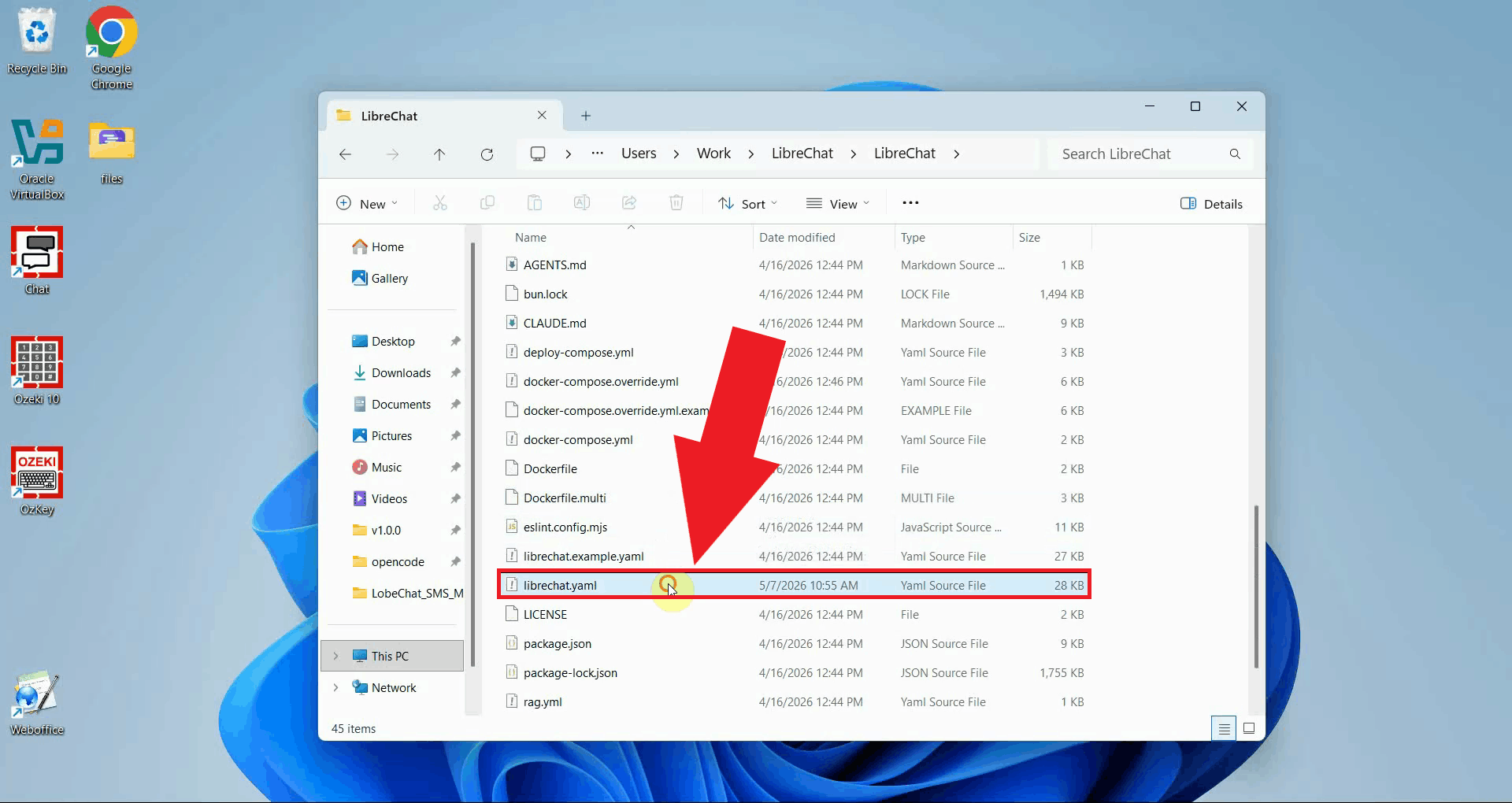
Open the librechat.yaml configuration file in a text editor. This file
controls LibreChat's behavior, including which external domains are permitted to be
used as MCP server endpoints (Figure 1).
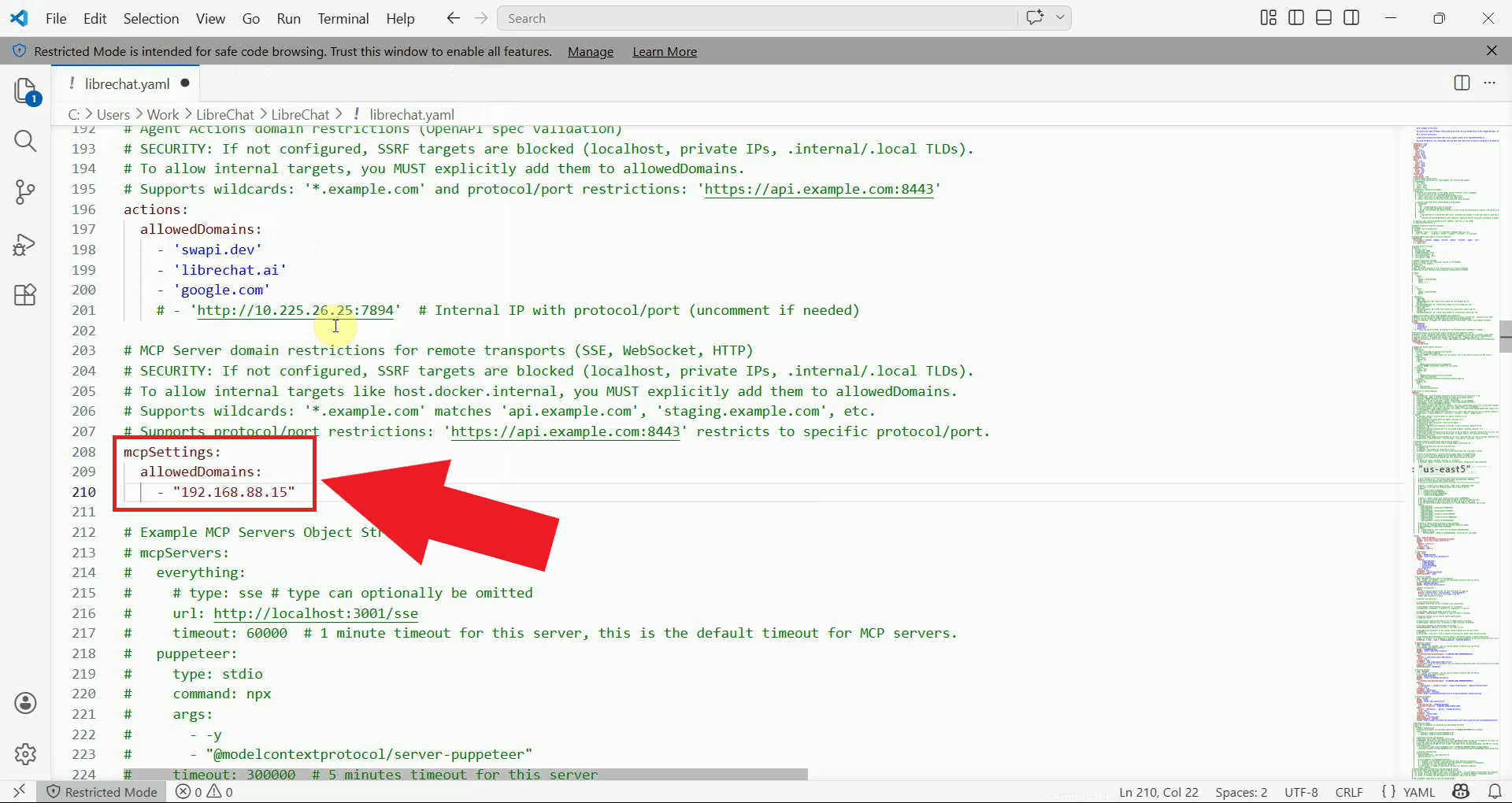
Locate the mcpSettings section in the file and add your Ozeki SMS
Gateway's IP address or hostname under allowedDomains as shown below (Figure 2).
mcpSettings:
  allowedDomains:
    - "{address}"
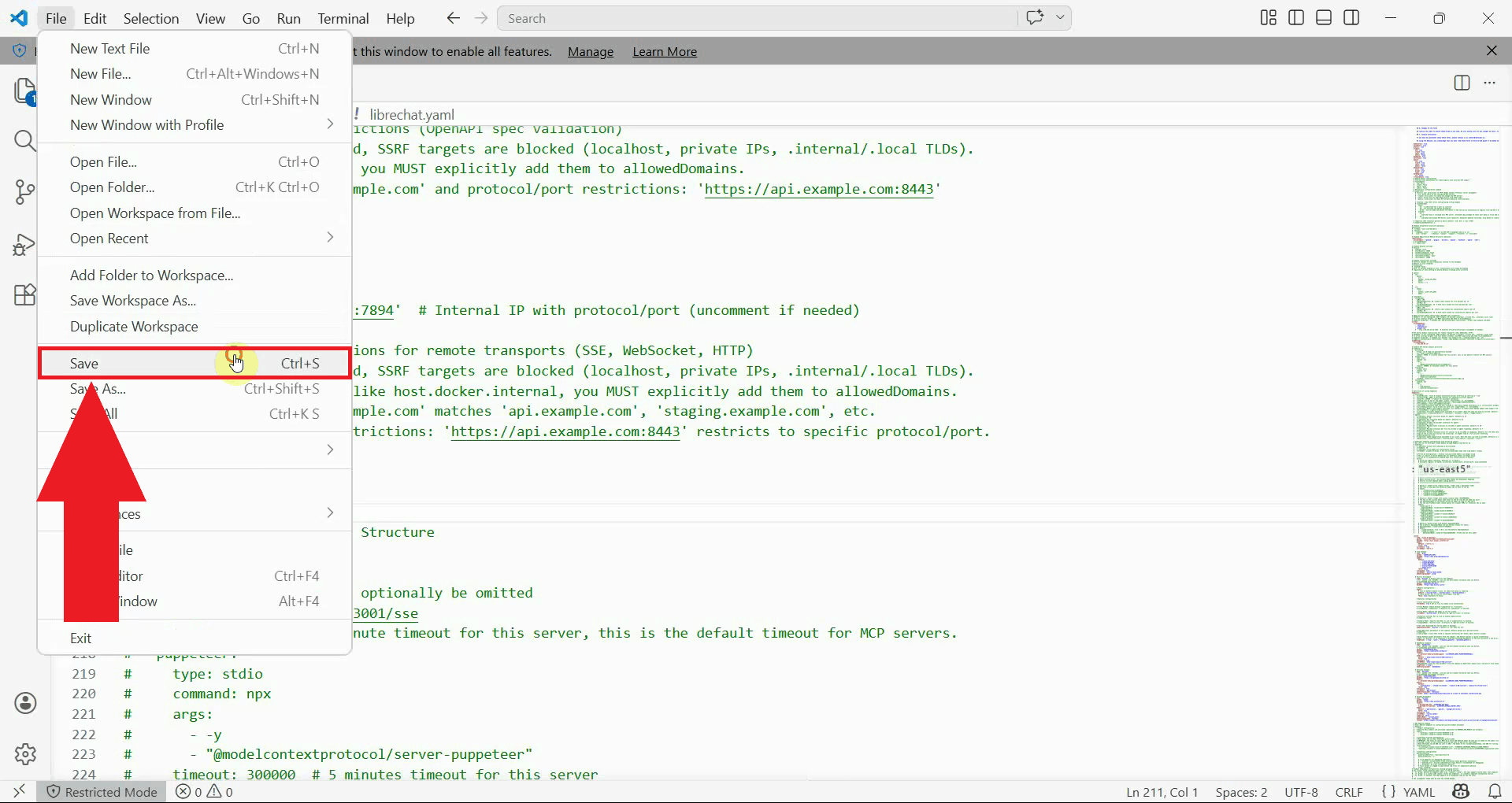
Save the configuration file and close the text editor. The change will not take effect until the Docker container is restarted in the next step (Figure 3).
Step 2 - Restart the Docker container
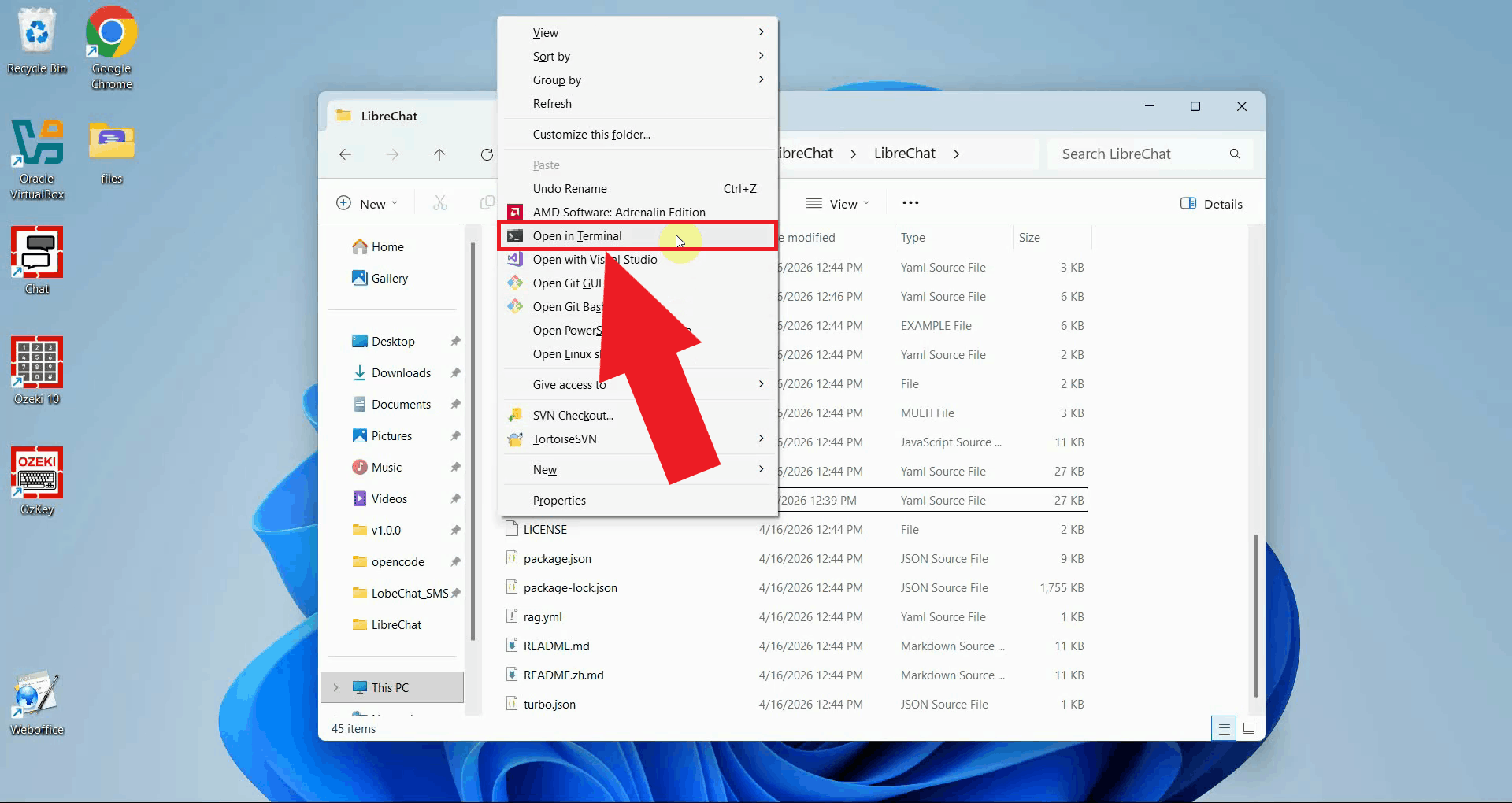
Open a terminal window in your LibreChat folder. On Windows you can do this by selecting Open in Terminal from the right-click context menu (Figure 4).
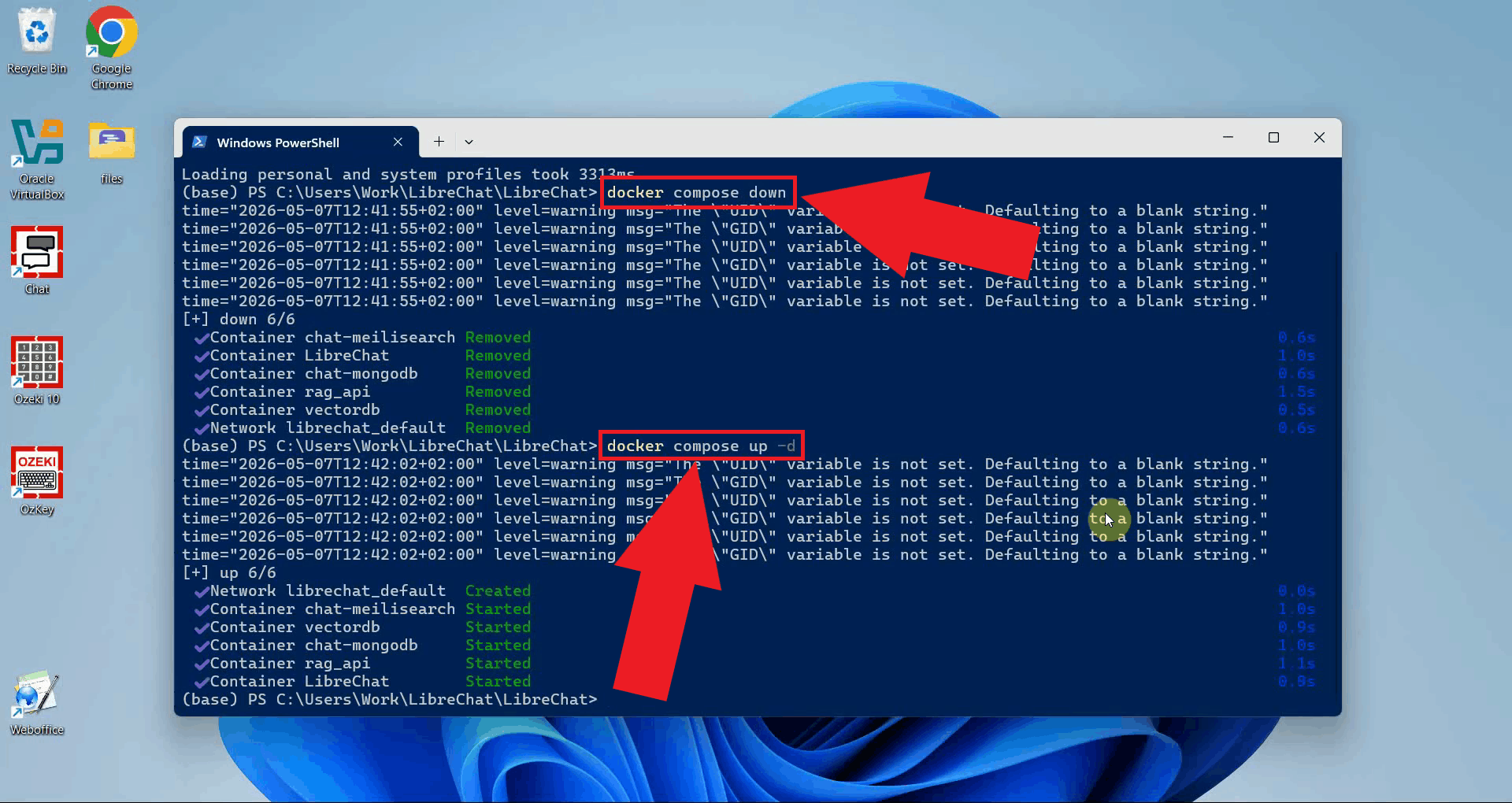
Run the following commands to stop and restart the LibreChat Docker container.
This reloads the updated librechat.yaml configuration (Figure 5).
docker compose down
docker compose up -d
Step 3 - Add the Ozeki SMS MCP Server
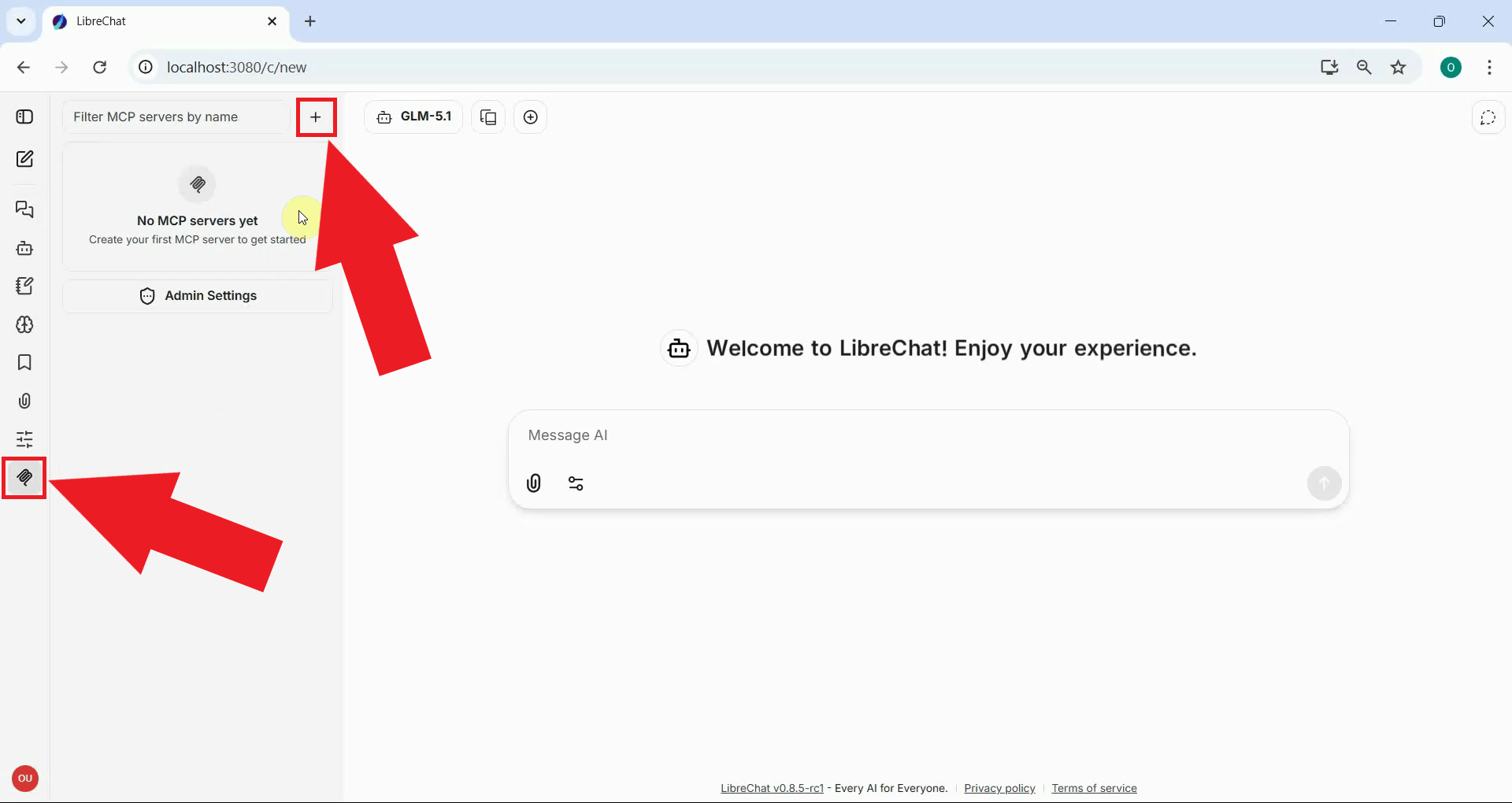
Open LibreChat in your browser at http://localhost:3080/ and log in.
Navigate to the MCP Servers section in the interface and click Add to open
the MCP server registration window (Figure 6).
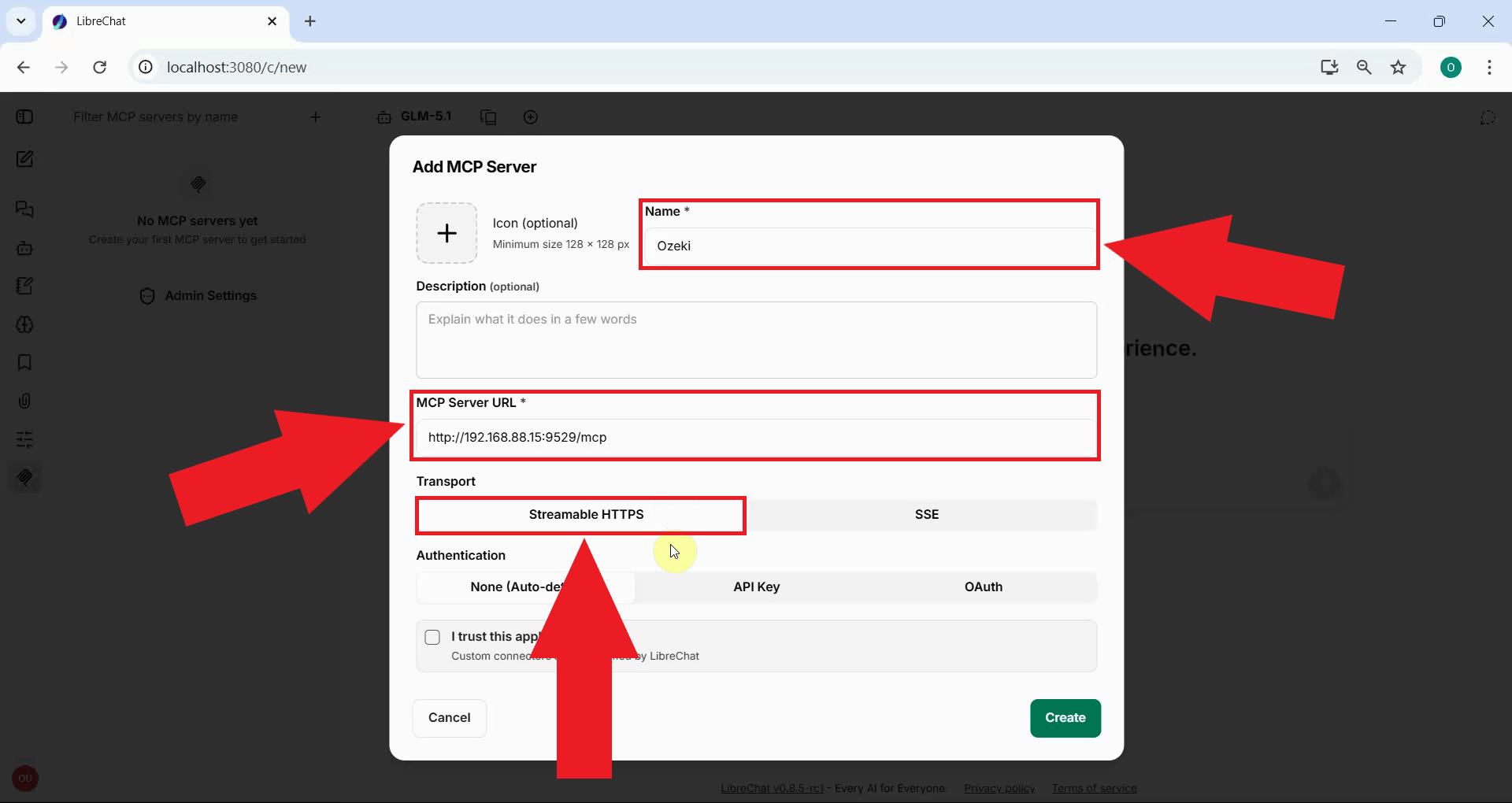
Enter Ozeki as the server name and enter the URL of your Ozeki SMS
Gateway in the MCP Server URL field following the format
http://{address}:9529/mcp. Make sure Streamable HTTP
is selected as the transport type (Figure 7).
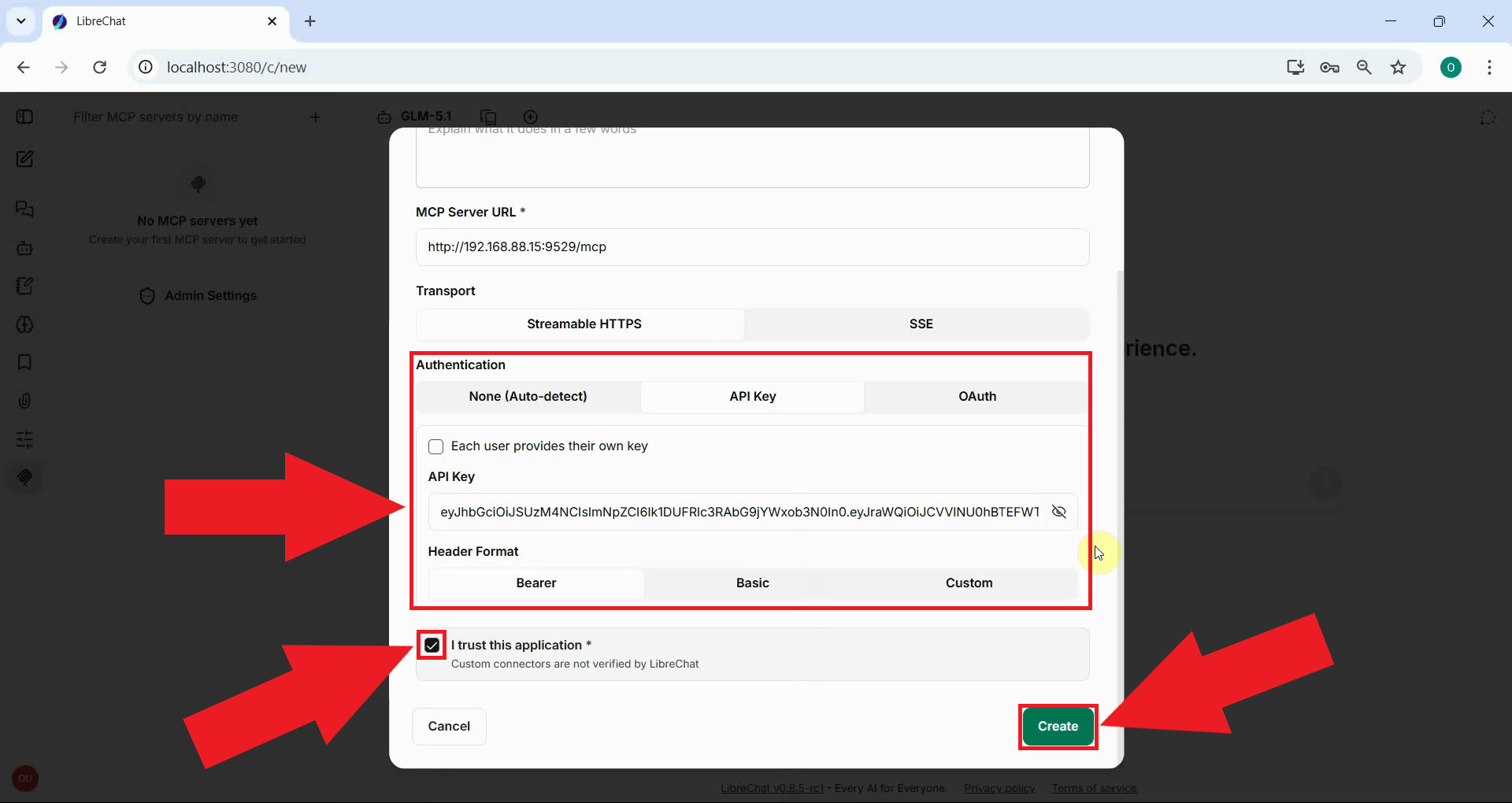
Set the Authentication type to API Key -> Bearer and paste the API key you generated for your MCP user account into the token field. Check the I trust this application checkbox, then press Create to save the MCP server entry (Figure 8).
Connect to the MCP server
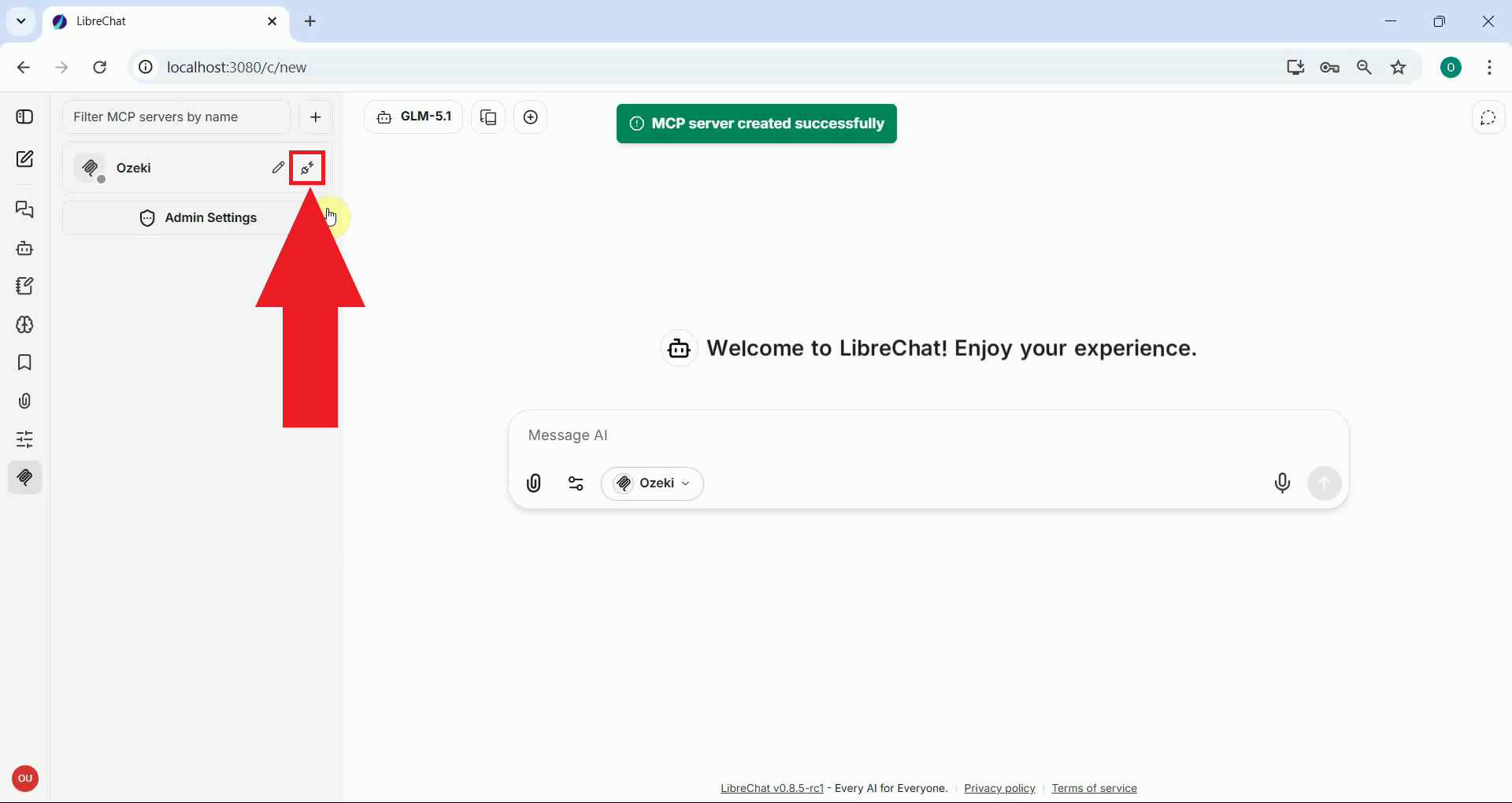
The Ozeki MCP server will now appear in the MCP server list. Click the Connect button next to it to establish the connection. Once connected, the SMS tools exposed by the gateway will be available to the AI model in LibreChat conversations (Figure 9).
Summary
You have successfully configured the Ozeki SMS MCP Server in LibreChat. The AI model running in LibreChat can now send and receive SMS messages through your gateway using plain language prompts, making it straightforward to add mobile messaging capabilities to any LibreChat workflow.