How to send media file on Whatsapp
Learn how to send a media file through WhatsApp using Ozeki SMS Gateway. This guide walks you through attaching and sending a file in the gateway interface, then shows how to submit a media message through the HTTP API with Postman. You’ll also see where to check the outgoing message and verify that it appears in the recipient’s WhatsApp chat.
How to send media file from Ozeki GUI
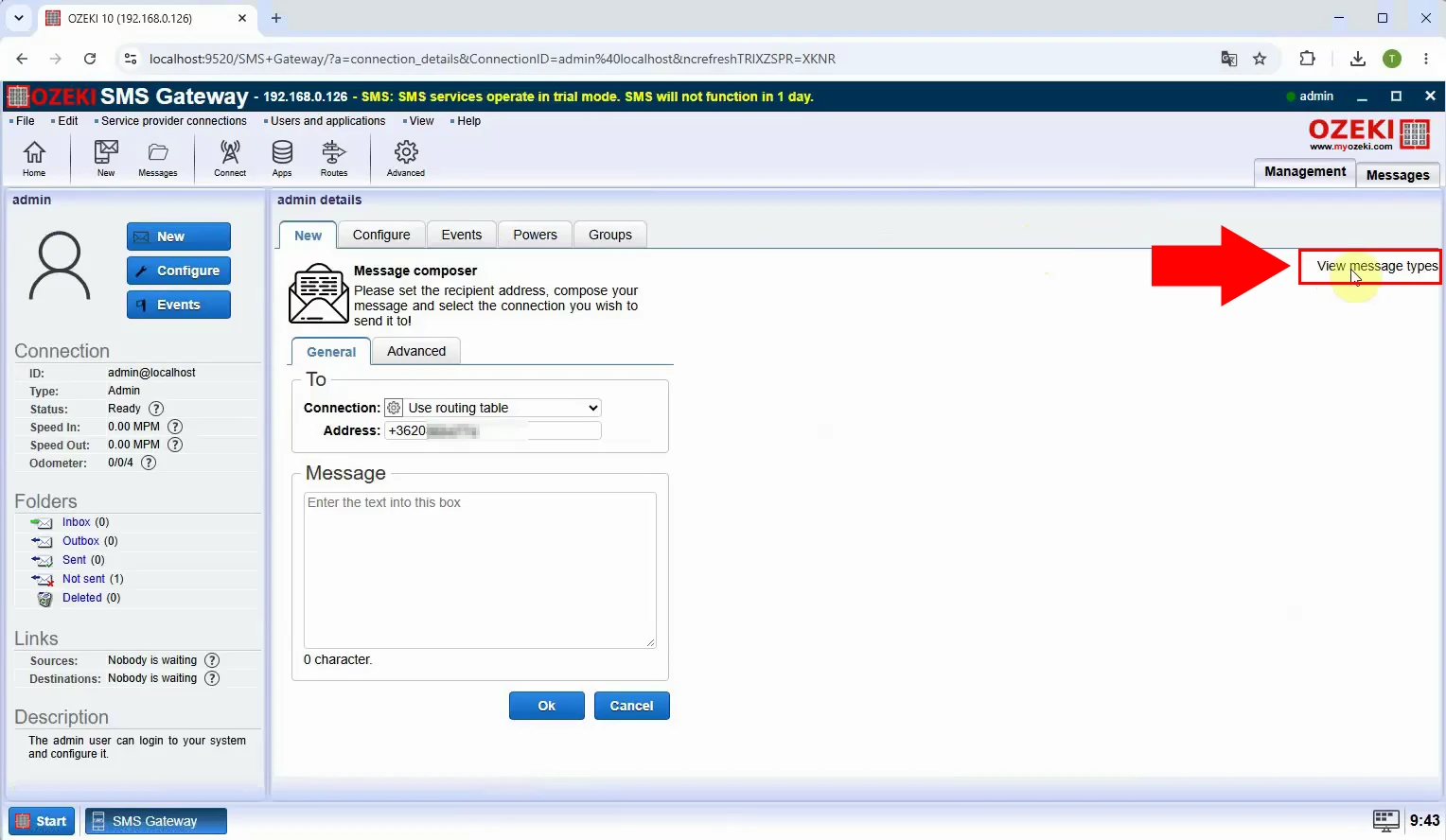
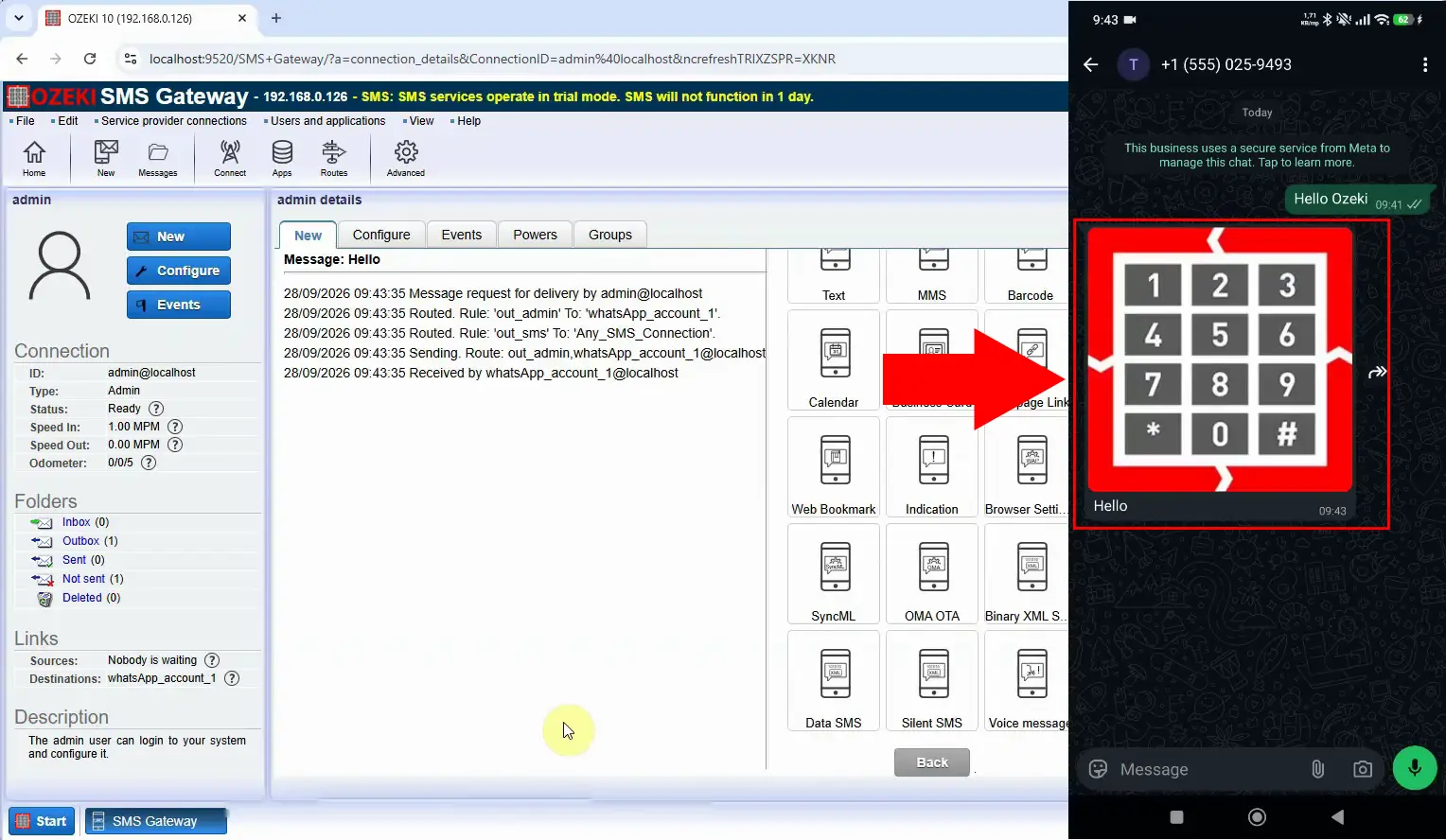
Open the message composer in Ozeki SMS Gateway. Expand the message type menu to see the available formats. Choose the format before adding your media file.
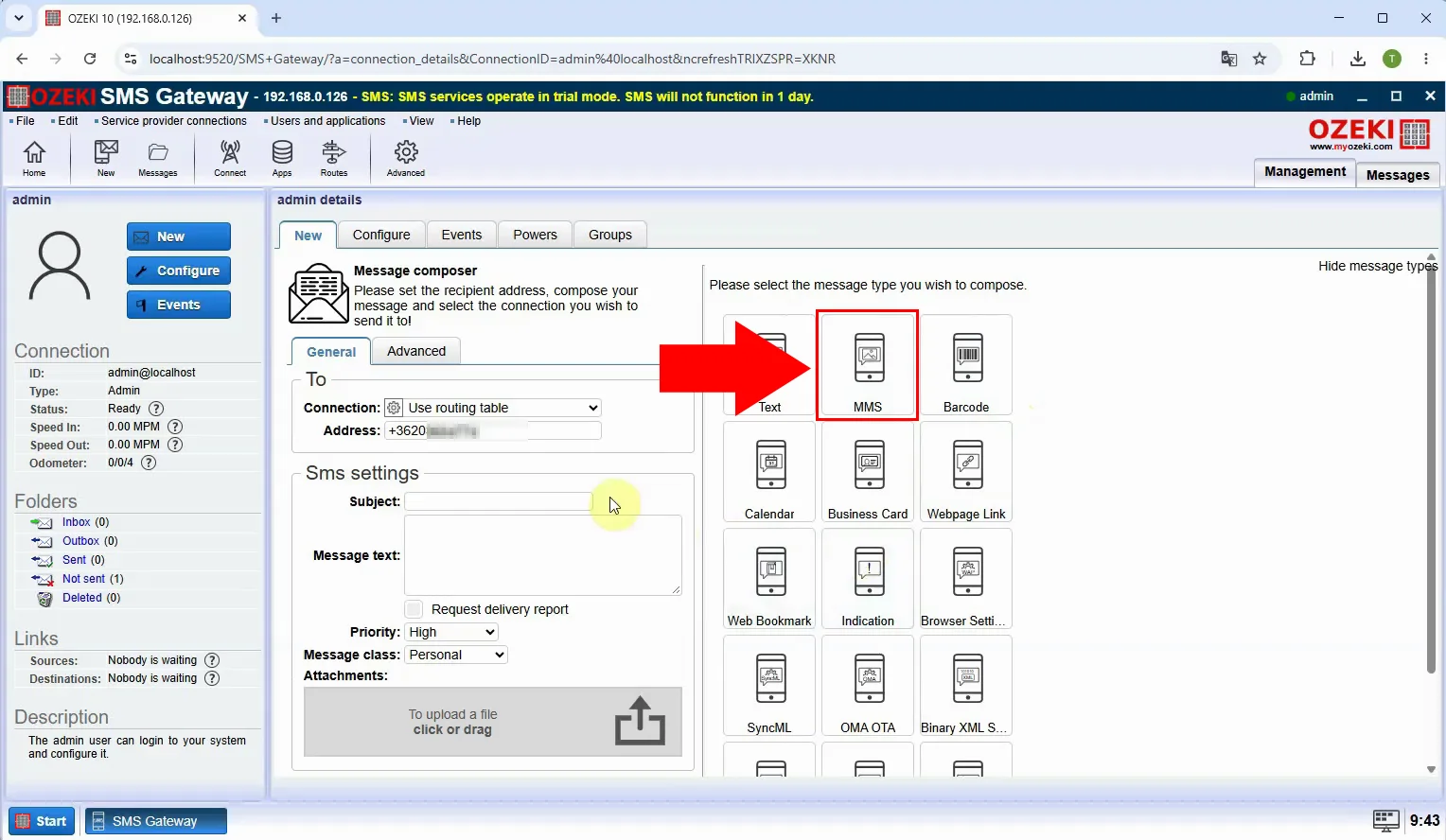
Select MMS as the message type. This opens the fields needed for a media attachment. Enter the recipient’s WhatsApp number in the appropriate field.
Add your message text and select the media file to attach. Check the recipient and attachment before sending. Click Send to submit the message..
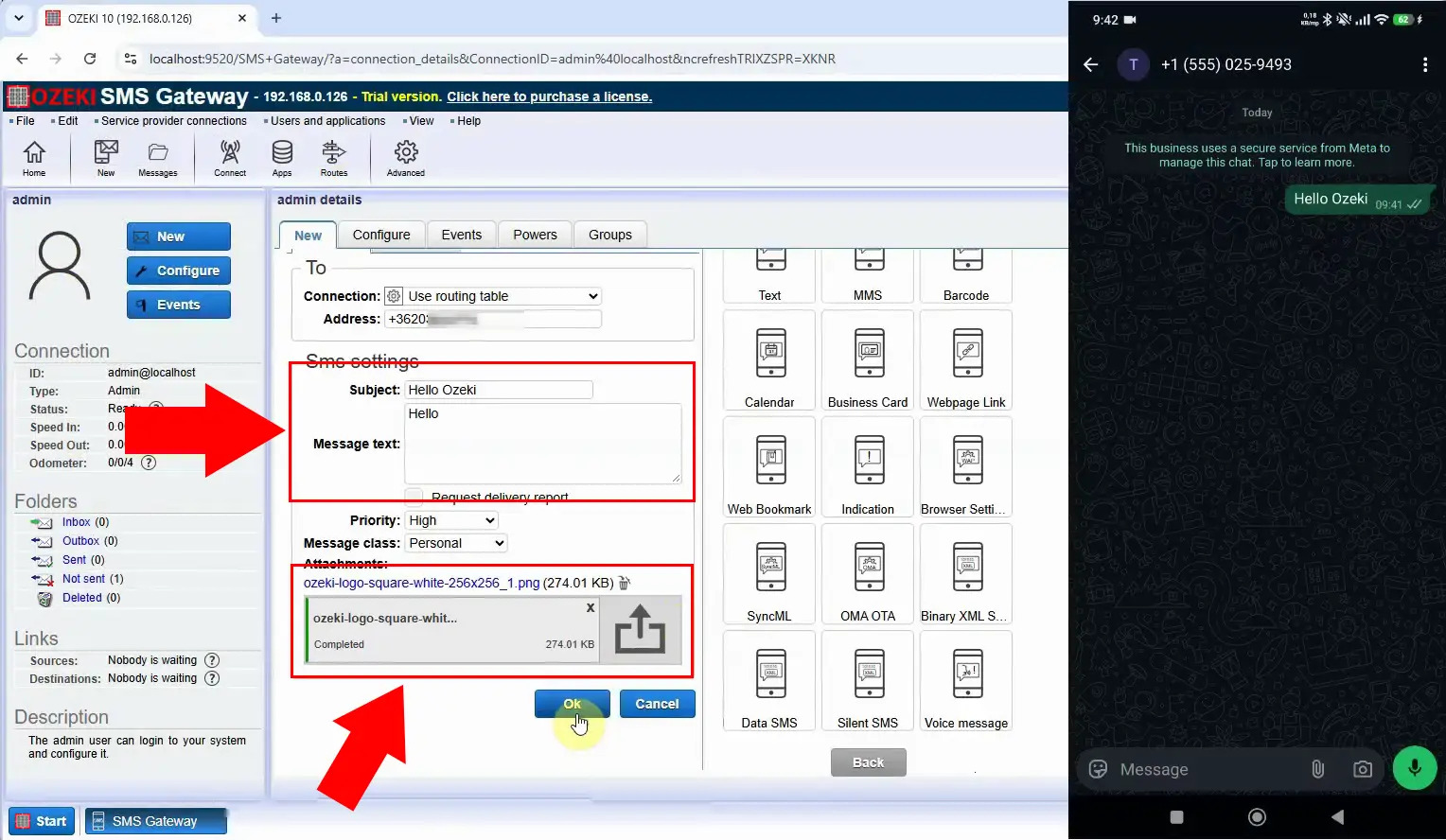
Open WhatsApp on the recipient’s phone. Find the conversation and check that the media appears. This confirms what the recipient received.
How to send media file from Postman
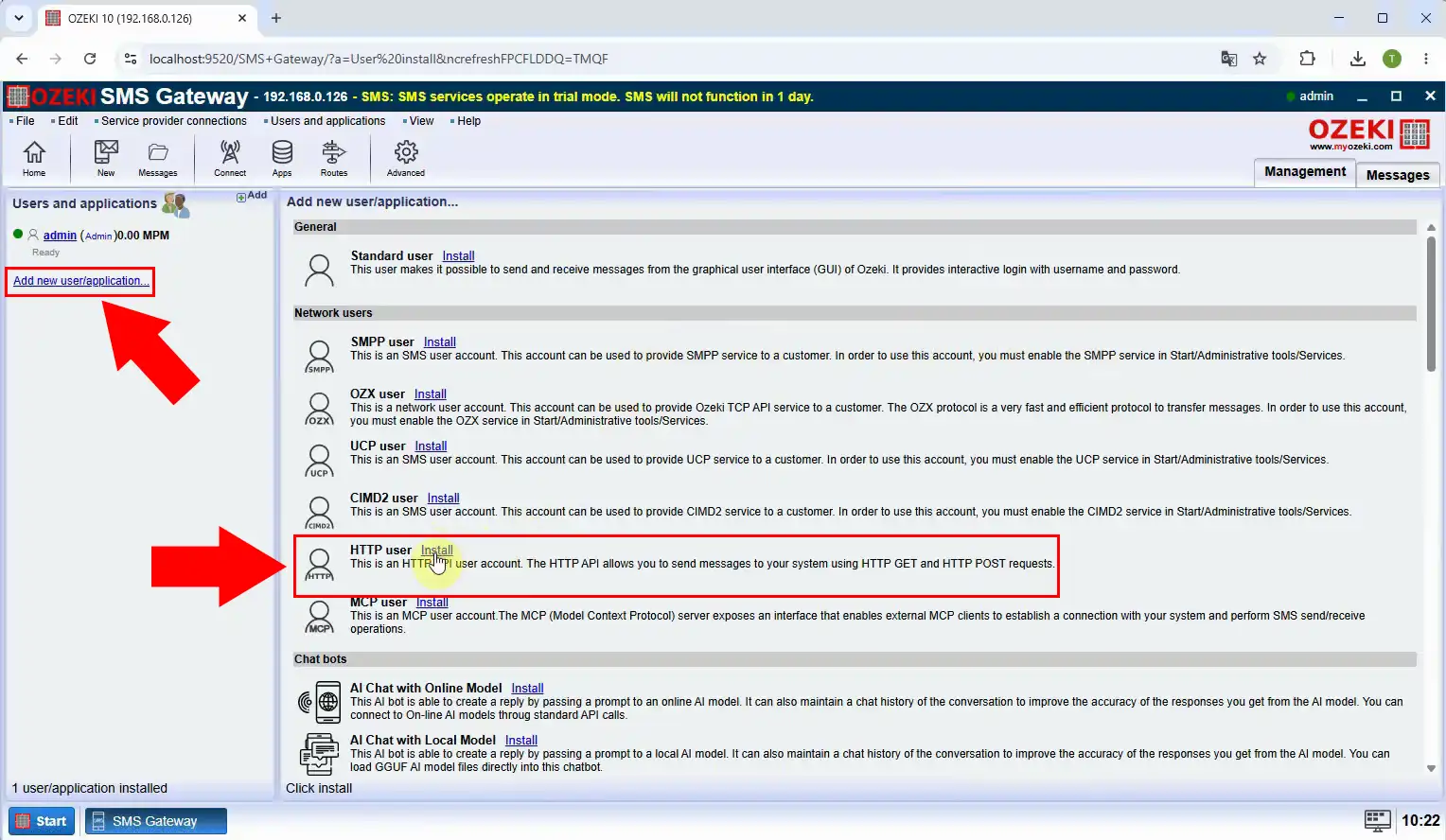
In Ozeki SMS Gateway, add an HTTP user for API access. Set a username and password for that user. Use those credentials in your Postman request.
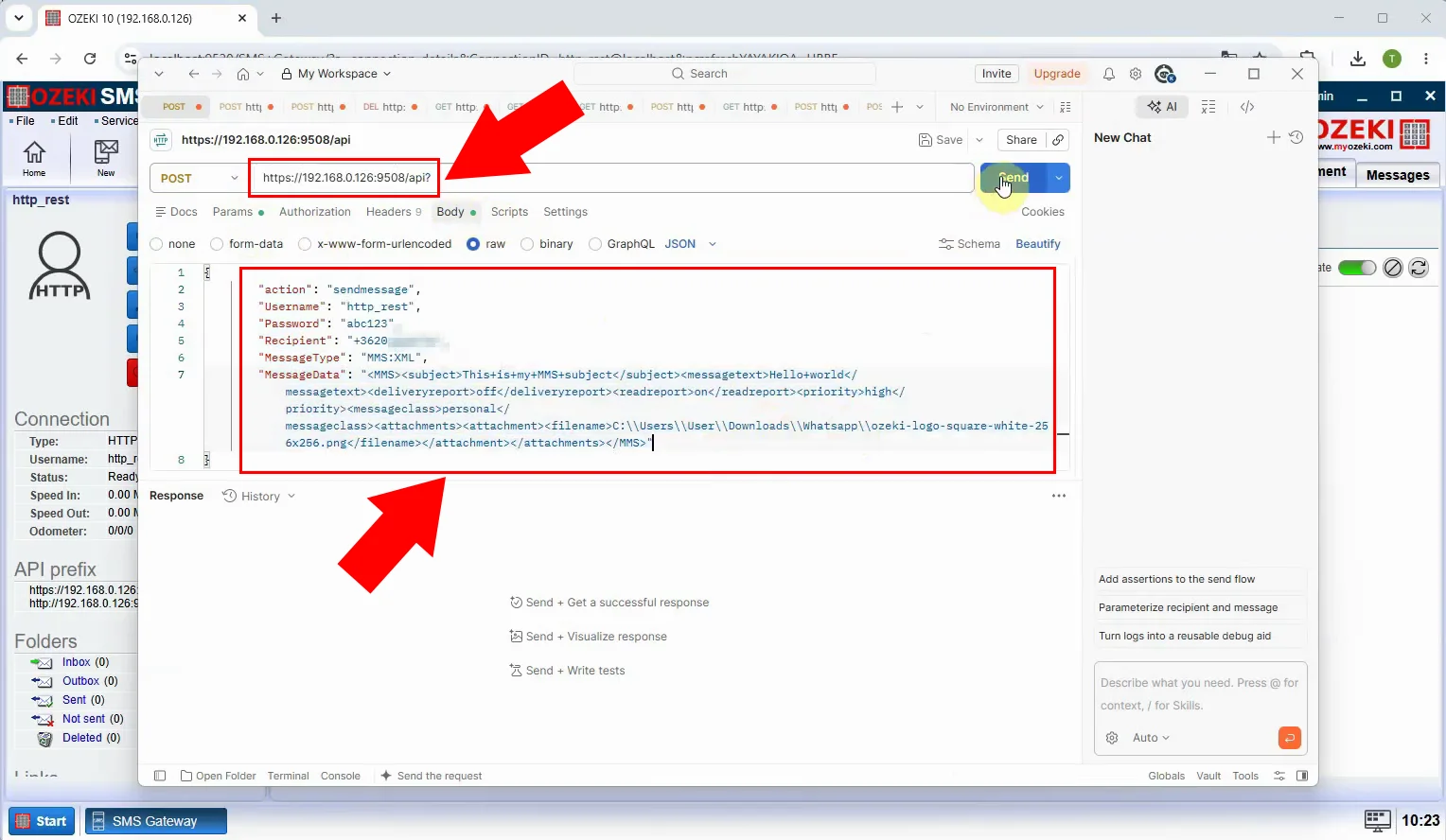
Create a POST request in Postman using the example body on the page. Set action to sendmessage, MessageType to MMS:XML, and supply the recipient, credentials, and MessageData. Send the request after checking the media path and message content.
Example POST body:
{
		"action": "sendmessage",
		"Username": "http_rest",
		"Password": "abc123",
		"Recipient": "+36201234567",
		"MessageType": "MMS:XML",
		"MessageData":
		"<MMS>
			<subject>This+is+my+MMS+subject</subject>
			<messagetext>Hello+world</messagetext>
			<deliveryreport>off</deliveryreport>
			<readreport>on</readreport>
			<priority>high</priority>
			<messageclass>personal</messageclass>
			<attachments>
				<attachment>
					<filename>C:\\Users\\User\\Downloads\\Whatsapp\\ozeki-logo-square-white-256x256.png</filename>
				</attachment>
			</attachments>
		</MMS>"
}
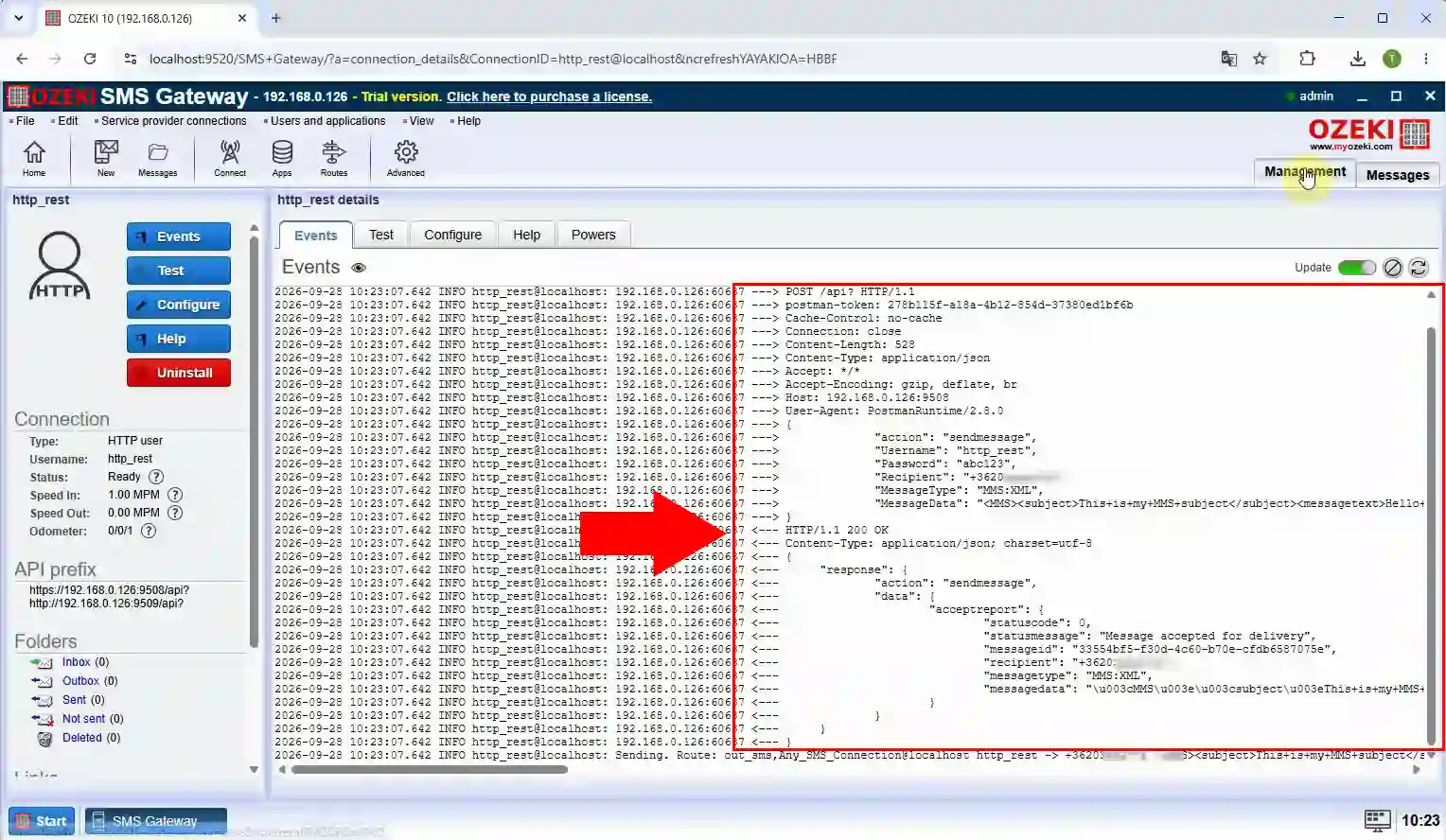
Open the HTTP user’s message history in Ozeki SMS Gateway. Find the message submitted from Postman. Check its status to confirm that the gateway accepted it.
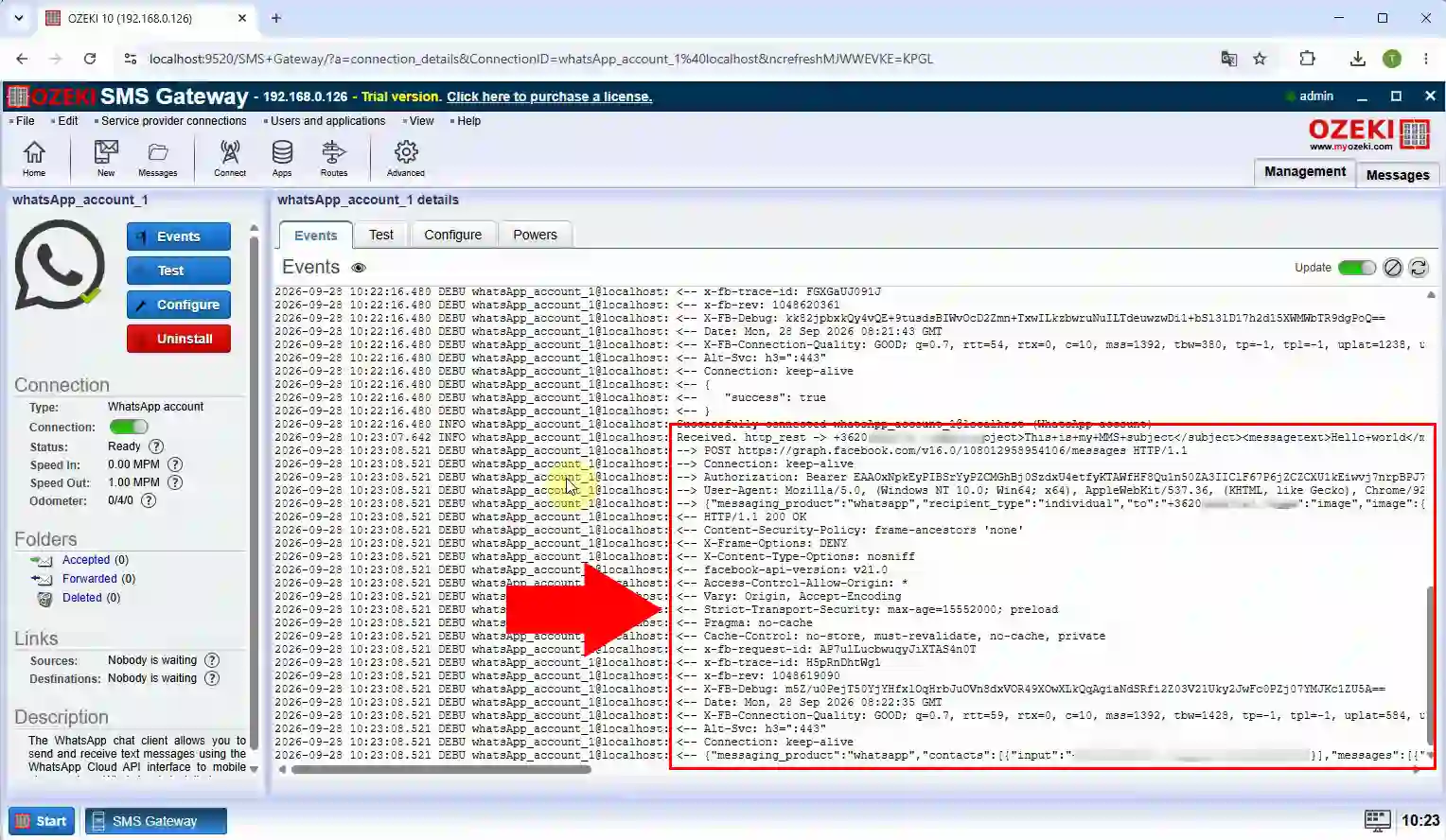
Open the WhatsApp client connection in Ozeki SMS Gateway. Locate the outgoing media message and check its delivery status. Then verify the attachment in the recipient’s WhatsApp chat.