
How to configure the Ozeki SMS MCP Server in Msty Claw
This guide walks you through adding the Ozeki SMS MCP Server to your Msty Claw application so that Msty Claw can send and receive SMS messages on your behalf. By following this tutorial, you will learn how to open the Msty Claw settings, add the Ozeki SMS Gateway as a tool server, and verify the available tools.
What is an MCP server?
An MCP (Model Context Protocol) server exposes tools that an AI model can call during a conversation. In this setup, the Ozeki SMS MCP Server provides SMS tools such as sending messages and listing incoming SMS. Msty Claw connects to the MCP server over HTTP and communicates with it directly using the configured URL and API key, making it straightforward to add mobile messaging capabilities to any Msty Claw workflow.

Steps to follow
We assume Ozeki SMS Gateway is already installed on your system and you have already created an MCP user account with an API key. You will also need Msty Claw installed on your system. If you have not set it up yet, visit the Msty website to download and install it.
- Open the Settings menu in Msty Claw
- Add the Ozeki SMS MCP Server as a tool server
- Verify the available tools
Video tutorial
The following video shows how to add the Ozeki SMS MCP Server to Msty Claw step-by-step. The video covers opening the settings menu, adding the tool server, configuring the connection details, and verifying the available tools.
Step 1 - Open the Settings menu in Msty Claw
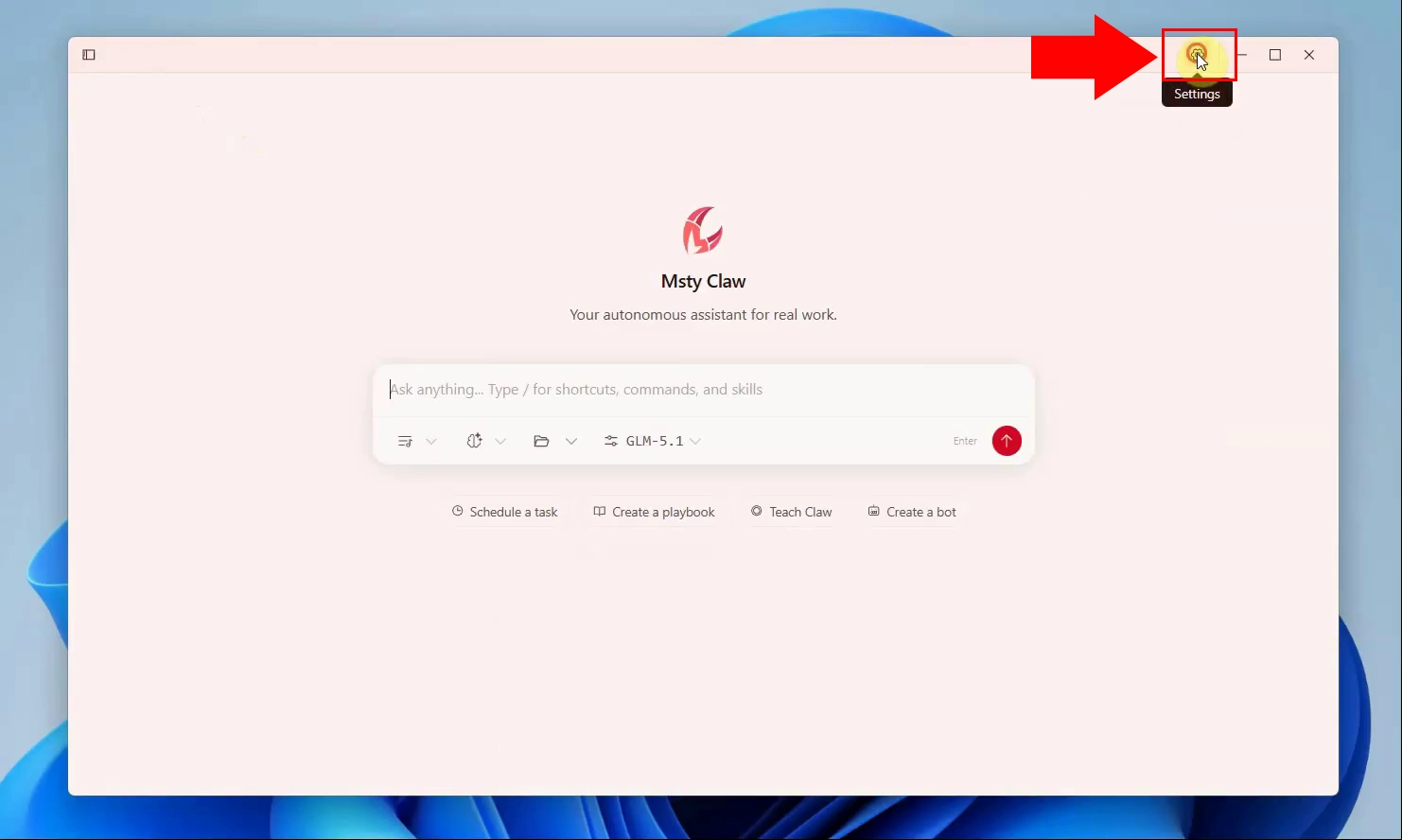
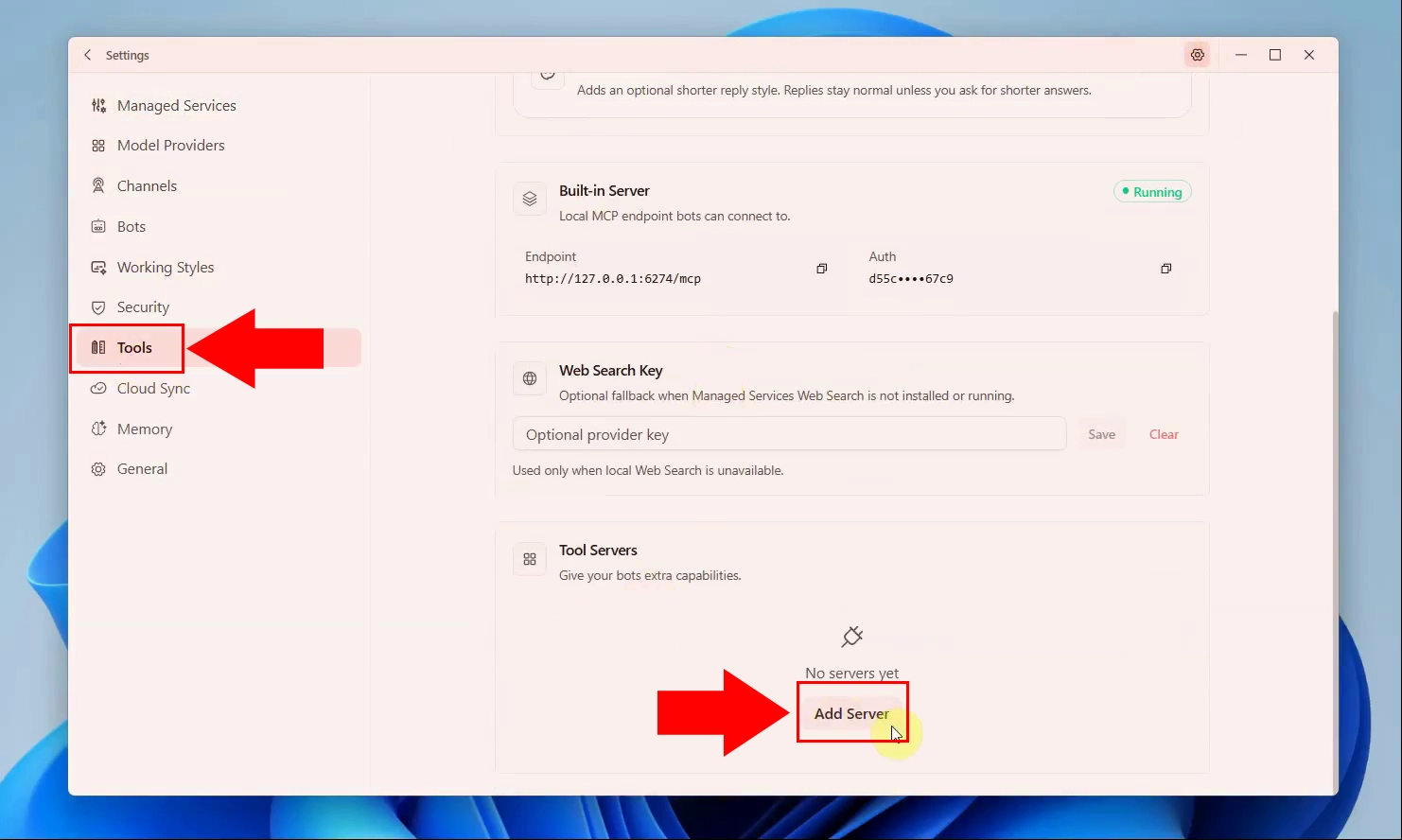
To begin the configuration, launch the Msty Claw application on your system and locate the Settings menu, which is accessible from the main interface. Navigate into the Settings to find the Tools section, where external tool server integrations can be managed. This is the entry point for adding the Ozeki SMS MCP Server as a new tool server that Msty Claw will use for SMS capabilities.
Step 2 - Add the Ozeki SMS MCP Server as a tool server
Inside the Tools section of the Settings, locate the Tool Servers area which initially shows "No servers yet" with an "Add Server" button highlighted by a red arrow. Click the "Add Server" button to open the dialog where you can register the Ozeki SMS Gateway as a new external tool server. This action prepares Msty Claw to accept the connection details for the MCP server you are about to configure.
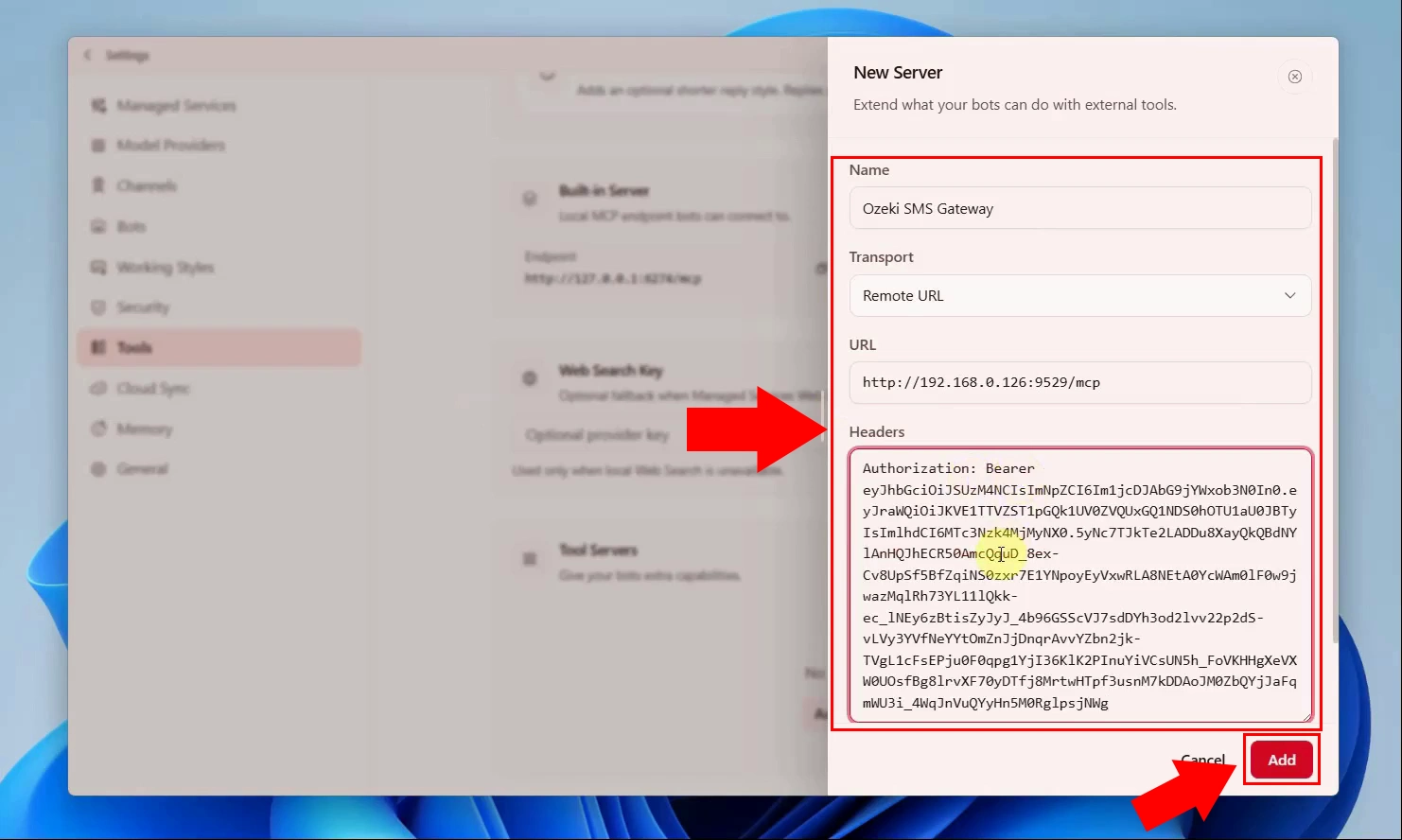
A "New Server" dialog appears, where you must fill in the Name field with "Ozeki SMS Gateway"
and set the Transport type to "Remote URL". Enter the MCP server URL (e.g., http://192.168.0.126:9529/mcp)
in the URL field, and provide the Bearer API key in the Headers field using the Authorization: Bearer
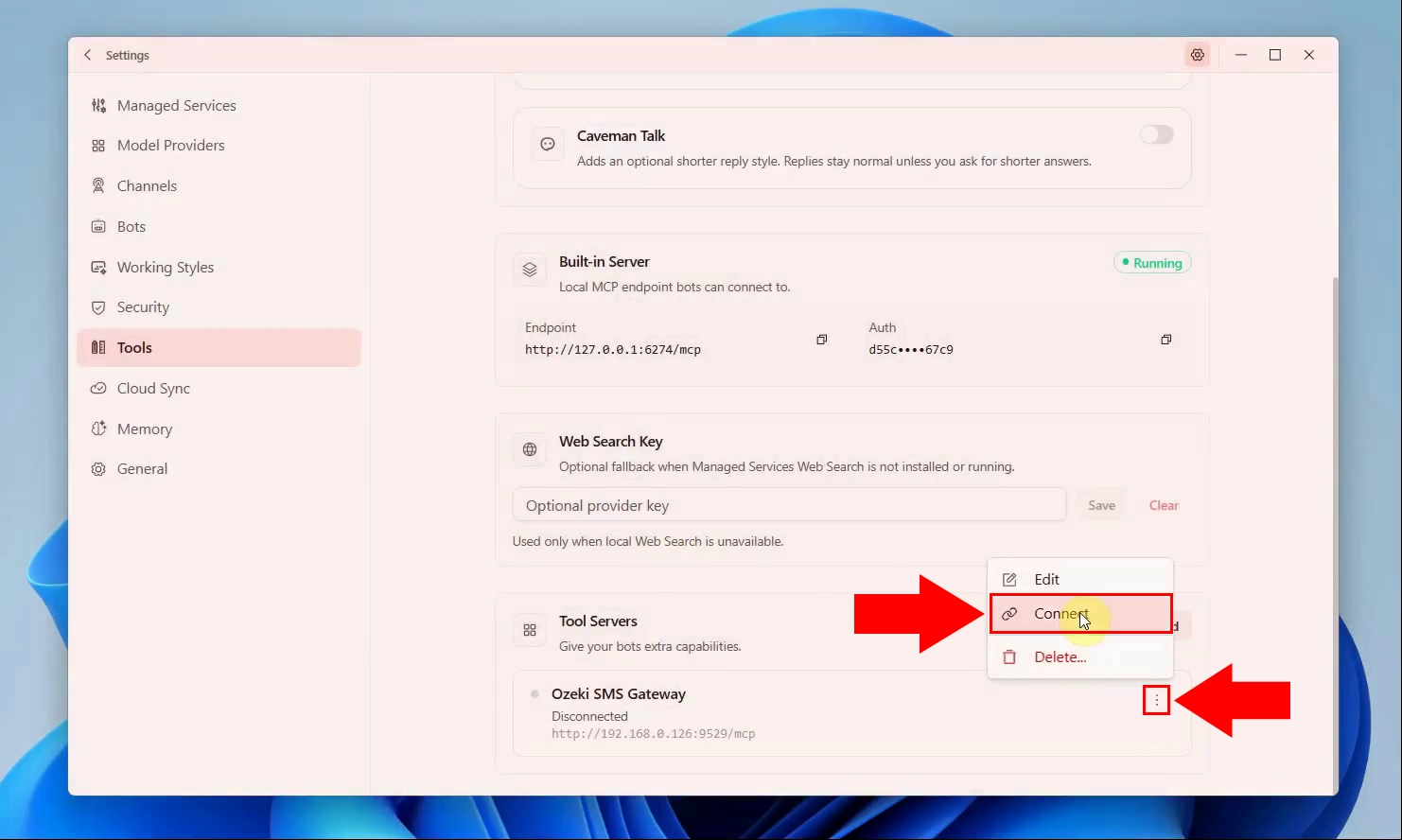
After saving the server details, Msty Claw initiates a connection to the configured Ozeki SMS MCP Server endpoint using the provided URL and API key. The application attempts to reach the MCP server over HTTP and authenticate using the Bearer token supplied in the headers. Once the connection is established successfully, the server becomes active and its tools become available for use within Msty Claw workflows.
Step 3 - Verify the available tools
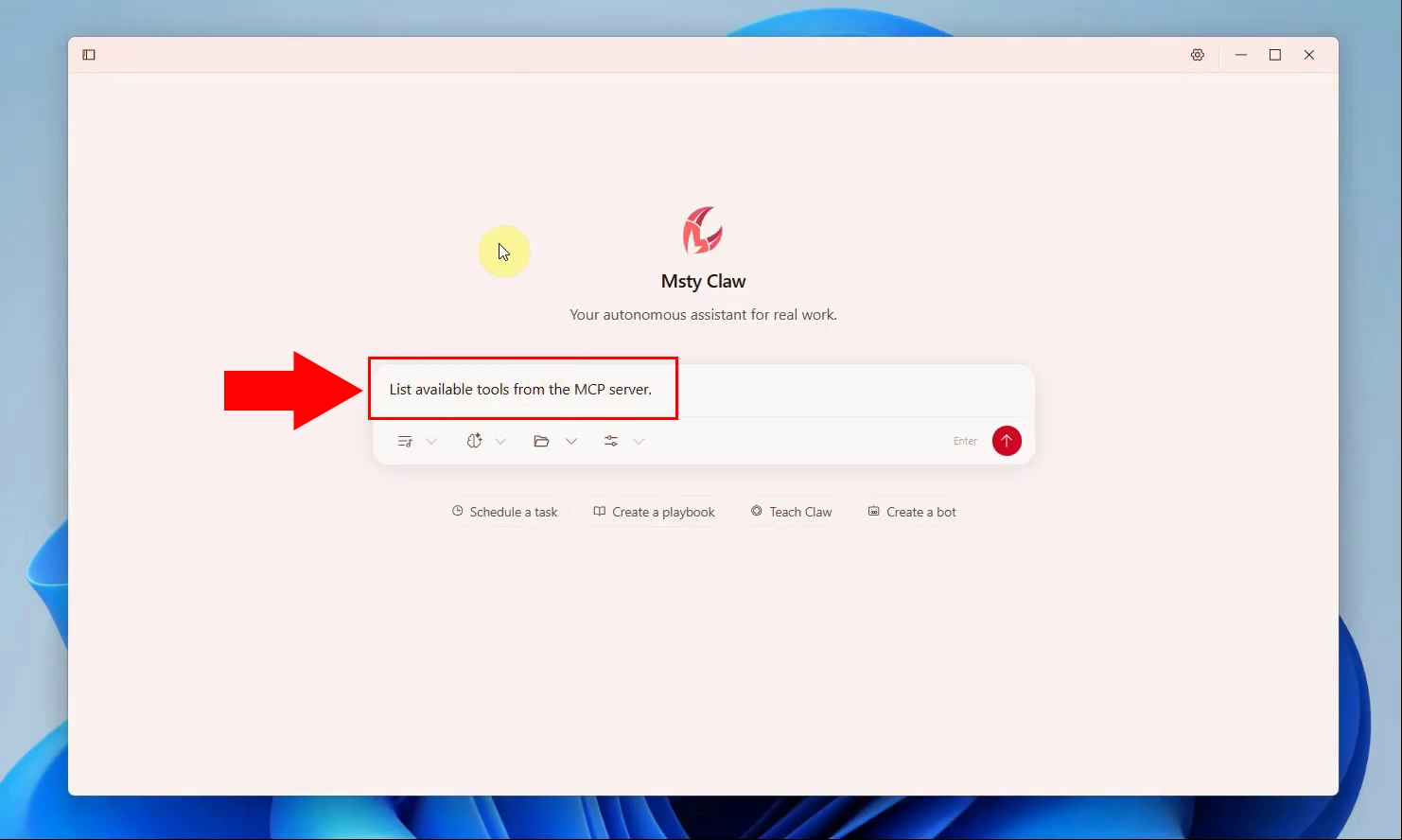
To verify the integration is working, type a prompt such as "List available tools from the MCP server" directly into the Msty Claw chat input field and submit it. Msty Claw will query the connected Ozeki SMS MCP Server and return a list of the tools it exposes, confirming the connection is live. This step ensures that the server is properly reachable and that its capabilities are recognized by the AI agent.
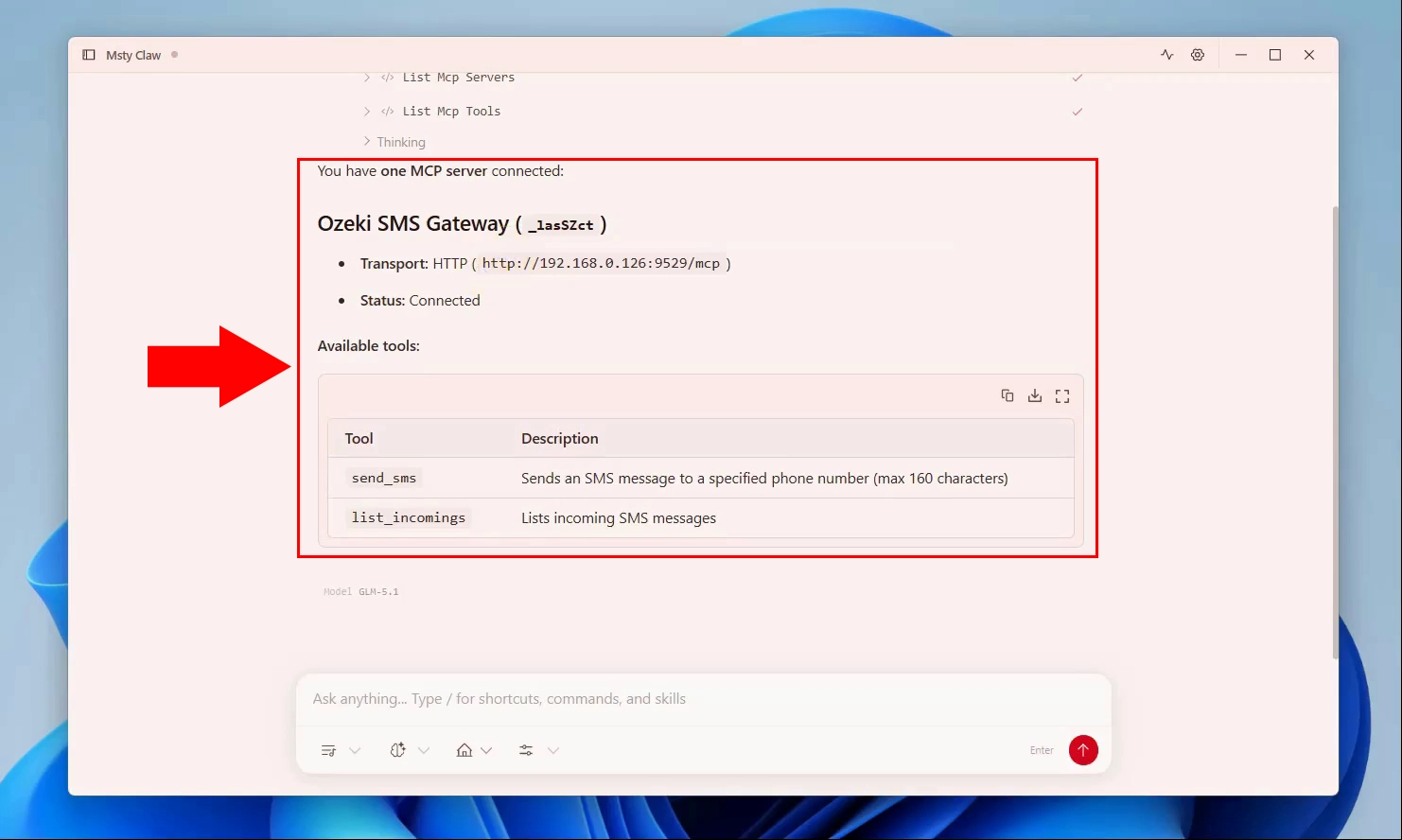
The response from Msty Claw displays the connected server named "Ozeki SMS Gateway" with its transport (HTTP) and status shown as "Connected". Two tools are listed under Available tools: send_sms, which sends an SMS message to a specified phone number (max 160 characters), and list_incomings, which lists incoming SMS messages. With these tools confirmed and available, Msty Claw is now fully configured to send and receive SMS messages through the Ozeki SMS Gateway using plain language prompts.
Summary
You have successfully configured the Ozeki SMS MCP Server in Msty Claw. Msty Claw can now send and receive SMS messages through your gateway using plain language prompts. This makes it straightforward to add mobile messaging capabilities to any Msty Claw workflow.