
How to send SMS from an FTP server
Ozeki SMS Gateway's FTP User can synchronize directories with SMS Gateway through standard FTP, FTPS (over SSL/TLS) or SFTP (SSH FTP) protocols. Incoming SMS messages will be uploaded, and outgoing SMS messages will be downloaded from the FTP server. You can also look at the accepted file formats.

What is the FTP User?
The FTP User is a connection type in Ozeki SMS Gateway that keeps a set of folders on your FTP server synchronized with the same folders on the Gateway's own machine, using standard FTP, FTPS, or SFTP. Messages placed in the Outbox on the FTP server get picked up and sent as SMS, and incoming SMS messages get written back to the Inbox on the FTP server, so both sides always see the same set of message files.

How does it work?
The FTP User connects to your FTP server and keeps the Inbox, Outbox, Sent, Failed, and Delivered folders in sync with matching folders on the Gateway's own machine. It checks the Outbox on a set interval, and when it finds a new message file there, Ozeki SMS Gateway sends it out through the mobile network and moves the file into Sent, Failed, or Delivered, depending on the outcome. An incoming SMS is written as a new file straight into the Inbox on both sides at once.

How to send SMS from an FTP server (video tutorial)
This video will show you how to send SMS messages from an FTP server. This video will begin with adding a new FTP user, and it will take you all the way to sending your first SMS. The video is only about 4 minutes long and very detailed. You will have no problem following the steps. We are using the Ozeki SMS Gateway in this video, which is a powerful but easy-to-use gateway solution. You will learn how to add a new FTP user and configure it, how to set the FTP server settings, and how to send a test SMS from the FTP server. Don’t waste time; start sending SMS now!
How to send SMS from an FTP server
To send SMS from an FTP server:
- Launch Ozeki SMS Gateway
- Add a new FTP user
- Configure the FTP connection
- Select the file paths for the SMS message folders
- Specify the FTP server details
- Set the file format
- Send a test SMS from the FTP server
- Check the logs
The FTP User can synchronize directories. Synchronization is made between Ozeki SMS Gateway's machine and your FTP server for the following folder types: 'Inbox', 'Outbox', 'Sent', 'Failed', 'Delivered'. Please create these folders before providing the paths to the FTP User. This user is basically used for sending or receiving text message files.
It works in both directions:
- If the user receives an incoming message, it creates a text file in the 'Inbox' folder of your FTP server and also a file in the 'Inbox' folder of your SMS Gateway's machine, since the folders are synchronized.
- The user will send the messages from the FTP server's 'Outbox' folder. The message text file will be placed accordingly into the 'Sent', 'Failed' or 'Delivered' folder. The 'Outbox' folder will be checked periodically.
You can quickly install an FTP User through the browser GUI of Ozeki SMS Gateway.
Step 1 - Install the FTP user
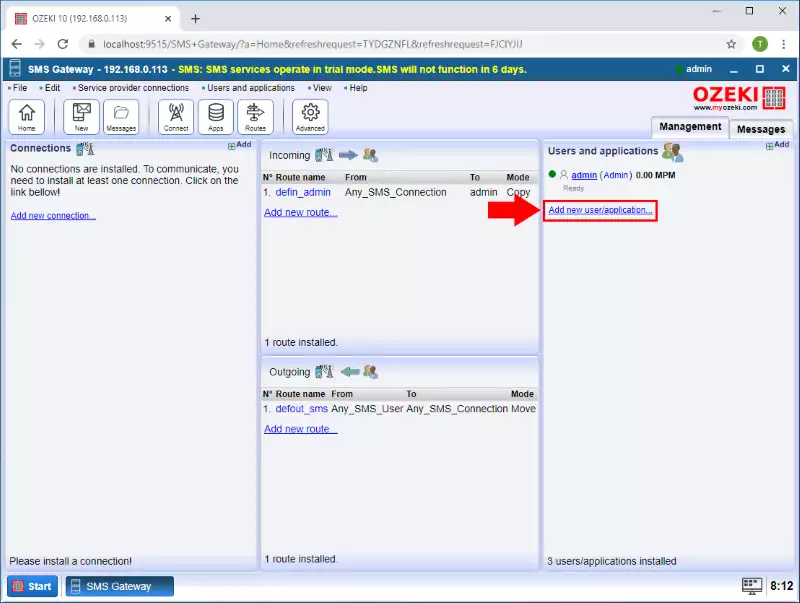
You can simply install the FTP User on the 'Management' console by clicking 'Add new user/application...' in the 'Users/Applications' panel (Figure 1).
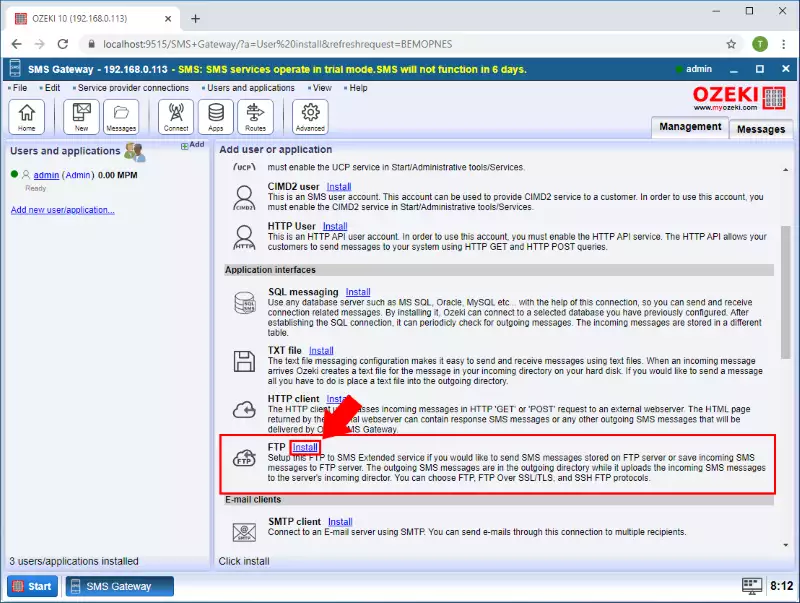
An interface consisting of two panels will open. The left-side panel contains the already installed users and applications. The right-side panel contains the users and applications you can install with a brief description next to them. Search the FTP User and click the blue 'Install' button next to it (Figure 2).
Step 2 - Configure the FTP connection
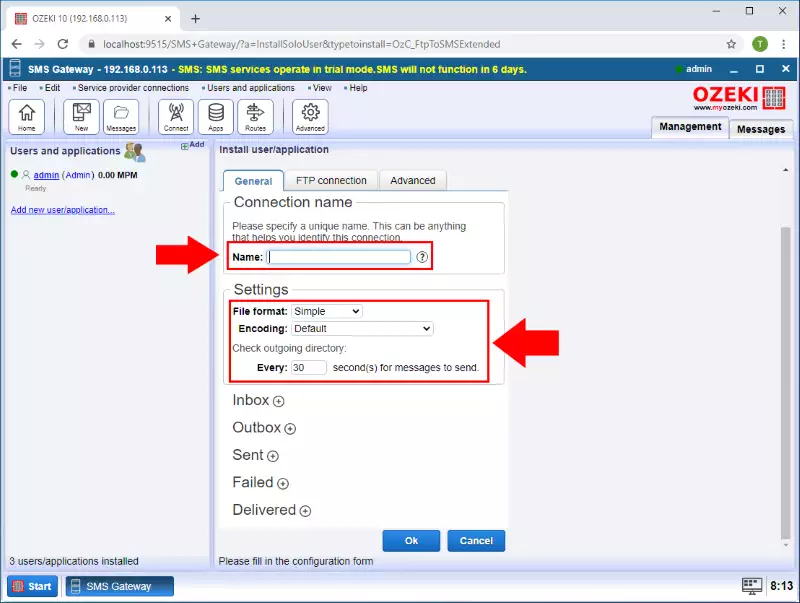
The 'Configuration' panel has a 'General' tab, which contains the basic file settings. First, please provide a unique username. The Settings section of the tab page contains a combo box where you can select the file format: 'Simple', 'Verbose', 'List', 'CSV', or 'XML'. Please check the File format section below for more information. There is another combo box where you can select the character encoding. You can also set how much time to wait before rechecking the 'Outbox'. The default value is 30, but you can change it to any positive whole number (Figure 3).
Step 3 - Configure the folders for messages
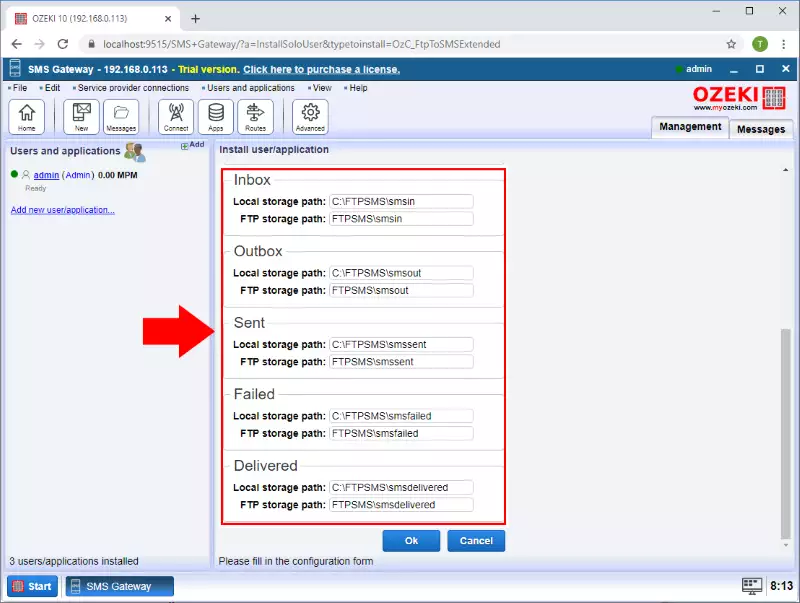
The lower section of the tab pages contains five sub-sections referring to the five message folder types: 'Inbox', 'Outbox', 'Sent', 'Failed', or 'Delivered' (Figure 4). You can select each message folder's directory path on Ozeki SMS Gateway's machine and your FTP server. The FTP User will keep the directory pairs synchronized.
What kind of messages are contained in each folder
- Inbox: Messages already delivered to the user. Configure this using Ozeki SMS Gateway's inbound routing.
- Outbox: Messages to be sent by the user. Configure this using Ozeki SMS Gateway's outbound routing.
- Sent: Messages accepted for delivery by Ozeki SMS Gateway and the SMS service provider.
- Failed: Messages refused by Ozeki SMS Gateway or the SMS service provider.
- Delivered: Messages that received a delivery success report from the SMS service provider.
Step 4 - Configure FTP server details
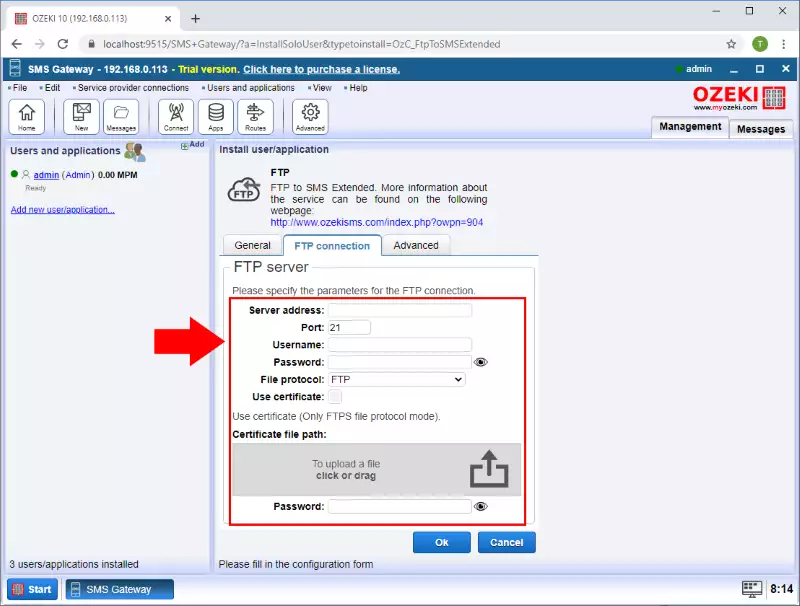
If you have set the folders, you should switch to the FTP Connection tab to configure the FTP server connections. First, provide the server's IP address, port number, and the required username and password. Then select the protocol mode you prefer (FTP, FTPS, SFTP) (Figure 5). In the lower section, you can provide a certificate if you are using the FTPS file protocol mode. Please provide the certificate path and certificate password to add the certificate.
Step 5 - Learn about file formats
File formats are used to define how to store messages in text files. Various file formats are supported by Ozeki SMS Gateway's FTP to SMS Extended User: 'Simple', 'Verbose', 'List', 'XML', 'CSV'. These formats can be used for sending or receiving SMS messages through a GSM network.
'Simple' is set as the default for all FTP to SMS Extended User connections. The filename itself stores the sender or recipient, depending on whether it is an incoming or outgoing message. The file contains the message content. 'Simple' is the default format. To change it, please click on the 'General' tab. For example:
c:\SMS\outbox\+3620310366
c:\SMS\inbox\+3630310300
It has a side effect hidden in the naming convention. Multiple files cannot have the same name within a single directory. This means only one message can be sent at a time to the same recipient. If you are sending a new message to the same recipient, please wait until the old message has been deleted by Ozeki SMS Gateway. This works vice versa. As an example, only one message at a time can be received from the sender, since the older received message will be deleted. Please consider these facts before keeping this default file format or choosing another format from the dropdown menu. It is a very useful tool for position tracking, since every new coordinate overwrites the old one. This helps you easily track vehicles that send coordinates in SMS messages.
The Verbose format stores every SMS message in a separate file, since each file can have a unique filename. Since unique filenames are supported, it can store multiple message files from the same sender and multiple message files from the same recipient as well. This means it can contain more information than a 'Simple' format file. Each file has an extension. A 'Verbose' file's extension is '.sms'. Do not forget that each message file contains a single message. Now let's check the structure. The first line contains the sender's phone number, while the second line contains the recipient's phone number. The message text is contained in the third line.
Verbose example:
c:\SMS\outbox\anyname.sms+36209937723 The message text
The List format is capable of storing multiple SMS messages in a single file. A single '.sml' file can store multiple SMS messages in a simple list. This is the most convenient way to send and receive a massive number of text messages. Please look at the following file example:
c:\SMS\outbox\list.sml+3620993723 This is the second message +3630778972 Use Ozeki SMS Gateway!
Each line represents an SMS message. A single line consists of two important pieces of information separated by a space. The first is the phone number of the recipient, while the second is the message content. To send an SMS message, please place your '.sml' file into the Outbox folder.
You can send and receive SMS messages using the 'XML' file format as you can see in the XML message below. Do not forget to use the '.xml' file extension.
<originator>: The sender's phone number is between these tags.
<recipient>: The recipient's phone number is between these tags.
<text>: Type the text message between these tags.
<time>: Set when the message should be sent.
<messagetype>: Declare the message type between these tags.
<messages>
  <message>
      <originator>ORIGINATOR_NUMBER</originator>
      <recipient>RECIPIENT_NUMBER</recipient>
      <text>Message text</text>
      <time>2011.08.25. 7:56:31</time>
      <messagetype>SMS:TEXT:FORMATTED</messagetype>
  </message>
</messages>
You can export any Excel file in CSV file format. This CSV structure is a text file format where the original columns are separated by commas. Each line corresponds to a row in the original Excel spreadsheet. Finally, the FTP to SMS Extended User is capable of reading each row, as you can see in the following example.
c:\SMS\outbox\mysms_messages.CSV
The first parameter is the recipient's or sender's address, the second parameter is the message text, while the third parameter is when to send the message or when the message has arrived.