
How to configure the Ozeki SMS MCP Server in Cline
This guide walks you through integrating the Ozeki SMS MCP Server with Cline, a powerful AI coding assistant extension for Visual Studio Code. By following this tutorial, you will learn how to navigate to the Cline MCP Servers panel, register the Ozeki SMS Gateway as an MCP server, and confirm that the SMS tools are connected and available for use in your conversations.
What is an MCP server?
An MCP (Model Context Protocol) server exposes tools that an AI model can call during a conversation. In this setup, the Ozeki SMS MCP Server provides SMS tools such as sending messages and listing incoming SMS. Cline connects to the MCP server over HTTP using the Streamable HTTP transport and communicates with it directly using the configured URL and API key, making it straightforward to add mobile messaging capabilities to any Cline workflow.
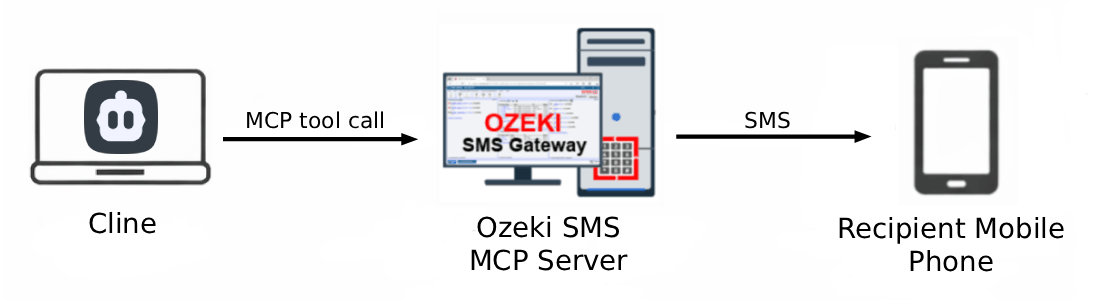
Cline MCP server configuration
# Navigate to the following location in Cline to open the config file:
# Cline -> MCP Servers -> Configure

# Add the following block to the configuration file
# Replace {address} with your Ozeki SMS Gateway host IP or hostname
# Replace the Bearer token with the API key generated for your MCP user account
{
  "mcpServers": {
    "Ozeki": {
      "url": "http://{address}:9529/mcp",
      "type": "streamableHttp",
      "timeout": 600,
      "headers": {
        "Authorization": "Bearer your-bearer-token"
      }
    }
  }
}
Steps to follow
We assume Ozeki SMS Gateway is already installed on your system and you have already created an MCP user account with an API key. You will also need Cline installed in VS Code on your system. If you have not set it up yet, follow our Cline installation guide.
- Open Cline and navigate to MCP Servers
- Add Ozeki SMS MCP Server to config
- Save config and verify connection
Video tutorial
The following video shows how to add the Ozeki SMS MCP Server to Cline step-by-step. The video covers navigating to the MCP Servers panel, editing the configuration file, and verifying that the Ozeki tools are listed as connected.
Step 1 - Open Cline and navigate to MCP Servers
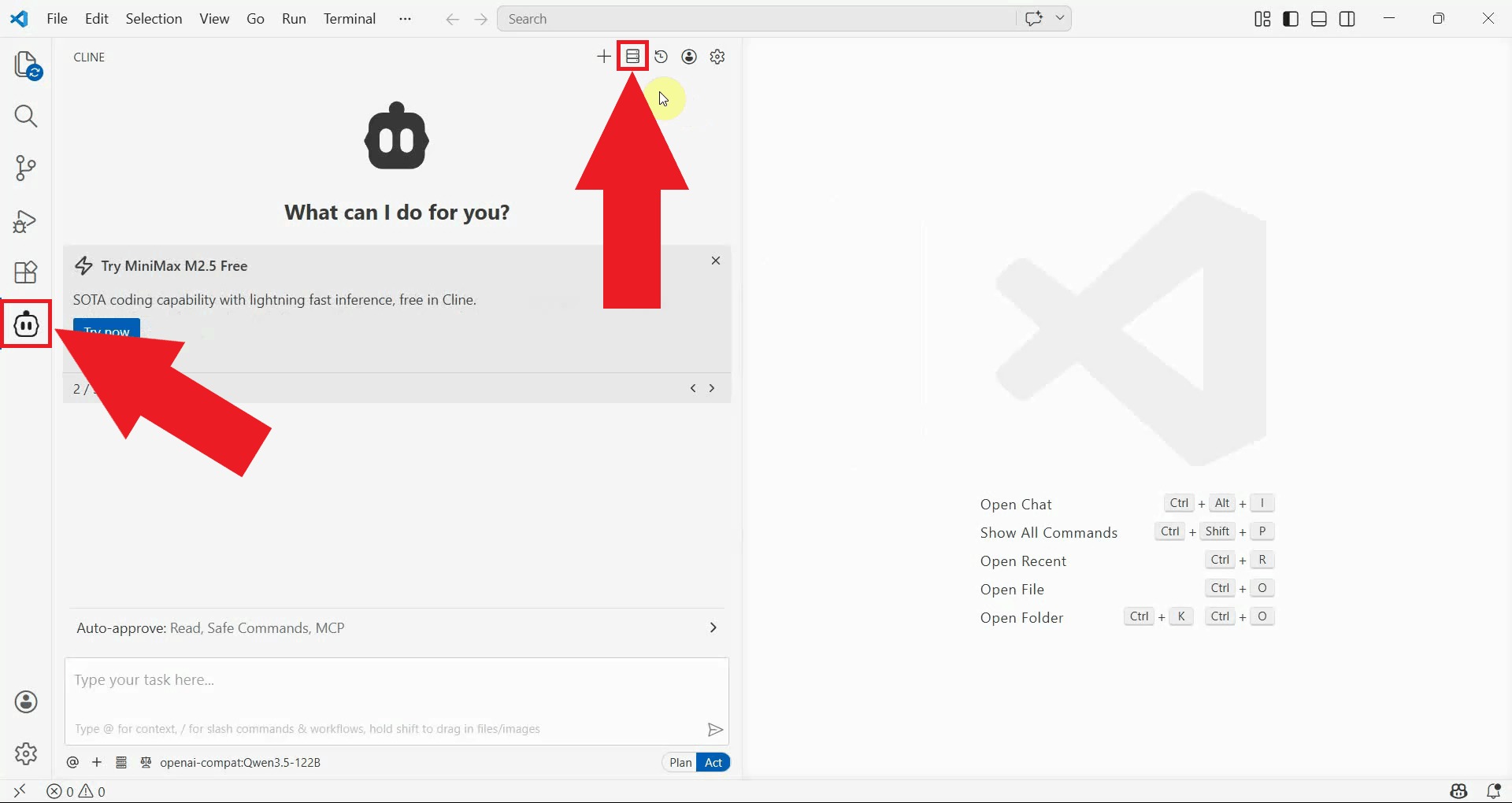
Open Visual Studio Code and click the Cline icon in the left sidebar to open the extension panel. Once the panel is open, locate and click the MCP Servers button at the top of the Cline interface to open the MCP server management view (Figure 1).
Step 2 - Add Ozeki SMS MCP Server to config
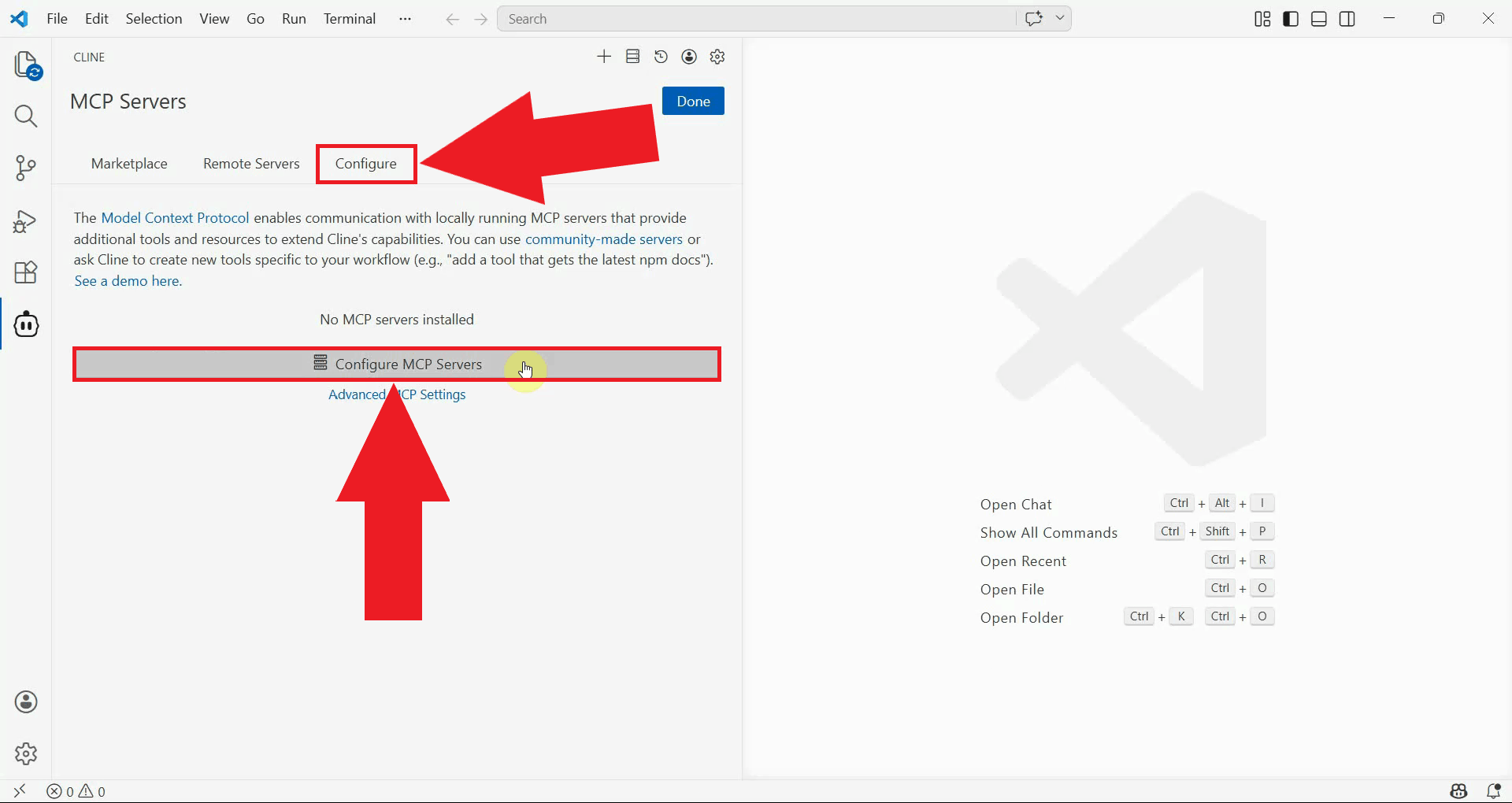
Open the Configure tab and click the Configure MCP Servers button. This will open the underlying JSON configuration file where all MCP server entries are stored (Figure 2).
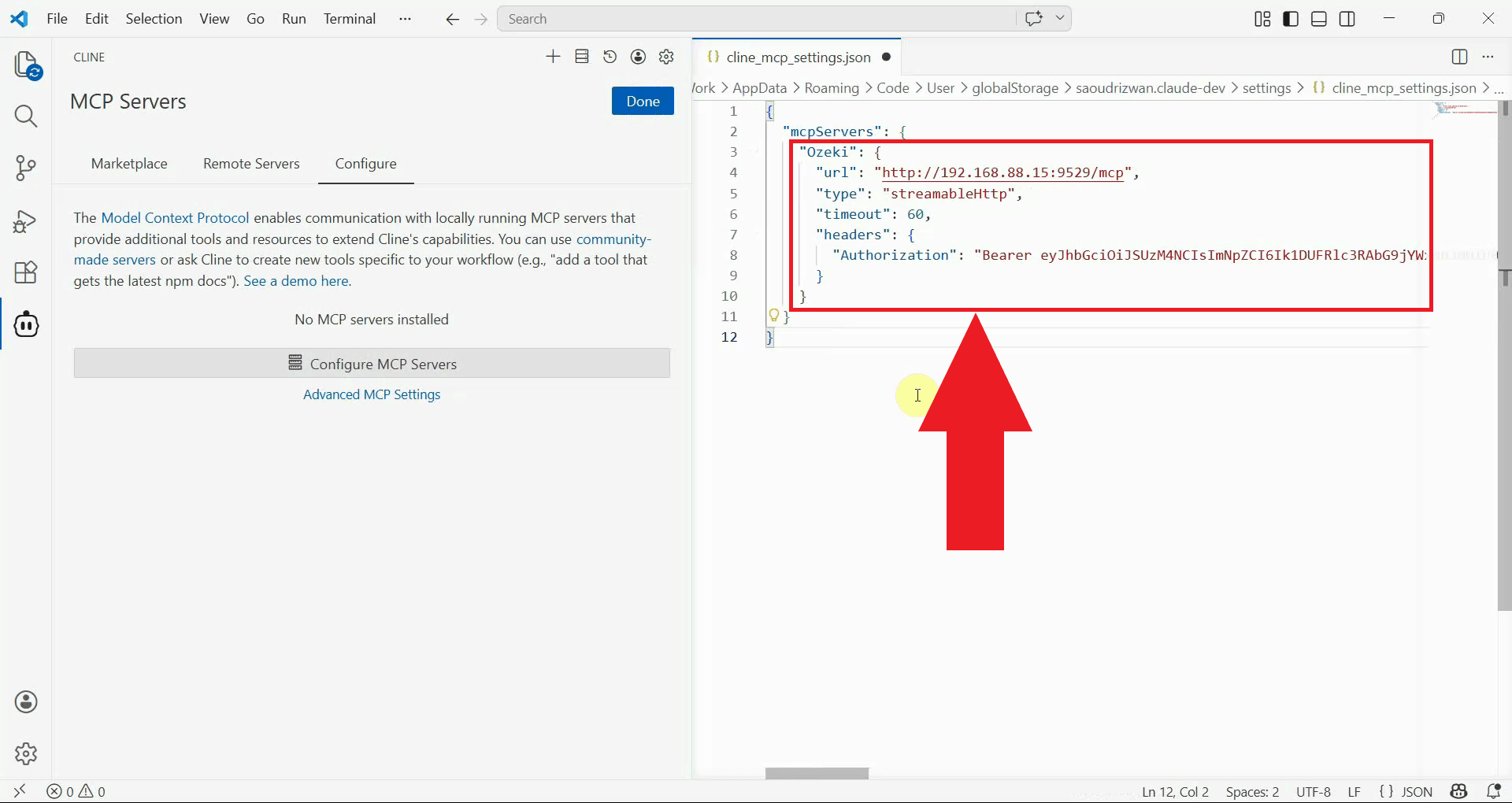
Add the Ozeki SMS MCP Server entry inside the
mcpServers object as shown below. Replace {address}
with the IP address or hostname of your Ozeki SMS Gateway installation, and
replace the Bearer token with the API key you generated for your MCP user account (Figure 3).
{
  "mcpServers": {
    "Ozeki": {
      "url": "http://{address}:9529/mcp",
      "type": "streamableHttp",
      "timeout": 600,
      "headers": {
        "Authorization": "Bearer your-bearer-token"
      }
    }
  }
}
Step 3 - Save config and verify connection
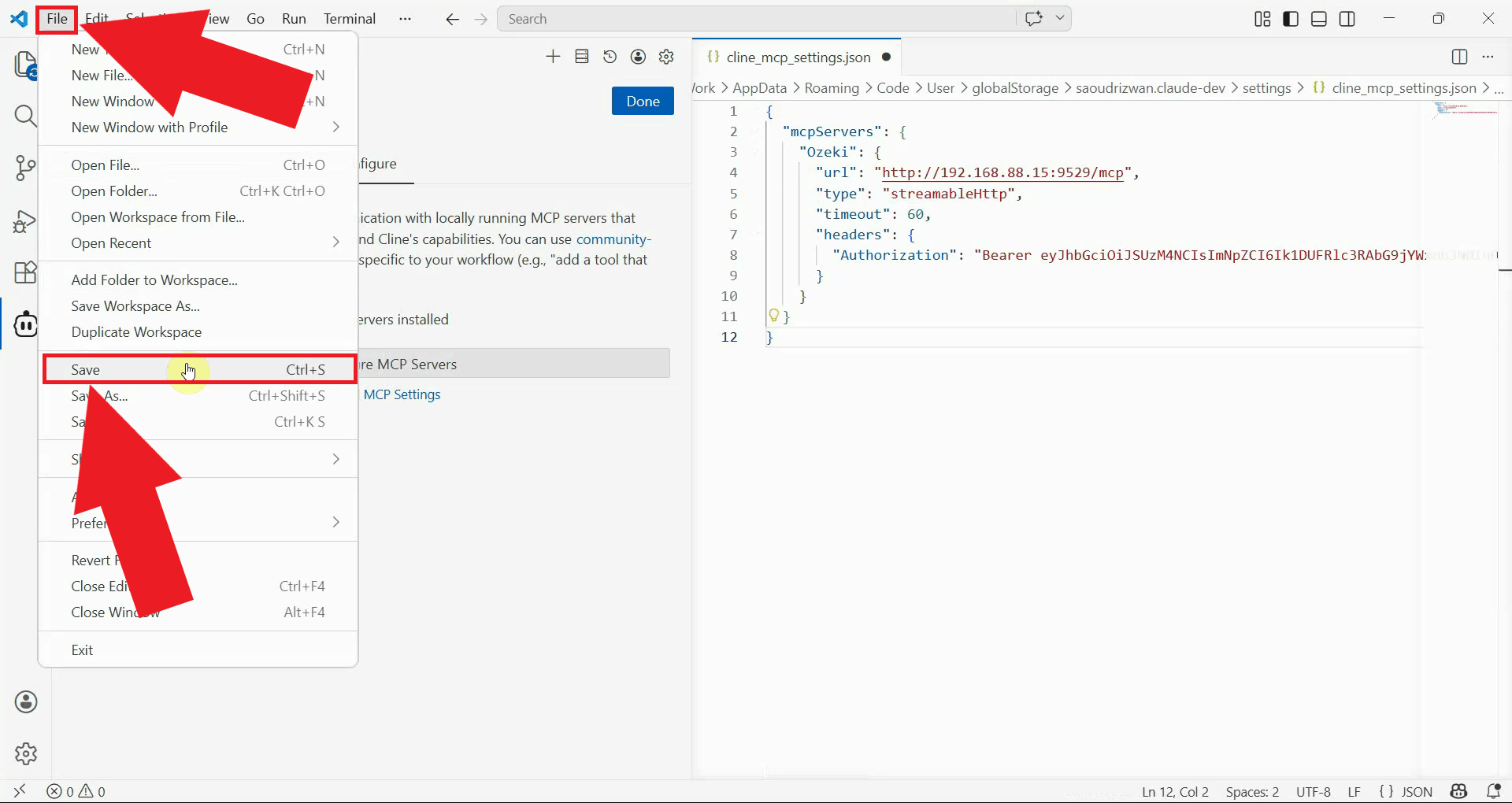
Save the configuration file. Cline will automatically detect the changes and attempt to connect to the newly added MCP server (Figure 4).
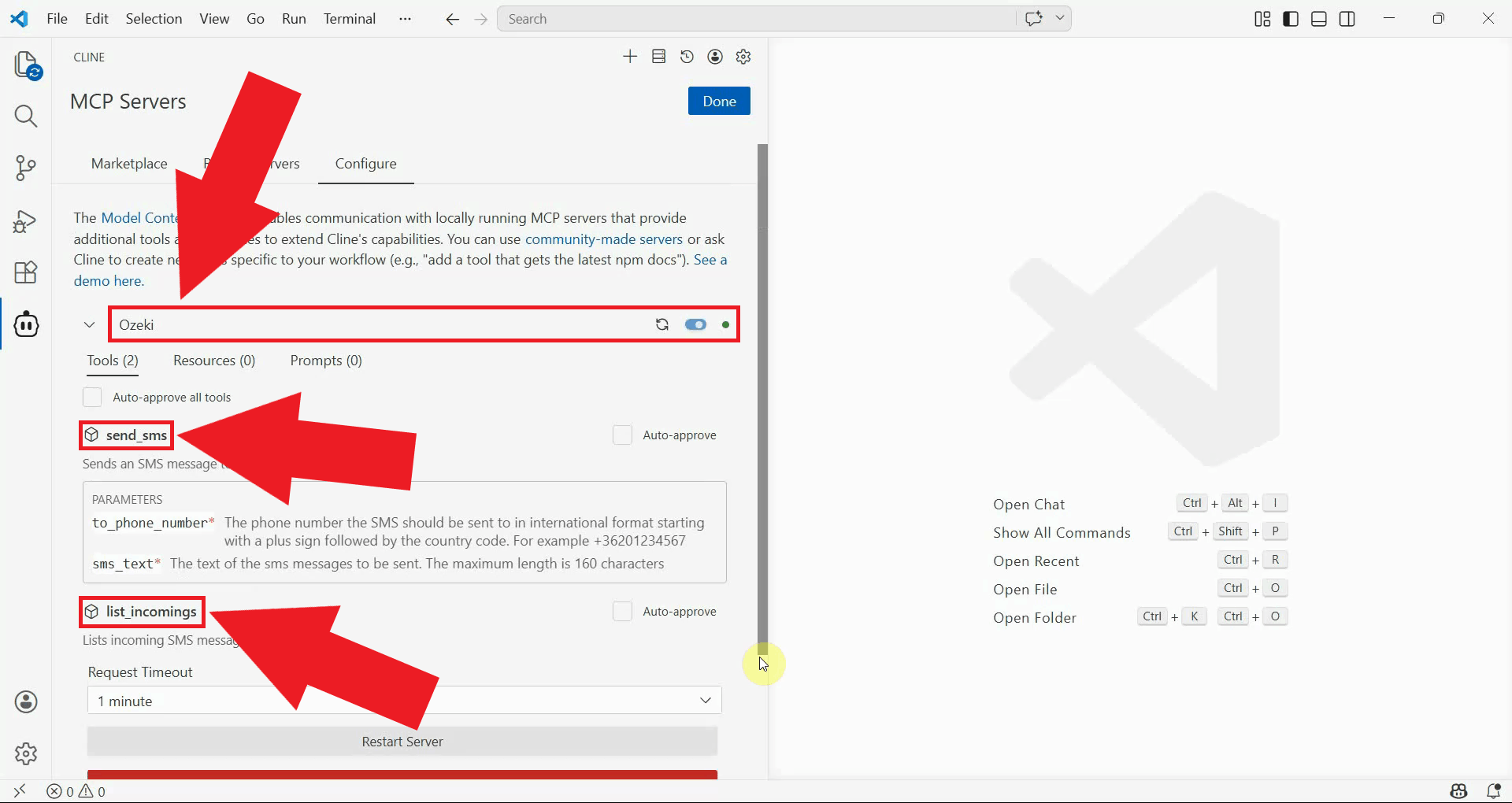
Return to the MCP Servers panel in Cline. You should see the Ozeki server listed with a connected status, and the SMS tools it exposes should be visible beneath it (Figure 5).
Summary
You have successfully configured the Ozeki SMS MCP Server in Cline. The AI model running in Cline can now send and receive SMS messages through your gateway using plain language prompts, making it straightforward to add mobile messaging capabilities to any Cline workflow.