
How to send SMS from Oobabooga TextGen
This guide walks you through sending an SMS message from Oobabooga Text Generation WebUI using the Ozeki SMS MCP server. By following this tutorial, you will learn how to verify the MCP server connection, ask the AI model to send an SMS in plain language, and confirm that the message was delivered through the gateway logs.
What is an MCP tool call?
An MCP (Model Context Protocol) tool call is how an AI model communicates with external systems. When the AI needs to perform an action or retrieve data, such as querying a database, calling an API, or reading a file, it sends a structured request to the appropriate MCP server, which processes it and returns the result.
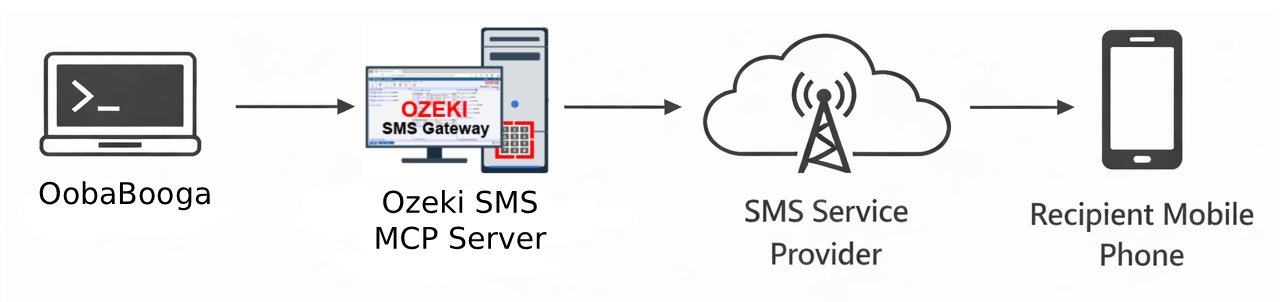
Example prompt
Send an SMS to +36301111111, the message should be "Hello from Oobabooga TextGen".
Steps to follow
We assume Ozeki SMS Gateway is already installed on your system, you have created an MCP user account with an API key, and you have already configured the Ozeki SMS MCP server in Oobabooga TextGen.
How to send SMS from Oobabooga TextGen video
The following video shows how to send an SMS message from Oobabooga Text Generation WebUI using the Ozeki SMS MCP server step-by-step.
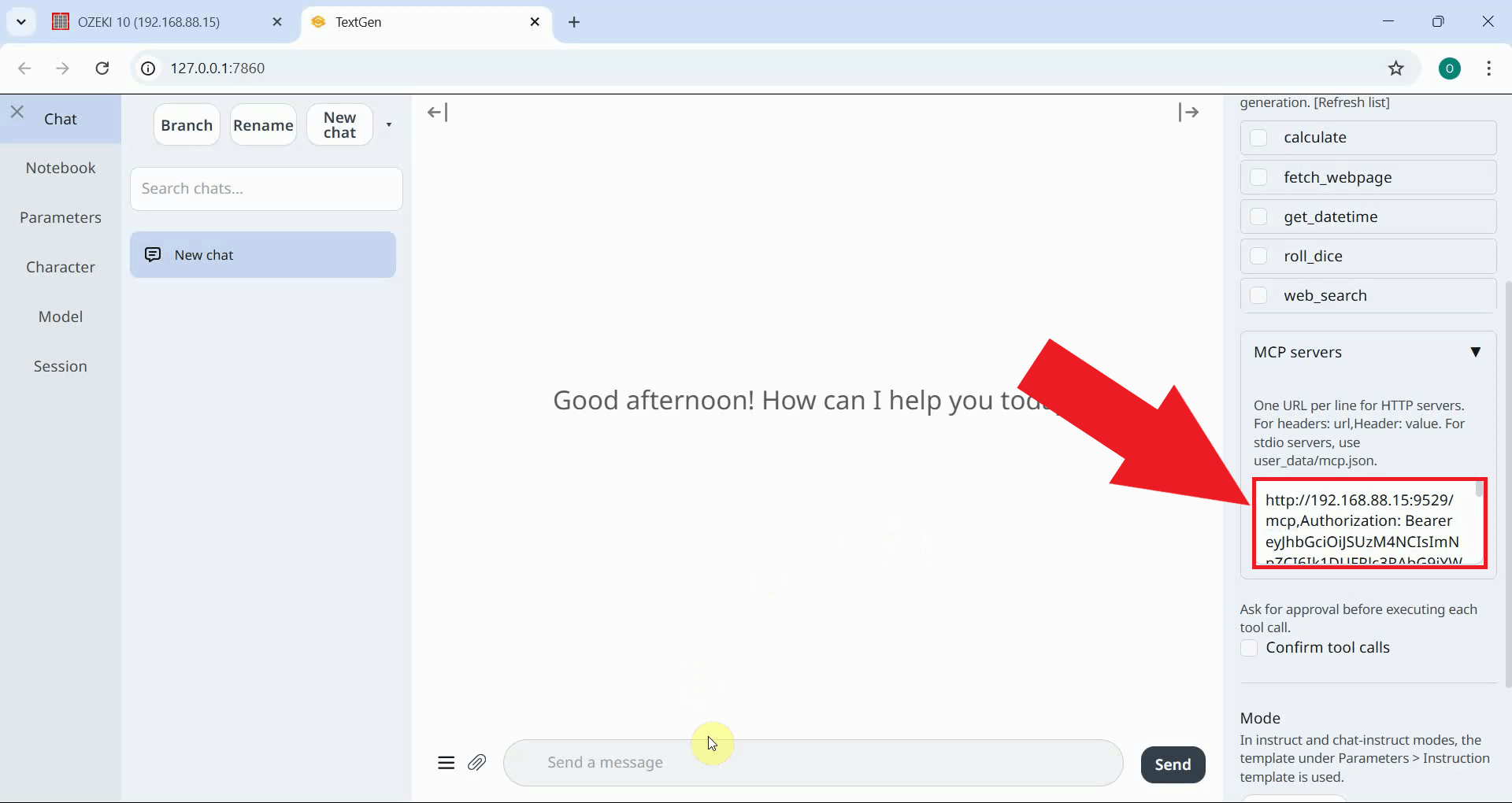
Step 1 - Verify the MCP server connection
Before sending a message, open Oobabooga Text Generation WebUI in your browser and check the sidebar to confirm that the Ozeki SMS MCP Server entry is present. This ensures that the AI model has access to the SMS tools (Figure 1).
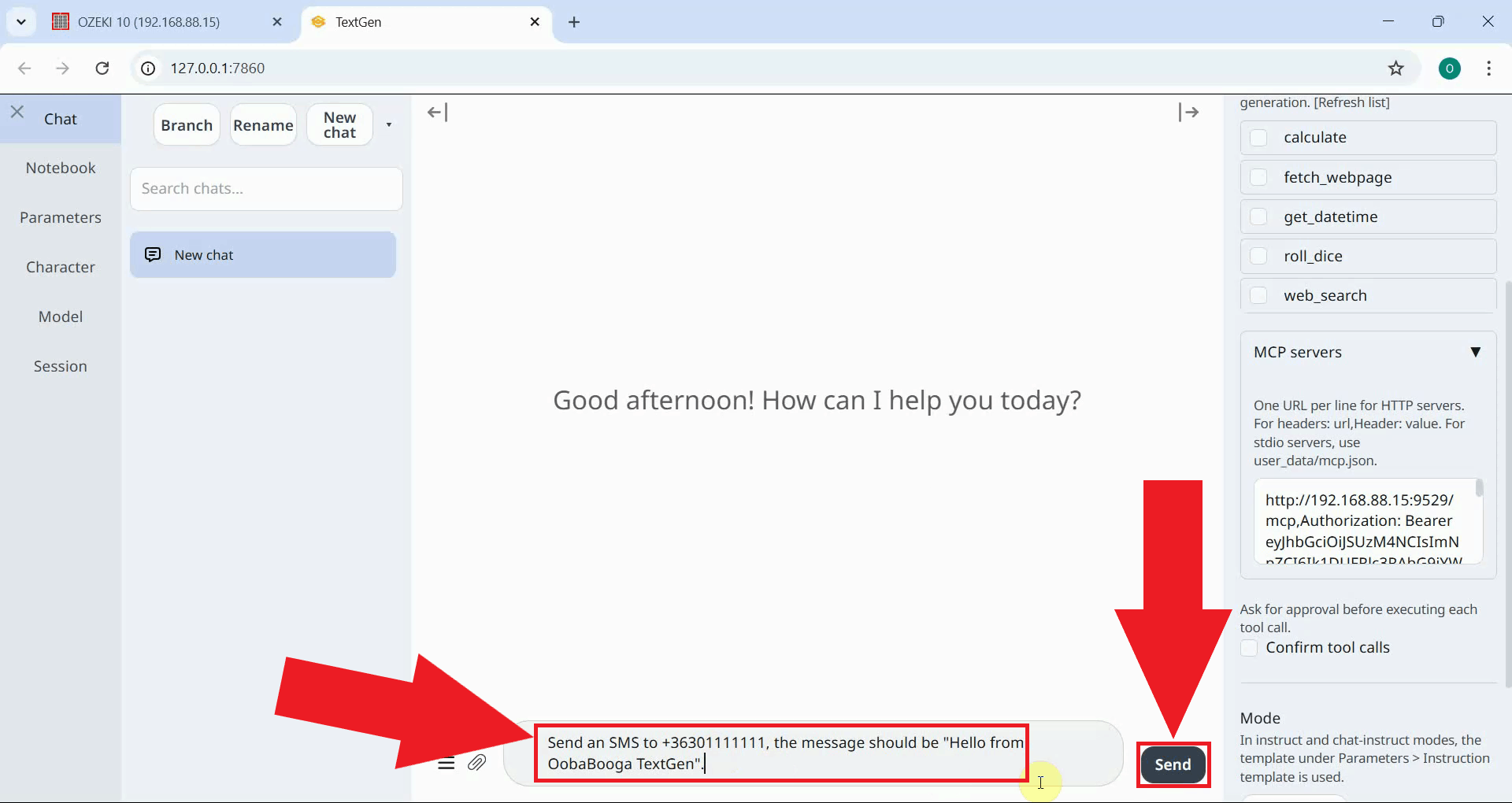
Step 2 - Use the Send SMS tool
In the Oobabooga chat input, type your SMS request in plain language and press the Send button. The AI model will interpret the request, select the appropriate MCP tool, and invoke it to deliver the message through the gateway (Figure 2).
Send an SMS to +36301111111, the message should be "Hello from Oobabooga TextGen".
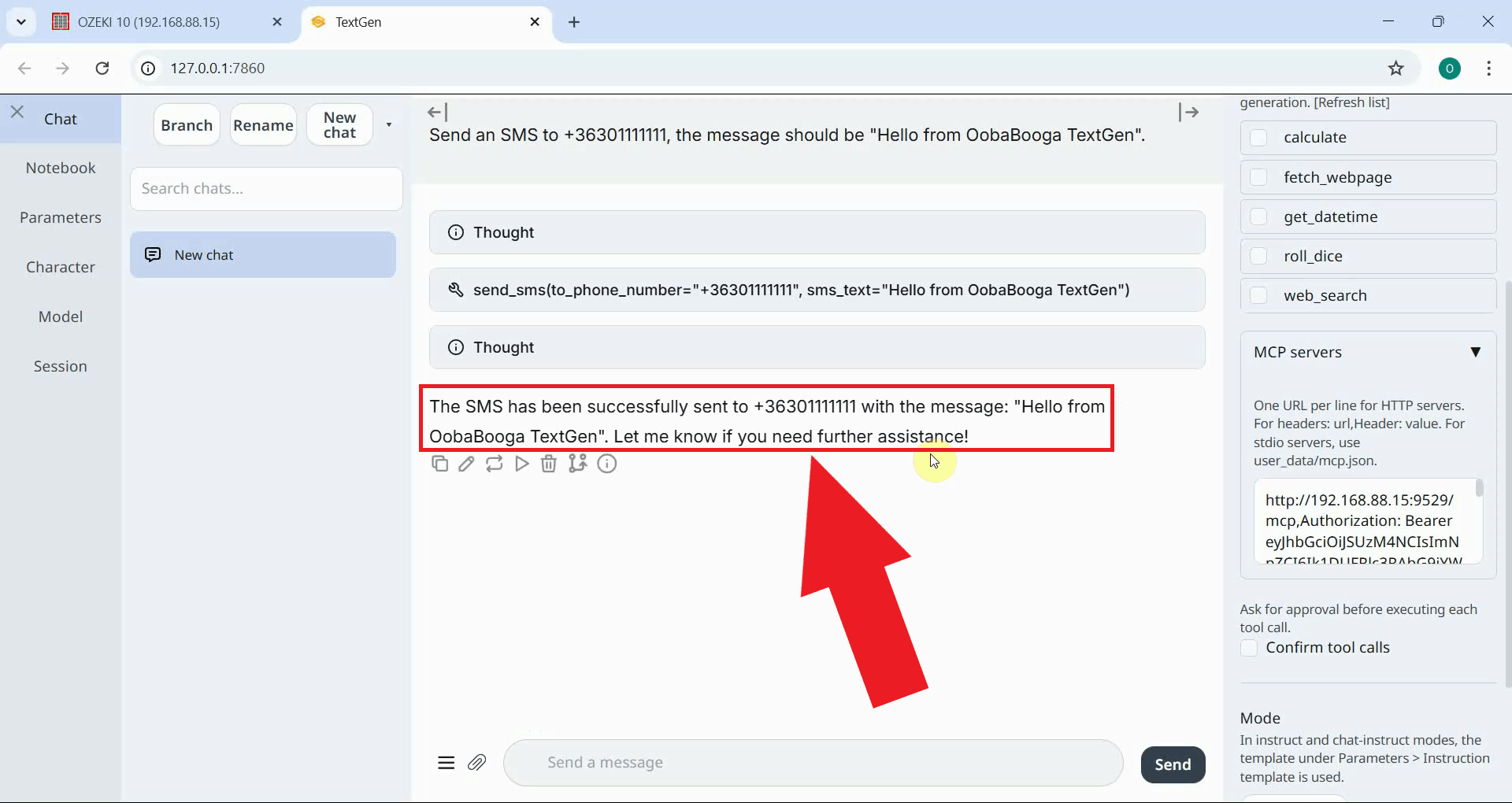
The tool result will appear in the Oobabooga chat. A successful response confirms that the message was submitted to the gateway and handed off for delivery (Figure 3).
Step 3 - View transaction in logs
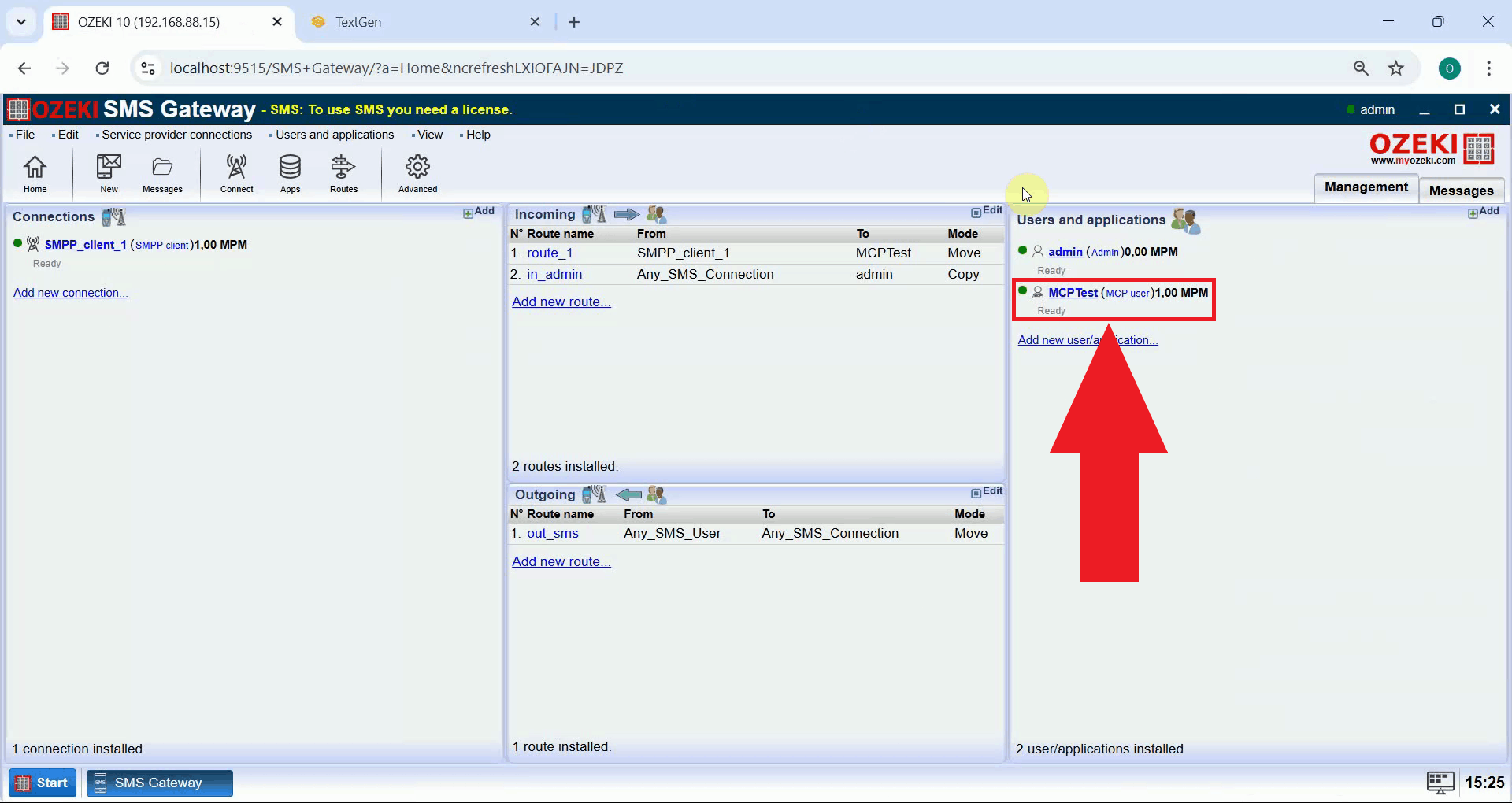
Open Ozeki SMS Gateway in your browser and navigate to the MCP user details page by clicking on the MCP user entry in the Users and applications panel (Figure 4).
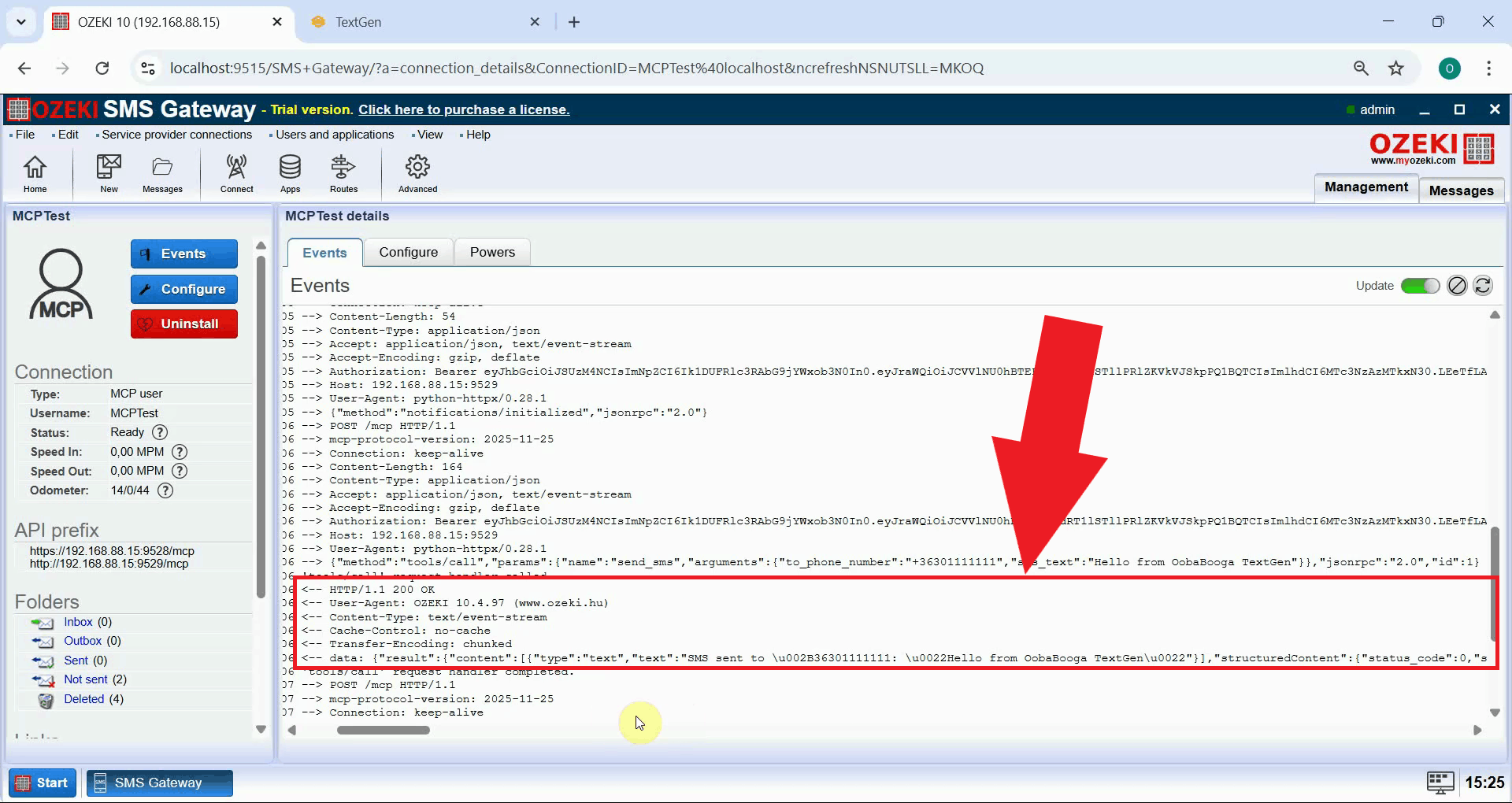
In the MCP user event log, you should see a log entry for the outgoing message, including the recipient number and message text, confirming that it was successfully processed by the gateway (Figure 5).
Conclusion
You have successfully sent an SMS message from Oobabooga Text Generation WebUI using the Ozeki SMS MCP server. The AI model running in Oobabooga can now deliver SMS messages to any phone number simply by being asked to do so in plain language, making it easy to add mobile messaging to any Oobabooga workflow.