
How to configure the Ozeki SMS MCP Server in LobeChat
This guide walks you through integrating the Ozeki SMS MCP Server with LobeHub, a modern open-source AI platform that supports MCP skills through its Agent Skills system. By following this tutorial, you will learn how to navigate to the Agent Skills settings, add the Ozeki SMS Gateway as a custom MCP skill and verify the connection.
What is an MCP server?
An MCP (Model Context Protocol) server exposes tools that an AI agent can call during a conversation. In this setup, the Ozeki SMS MCP Server provides SMS tools such as sending messages and listing incoming SMS. LobeHub connects to the MCP server over HTTP using the Streamable HTTP transport and authenticates using the API key you generated for your MCP user account.
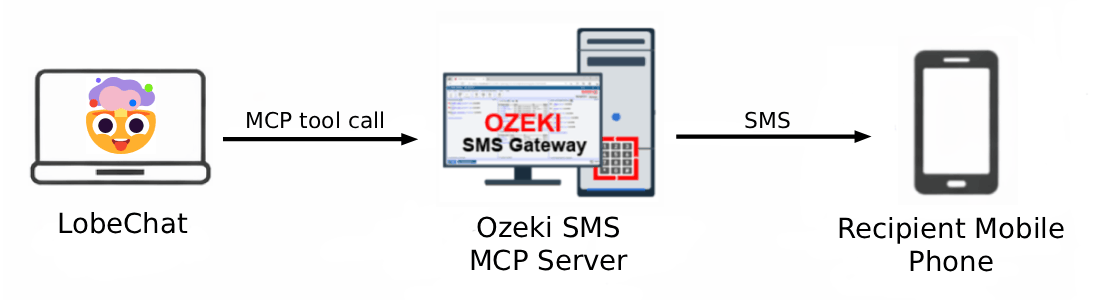
LobeHub SMS MCP configuration
Settings -> Skills -> Add custom skill

MCP skill type:              	Streamable HTTP
MCP name:              			Ozeki
Streamable HTTP endpoint URL: 	http://{address}:9529/mcp
Authentication type:          	API Key
Steps to follow
We assume Ozeki SMS Gateway is already installed on your system and you have already created an MCP user account with an API key. You will also need LobeHub installed on your system.
- Navigate to Agent Skills in LobeHub
- Enter the Ozeki SMS MCP Server details
- Test connection and install skill
Video tutorial
The following video shows how to add the Ozeki SMS MCP Server to LobeHub step-by-step.
Step 1 - Navigate to Agent Skills in LobeHub
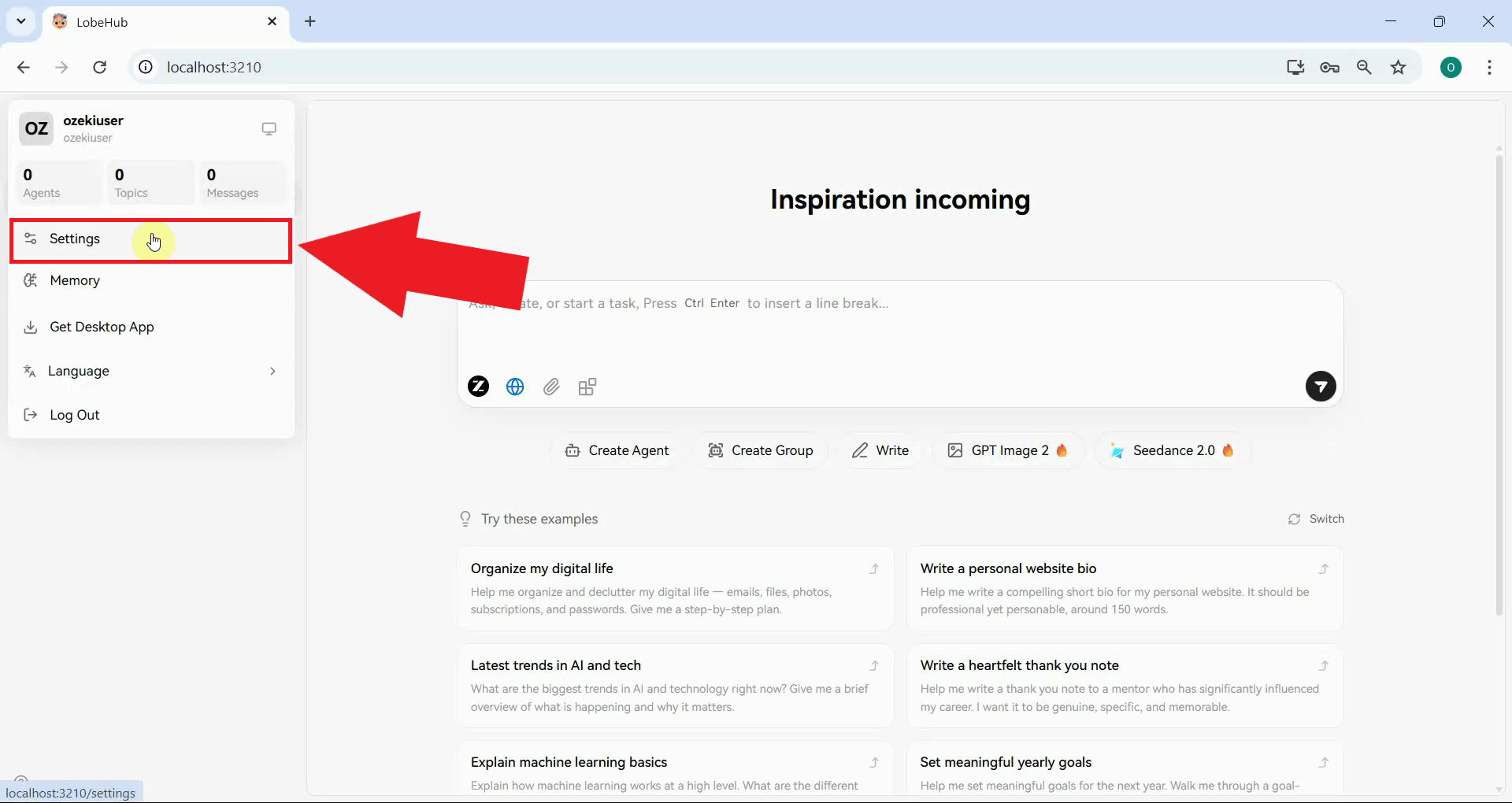
Open LobeHub and click the settings icon to open the application settings. Agent Skills is the section where you can extend the AI agent with external MCP plugins, giving it access to tools and services beyond its built-in capabilities (Figure 1).
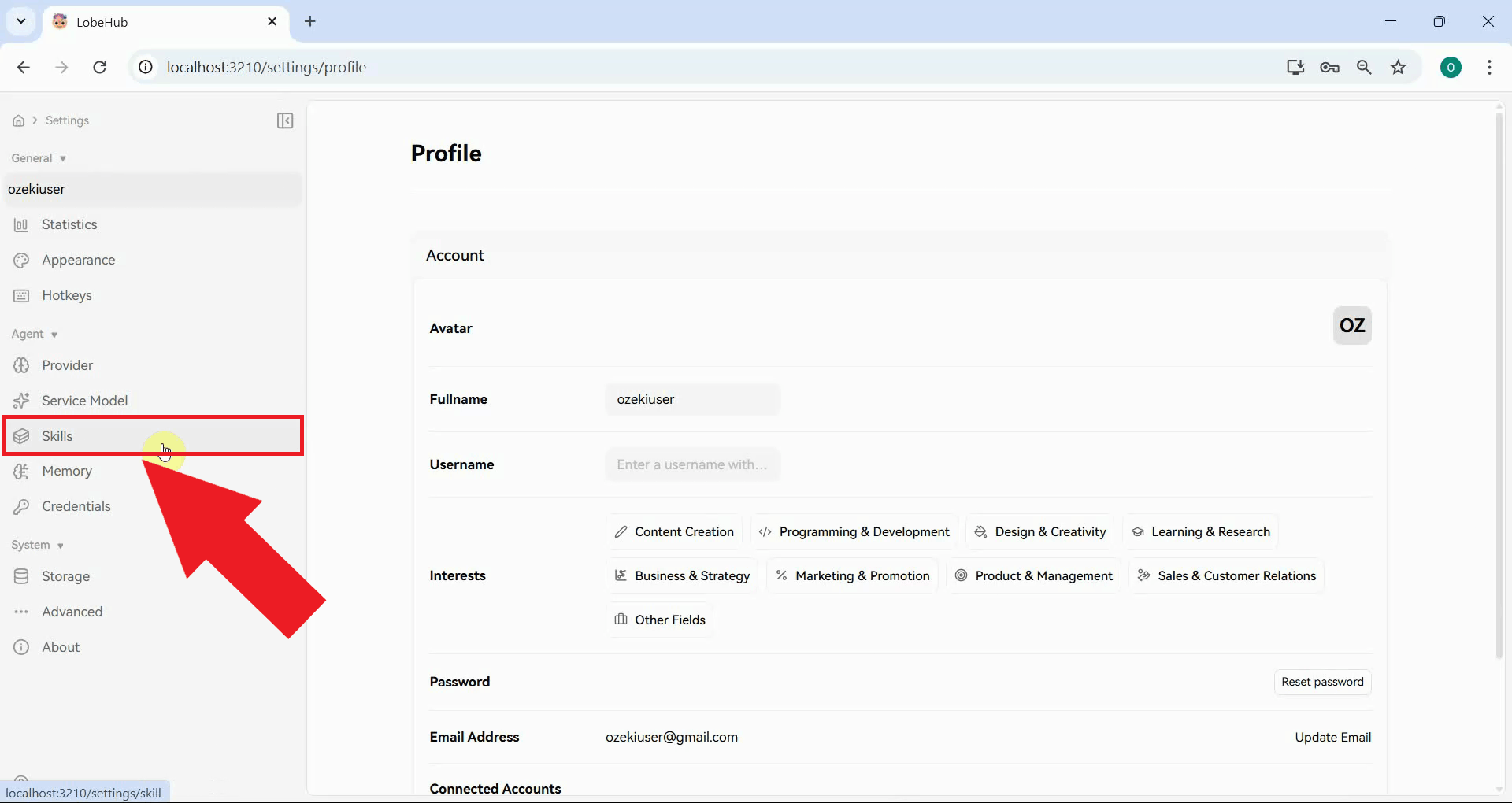
In the settings menu, navigate to Skills. This section lists all currently installed MCP skills and provides the option to add new ones (Figure 2).
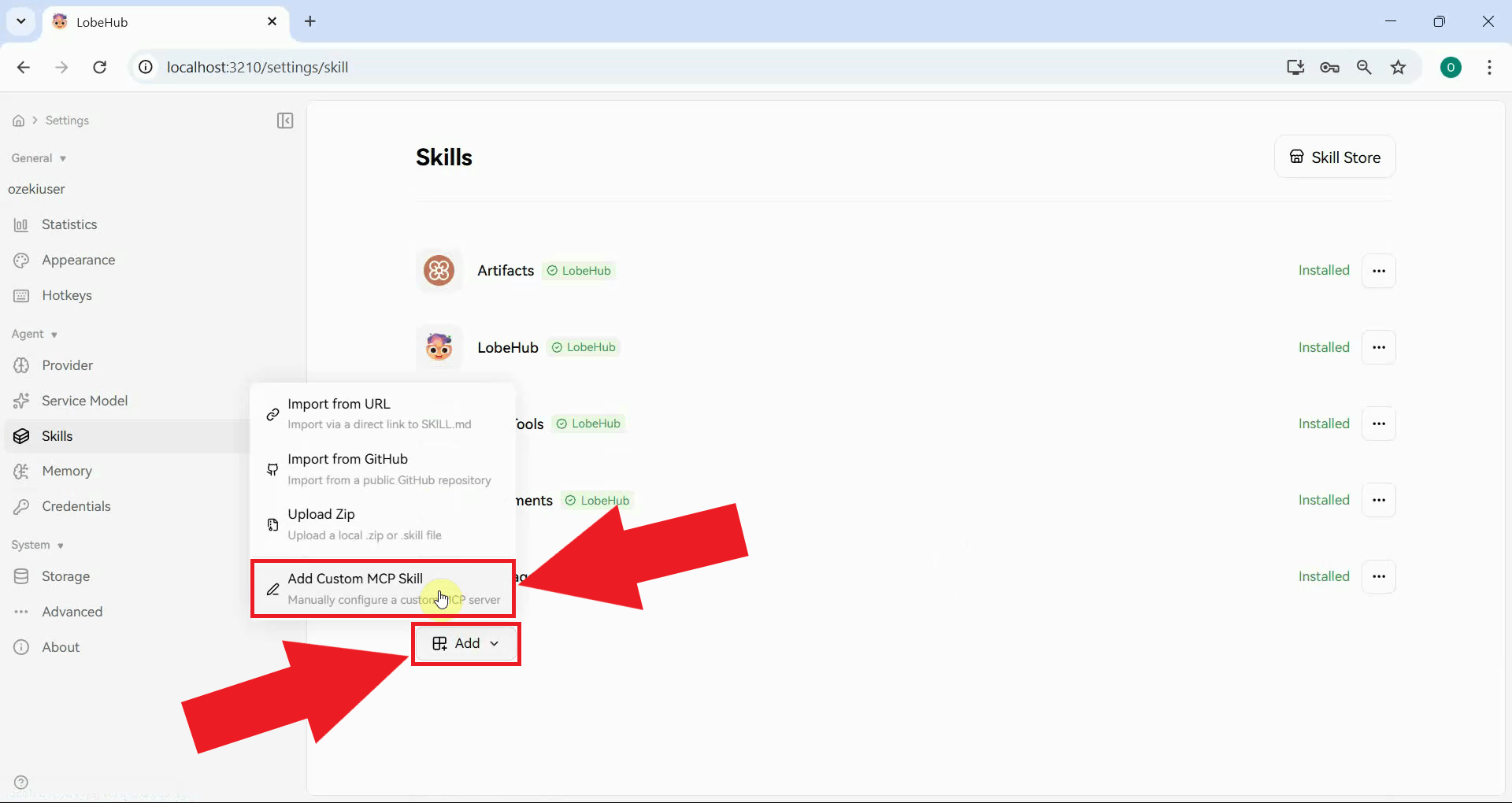
Click the Add button, then select Add Custom MCP Skill from the list to open the form where you can register a new MCP server (Figure 3).
Step 2 - Enter the Ozeki SMS MCP Server details
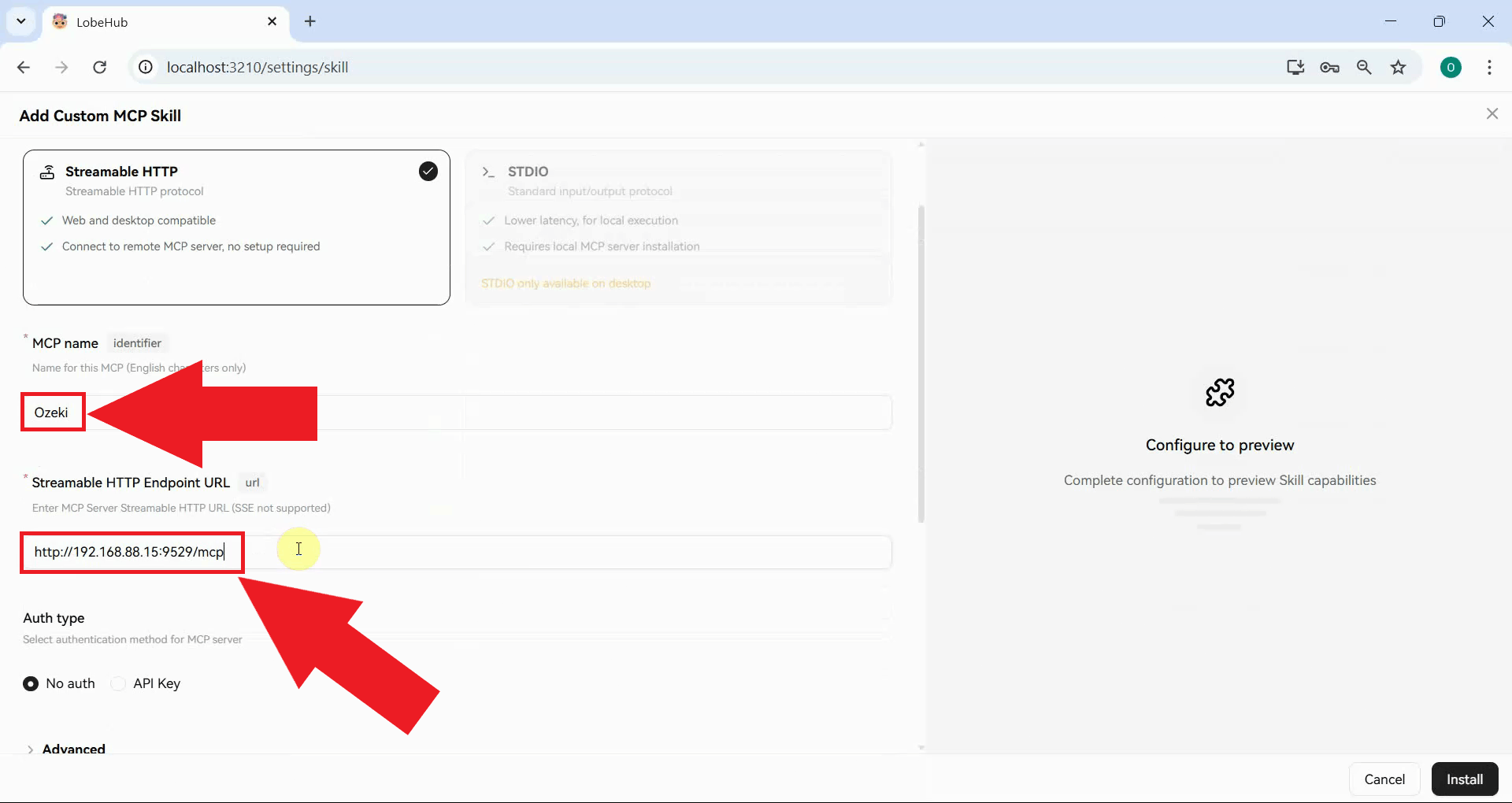
Set the MCP Connection Type to Streamable HTTP and
enter Ozeki as the MCP Name. In the
Streamable HTTP Endpoint URL field, enter the address of your Ozeki SMS
Gateway following the format http://{address}:9529/mcp (Figure 4).
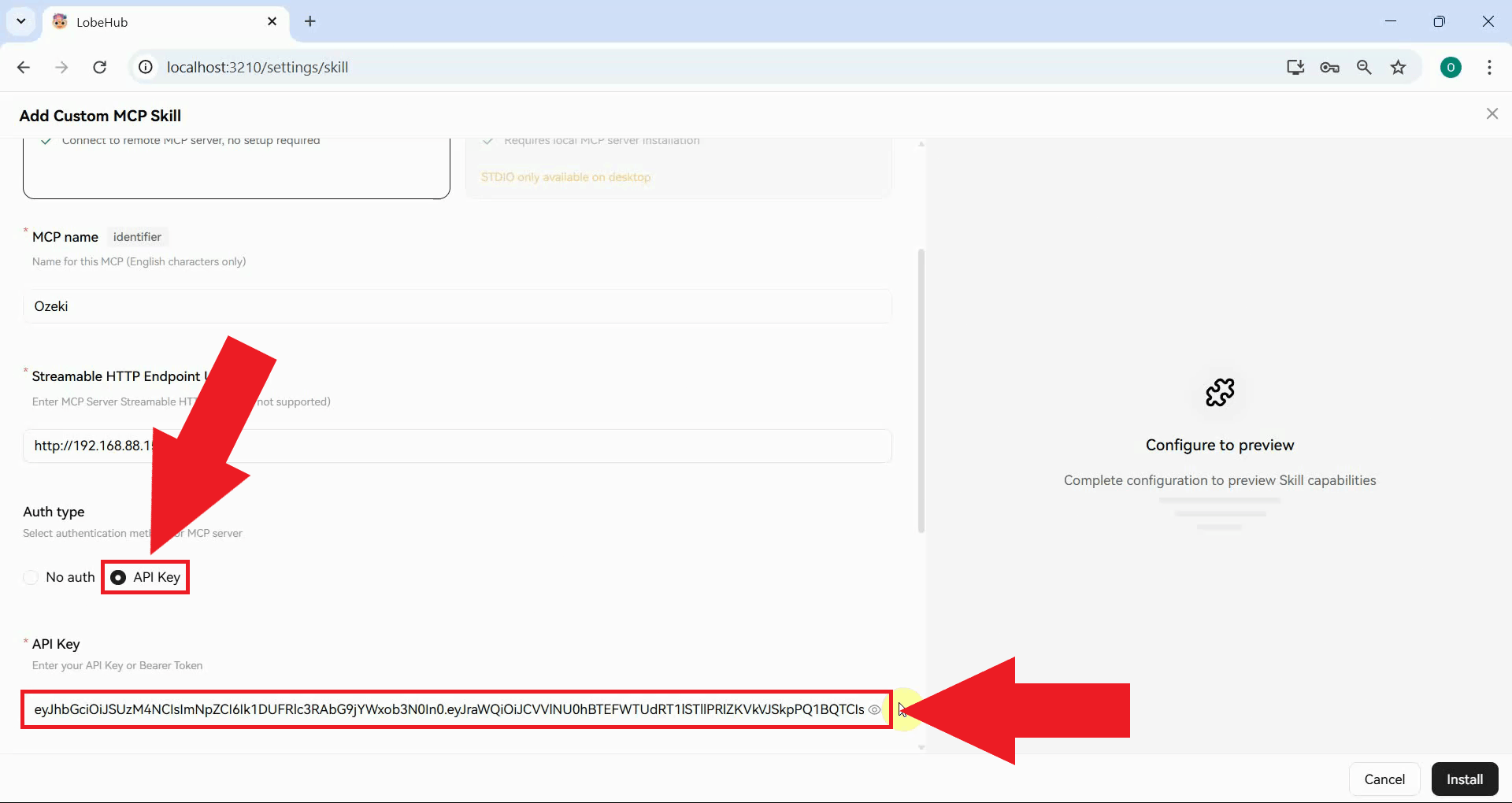
Set the Authentication Type to API Key and paste the API key you generated for your MCP user account into the key field (Figure 5).
Step 3 - Test connection and install skill
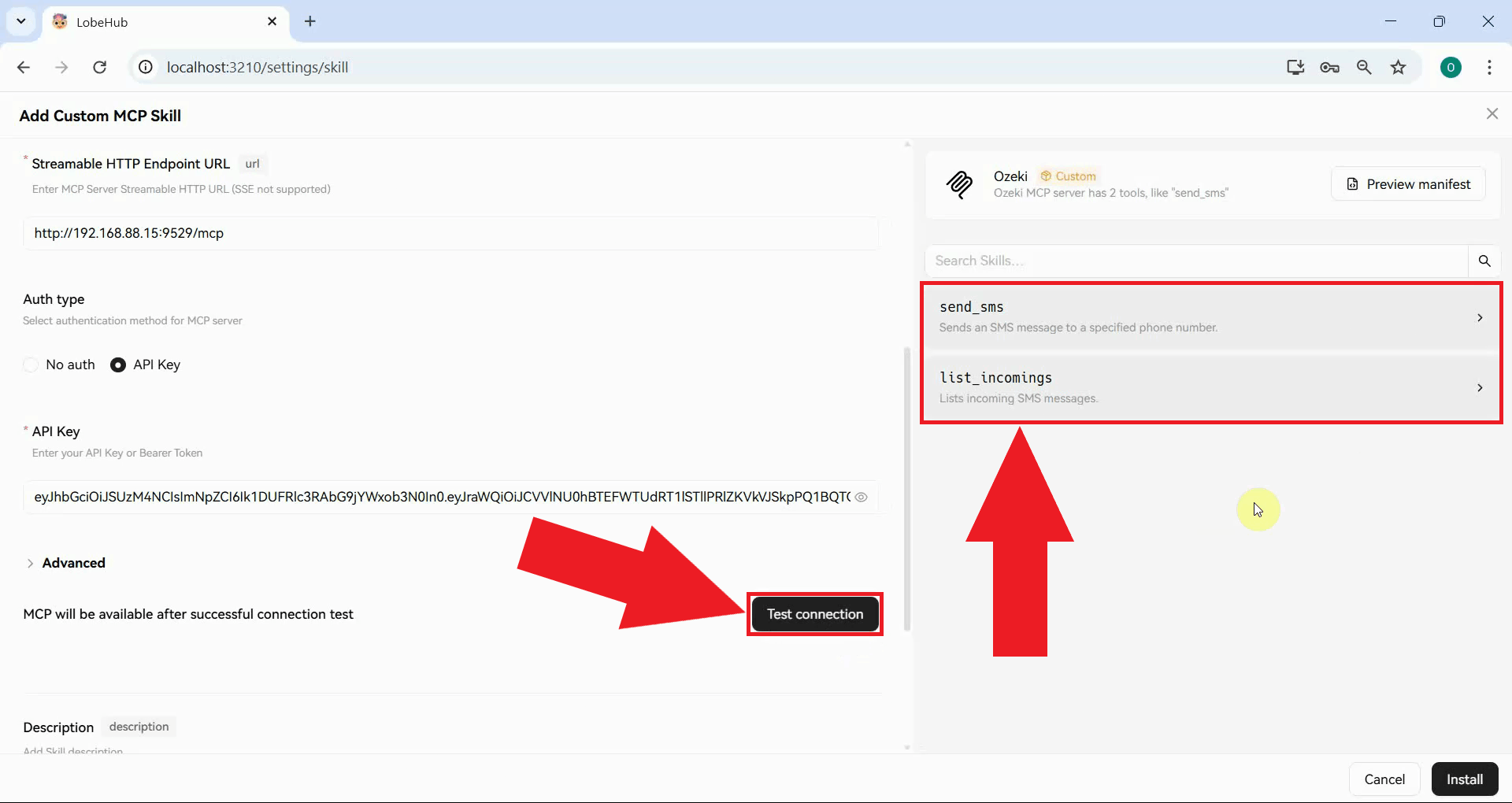
Click the Test connection button to verify that LobeHub can reach the Ozeki SMS MCP Server using the provided URL and API key. If the connection is successful, the SMS tools exposed by the gateway will be listed, confirming that the configuration is correct (Figure 6).
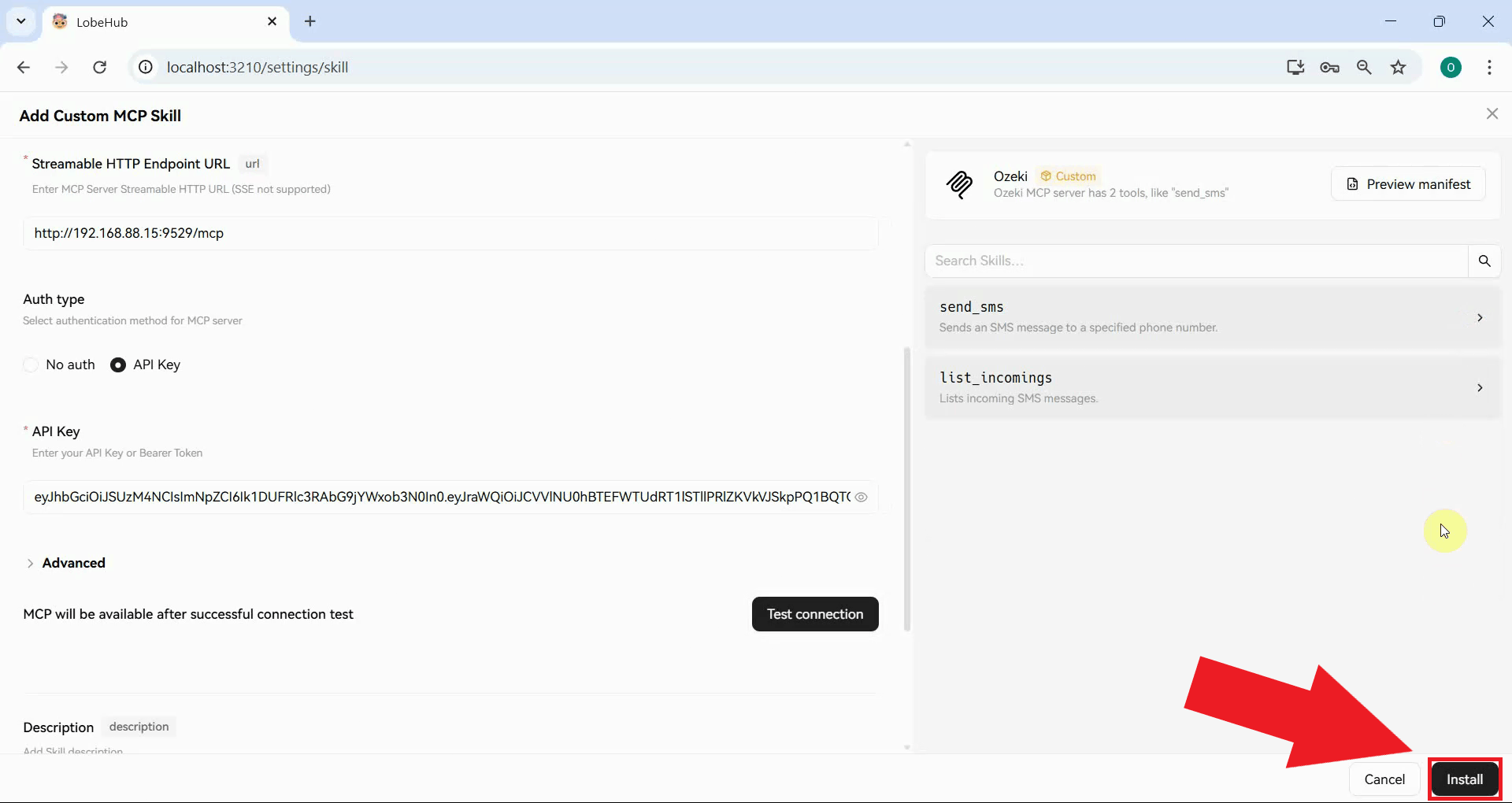
Click the Install button to add the Ozeki SMS MCP Skill to LobeHub. Once installed, the skill will be available to the AI agent in all conversations (Figure 7).
Summary
You have successfully configured the Ozeki SMS MCP Server in LobeHub. The AI agent in LobeHub can now send and receive SMS messages through your gateway using plain language prompts, making it straightforward to add mobile messaging capabilities to any LobeHub workflow.