
How to unblock a locked-out user account in Ozeki SMS Gateway
This article shows you how to unblock a user account in Ozeki SMS Gateway that has been locked out after too many failed two-factor authentication attempts. It shows how an administrator can review a locked account and restore access to it from the Control Panel, and also covers what to do in the rare case where the admin account itself becomes locked out.
What is an account lockout?
An account lockout is a security measure built into Ozeki SMS Gateway's two-factor authentication system. If 30 incorrect verification codes are entered for an account, the account is automatically blocked from logging in, regardless of how many correct codes are entered afterward. This protects against repeated guessing attempts, but it also means that the affected user must wait for an administrator to manually clear the lockout before they can access their account again.
Steps to follow
- Identify the locked-out account
- Open the user's 2FA settings in the Control Panel
- Unblock the account
Video tutorial
The following video shows how to unblock a locked-out user account step-by-step.
Identify the locked-out account
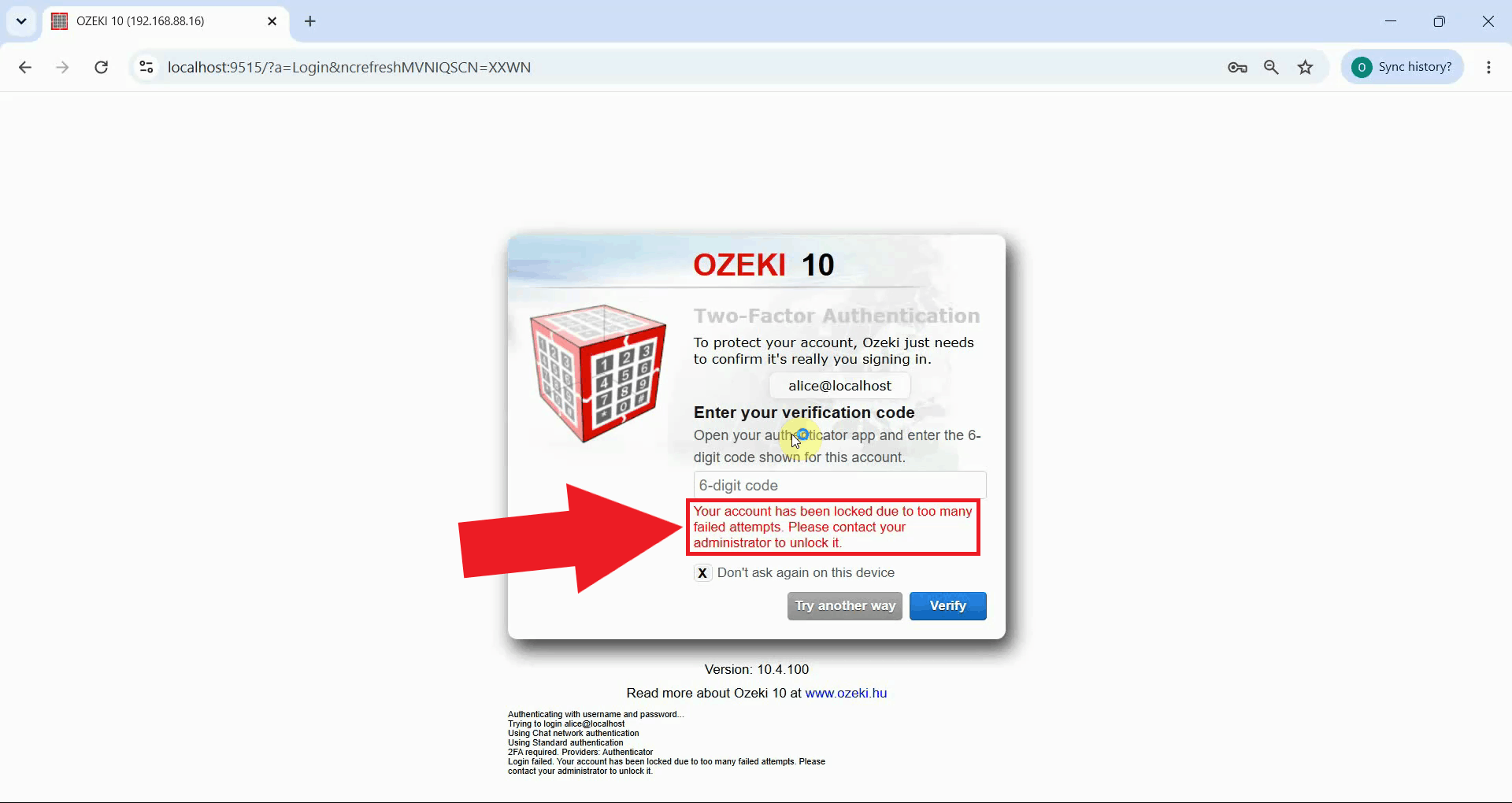
When a user enters an incorrect verification code too many times, Ozeki SMS Gateway displays a message stating that the account has been locked and that the administrator needs to be contacted to unblock it (Figure 1). At this point, the user cannot continue logging in on their own, no matter how many correct codes they try afterward.
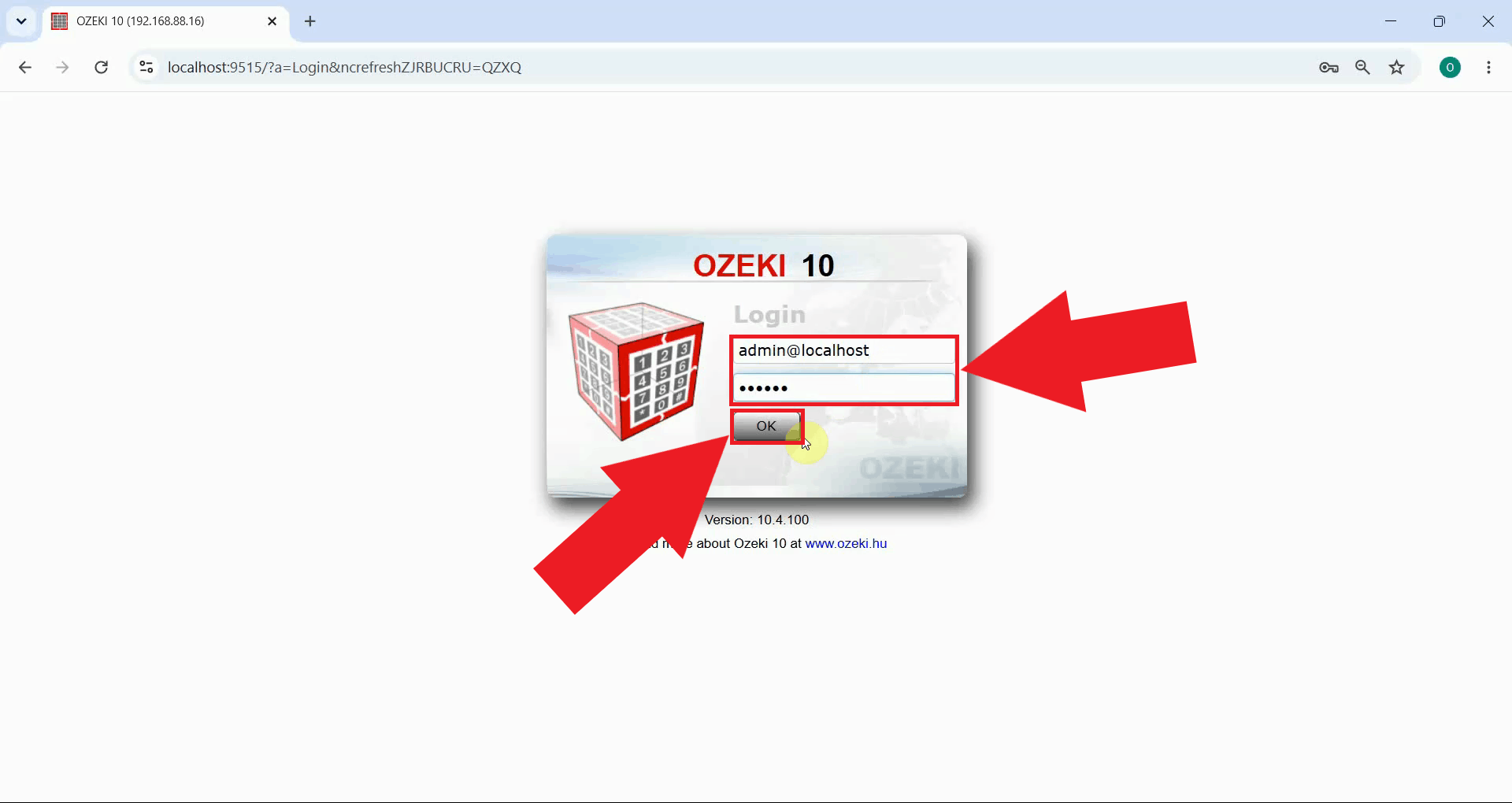
Log into Ozeki SMS Gateway using an administrator account (Figure 2). Only an administrator has access to the Control Panel section that allows unblocking other accounts.
Open the user's 2FA settings in the Control Panel
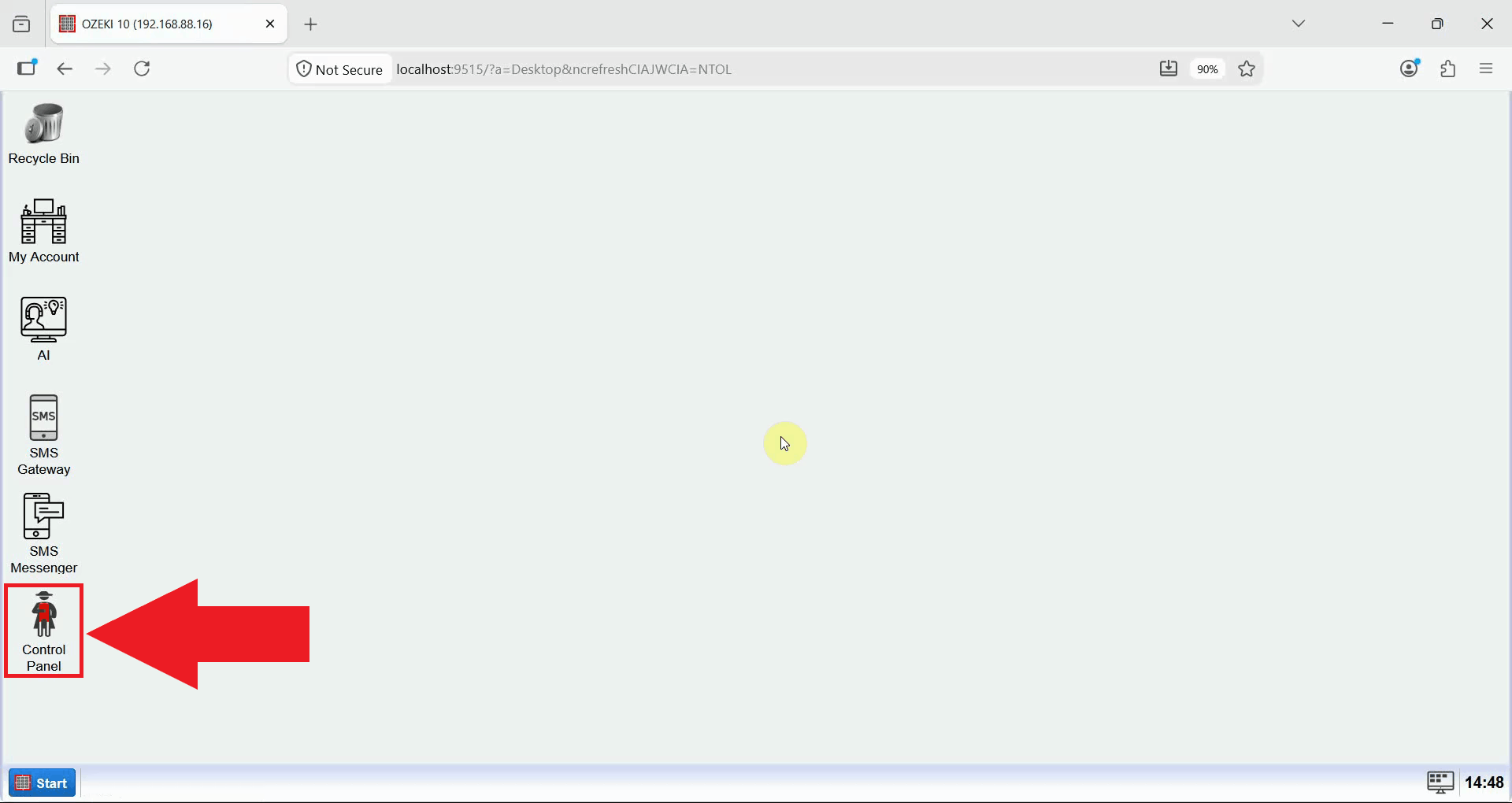
Open the Control Panel icon on the Ozeki Desktop (Figure 3). This application contains the user and connection management tools, including the option to unblock a locked-out account.
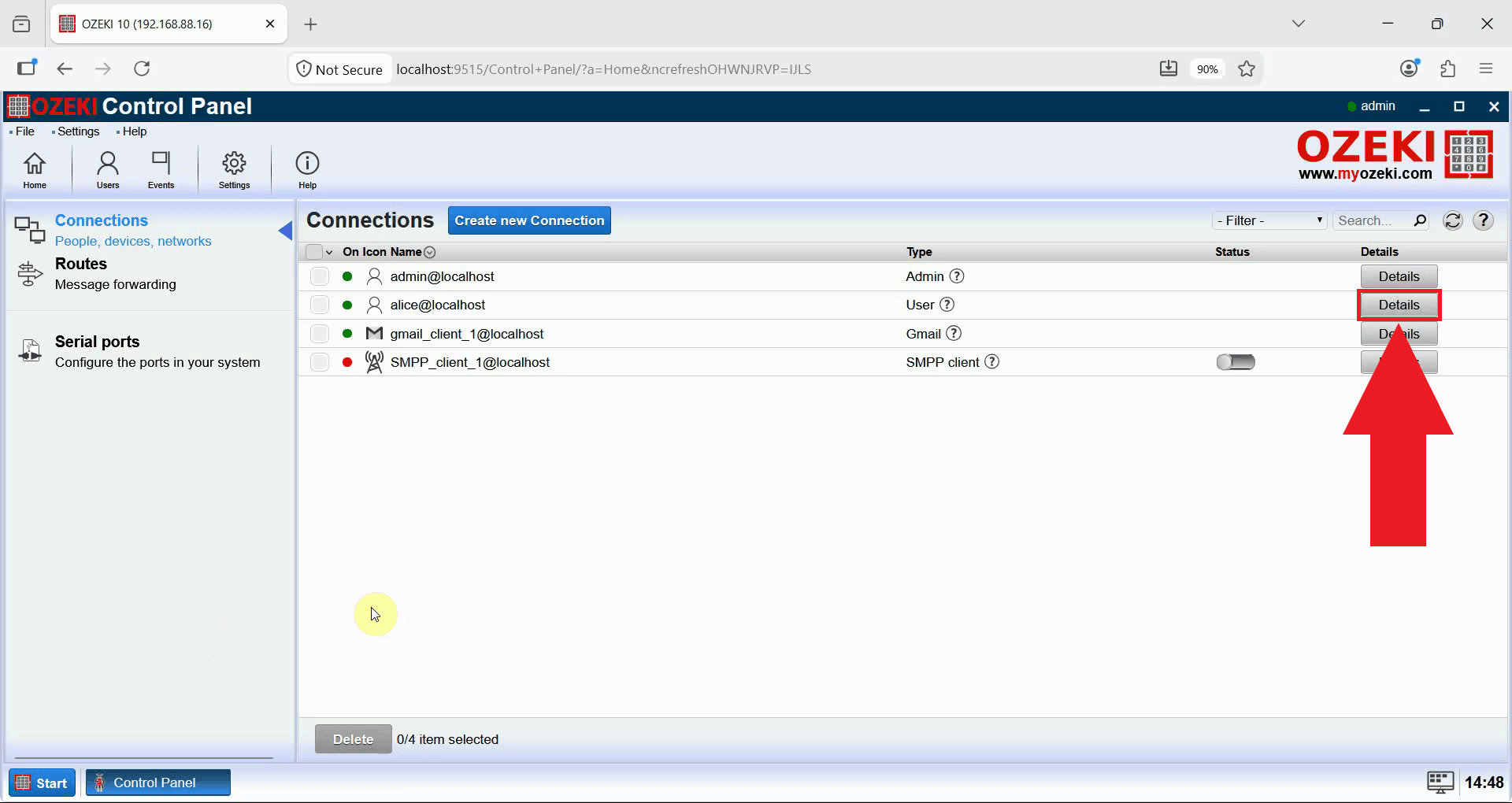
In the Connections list, locate the locked-out user and press Details next to their name (Figure 4). This will open the user's details page, where their connection settings and security status can be reviewed.
Unblock the account
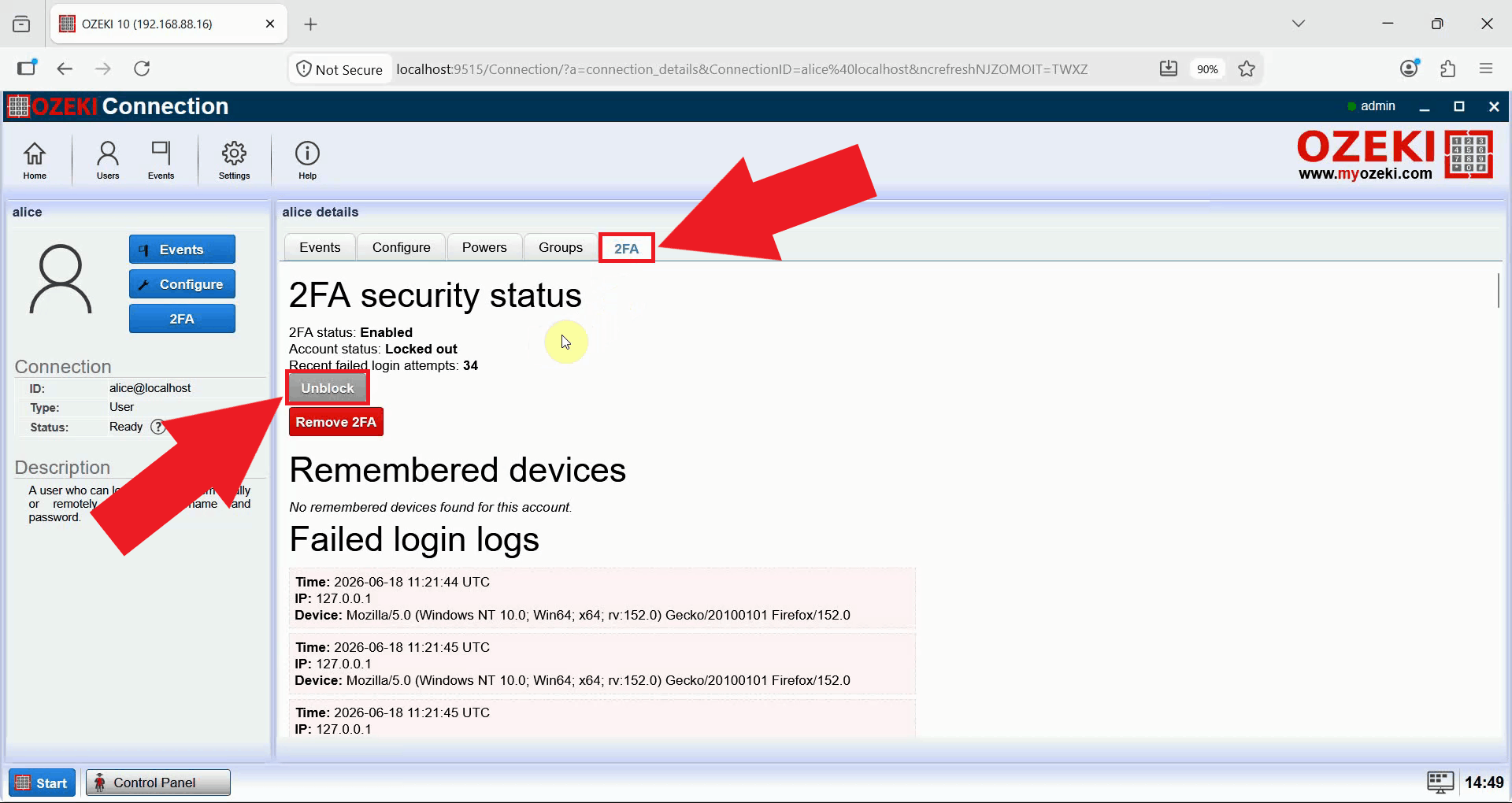
Select the 2FA tab on the user's details page, then press Unblock (Figure 5). This tab shows the account's 2FA status, its current lockout state, and the number of recent failed login attempts that caused it to be locked.
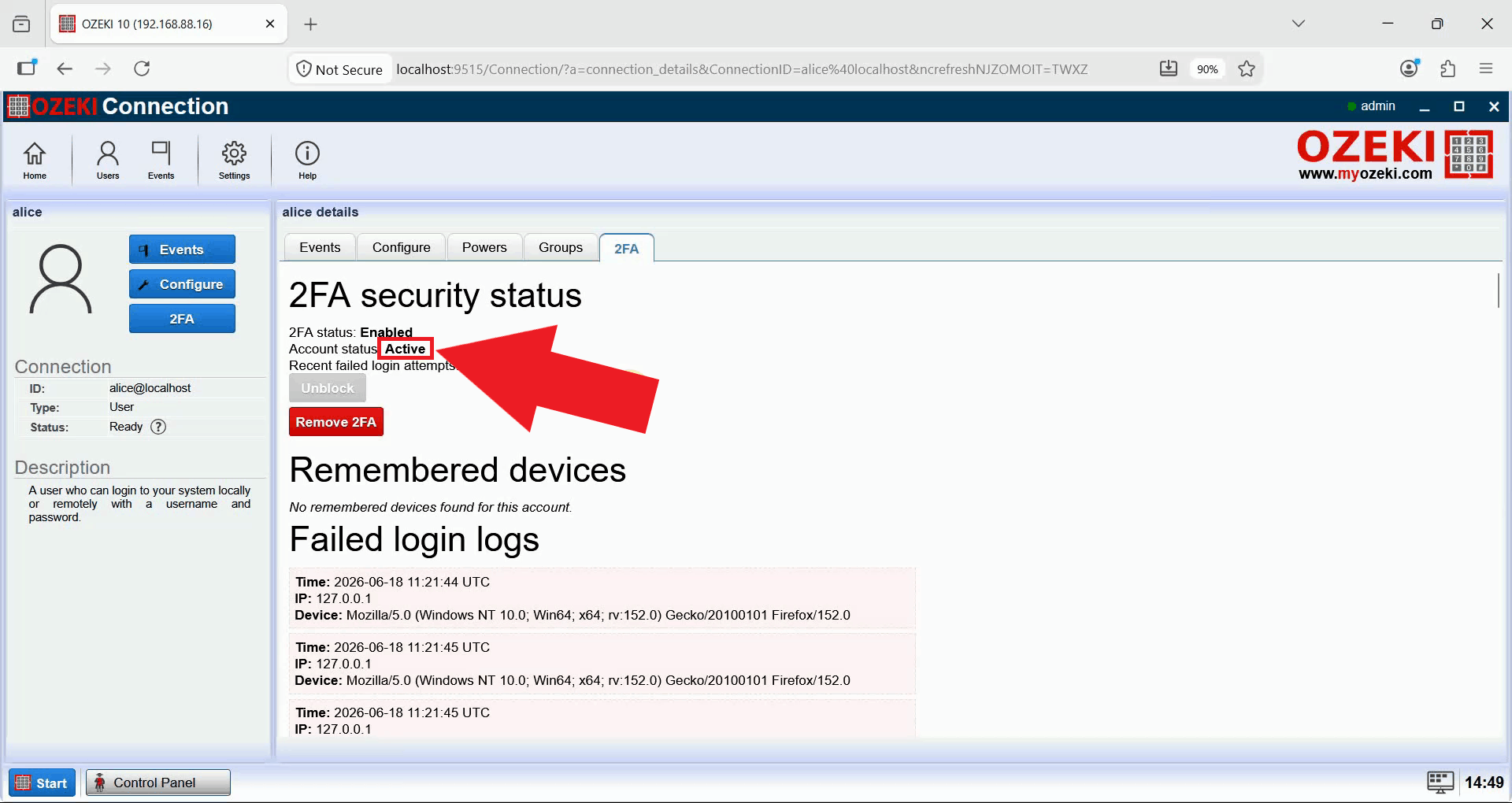
Once the account is unblocked, the account status switches from "Locked out" to "Active" (Figure 6). The user can now attempt to log in again using their two-factor authentication method as usual.
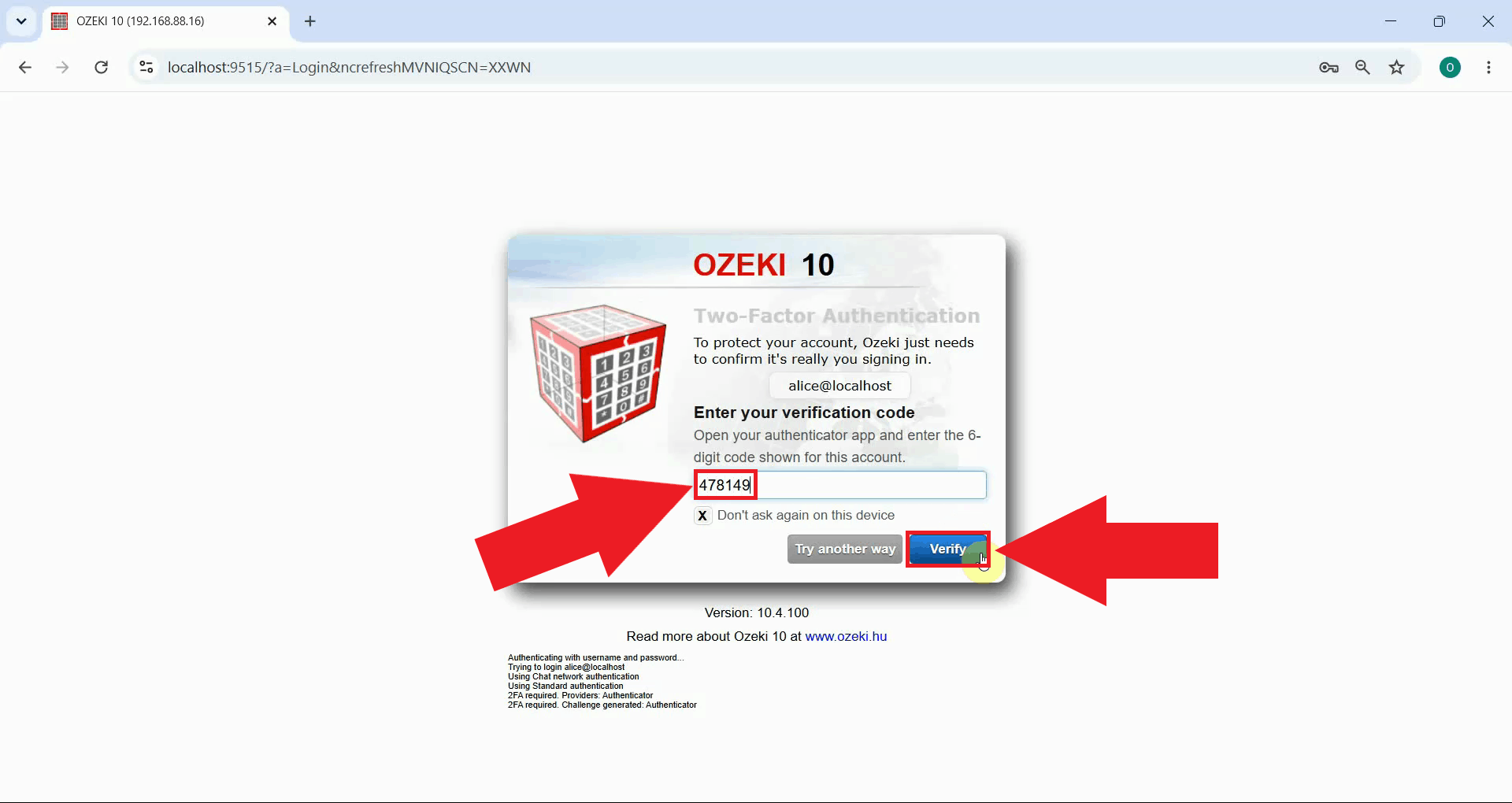
Ask the user to retry logging in with their correct verification code (Figure 7). Since the lockout has been cleared, the login proceeds normally as long as the code entered is correct.
Troubleshooting
The steps above require access to an administrator account in the Control Panel, but this raises the question of what to do if the admin account itself becomes locked out, since in that case there is no other administrator available to perform the unblock from the user interface. In this situation, the lockout state must be cleared directly on the server.
Locate and delete the following file on the machine running Ozeki SMS Gateway:
C:\Program Files\Ozeki\Data.Net8\AppData\Powers\Admin\admin_account\PowerData2FAState.bin
This file stores the admin account's two-factor authentication and lockout state. After deleting it, restart Ozeki SMS Gateway. Once the service has restarted, the recorded failed login attempts are cleared and the admin account can log in again.
Conclusion
You have now learned how to unblock a user account that has been locked out due to repeated failed two-factor authentication attempts, and how to recover access if the admin account itself ever becomes locked out. This lockout mechanism is an important part of how Ozeki SMS Gateway protects accounts against repeated guessing attempts, and knowing how to resolve it quickly keeps your team productive without weakening your account security.