How to find the Ozeki Serial Number
This guide explains how to find the serial number of your Ozeki SMS Gateway installation. It walks you through opening the Product activation menu, locating the stored licence files, and identifying the serial number required for activation, licence recovery, or support requests.
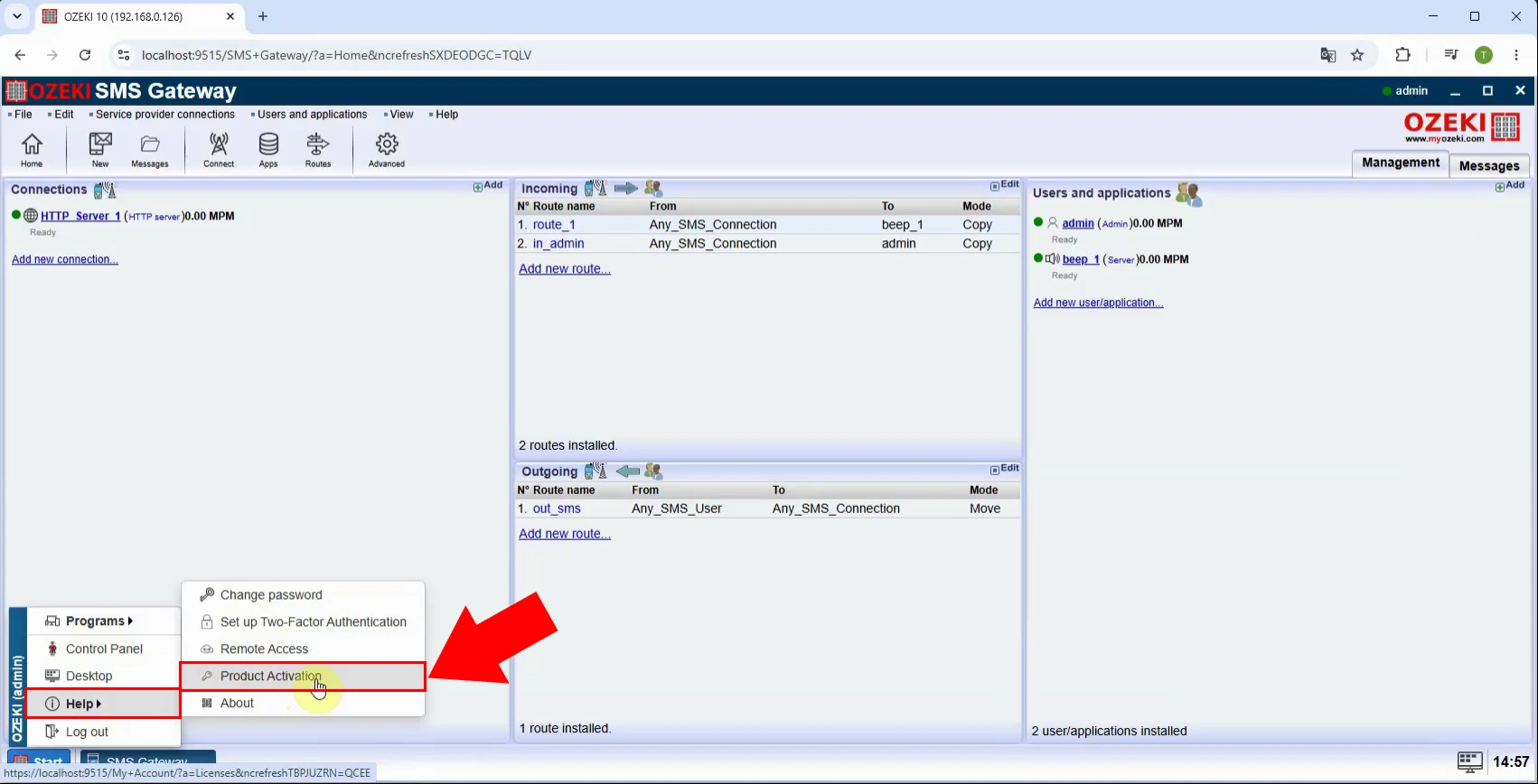
Log in to the Ozeki SMS Gateway graphical interface, then open the main menu and select Product activation. This section contains the installed licence information. Opening it is the first required step before you can view the list of serial numbers associated with the Ozeki installation.
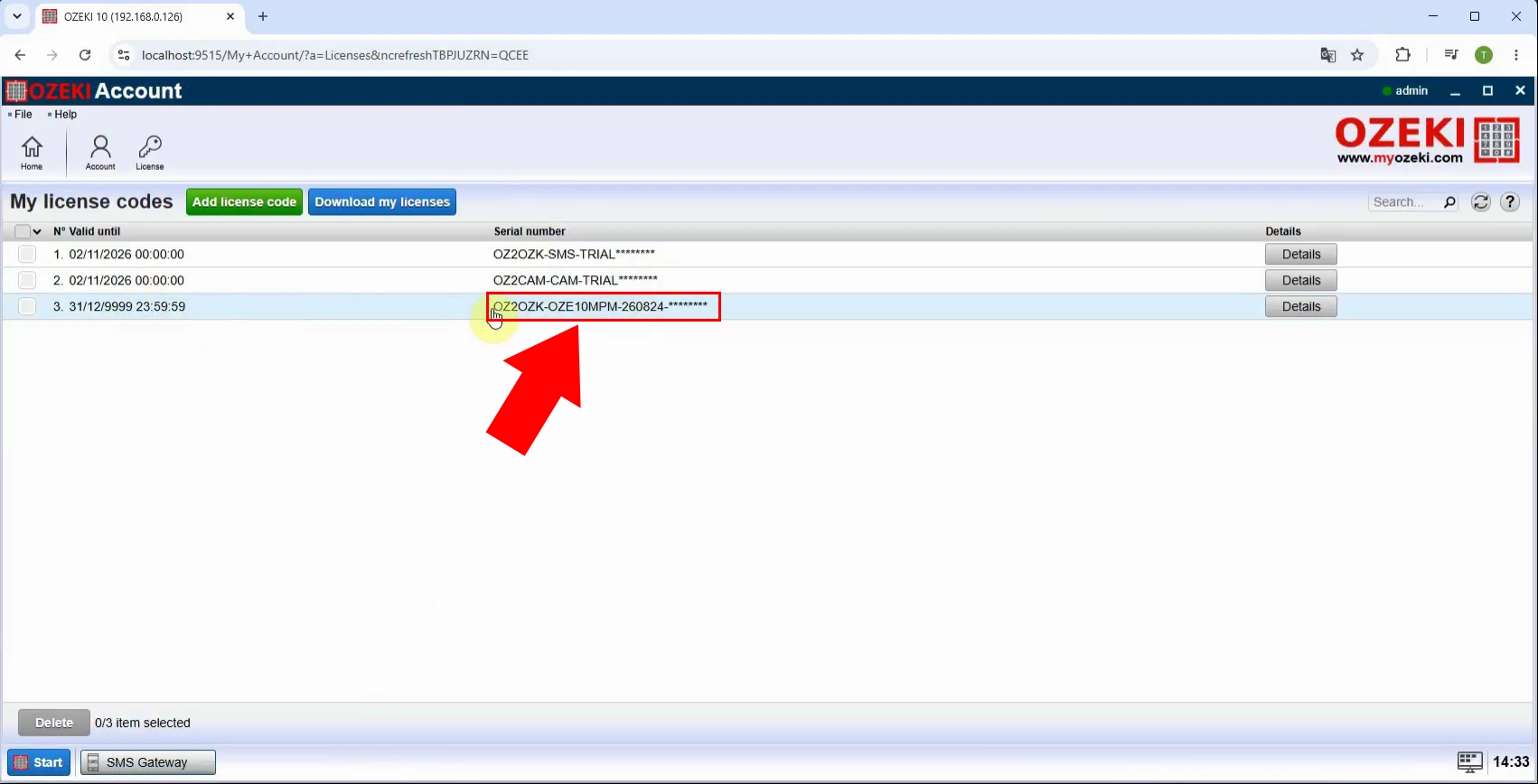
After opening Product activation, locate and open the Serial numbers list. This page displays the licence entries registered in the SMS Gateway. Review the available entries carefully, because this list identifies which licence files and serial numbers are available for the currently installed Ozeki product.
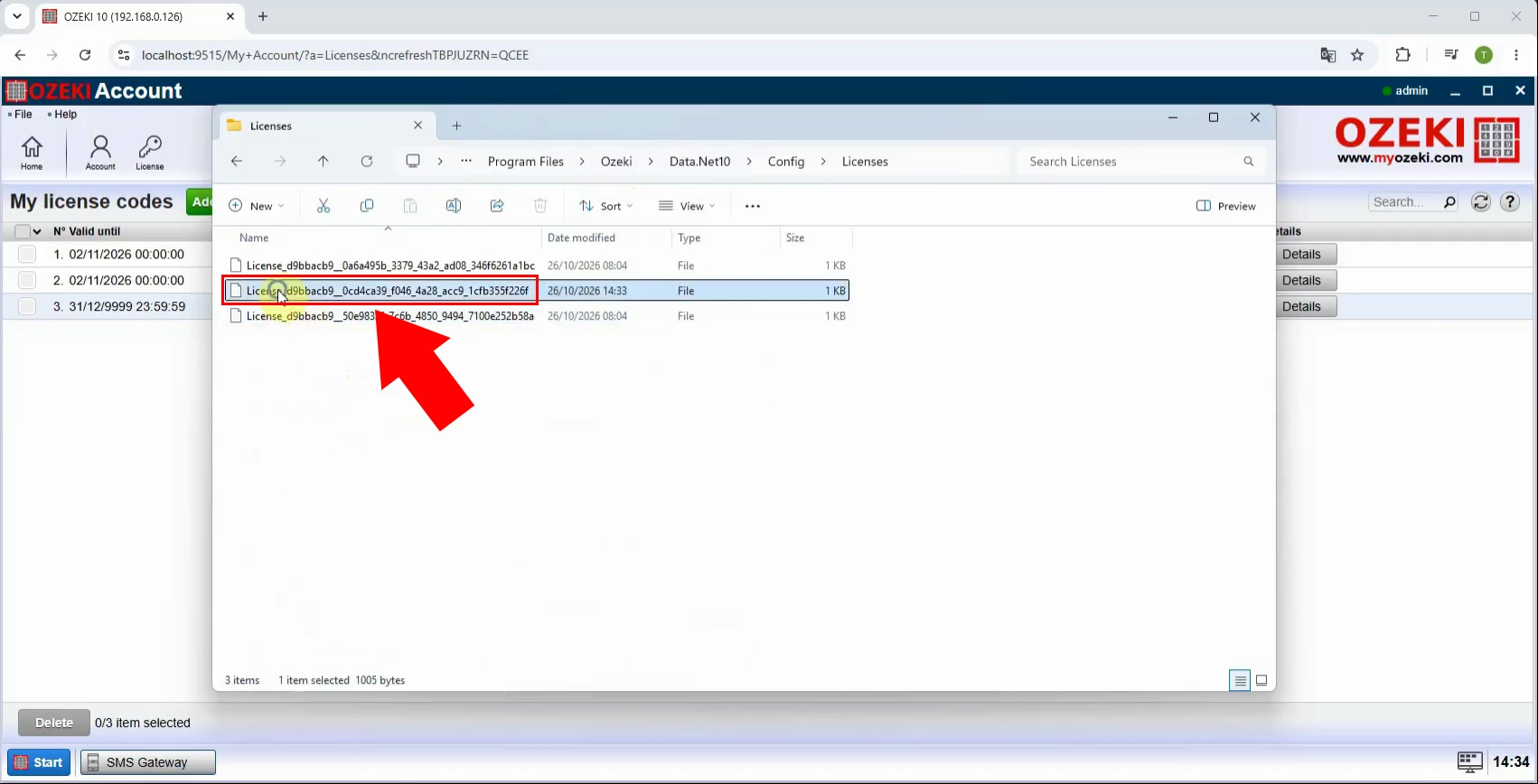
In the file explorer, open the Licenses folder. This folder stores the licence files used by Ozeki SMS Gateway. Opening it allows you to inspect the individual licence records and select the file that contains the serial number required for product activation or licence recovery.
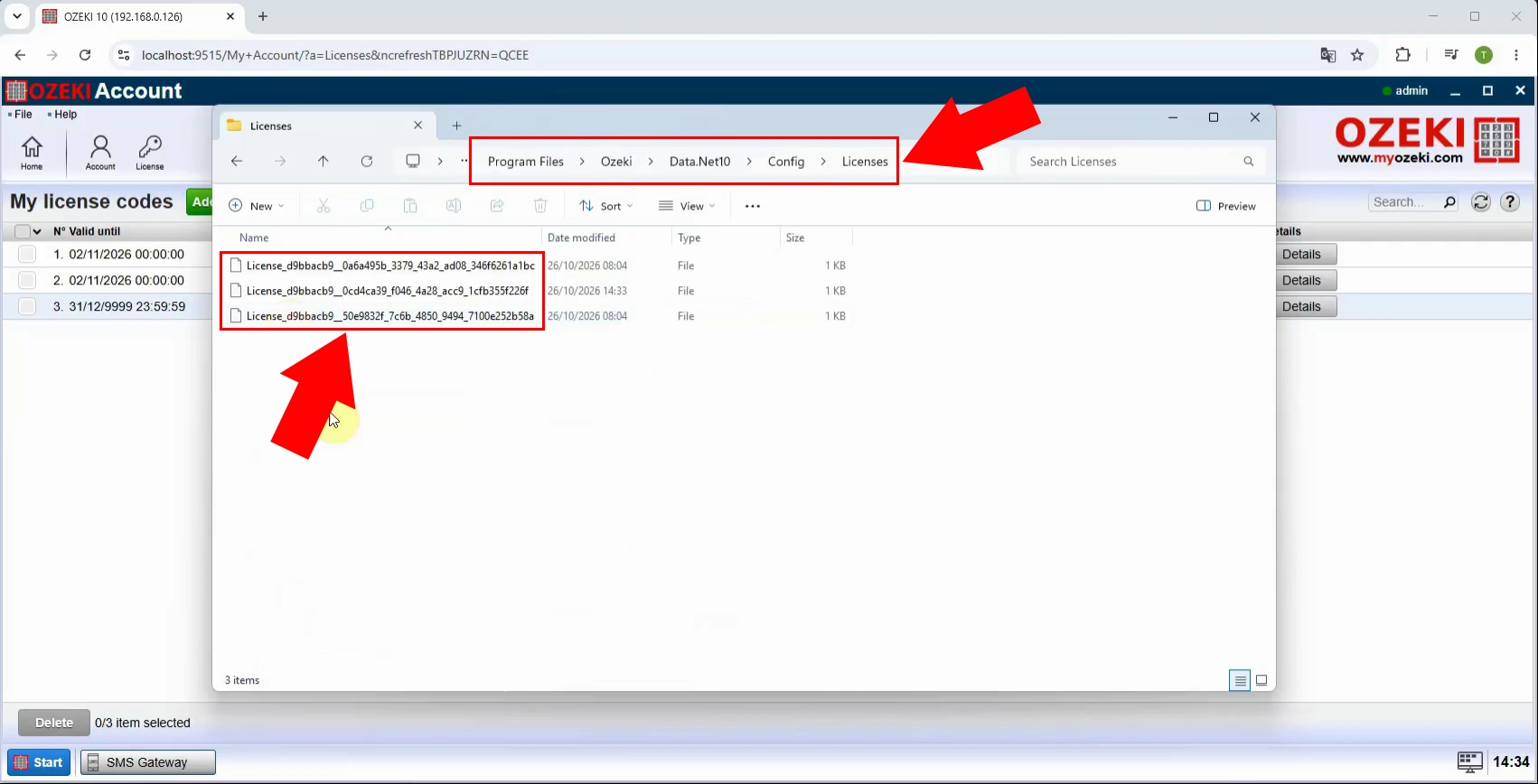
Inside the Licenses folder, select the relevant licence file and open it. The licence file contains the product and licence details for the installed Ozeki SMS Gateway. Choose the correct file if multiple licences are present, then continue to inspect its contents to locate the serial number.
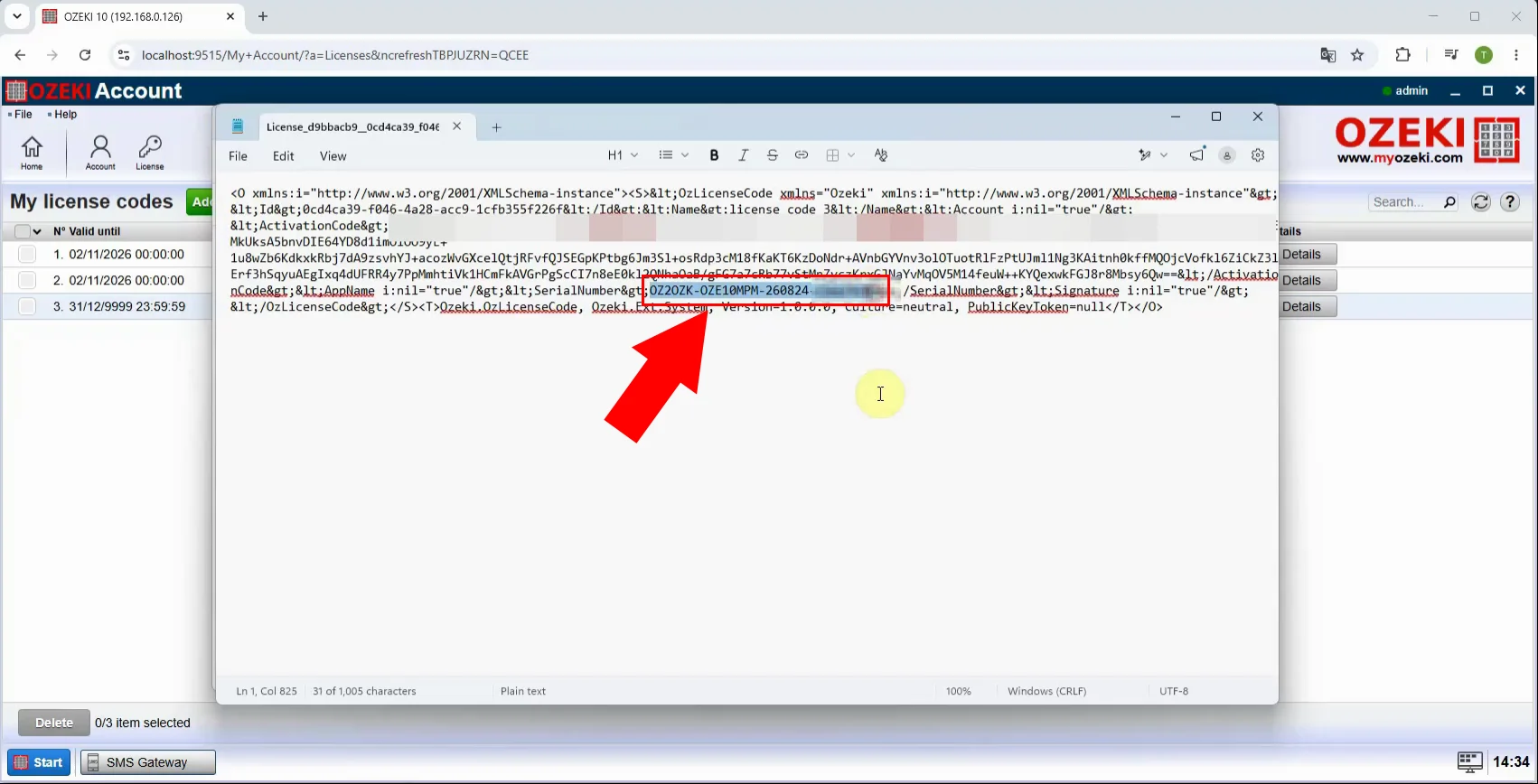
Open the selected licence file and find the Serial number field. Copy the displayed serial number exactly, without adding spaces or altering characters. This serial number can then be used for online activation, manual activation, licence recovery, or support requests related to the Ozeki SMS Gateway installation.