How to install Ozeki SMS Gateway on Ubuntu Linux
Installing the Ozeki SMS Gateway on Ubuntu Linux is a streamlined process designed for developers and system administrators who want reliable SMS communication capabilities on their servers. This guide walks you through each essential step from adding the GPG key and repository to launching the gateway’s web interface ensuring a secure and efficient setup. Whether you're deploying on Ubuntu or another Debian-based system, the instructions are tailored to get you up and running with minimal hassle.
Quick command list
sudo curl -fsSL https://repo.ozeki.hu/ozeki.gpg.key | sudo gpg --dearmor -o /etc/apt/trusted.gpg.d/ozeki.gpg

sudo echo "deb [arch=all] https://repo.ozeki.hu/ noble main" | sudo tee /etc/apt/sources.list.d/ozeki.list

sudo apt update

sudo apt install ozekismsgateway
Add GPG Key
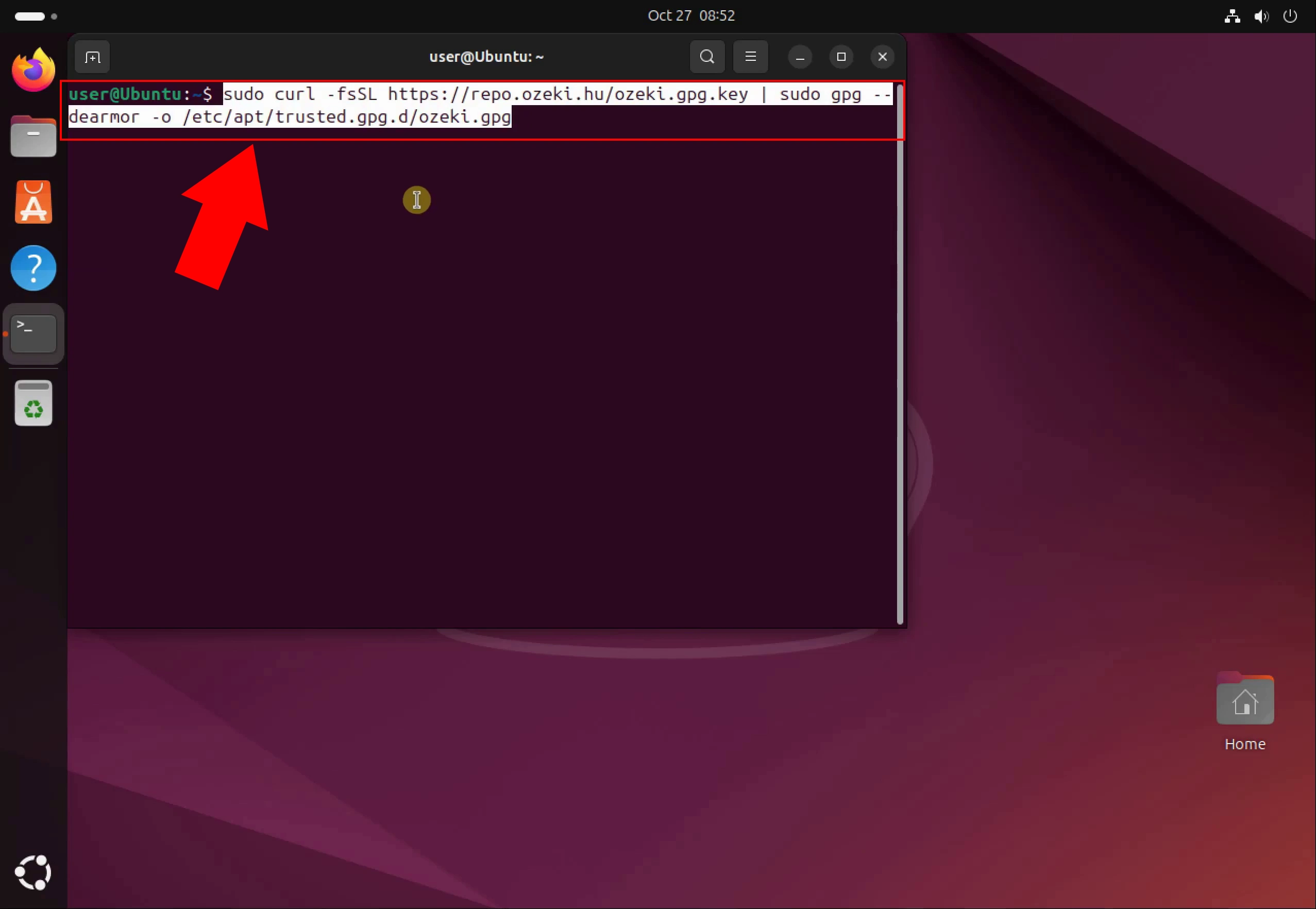
To begin, download the Ozeki GPG key using curl and save it to your system’s trusted keyring. This ensures the authenticity of packages from the repository. Use sudo to apply the key securely.
sudo curl -fsSL https://repo.ozeki.hu/ozeki.gpg.key | sudo gpg --dearmor -o /etc/apt/trusted.gpg.d/ozeki.gpg
Add Repository to Sources List
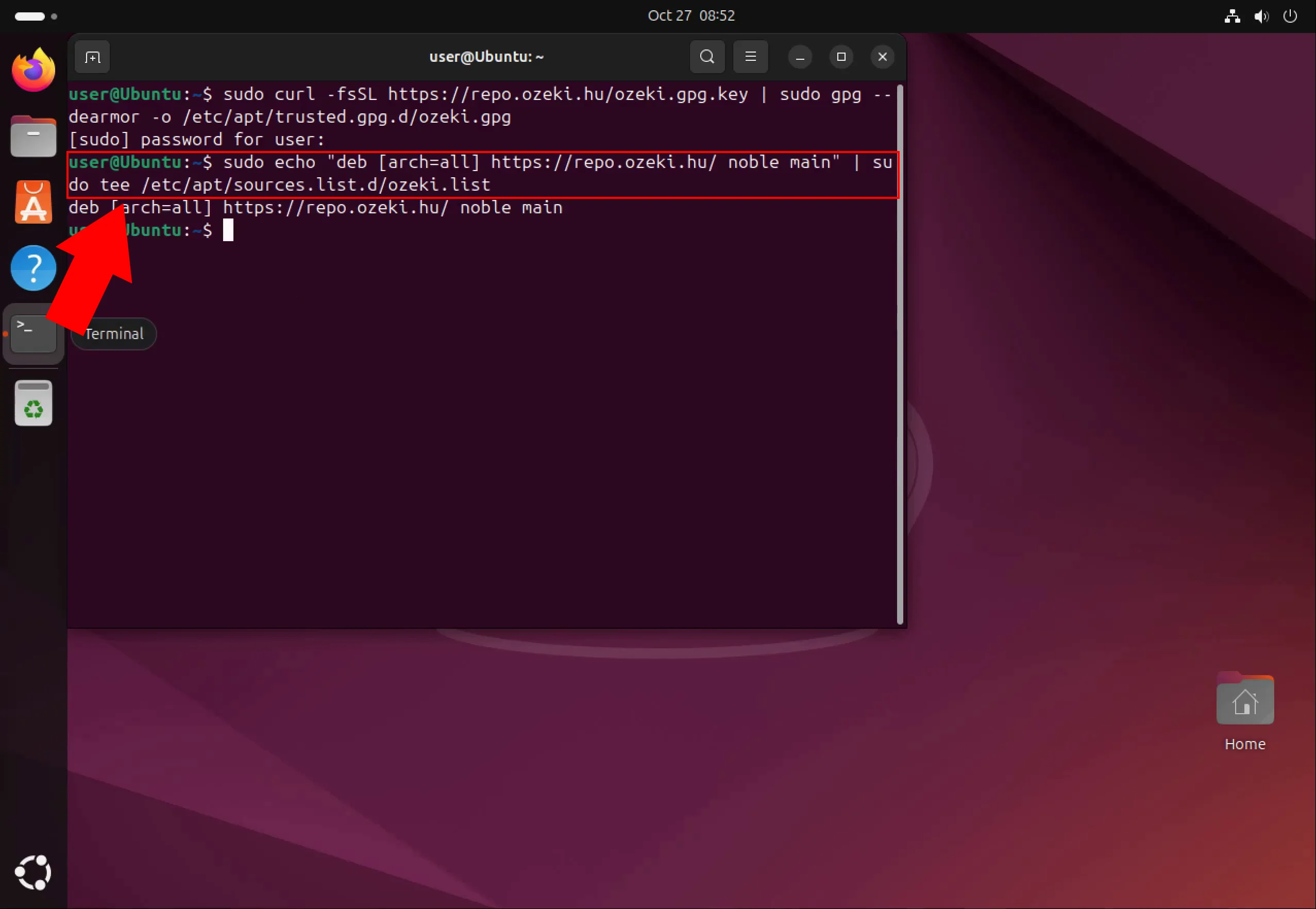
Next, add the Ozeki repository to your system’s APT sources list. This allows your package manager to locate and retrieve Ozeki software. The command uses echo piped into tee for proper permissions.
sudo echo "deb [arch=all] https://repo.ozeki.hu/ noble main" | sudo tee /etc/apt/sources.list.d/ozeki.list
Update Package List
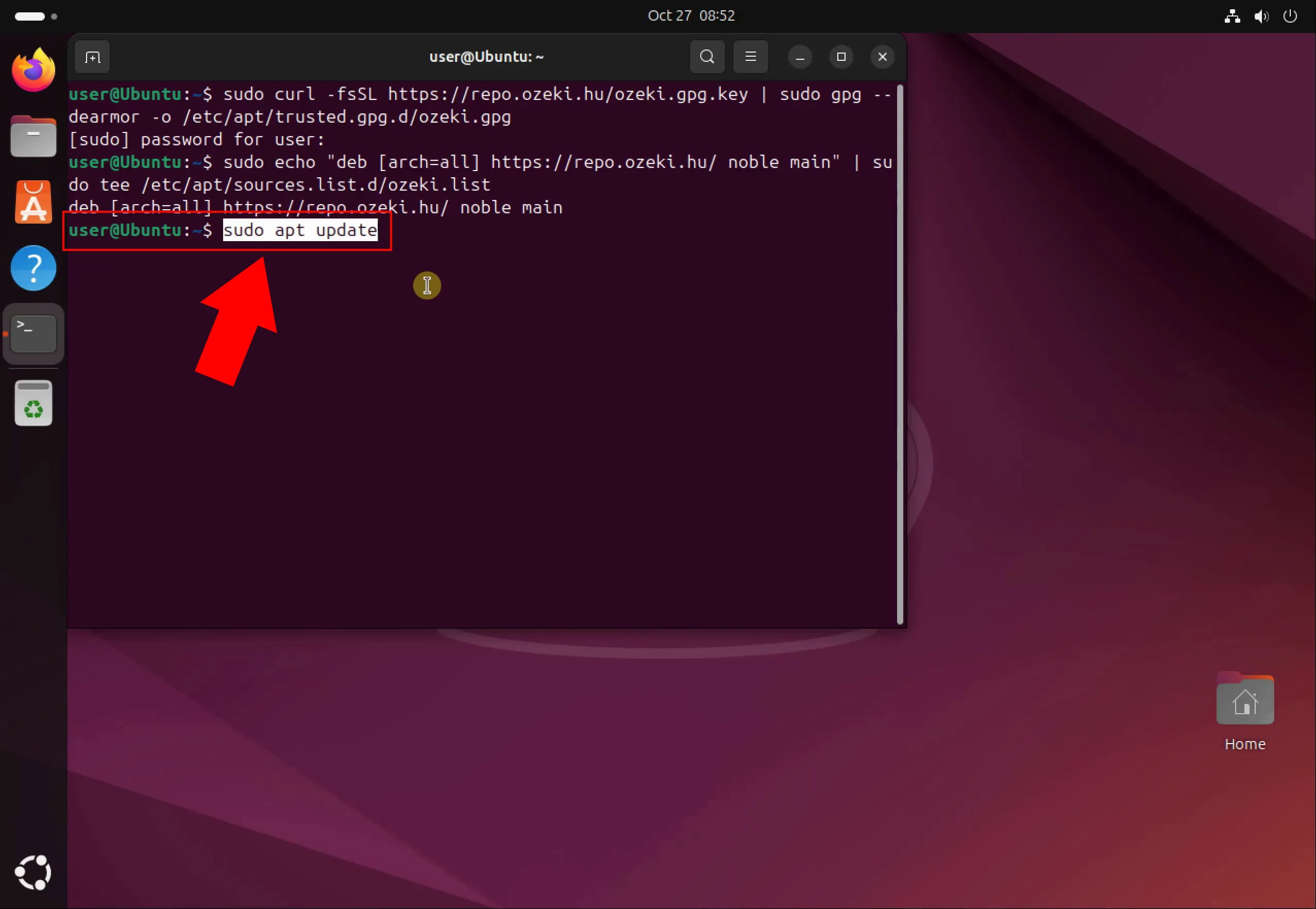
Run sudo apt update to refresh your system’s package index. This step ensures your system recognizes the newly added Ozeki repository. It prepares your system for installation.
sudo apt update
Install Ozeki SMS Gateway
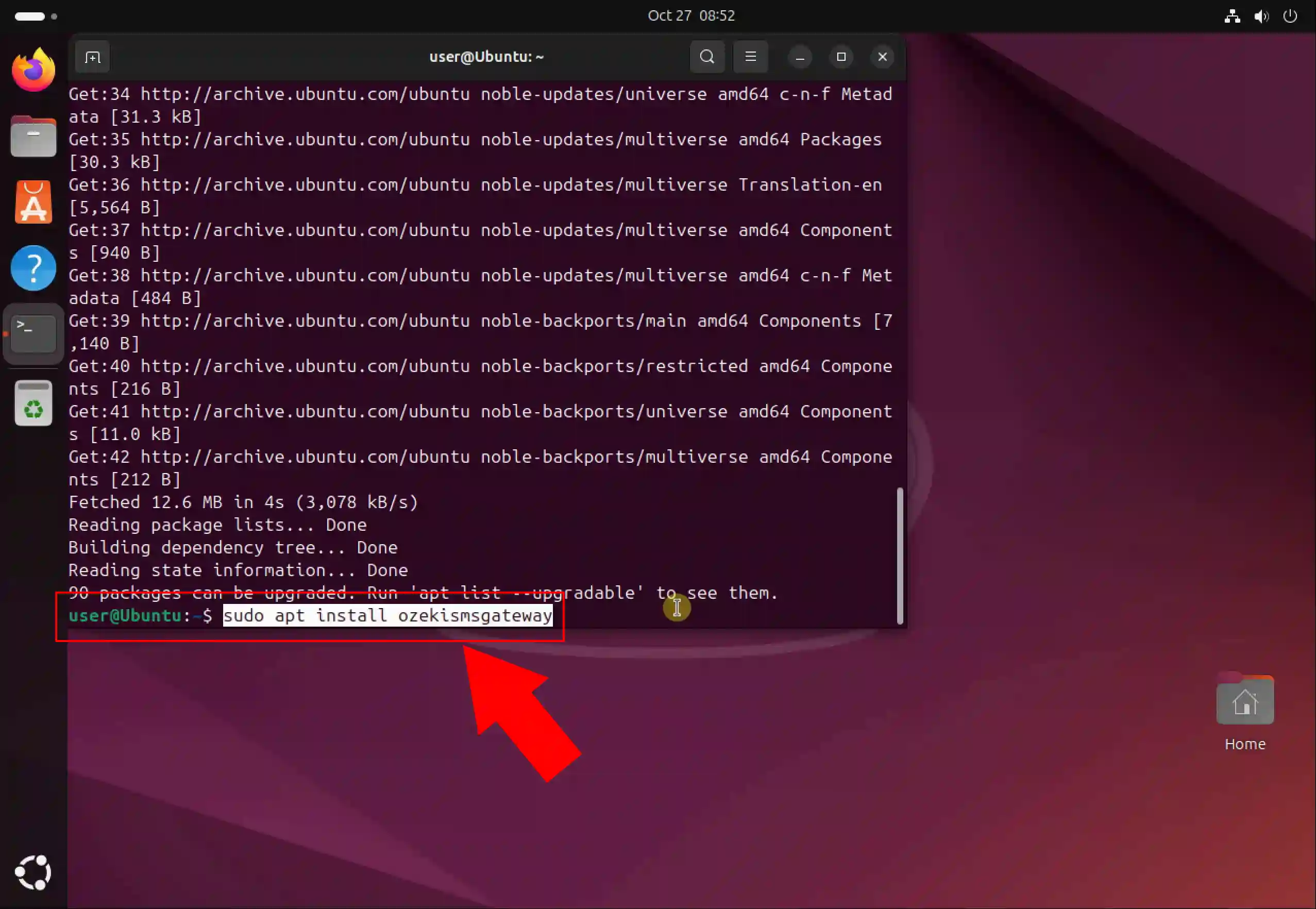
Install the Ozeki SMS Gateway using sudo apt install ozekismsgateway. This command fetches and installs the gateway software from the repository. Make sure your system has internet access during this step.
sudo apt install ozekismsgateway
Installation Complete
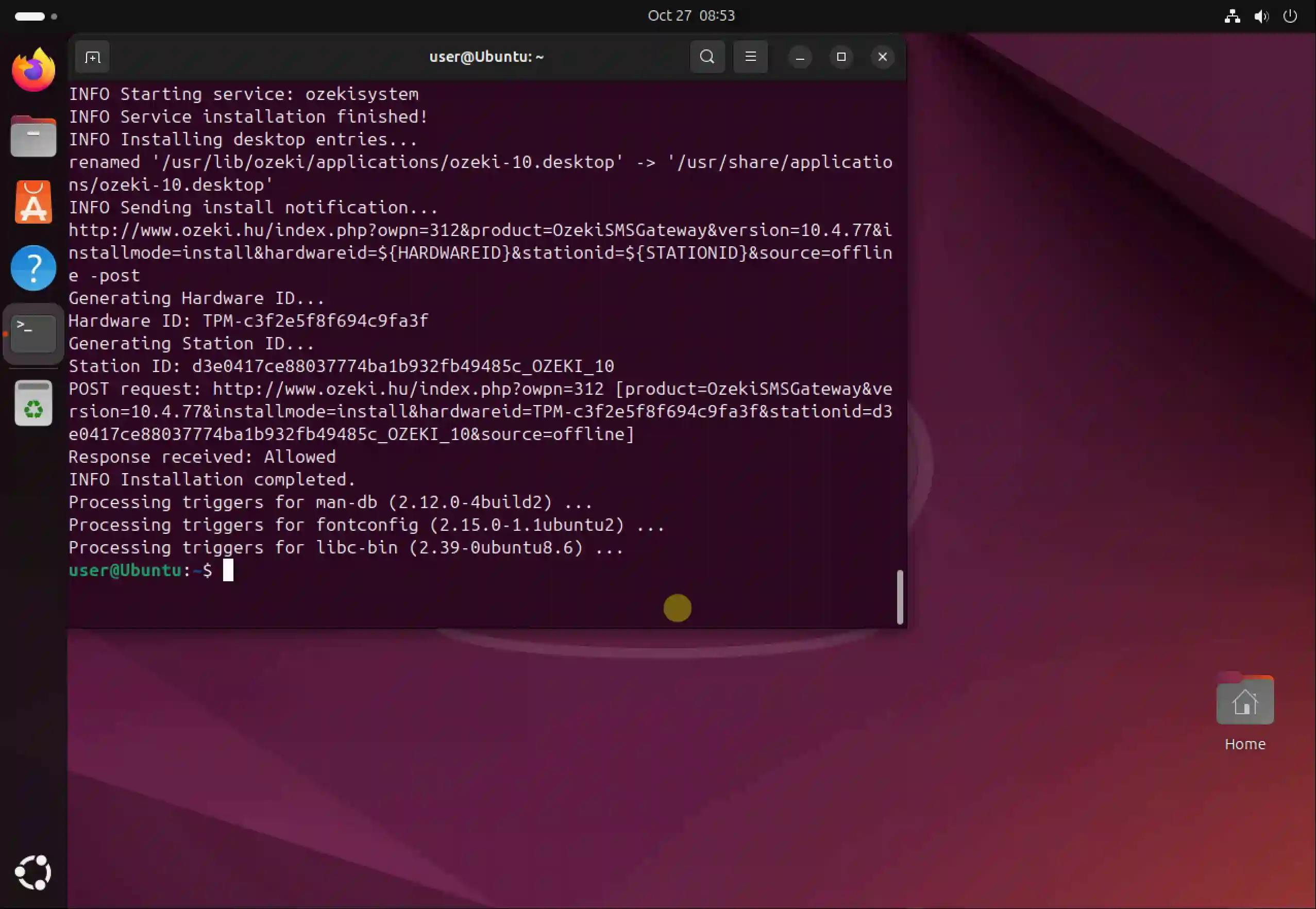
Once installation finishes, you’ll see confirmation in the terminal. The SMS Gateway is now installed and ready to be launched. No additional configuration is required at this point.
Access the User Interface
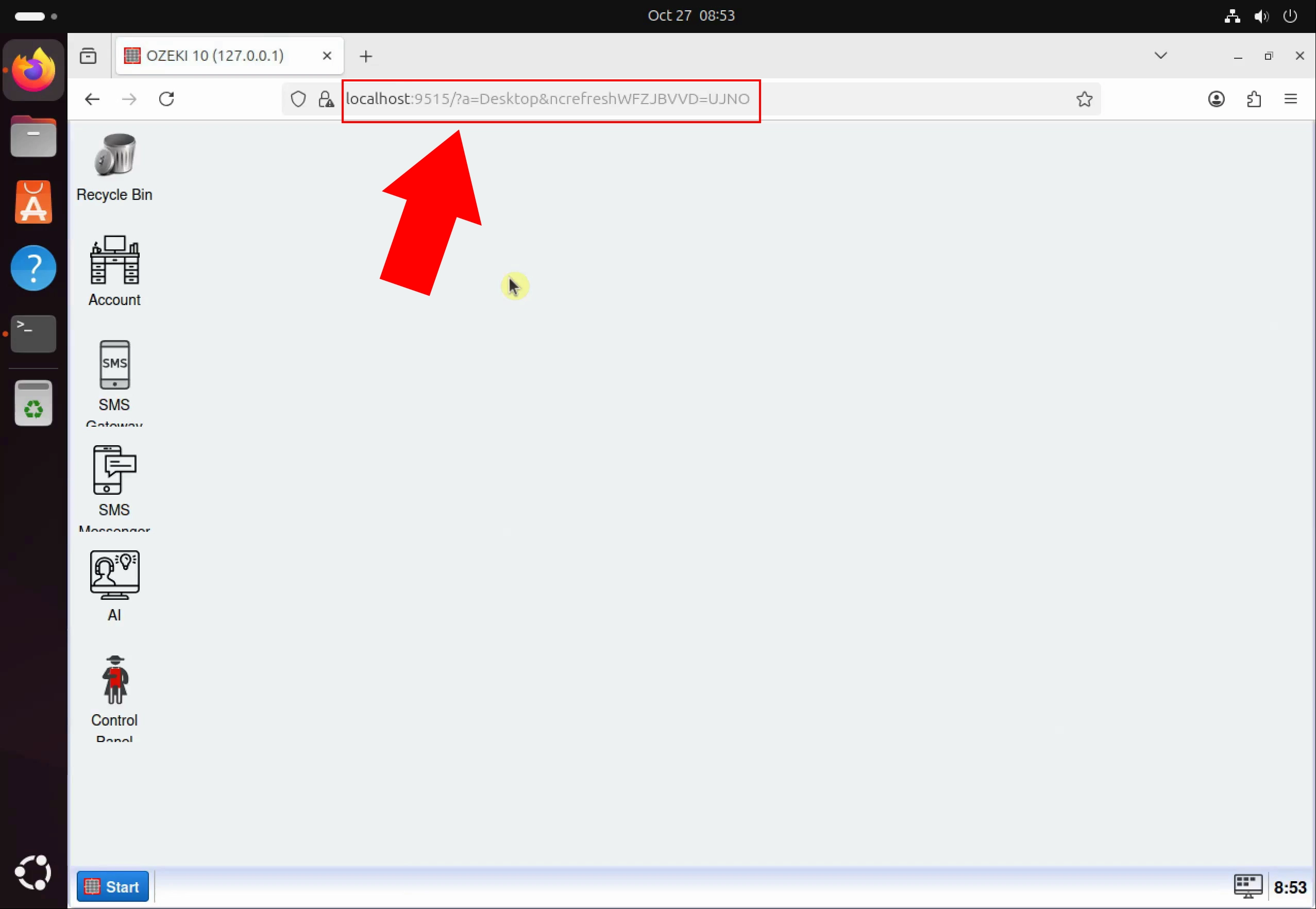
Open a browser and navigate to https://localhost:9515 to access the SMS Gateway’s web interface. This is where you can configure and manage SMS services. Ensure your firewall allows access to this port.
https://localhost:9515