
How to configure the Ozeki SMS MCP Server in Oobabooga TextGen
This guide walks you through integrating the Ozeki SMS MCP Server with Oobabooga Text Generation WebUI, a popular open-source interface for running large language models locally. By following this tutorial, you will learn how to locate the MCP server field in the Oobabooga sidebar, add the Ozeki SMS Gateway entry, and verify that the SMS tools are available and ready to use.
What is an MCP server?
An MCP (Model Context Protocol) server exposes tools that an AI model can call during a conversation. In this setup, the Ozeki SMS MCP Server provides SMS tools such as sending messages and listing incoming SMS. Oobabooga connects to the MCP server over HTTP using the configured URL and API key.
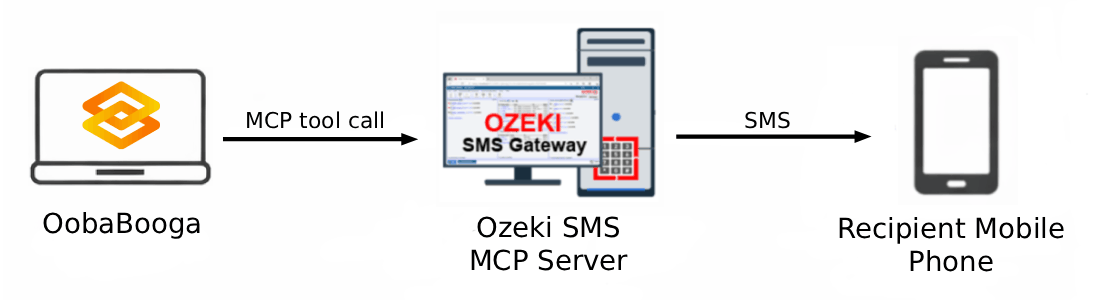
Oobabooga MCP server configuration
# Enter the following in the MCP Servers field
# Format: {url},{Authorization header}
# Replace the address with your Ozeki SMS Gateway address and the Bearer token with your API key
http://{address}:9529/mcp,Authorization: Bearer your-bearer-token

# Example prompt to verify available tools after connecting:
List available tools from the MCP server.
Steps to follow
We assume Ozeki SMS Gateway is already installed on your system and you have already created an MCP user account with an API key. You will also need Oobabooga Text Generation WebUI installed on your system.
Video tutorial
The following video shows how to add the Ozeki SMS MCP Server to Oobabooga Text Generation WebUI step-by-step. The video covers locating the MCP server field in the sidebar, entering the connection details, and verifying the available SMS tools.
Step 1 - Add the Ozeki SMS MCP Server to Oobabooga
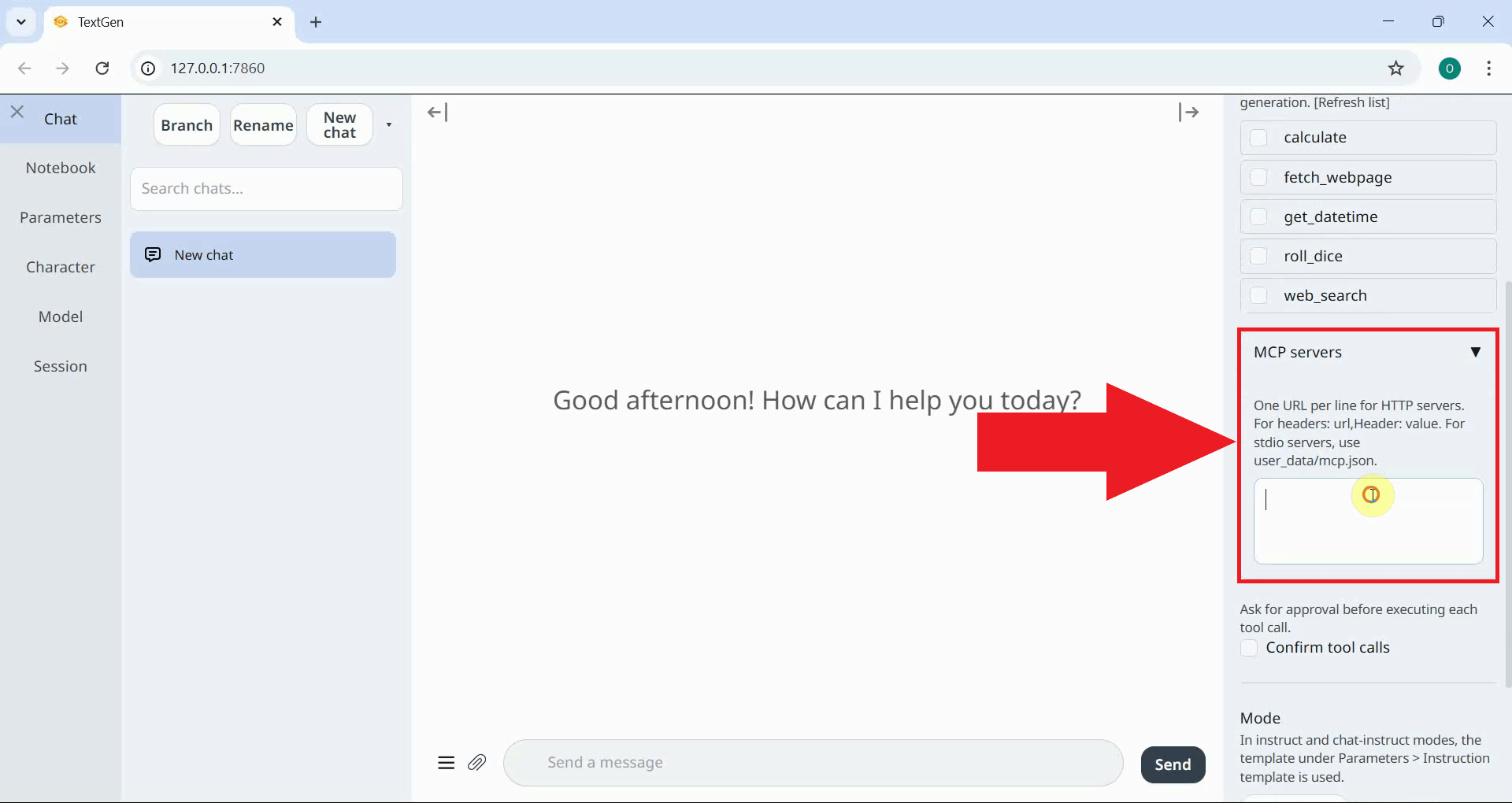
Open Oobabooga Text Generation WebUI in your browser, then locate and open the sidebar panel on the right side of the interface. Scroll down until you find the MCP servers field, which accepts MCP server entries in a comma-separated format (Figure 1).
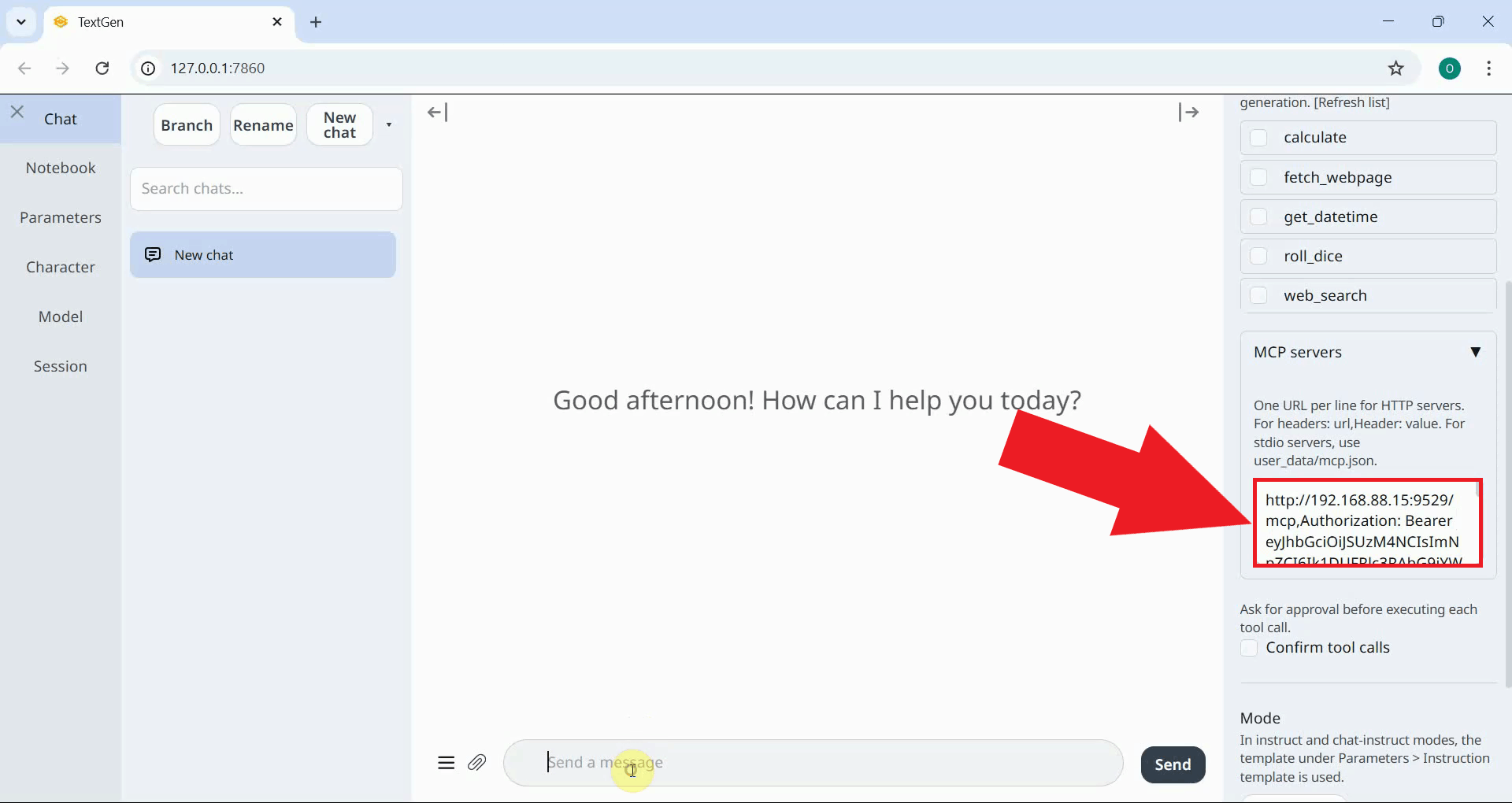
In the MCP Servers field, enter the Ozeki SMS Gateway URL followed by a comma and the Authorization header as shown below. Replace the URL with the address of your Ozeki SMS Gateway installation and the Bearer token with the API key you generated for your MCP user account (Figure 2).
http://{address}:9529/mcp,Authorization: Bearer your-bearer-token
Step 2 - Verify the available MCP tools
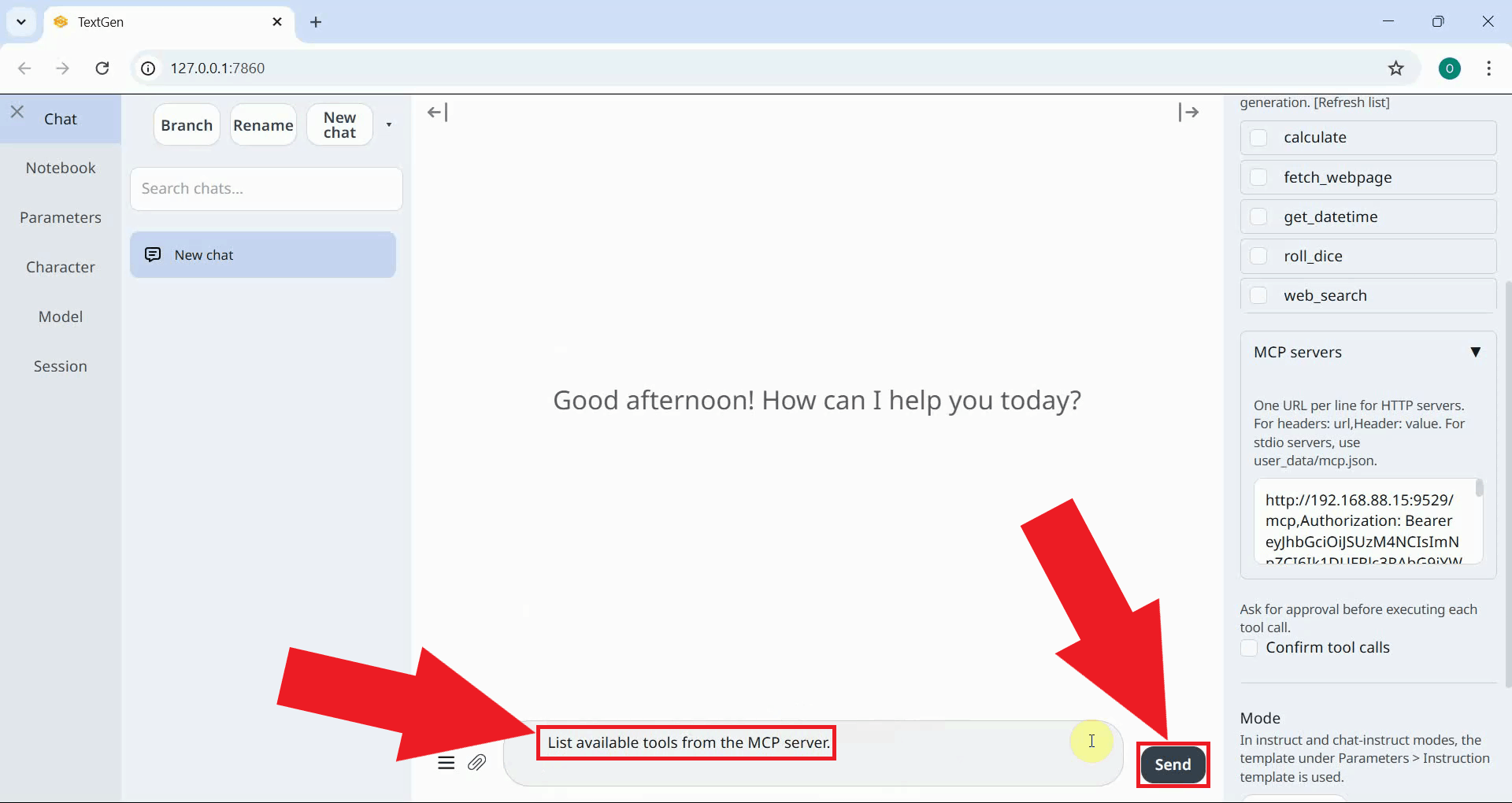
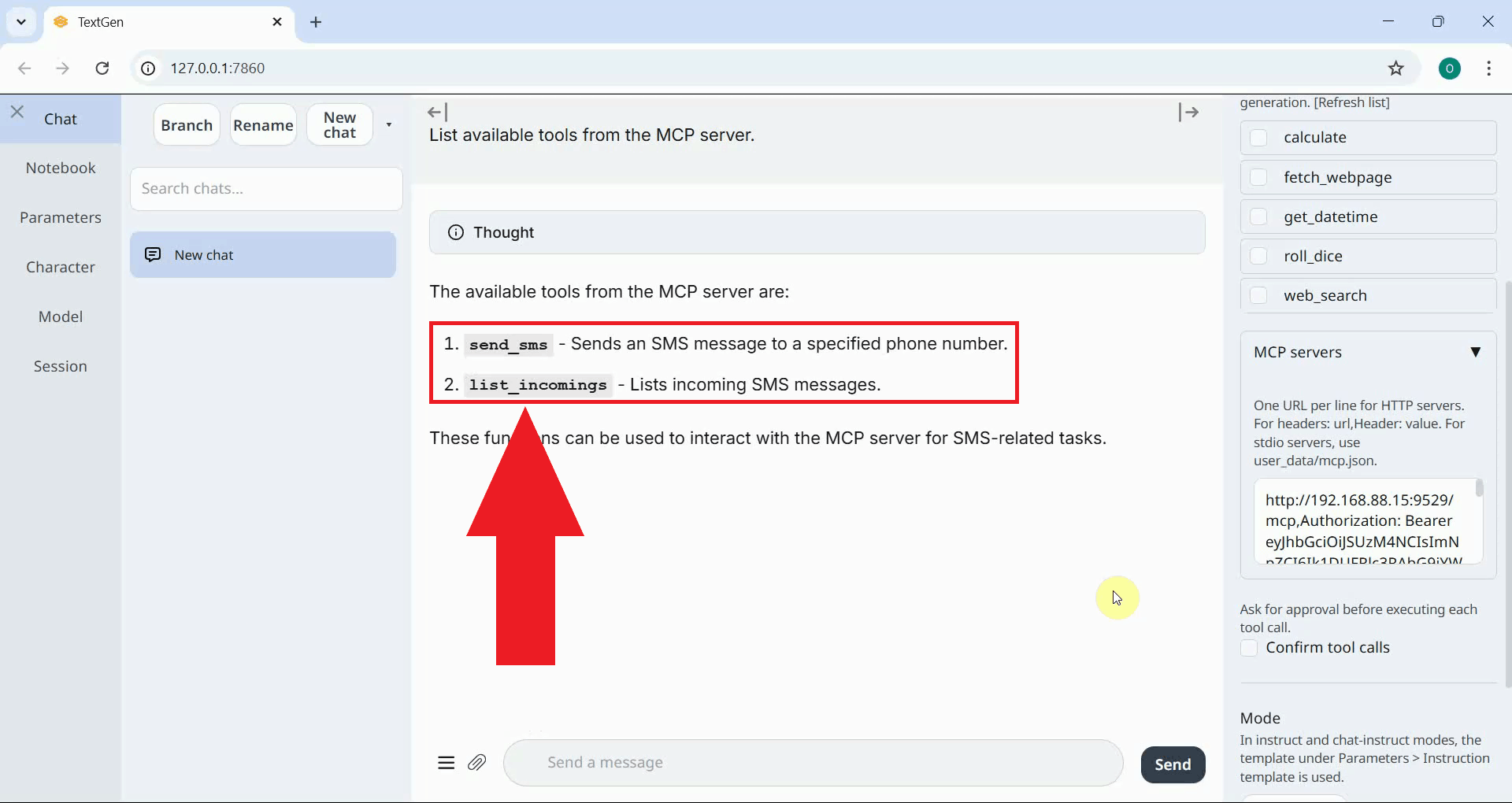
In the chat input, ask the AI model to list the tools available from the MCP server. The model will query the connected server and return a list of the tools it exposes (Figure 3).
List available tools from the MCP server.
You will see a list of the available tools exposed by the SMS MCP server, such as sending messages and listing incoming SMS. This confirms that Oobabooga has successfully connected to your gateway and the tools are ready to use (Figure 4).
Summary
You have successfully configured the Ozeki SMS MCP Server in Oobabooga Text Generation WebUI. The AI model running in Oobabooga can now send and receive SMS messages through your gateway using plain language prompts, making it straightforward to add mobile messaging capabilities to any locally running model.