How to restore your licence from backup
This guide explains how to restore your Ozeki 10 SMS Gateway licence after reinstalling the software or transferring the system to a new computer. You will reinstall the gateway, replace its default licence folder with the saved backup, restart the OzekiSystem service, and verify that your original licence is active.
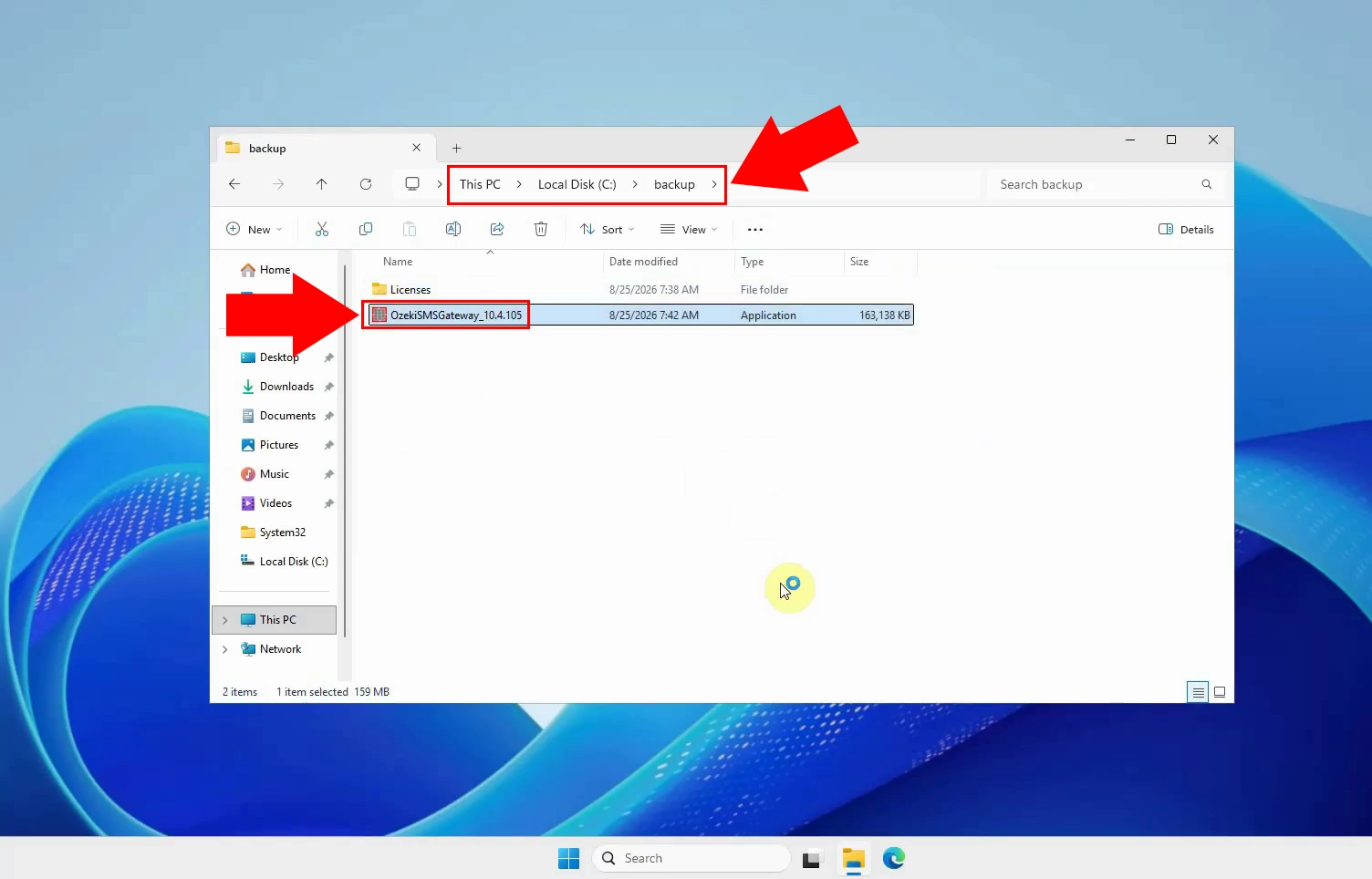
Open the backup folder that contains the Ozeki SMS Gateway installer and your saved licence data. Run the installer to begin reinstalling Ozeki 10 SMS Gateway on the target computer. Using the backed-up installer helps ensure the recovery uses the appropriate software version.
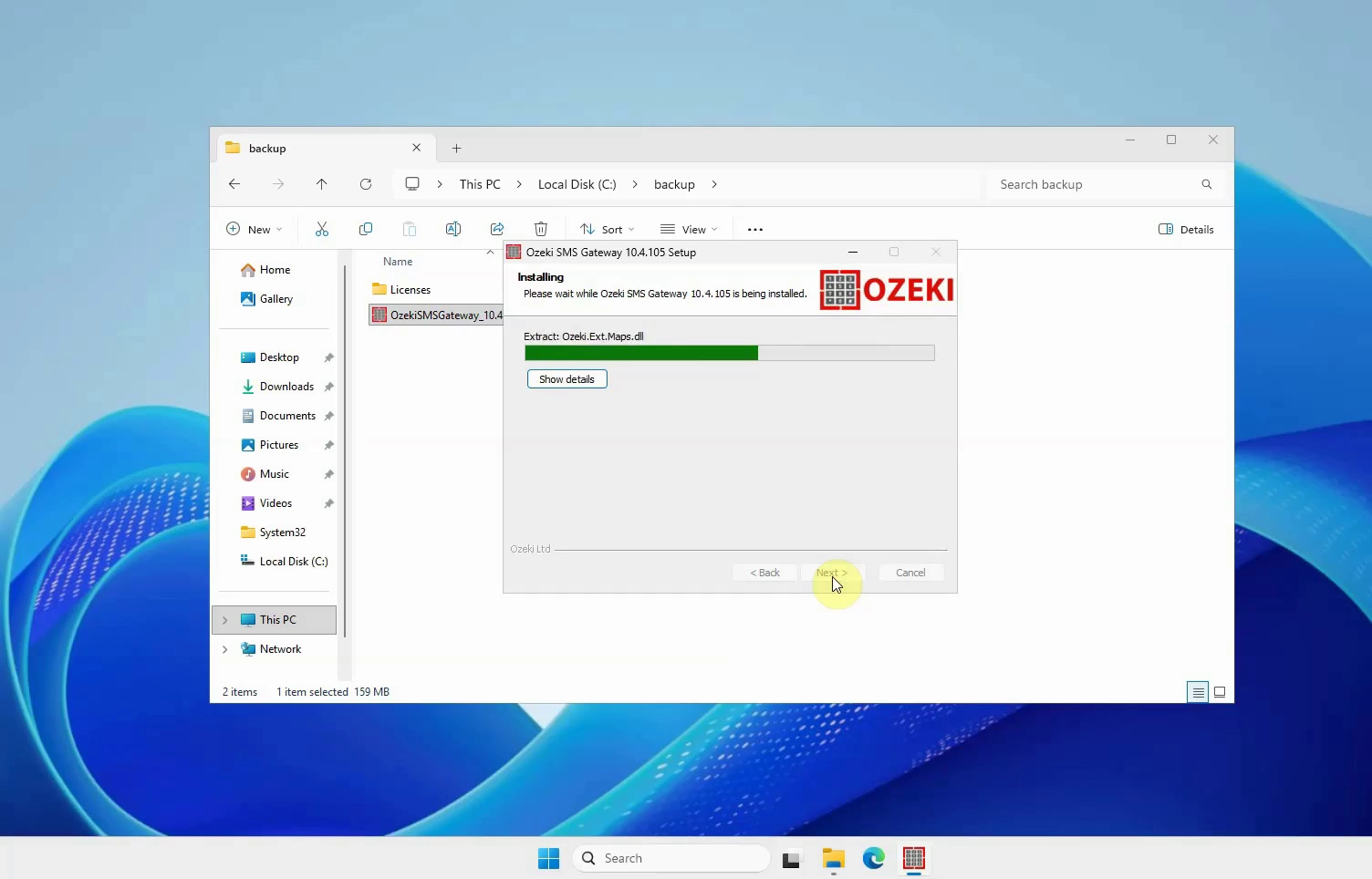
Follow the installation wizard and complete the required setup steps. Allow the installer to finish installing all Ozeki SMS Gateway components. Do not restore the licence files until the installation process has completed.
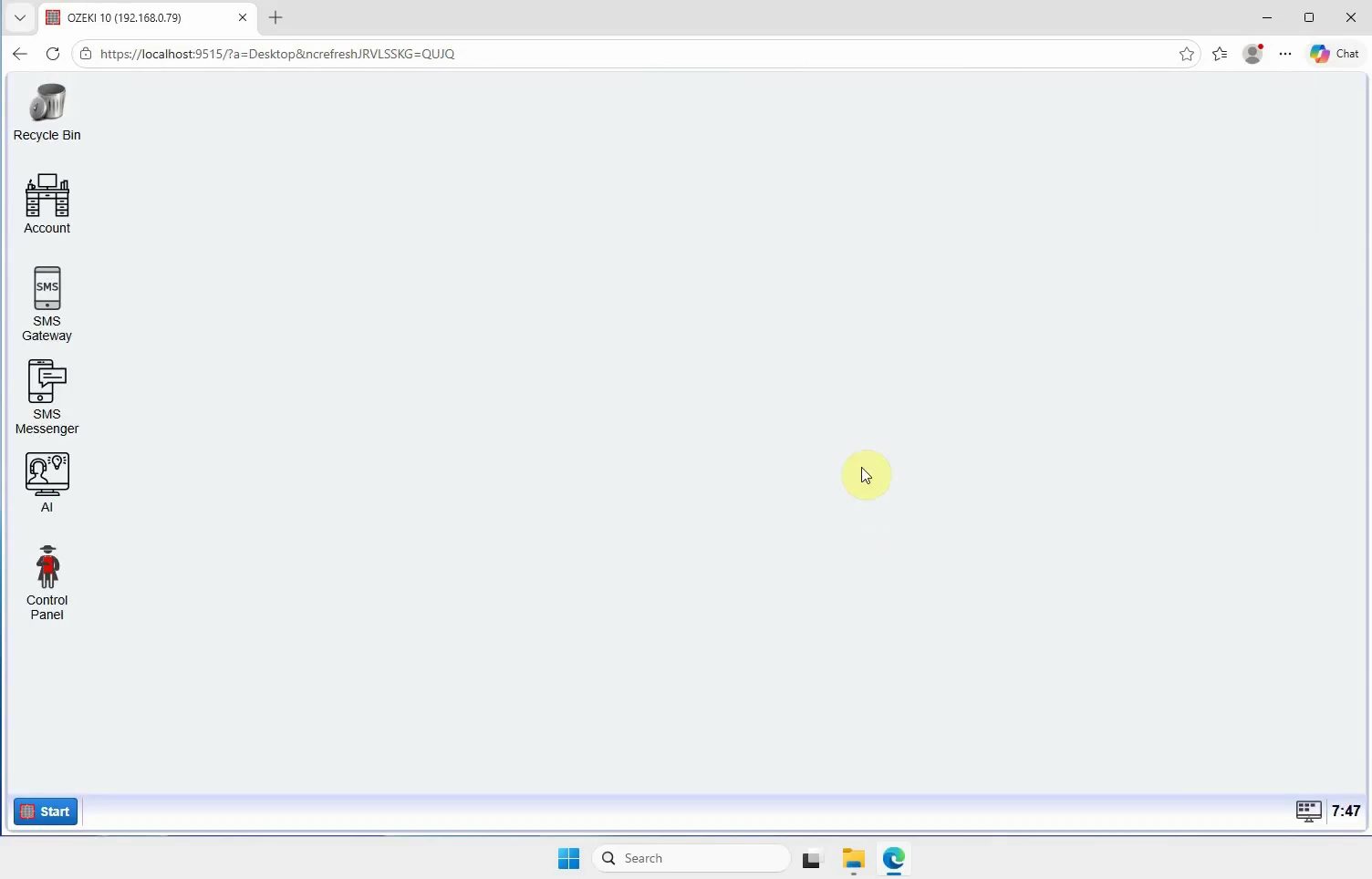
Start Ozeki SMS Gateway after the installation has finished. Wait until the web interface becomes available and log in with an administrator account. The new installation will initially run with its default licence data.
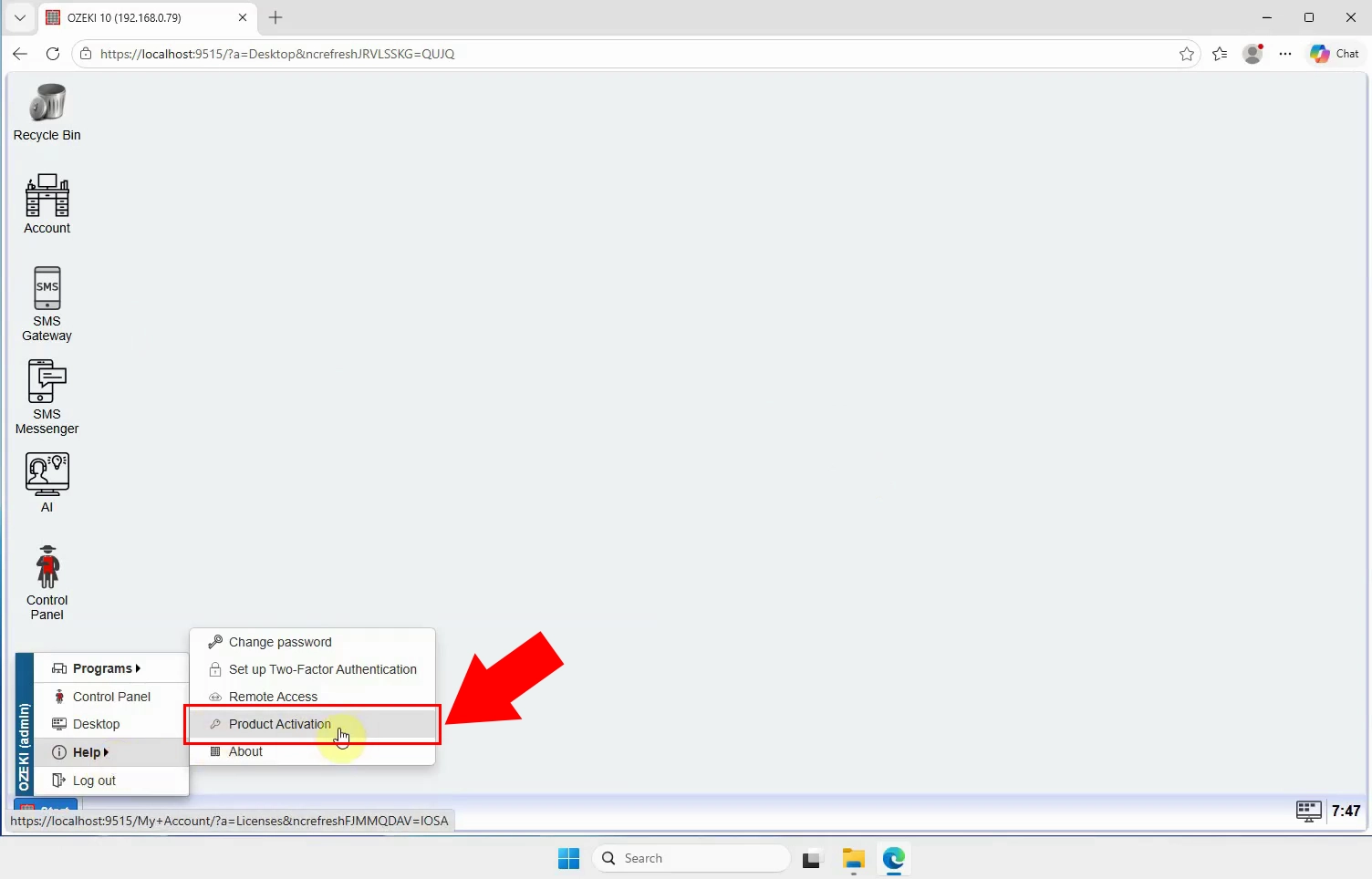
Open the Help menu in the Ozeki 10 SMS Gateway web interface. Select Product activation to view the licences currently loaded by the system. This page lets you confirm the licence status before beginning the restoration.
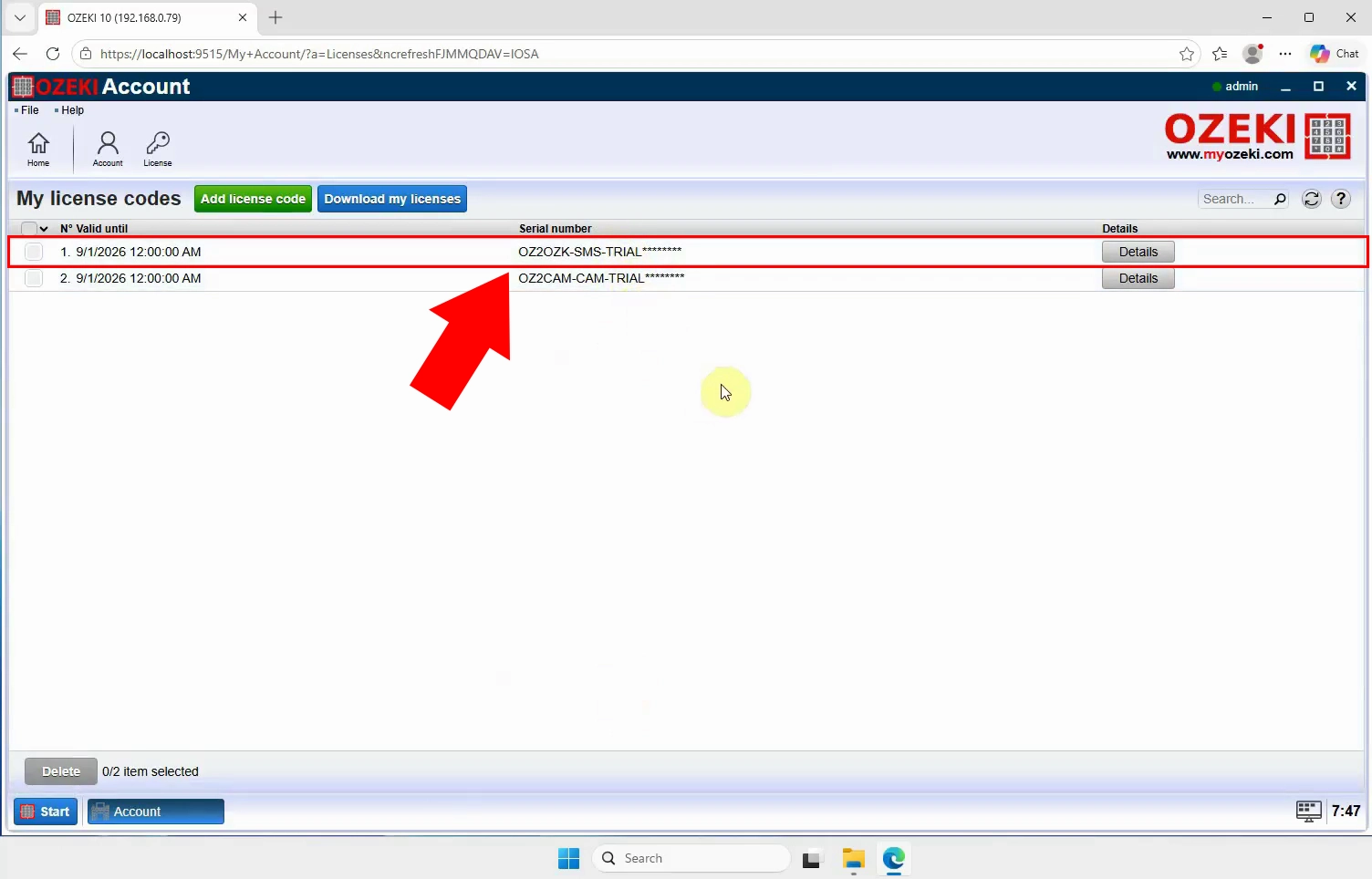
Check the licences displayed on the Product activation page. A fresh installation may show trial or default licences instead of your purchased licence. This confirms that the saved licence data still needs to be restored.
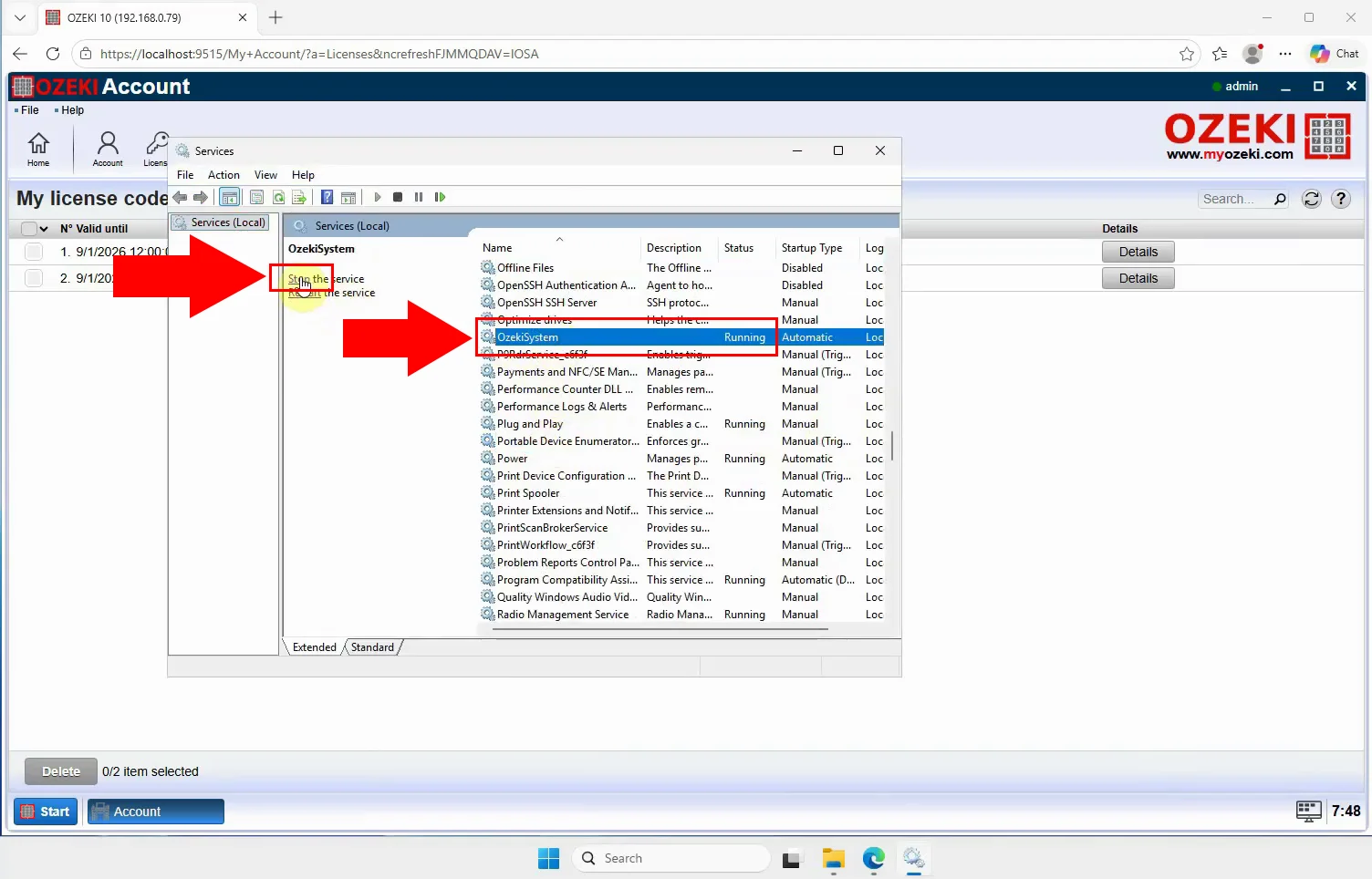
Stop the OzekiSystem service before replacing licence files. Stopping the service prevents Ozeki SMS Gateway from accessing or overwriting the active licence folder. Ensure the service has fully stopped before continuing with the file operations.
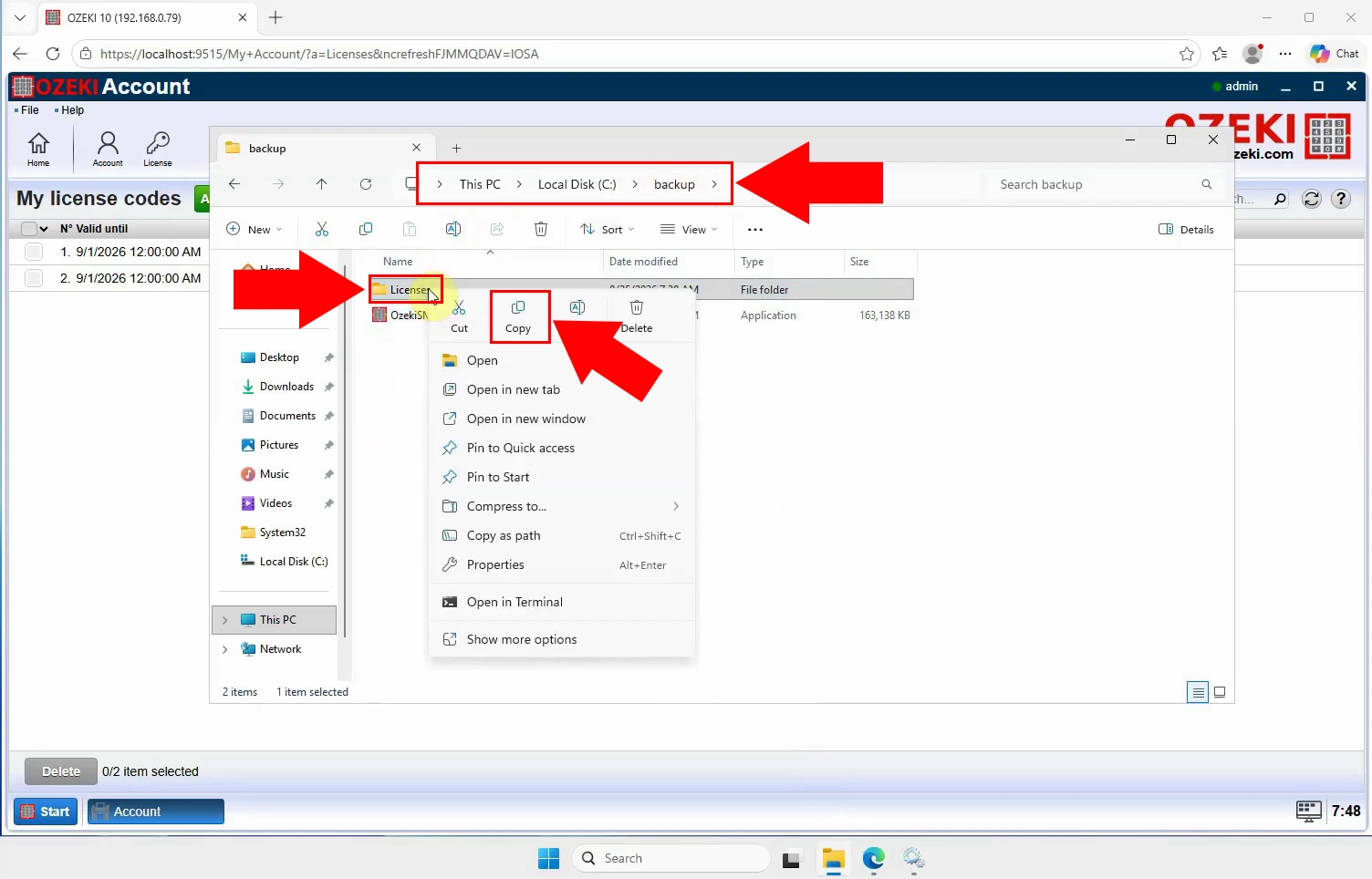
Open the backup folder where you previously saved the Ozeki licence data. Select and copy the backed-up licences folder. Keep the backup copy unchanged so it remains available for future recovery if necessary.
Open the Ozeki SMS Gateway data folder on the newly installed system. Delete the default licences folder created by the fresh installation. Removing it prevents the default trial licence files from conflicting with the restored files.
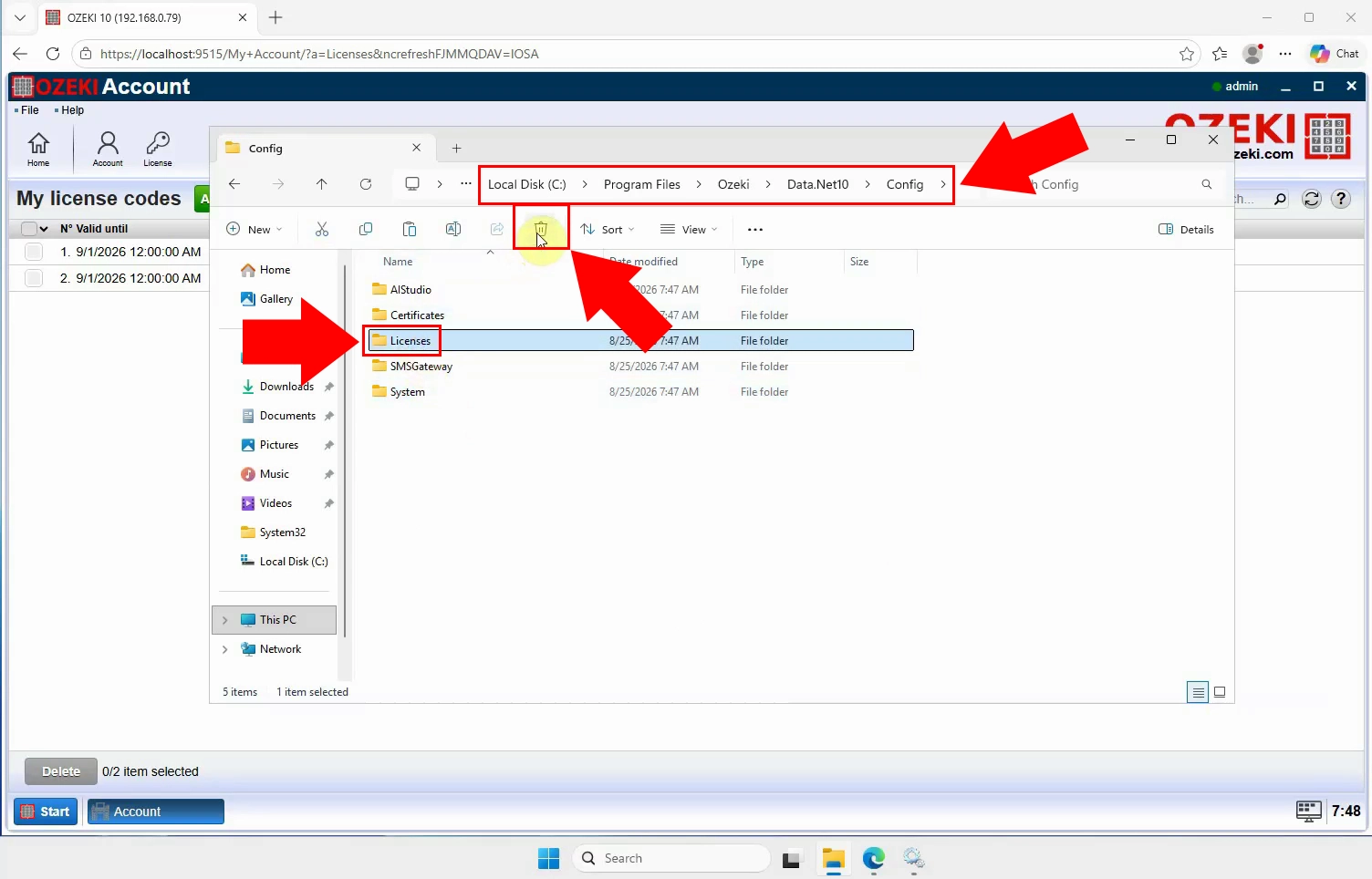
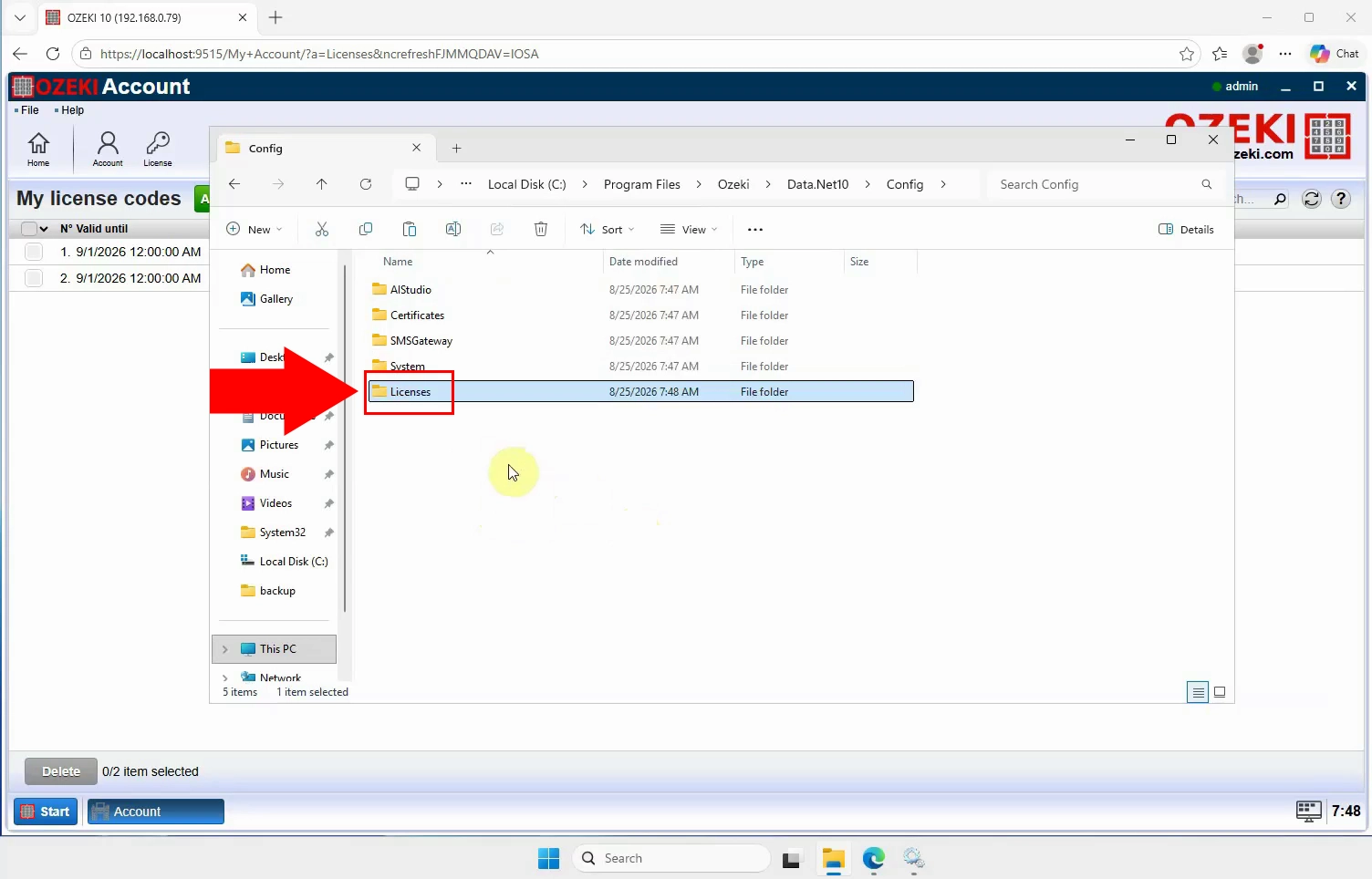
Paste the copied licences folder from the backup into the Ozeki data folder. Confirm that the restored folder occupies the location previously used by the default licence folder. The directory must contain the saved licence files before the OzekiSystem service is restarted.
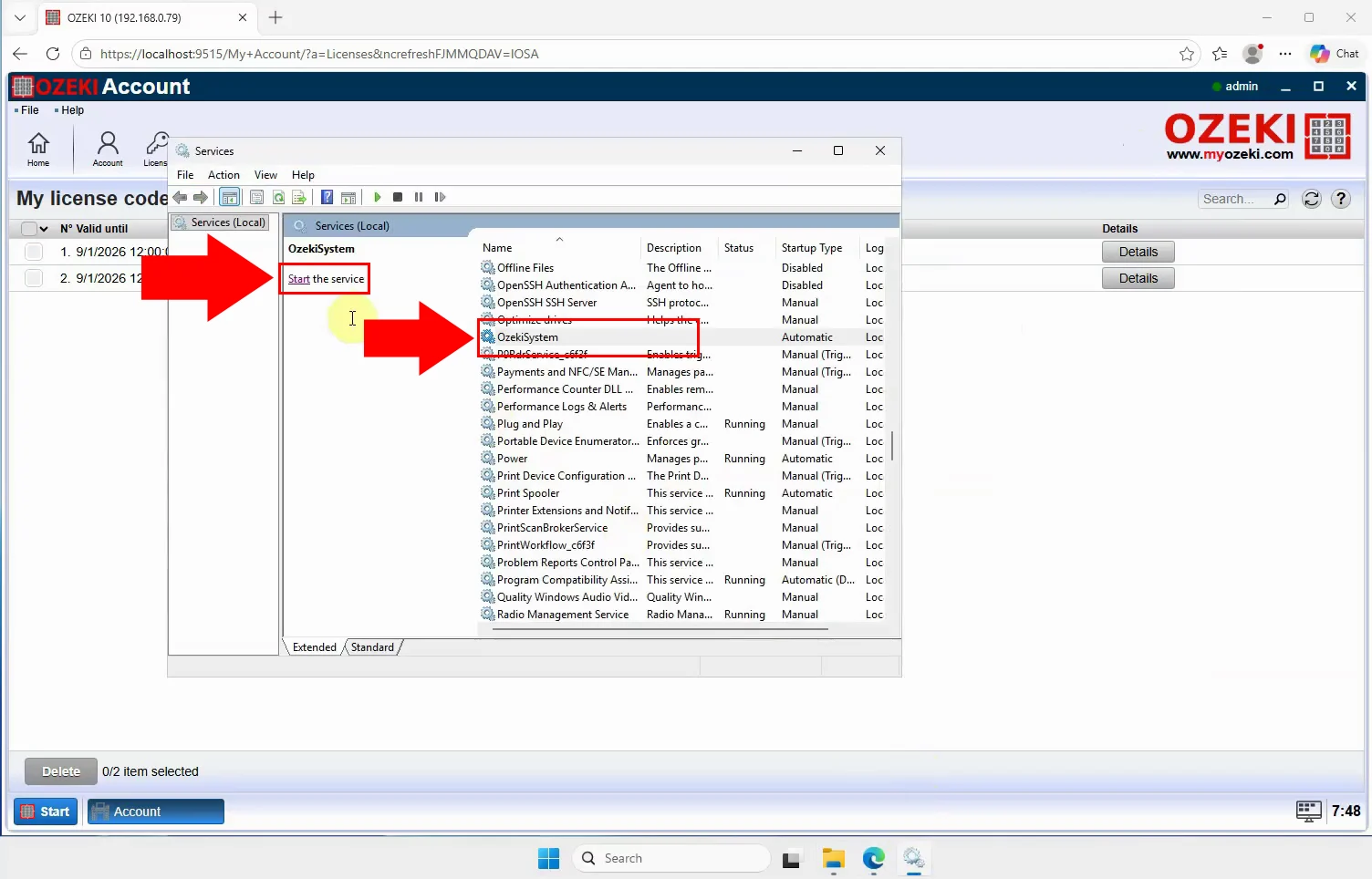
Start the OzekiSystem service after the backed-up licence folder has been copied into place. The service reads the restored licence data when it starts. Wait until the service is running normally before checking the activation page again.
Return to the Ozeki SMS Gateway web interface after the service has started. Open the Product activation page and verify that the restored licence is now displayed. The licence should replace the default trial licence information.
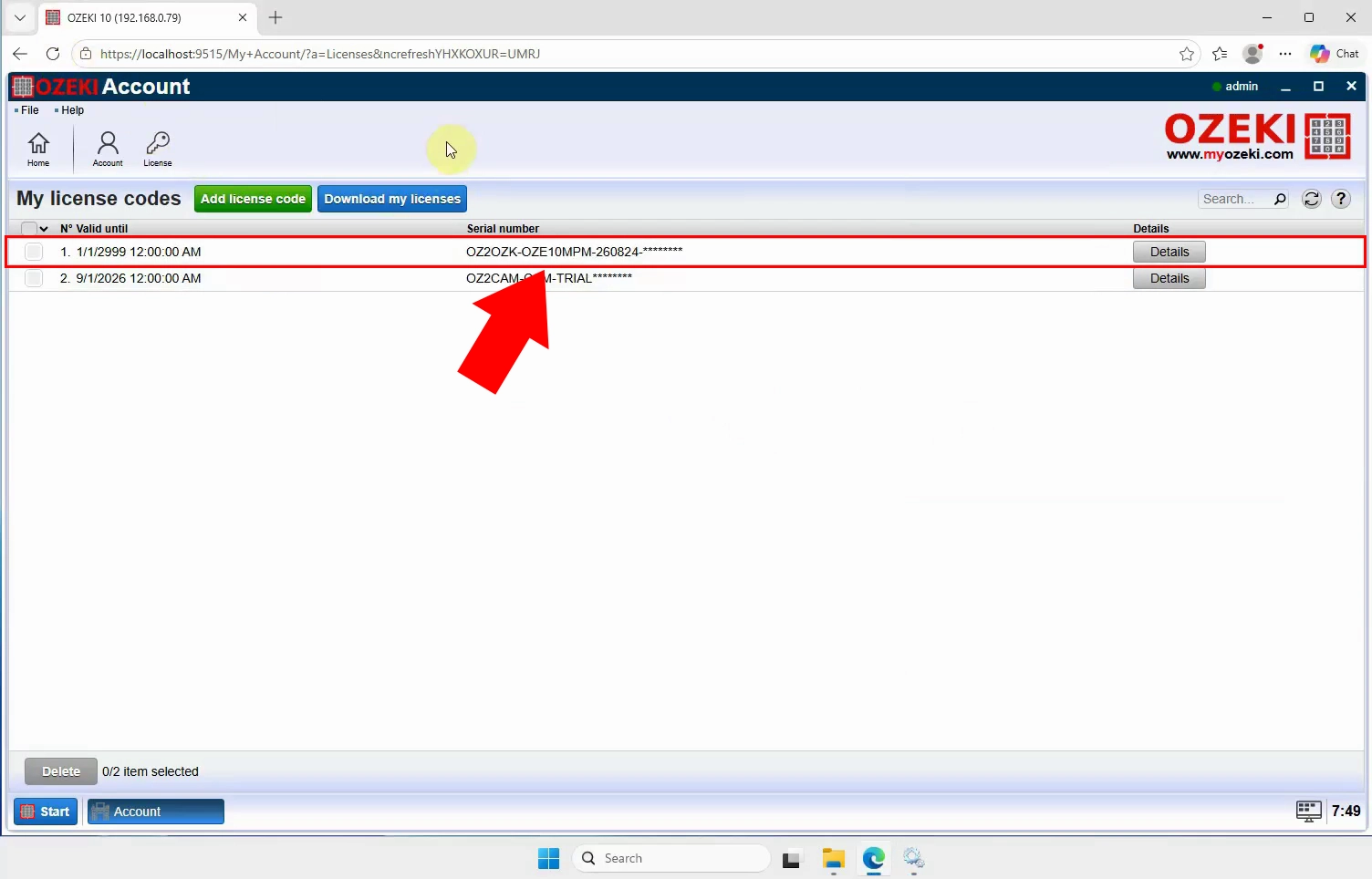
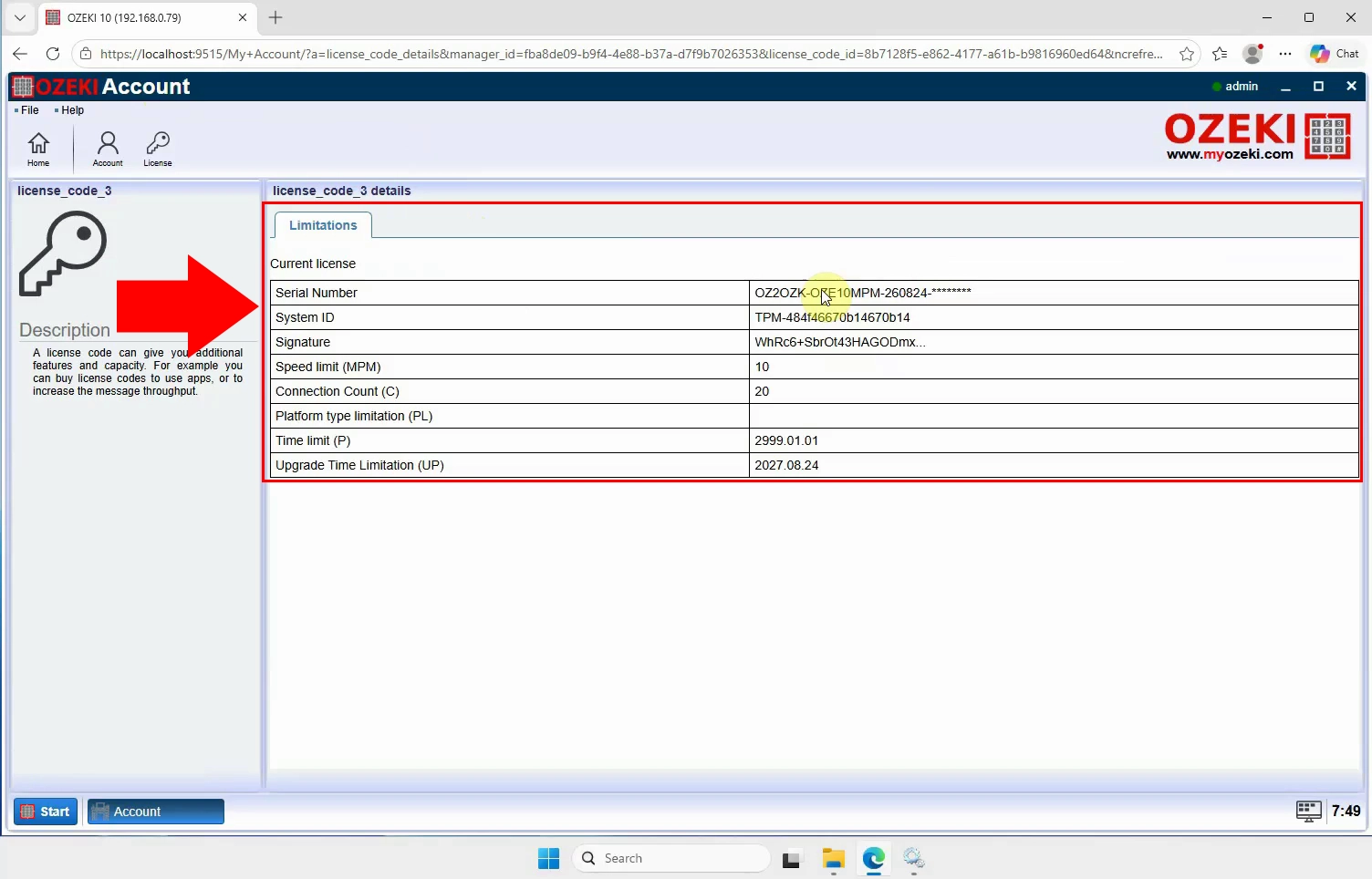
Open the restored licence entry to review its details. Verify the licence type, permitted capacity, and other displayed information against your records. This final check confirms that the Ozeki 10 SMS Gateway licence restoration was successful.