How to configure Ozeki SMS Gateway to provide Jasmin API
This guide explains how to configure Ozeki SMS Gateway to provide a Jasmin-compatible HTTP API. You will create and enable a Jasmin user, configure secure credentials and logging, then verify message submission using both curl and the Jasmin API compatibility tester client.
How to configure Ozeki SMS Gateway Jasmin user
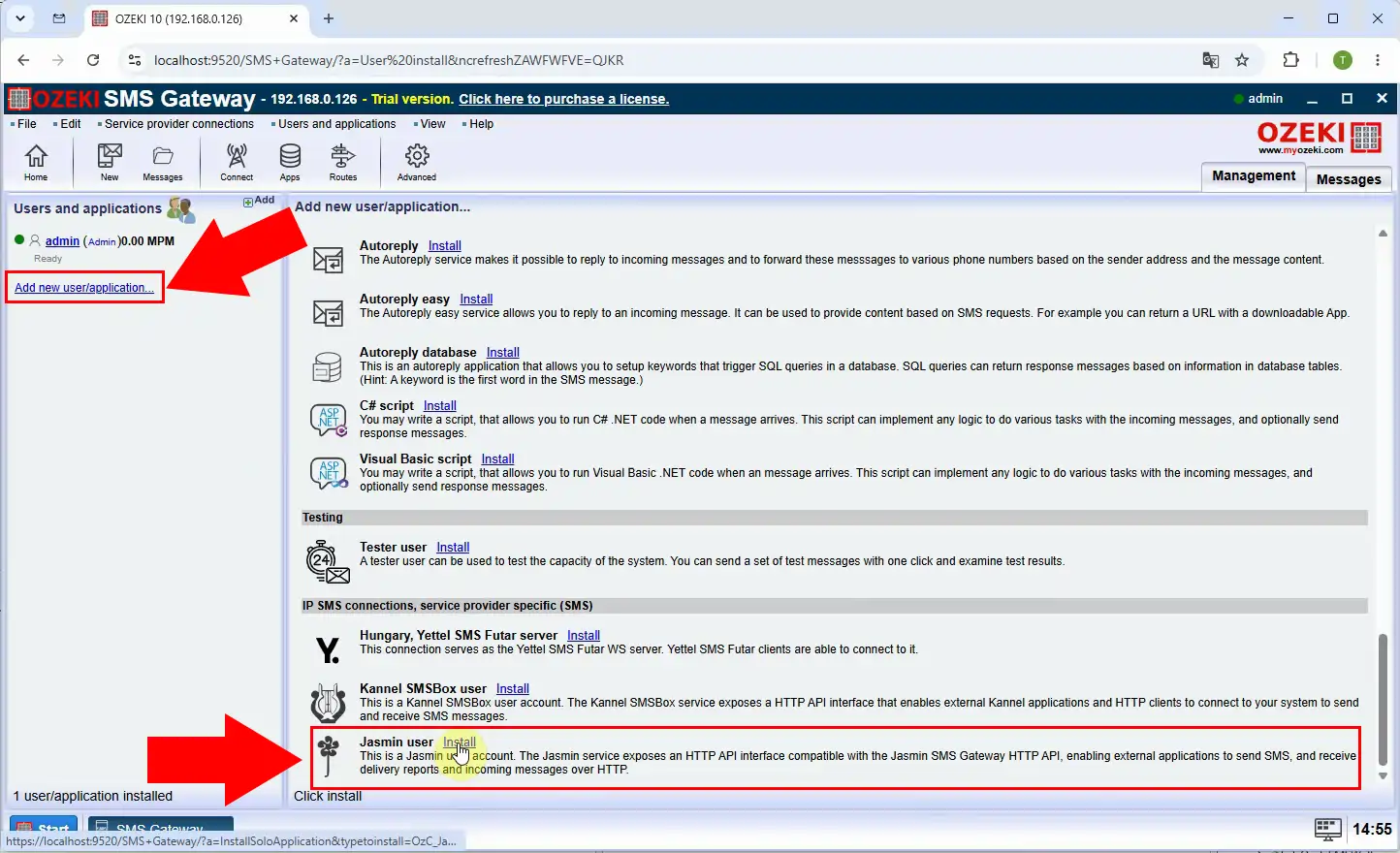
Open Ozeki SMS Gateway and navigate to the user installation area. Select the Jasmin user option to add a new API-compatible user. This user will provide the authentication endpoint for Jasmin API clients.
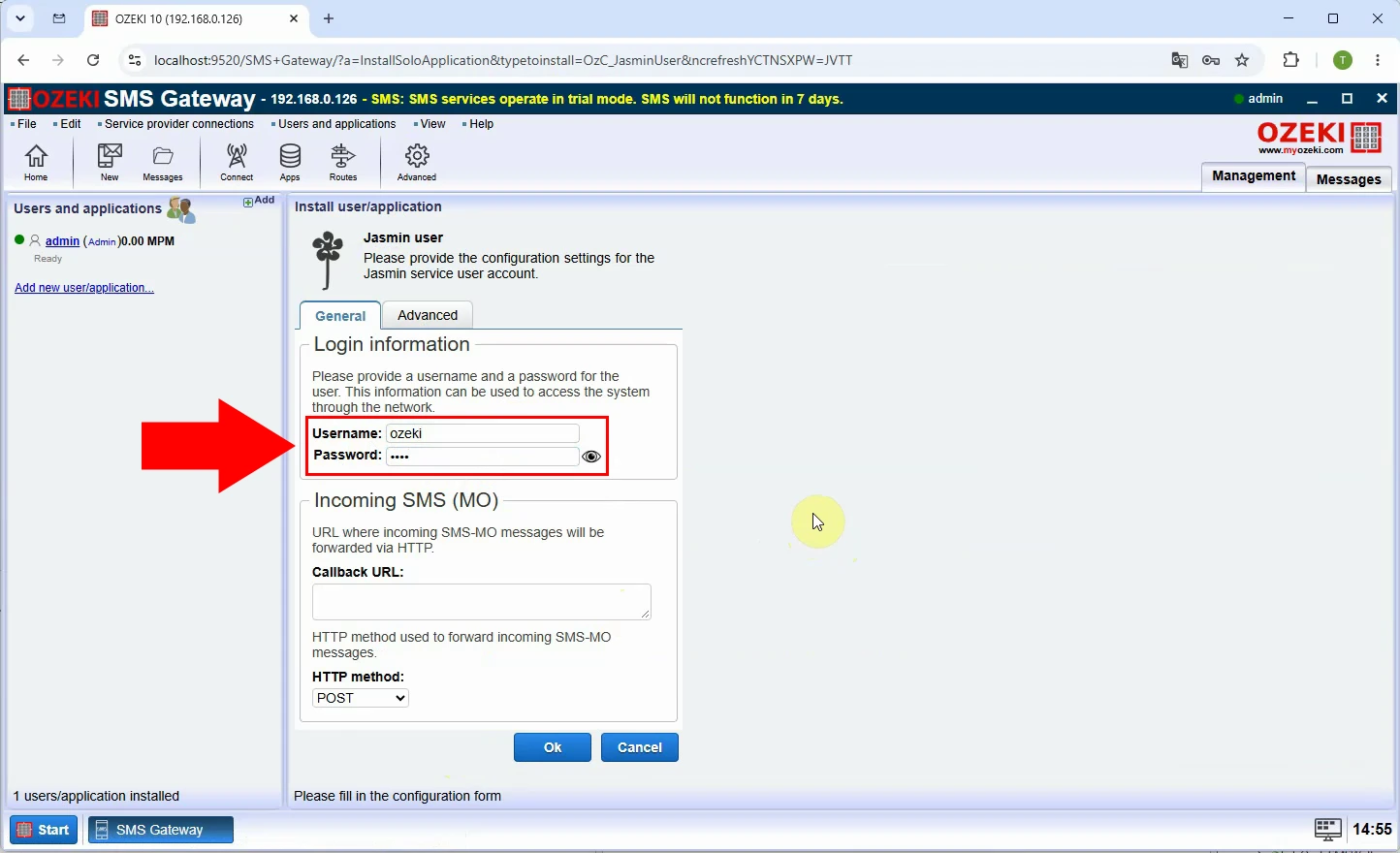
Enter a dedicated username and strong password for the new Jasmin user. Use these credentials in all Jasmin-compatible HTTP API requests. Save the configuration to apply the authentication settings.
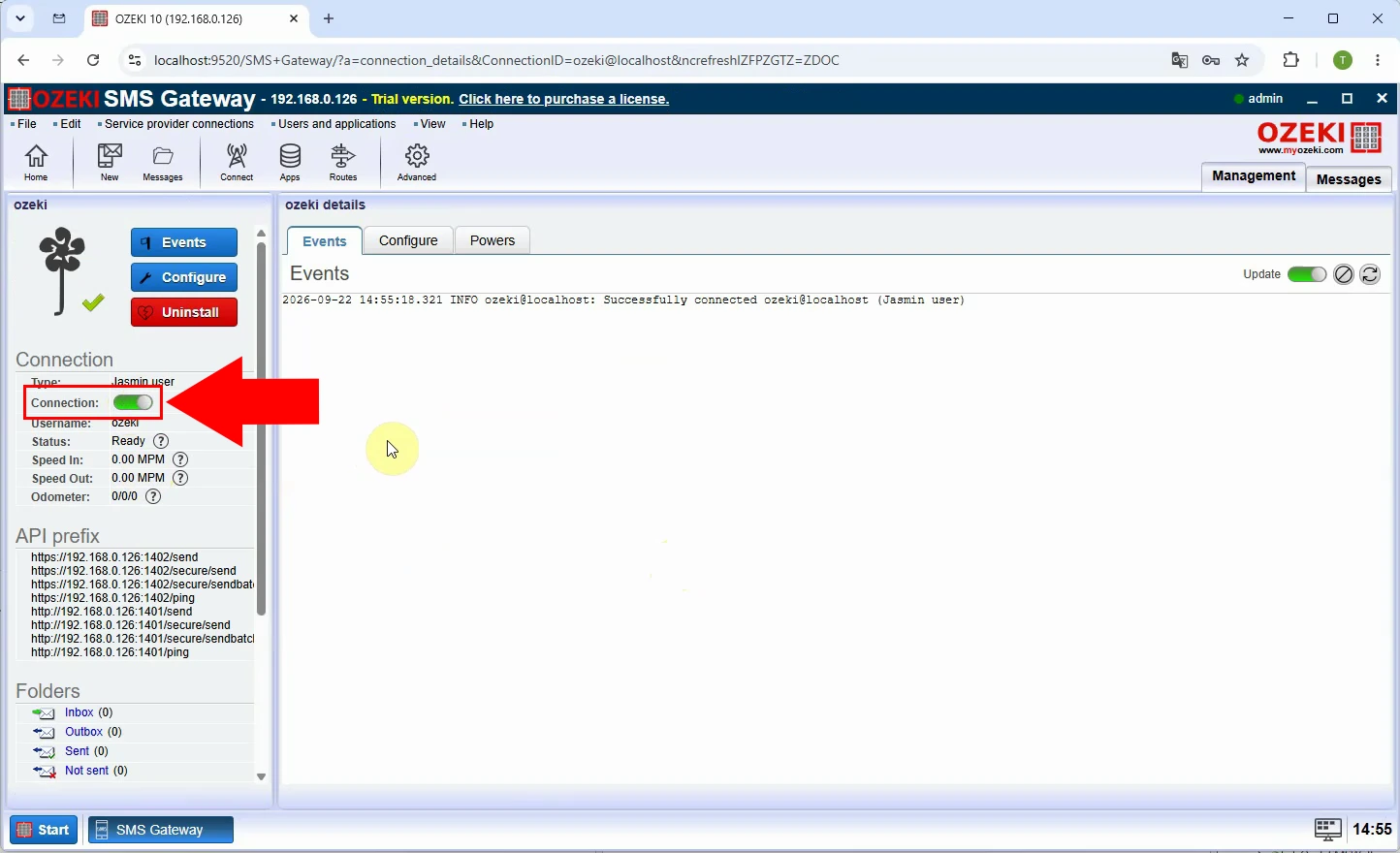
Enable the newly created Jasmin user after entering its credentials. An enabled user can accept API requests and submit messages through Ozeki. Confirm that its status is active before starting any tests.
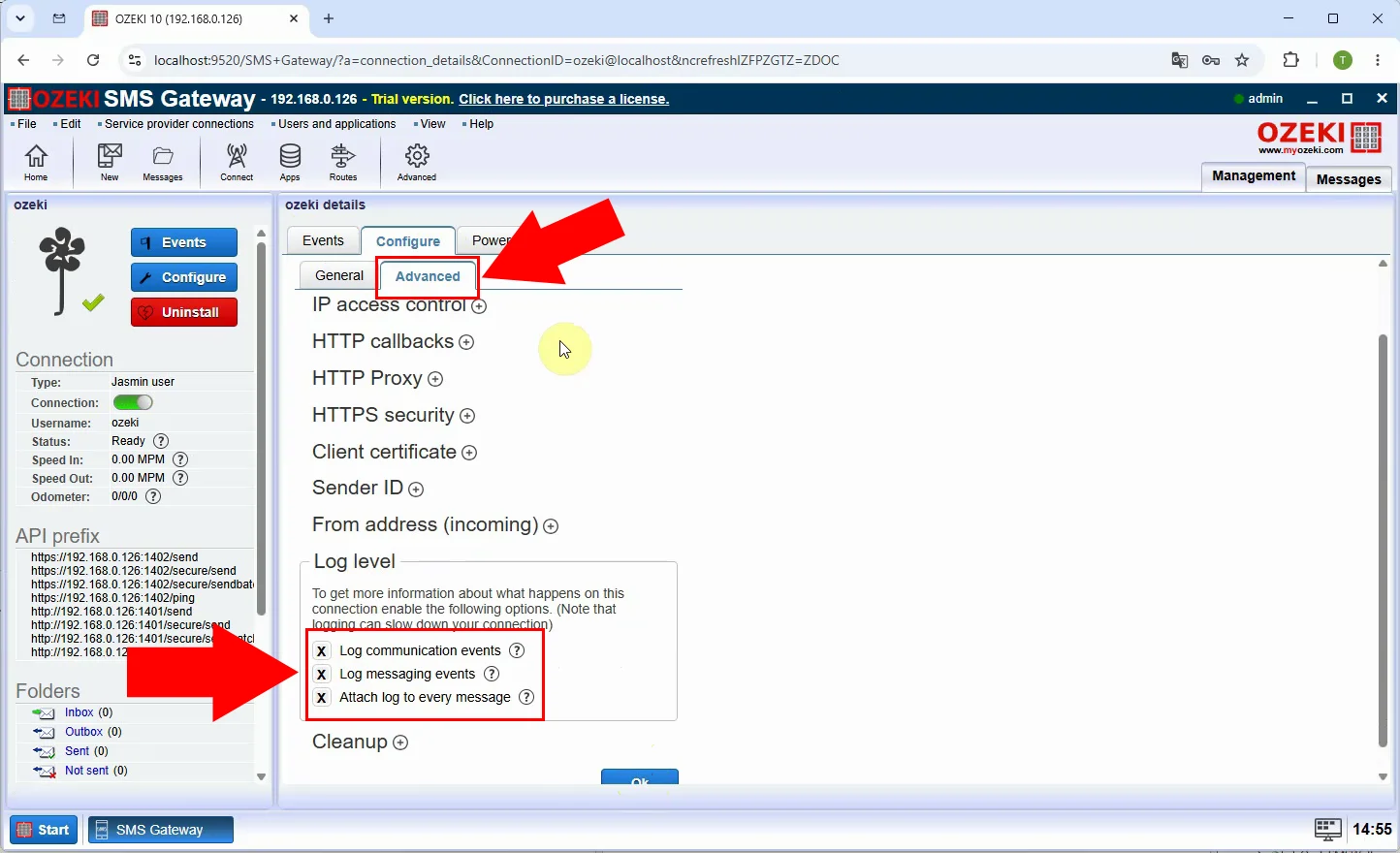
Turn on logging for the Jasmin user to record API activity and SMS events. Logs help verify request parameters, authentication, routing, and delivery processing. Enable them before testing so errors can be diagnosed quickly.
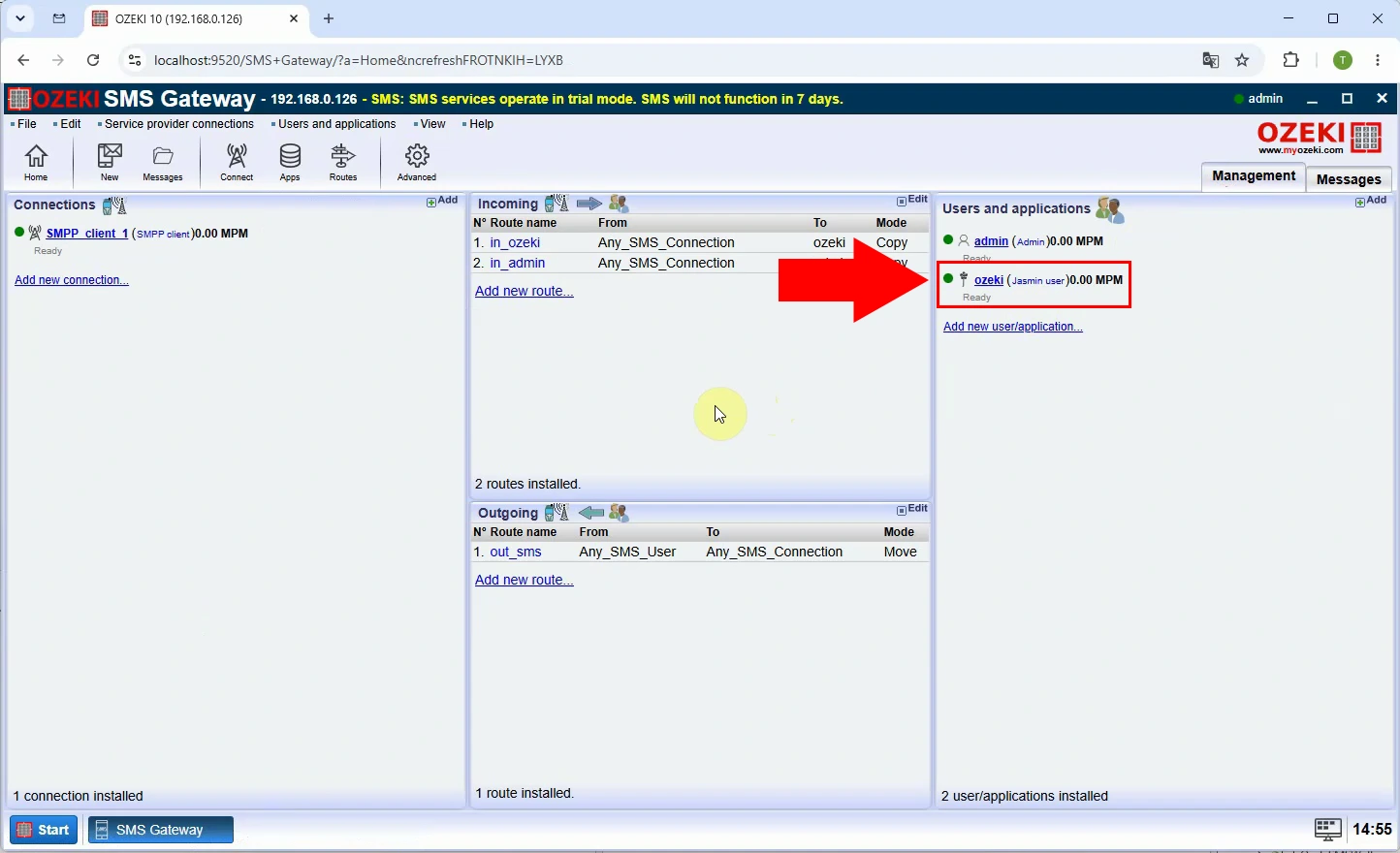
Verify that the Jasmin user appears in the Ozeki user list. Check its username, enabled state, and logging configuration. The gateway is now ready to accept Jasmin-compatible API requests.
How to test with curl
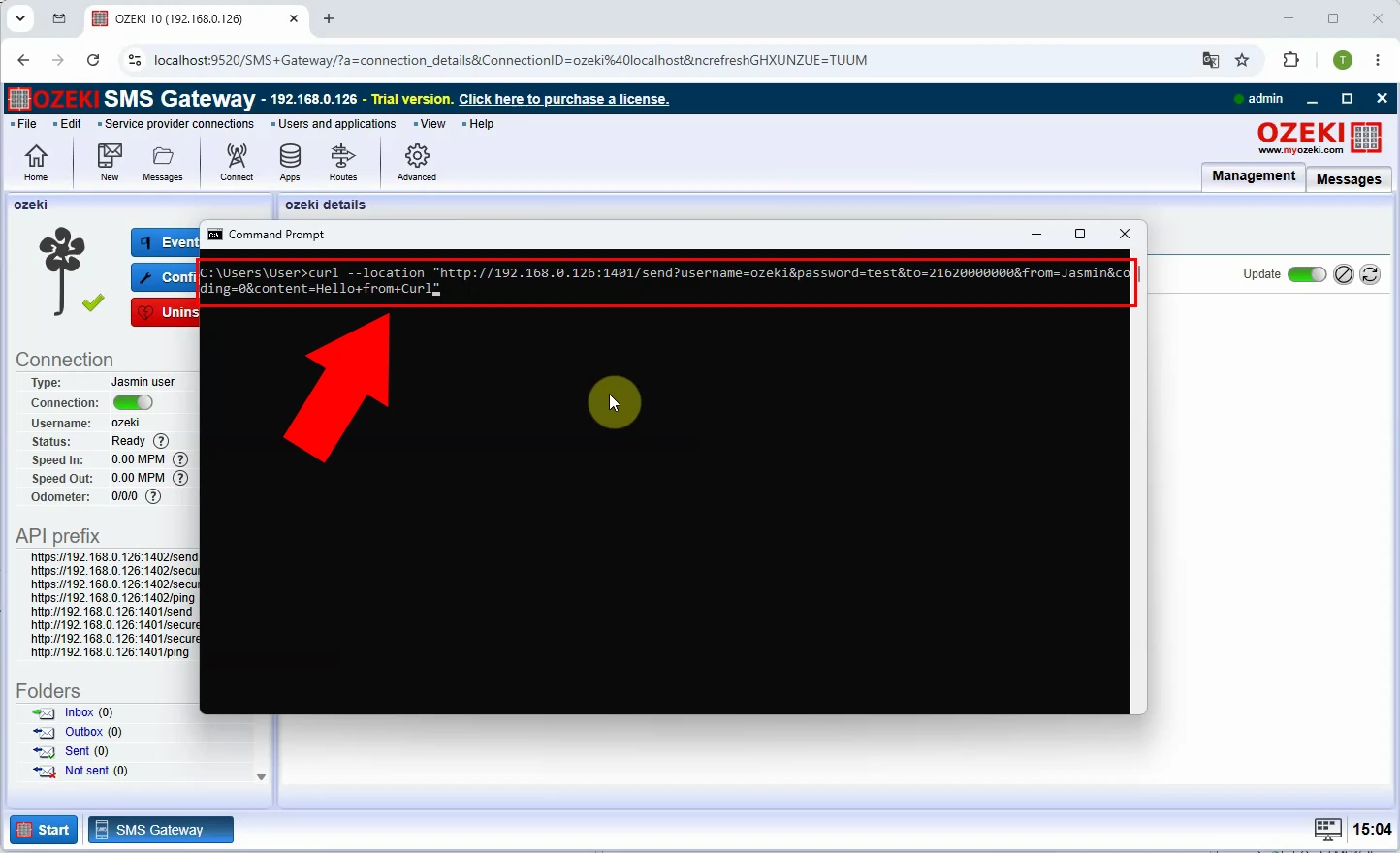
Use curl to send an HTTP request to the Ozeki Jasmin API endpoint. Include the configured username, password, recipient number, and message text. This test confirms that an existing script can communicate with Ozeki.
curl --location "http://192.168.0.126:1401/send?username=ozeki&password=test&to=21620000000&from=Jasmin&coding=0&content=Hello+from+Curl"
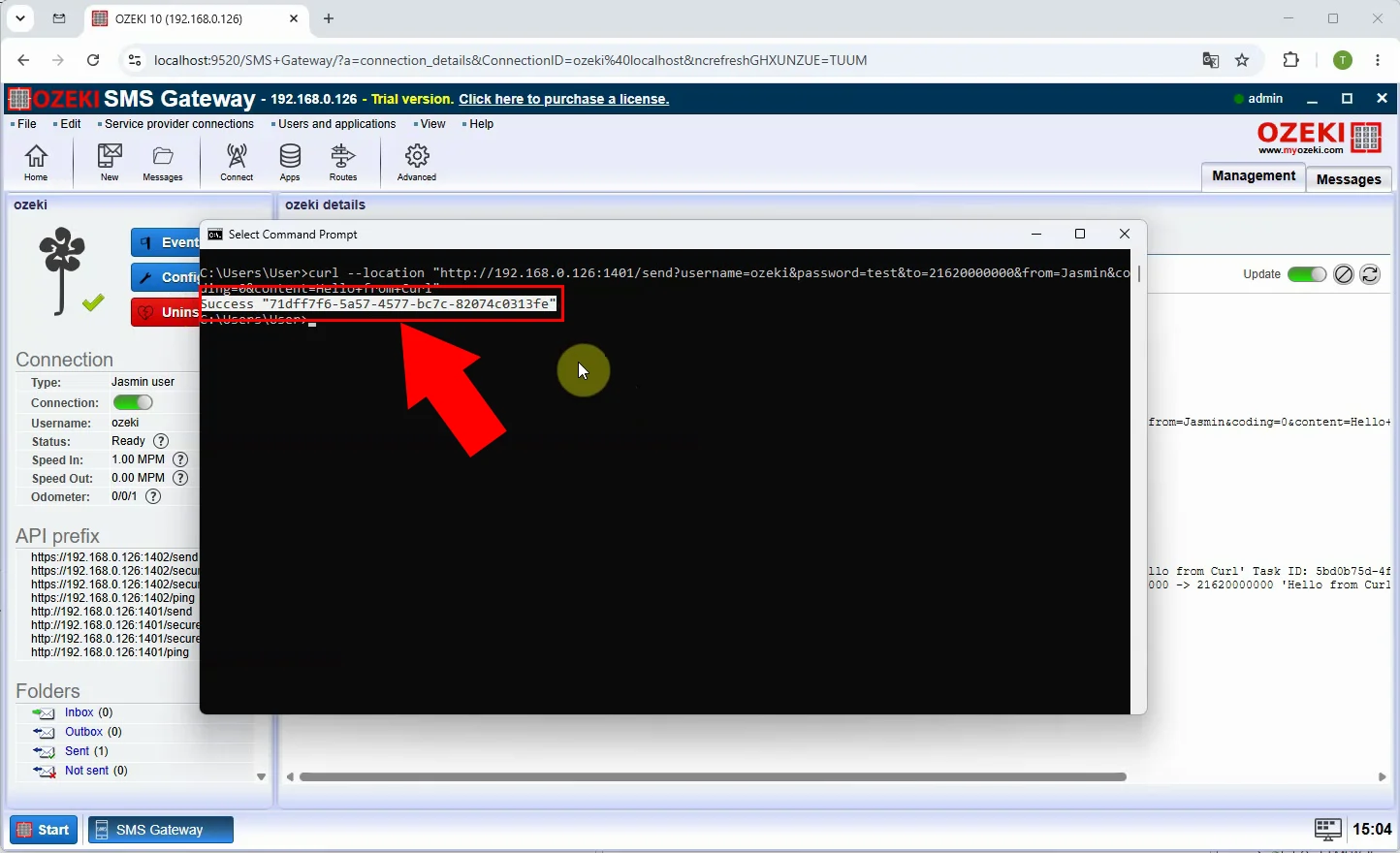
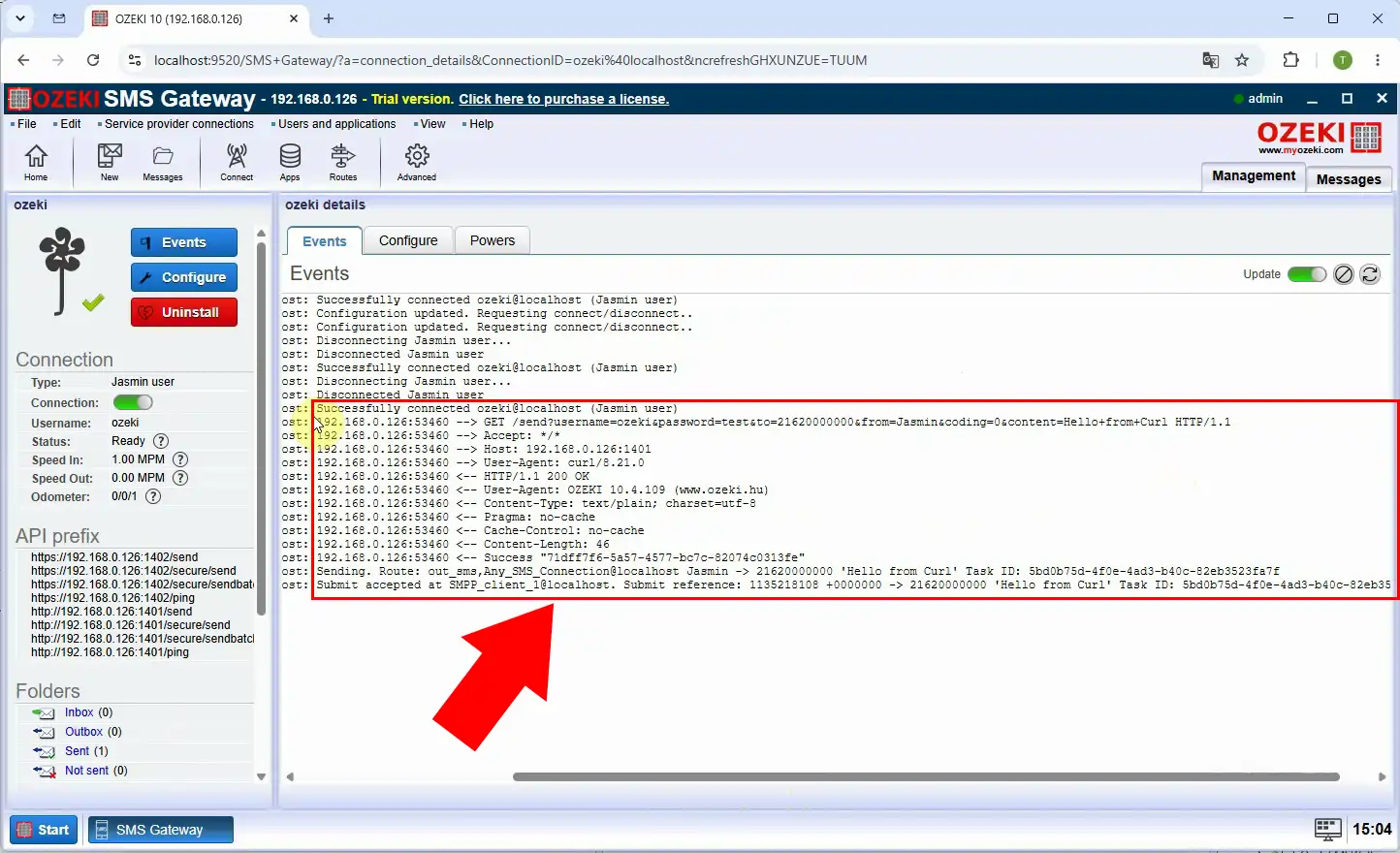
Review the HTTP response returned by Ozeki after submitting the request. A successful response confirms that authentication and request formatting were accepted. If the request fails, use the response details and logs to identify the cause.
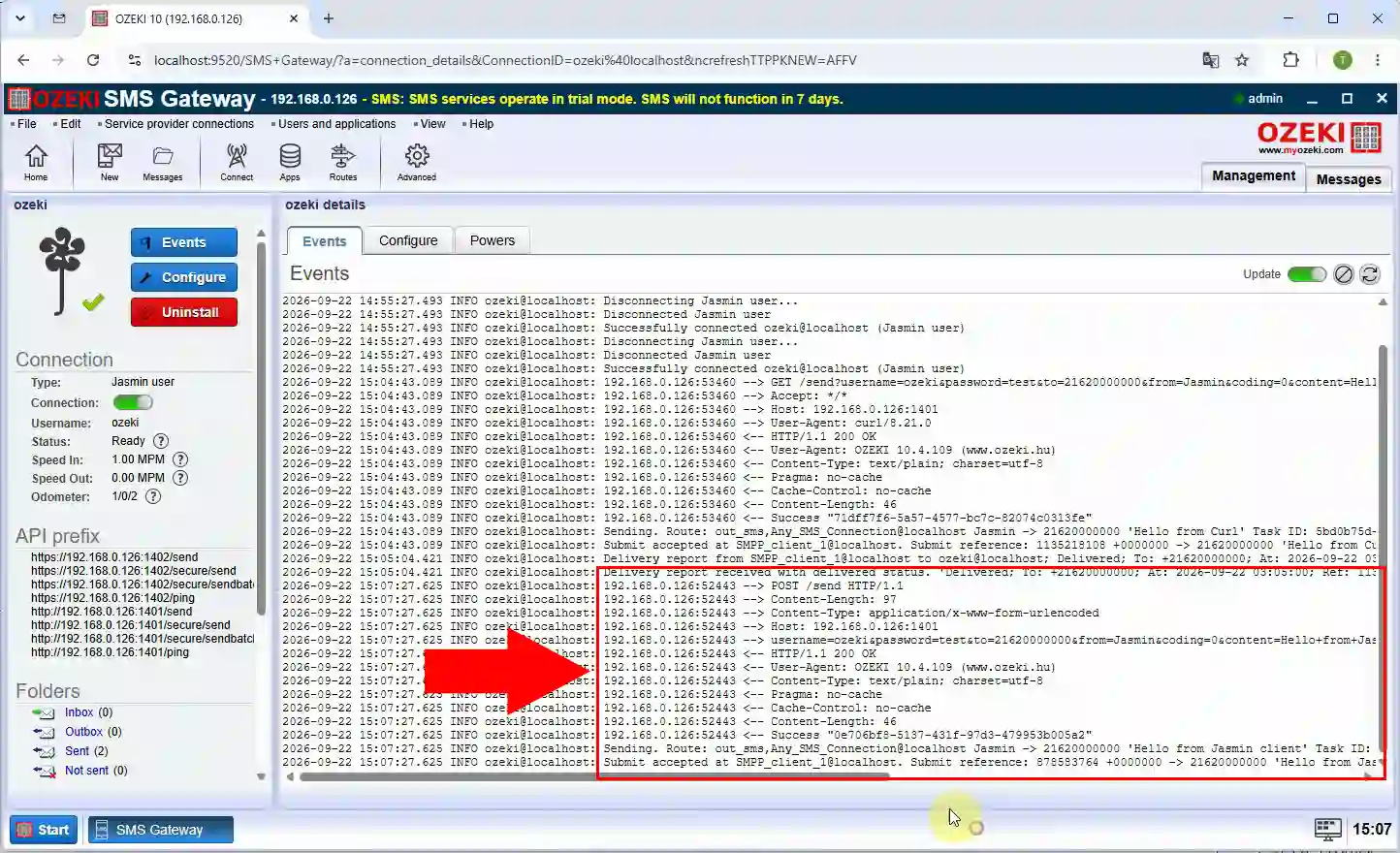
Open the Jasmin user’s SMS log after sending the test message. Confirm that the message appears with the expected recipient, content, and status. This proves that Ozeki received the API request and processed the SMS submission.
How to test with Jasmin client
Jasmin API compatibility tester client
To test Jasmin API compatibility in Ozeki, you can download this free open source HTTP API tester client app. This was developed to verify the Jasmin API functionality.
Download: jasmin-client.zip (297Kb)
Download and start the Jasmin API compatibility tester application. The client provides a simple command line method for testing the HTTP API. Use it when you want to validate compatibility without writing a curl command.
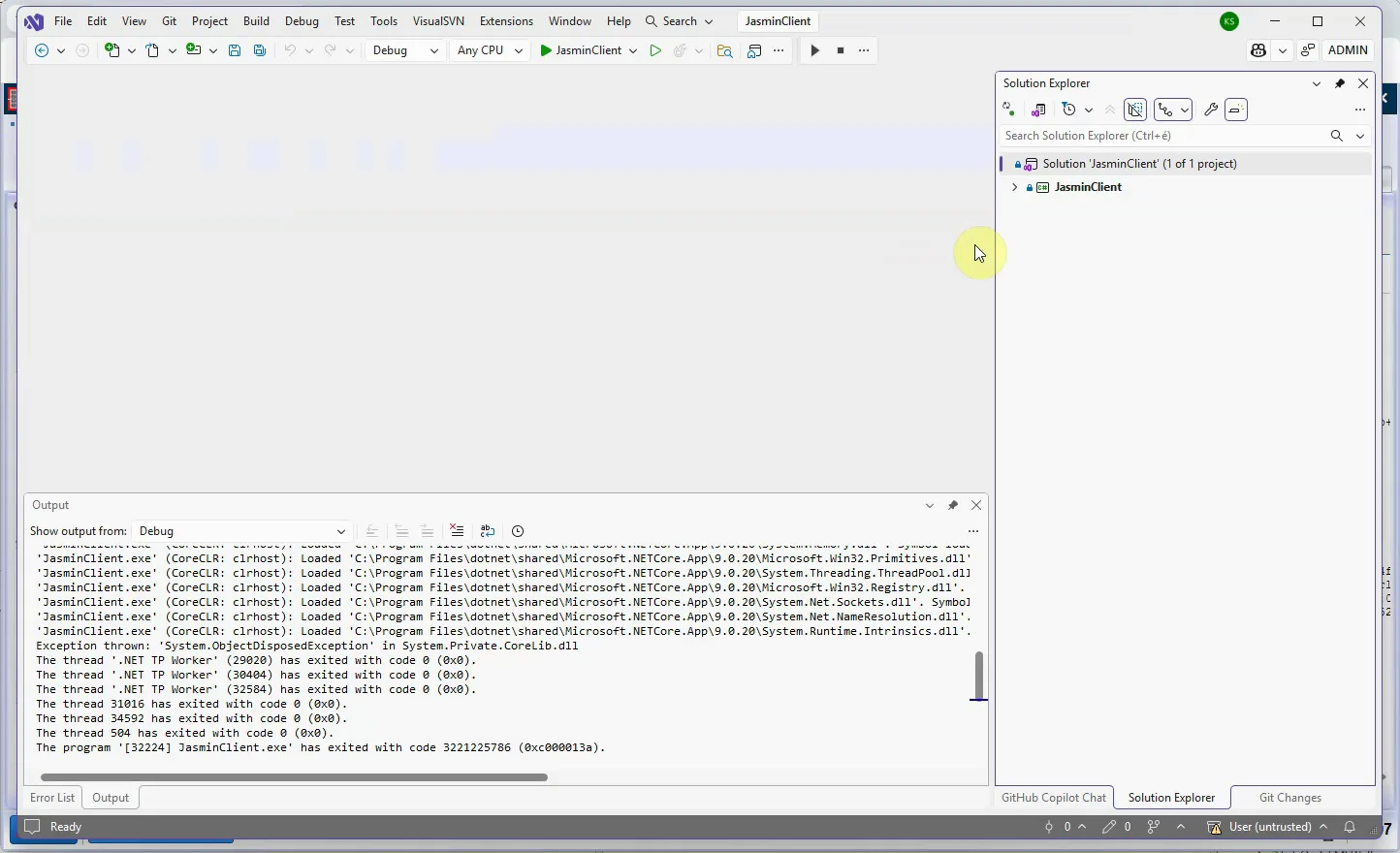
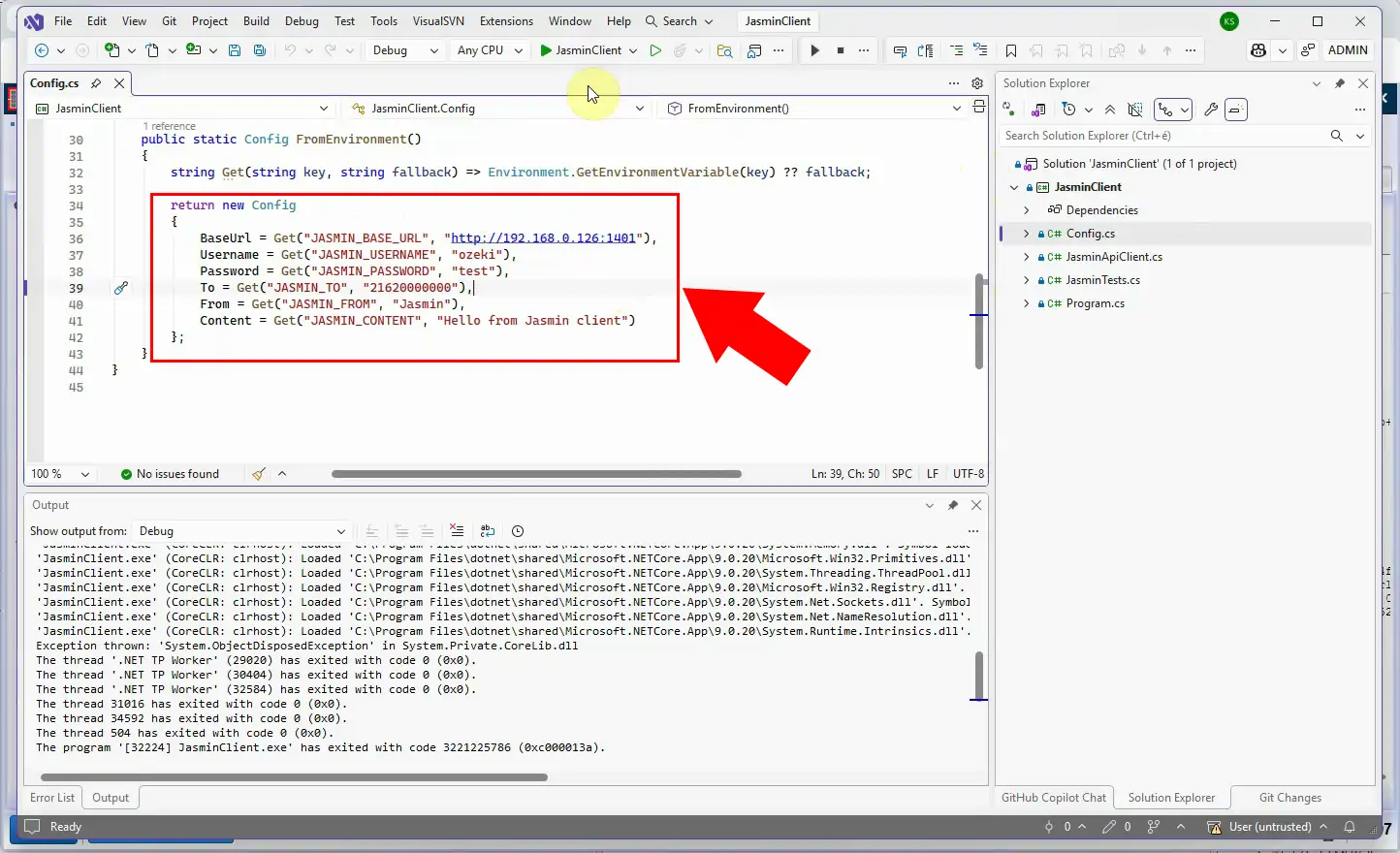
Enter the Ozeki server address and the Jasmin user credentials in the client. Configure the connection details to match the gateway’s API endpoint. Enter the destination phone number and the message body in the Jasmin client. Save or apply the settings before sending a test SMS.
Send the SMS through the configured Ozeki Jasmin API connection. The client submits the request using the Jasmin-compatible HTTP format.
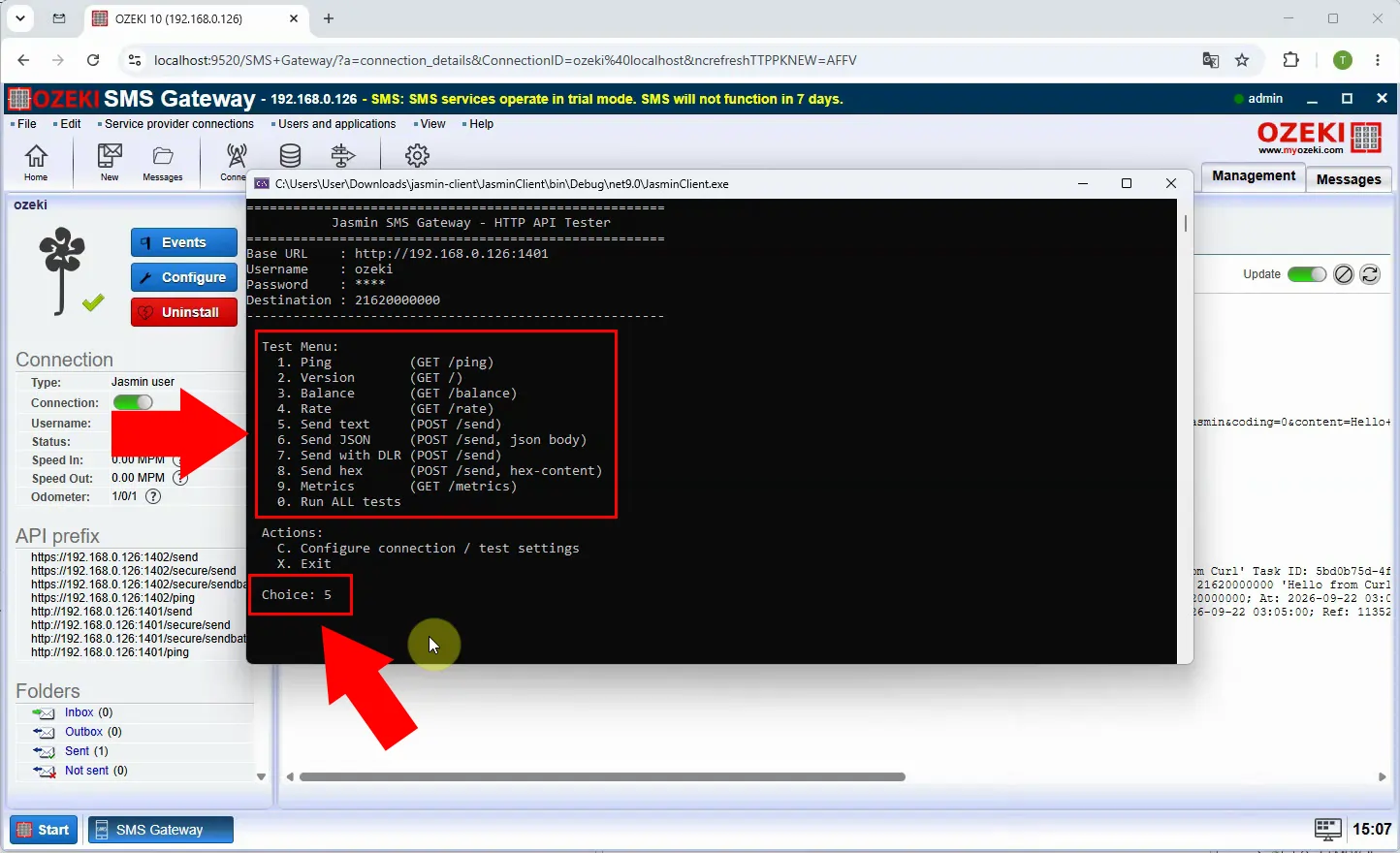
Check the response displayed by the Jasmin client after message submission. A successful result means Ozeki accepted the request from the client application. Use any returned error details to correct credentials, URL settings, or message parameters.
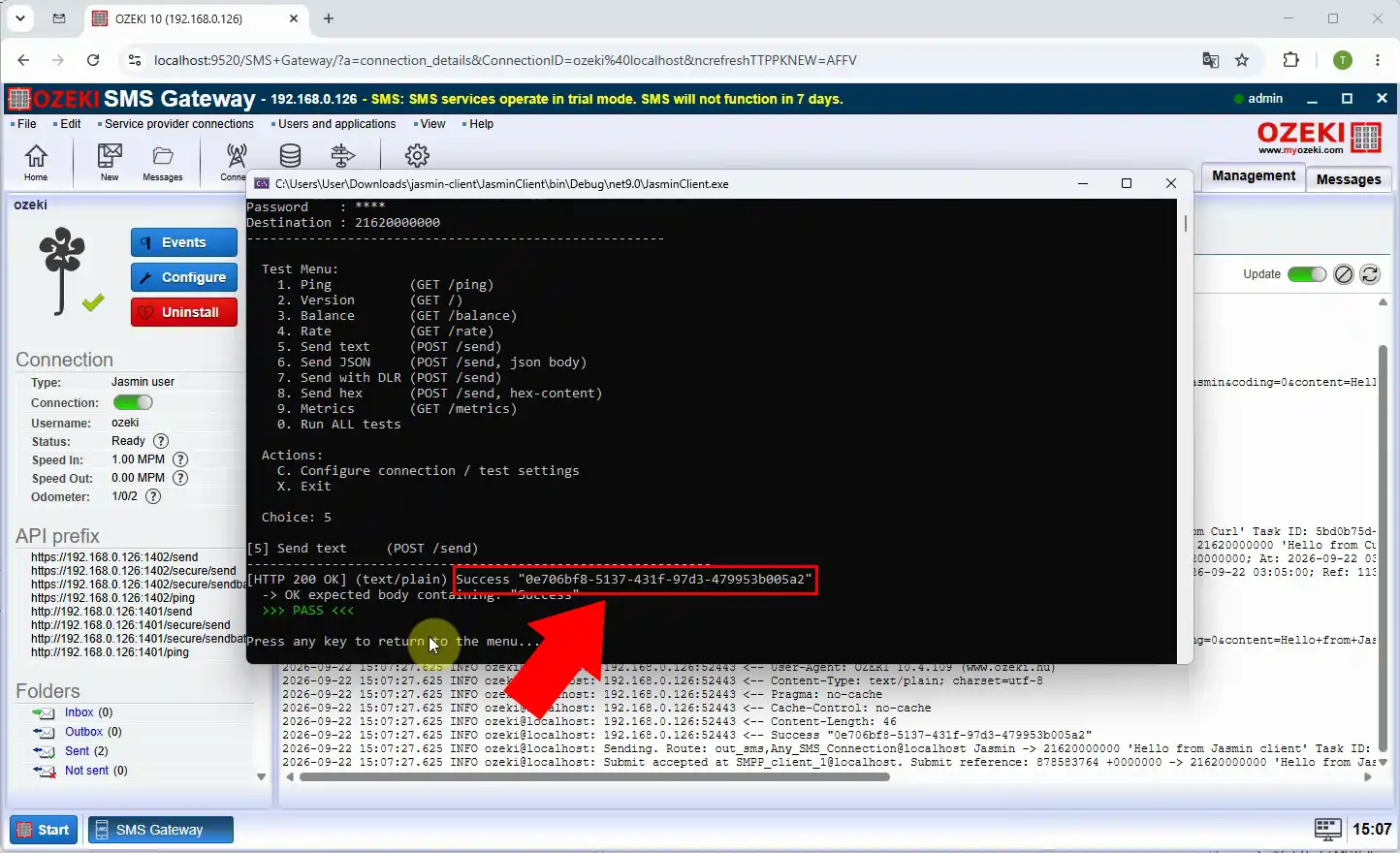
Return to the Jasmin user’s SMS log in Ozeki after the client test. Verify that the submitted text message is listed with its processing status. This final check confirms end-to-end compatibility between the Jasmin client and Ozeki.