Send SMS using TXT address book
Learn how to send SMS messages to multiple recipients with a TXT address book in Ozeki SMS Gateway. This guide walks you through preparing a contact file, importing it into SMS Messenger, selecting the address book as your recipient list, and sending your message.
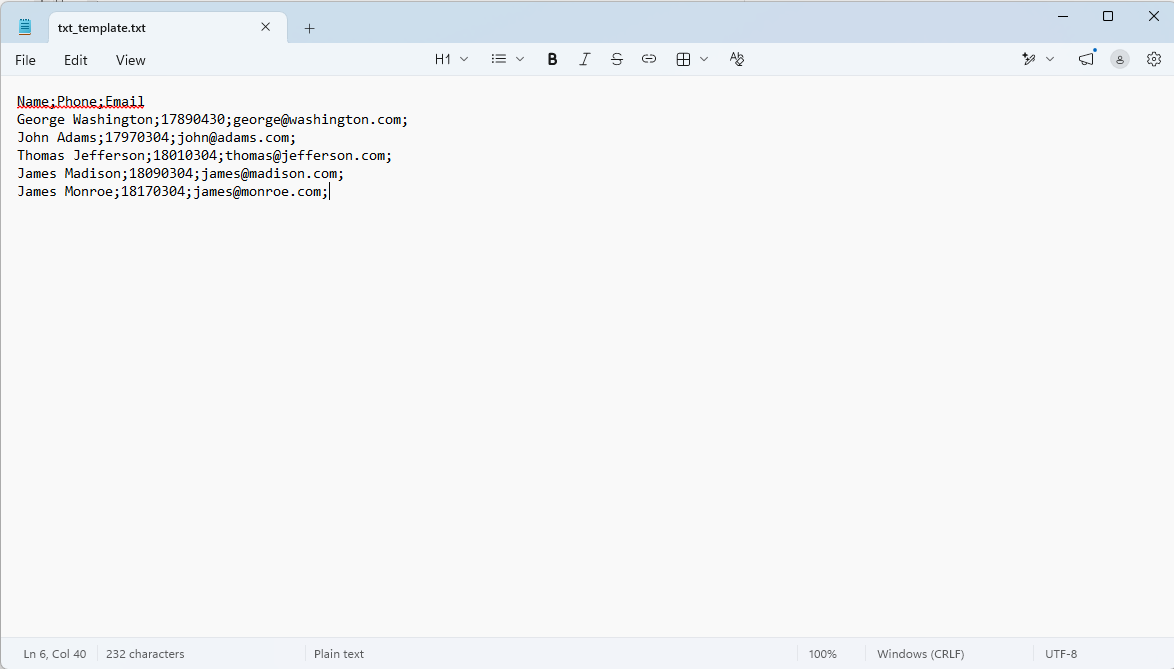
Template TXT file: txt_template.txt
File content example:
Name;Phone;Email
George Washington;17890430;george@washington.com;
John Adams;17970304;john@adams.com;
Thomas Jefferson;18010304;thomas@jefferson.com;
James Madison;18090304;james@madison.com;
James Monroe;18170304;james@monroe.com;
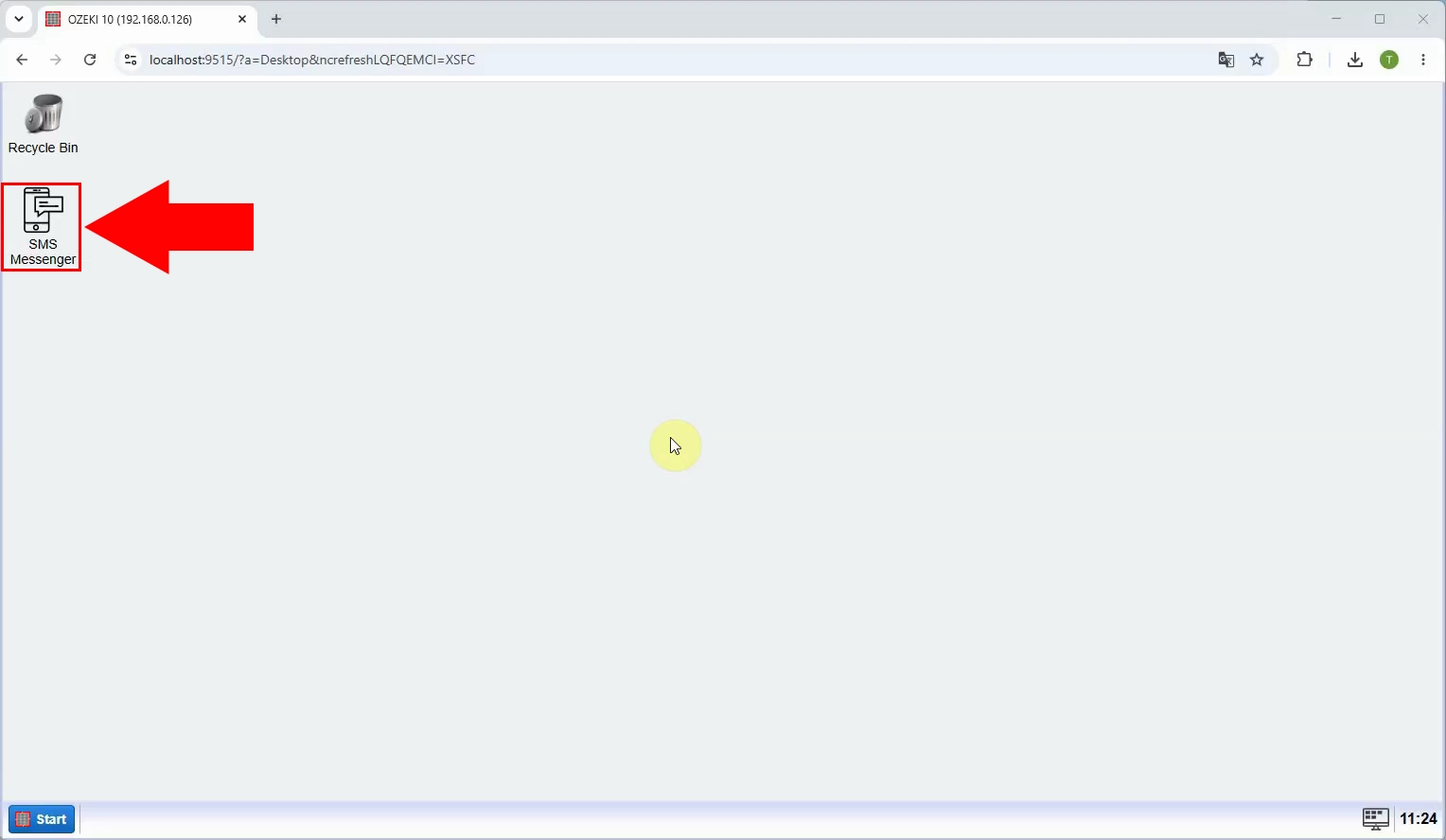
Open Ozeki SMS Gateway and launch SMS Messenger from the desktop. This is where you will create the TXT address book and compose the message. Make sure the gateway has a working connection for sending SMS before you begin.
In SMS Messenger, open the Contacts menu. This takes you to address book management, where you can add the TXT file containing your recipients instead of entering each contact individually.
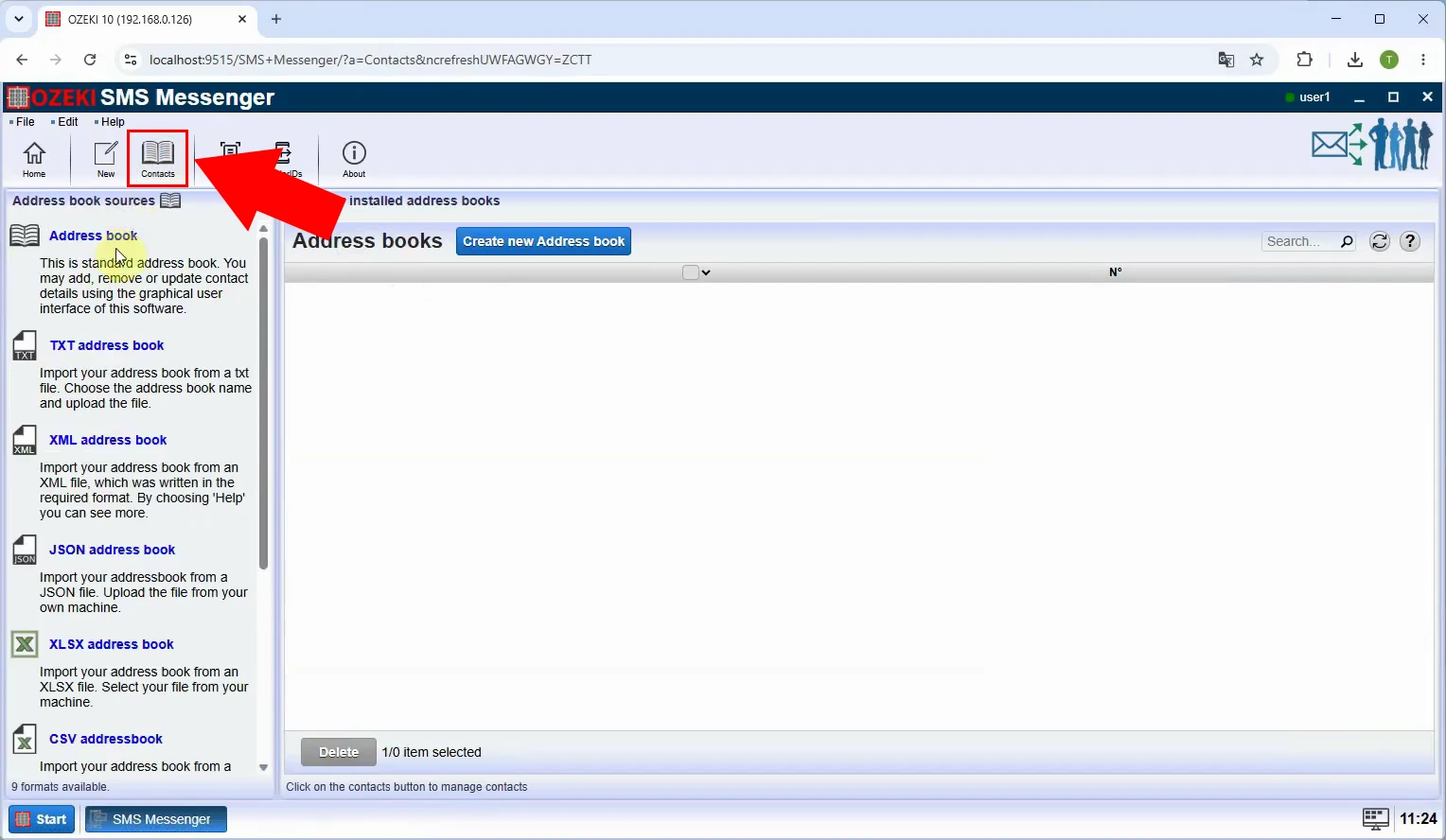
Choose the TXT address book option. Prepare a semicolon-separated text file with the columns Name;Phone;Email, following the page’s template, so SMS Messenger can read the contact names and phone numbers.
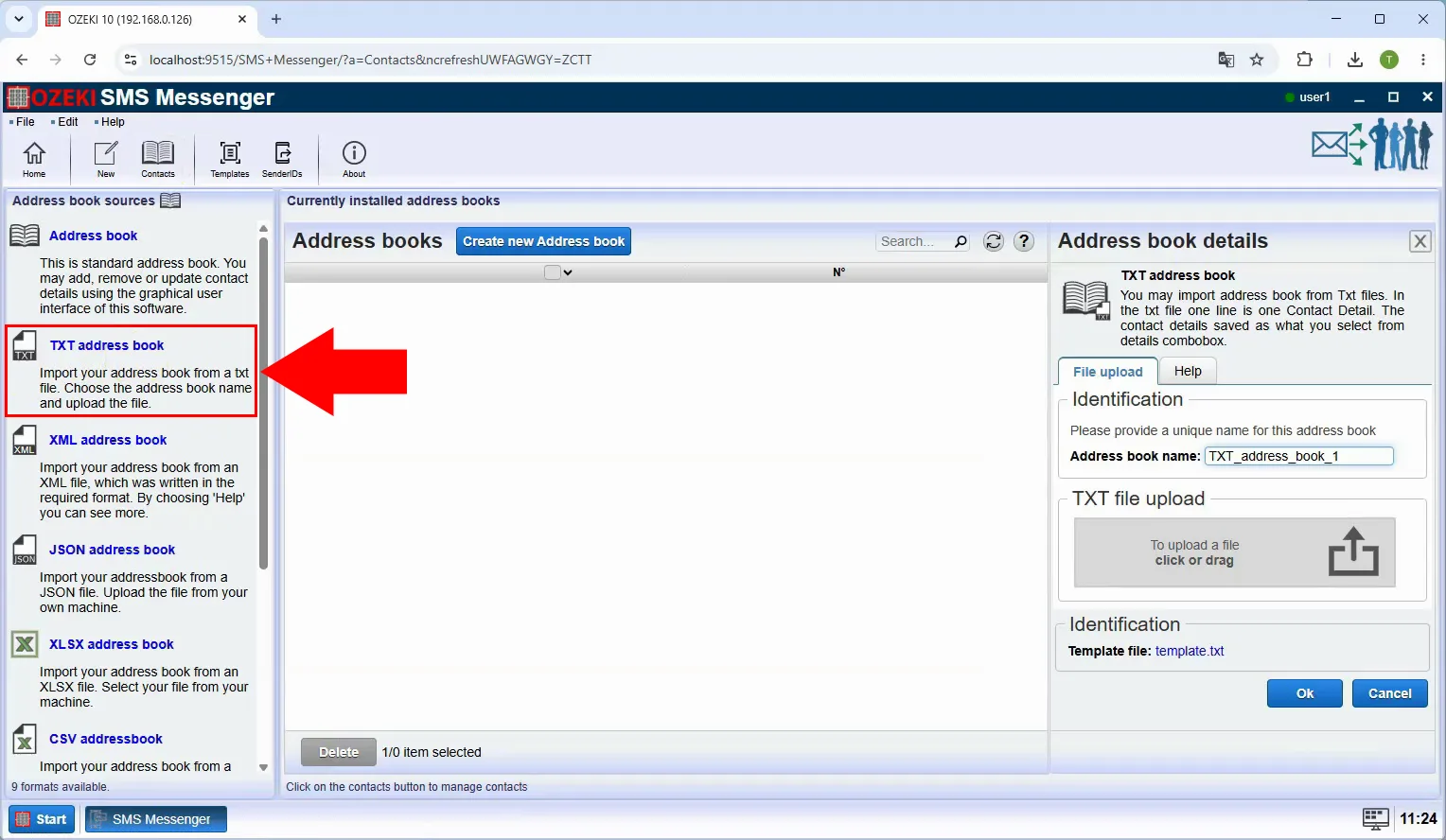
Upload the prepared TXT file. Check that each recipient has a phone number in the Phone column and that the file follows the template’s column order before completing the upload.
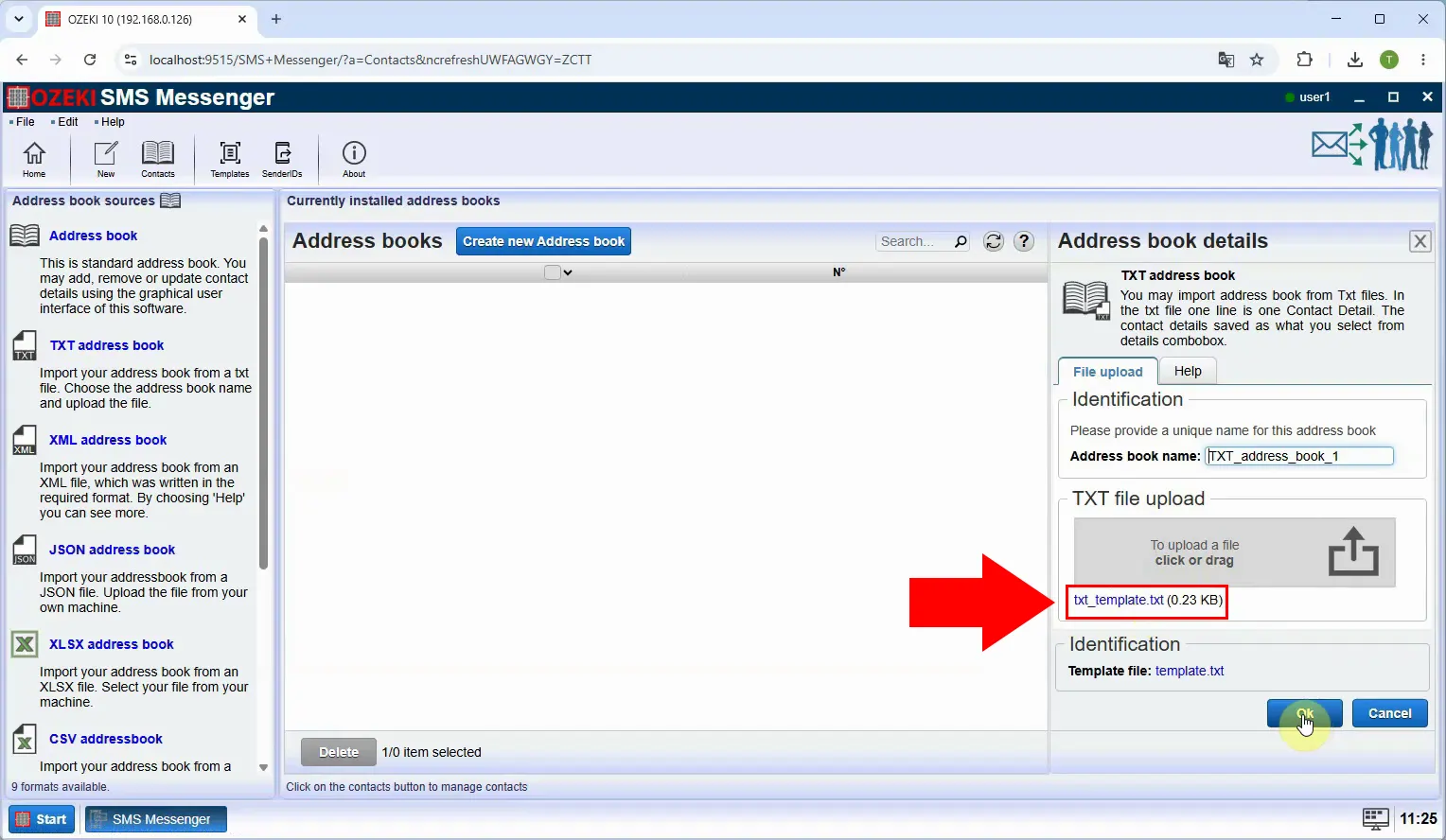
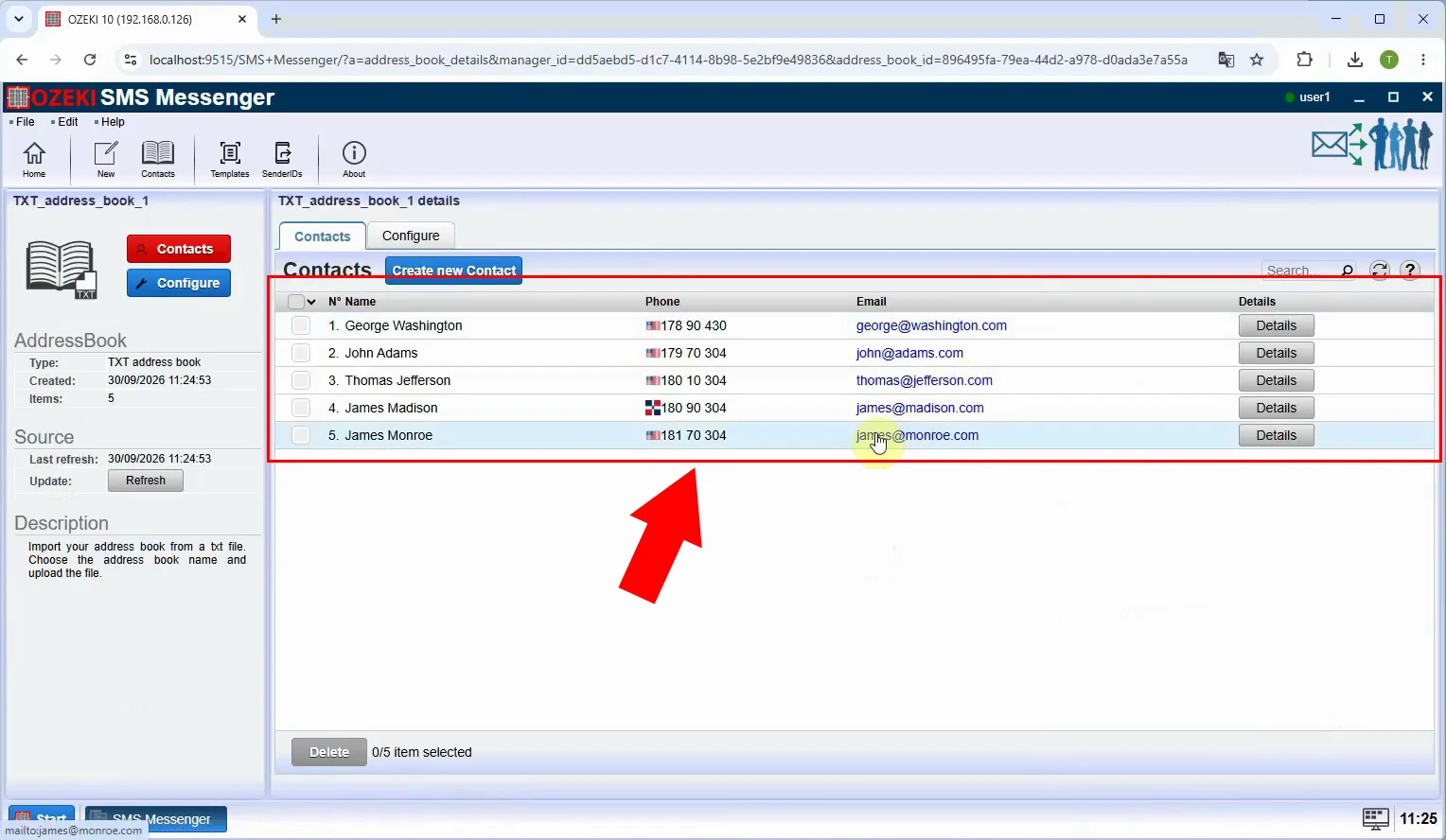
Confirm that the TXT address book appears in Contacts after the upload. Review the imported entries and phone numbers before using the book for a group message.
Return to message composition and select the newly created TXT address book as the recipient source. SMS Messenger will use the contacts in that book rather than a phone number typed directly into the recipient field.
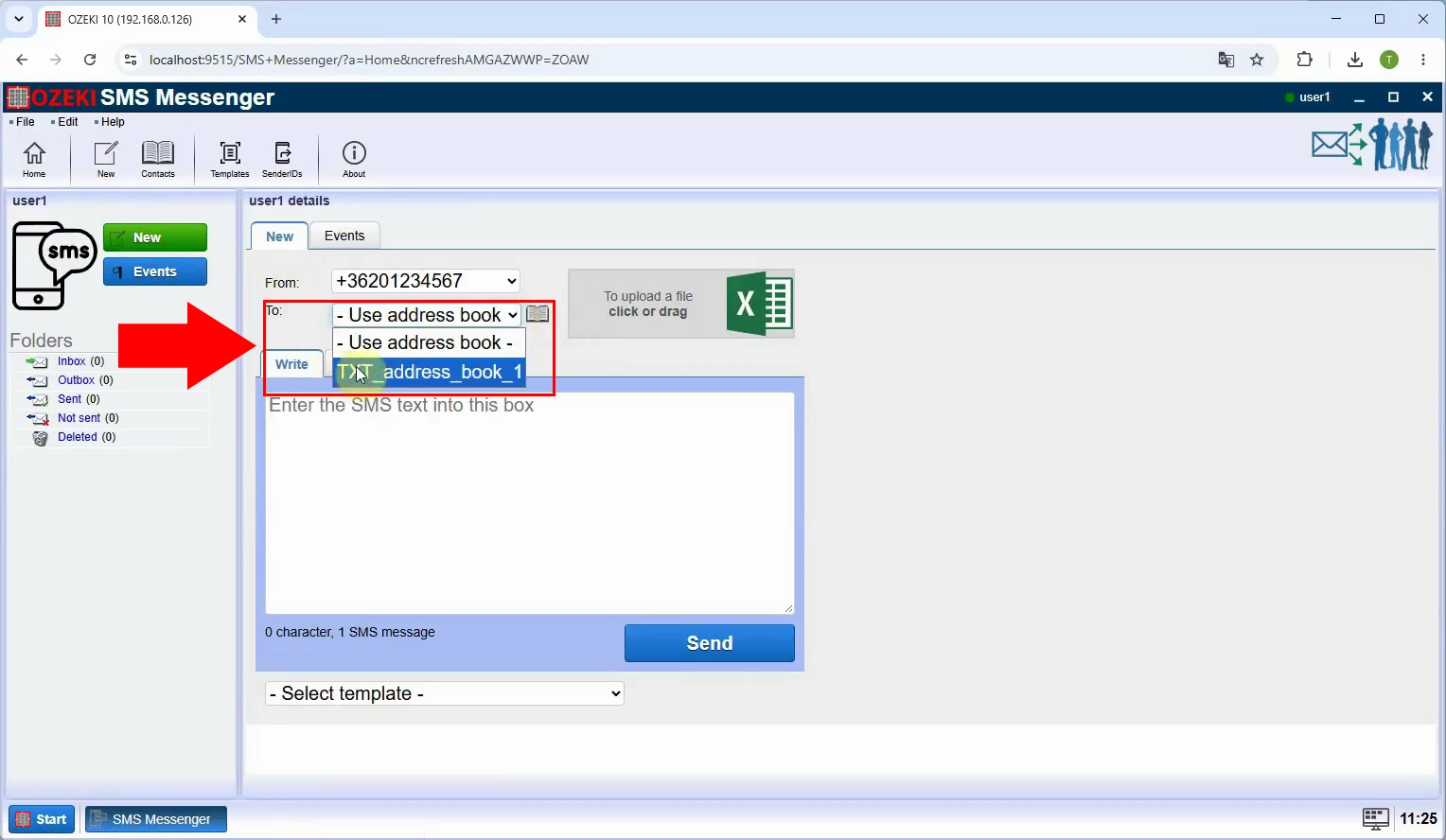
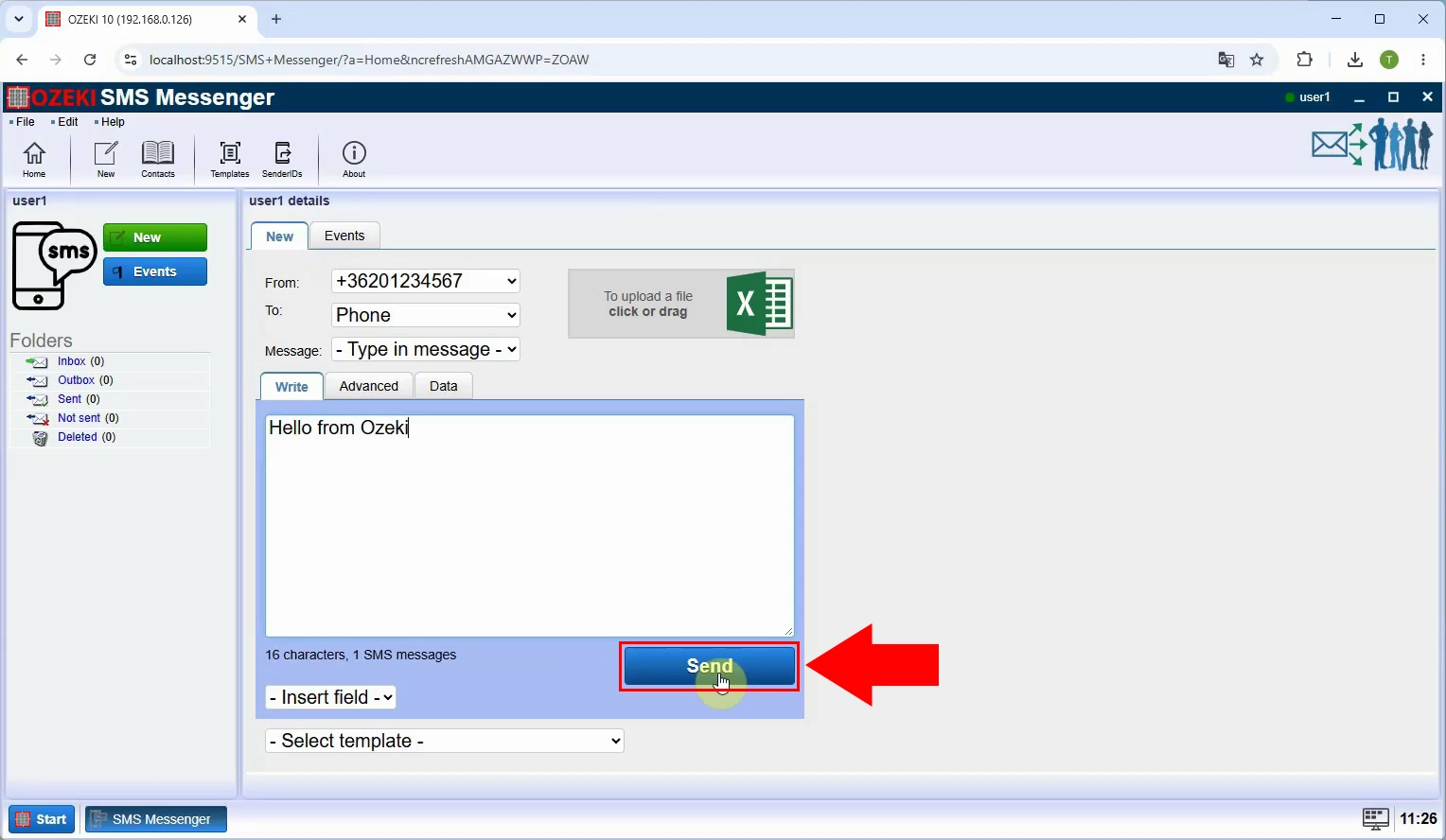
Write the SMS text, check the selected address book and message content, then click Send. The gateway will submit the message to the recipients listed in the TXT address book.
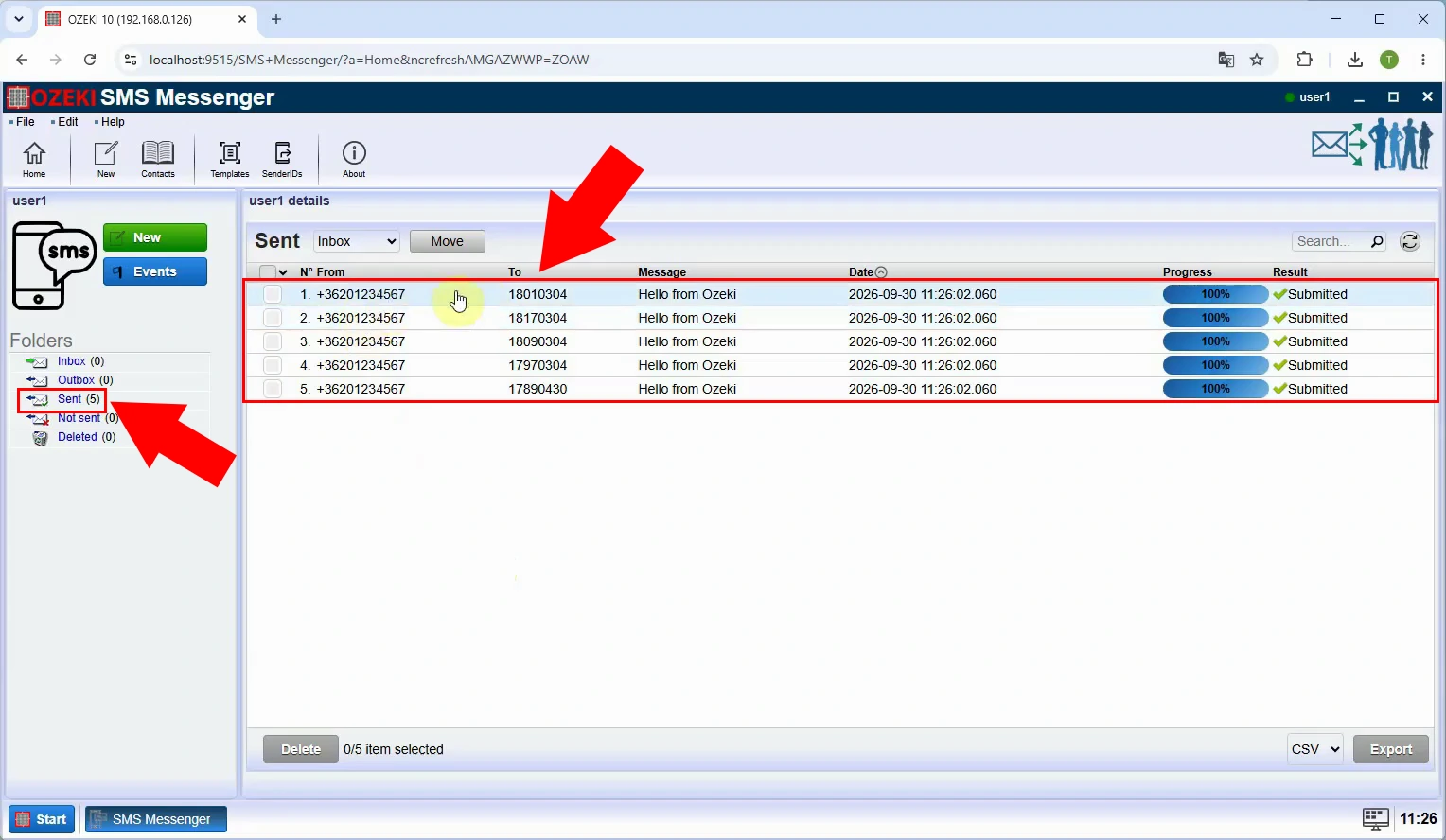
Check the send result to confirm the message was sent to all recipients. If any entry did not succeed, review its phone number in the TXT file and the gateway’s message status before trying again.