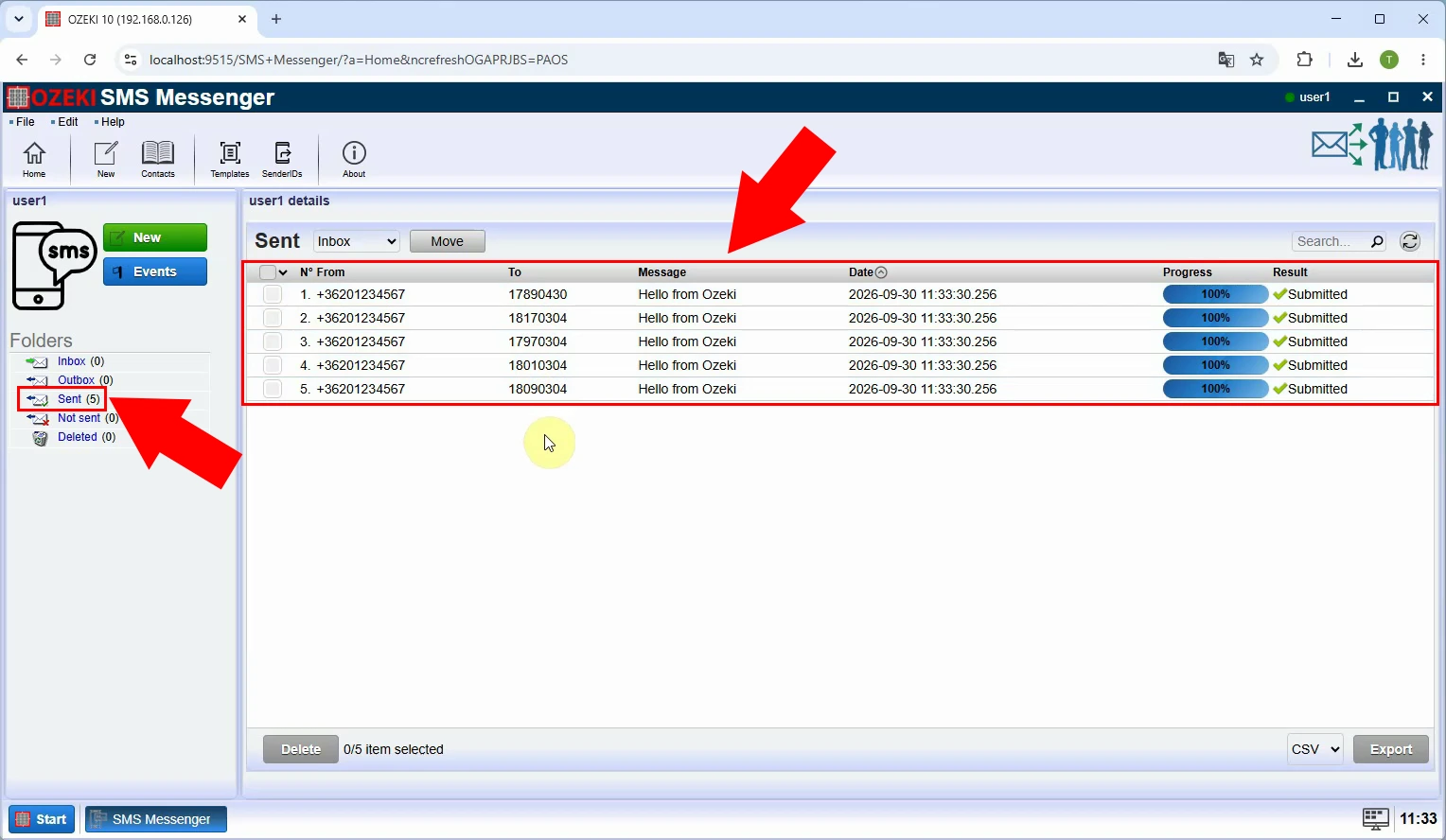
Send SMS using JSON address book
Learn how to send an SMS to multiple contacts using a JSON address book in Ozeki SMS Gateway. This guide shows you how to prepare and import a JSON contact list, select the address book in SMS Messenger, compose your message, and check the sending results.
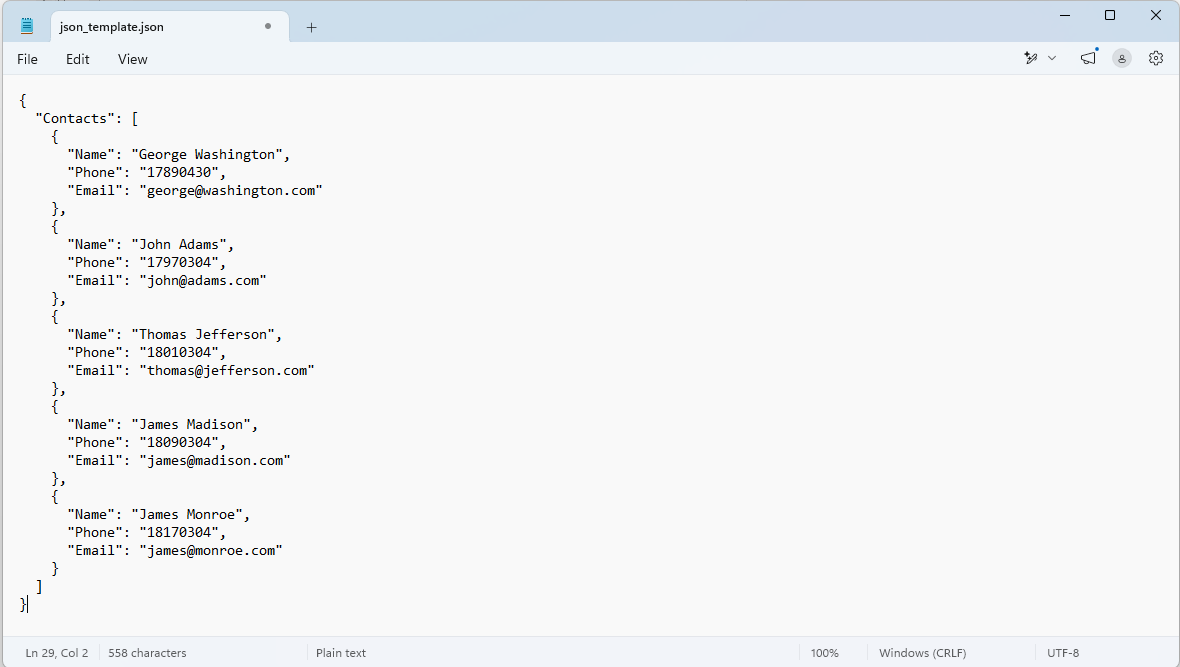
Template JSON file: json_template.json
File content example:
{
  "Contacts": [
    {
      "Name": "George Washington",
      "Phone": "17890430",
      "Email": "george@washington.com"
    },
    {
      "Name": "John Adams",
      "Phone": "17970304",
      "Email": "john@adams.com"
    },
    {
      "Name": "Thomas Jefferson",
      "Phone": "18010304",
      "Email": "thomas@jefferson.com"
    },
    {
      "Name": "James Madison",
      "Phone": "18090304",
      "Email": "james@madison.com"
    },
    {
      "Name": "James Monroe",
      "Phone": "18170304",
      "Email": "james@monroe.com"
    }
  ]
}
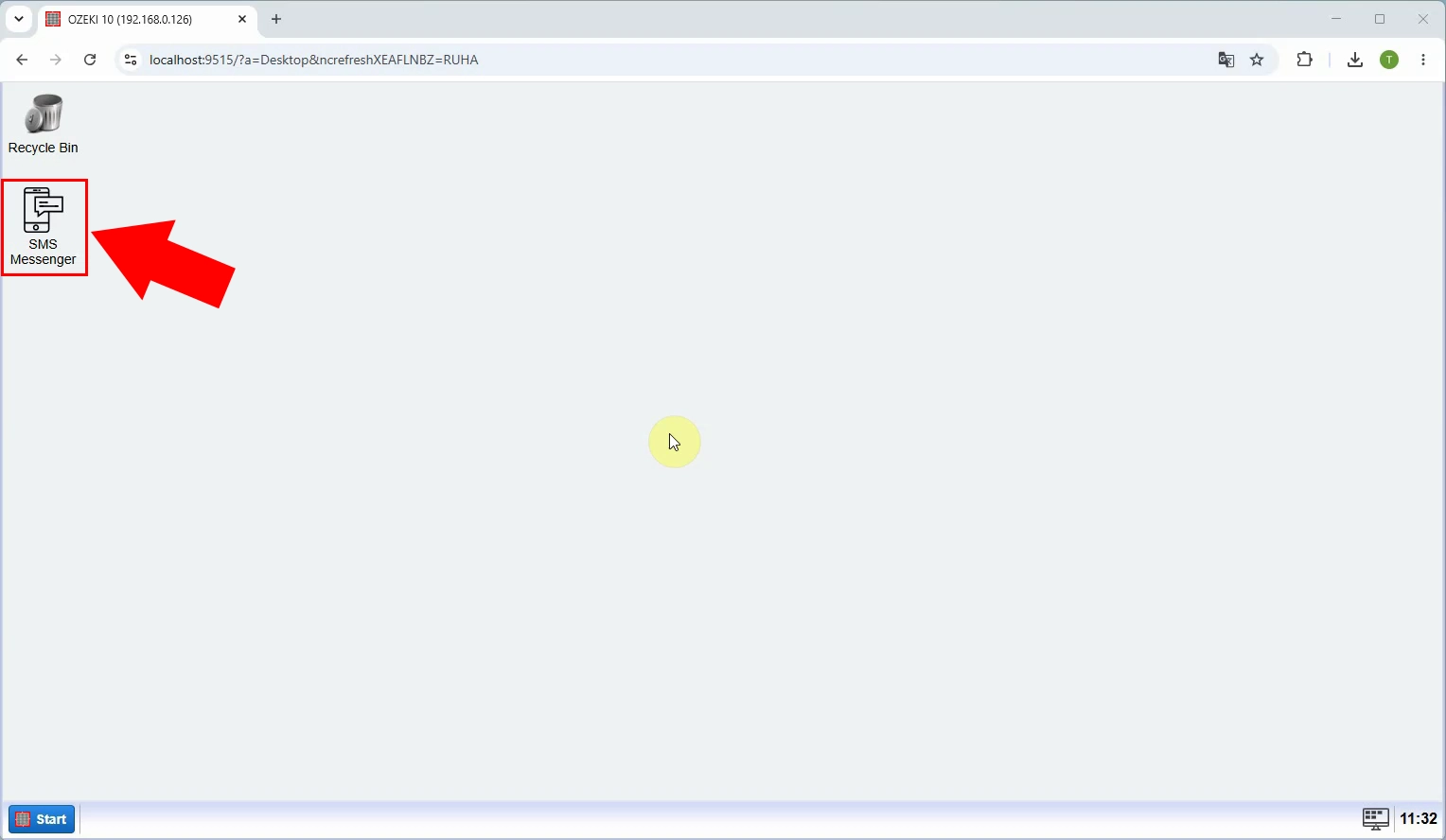
Log in to Ozeki SMS Gateway and open SMS Messenger. This is where you will import the JSON address book and compose the SMS.
In SMS Messenger, open the Contacts menu to manage address books. Before importing, prepare a JSON file with a Contacts array containing each recipient’s Name, Phone, and Email.
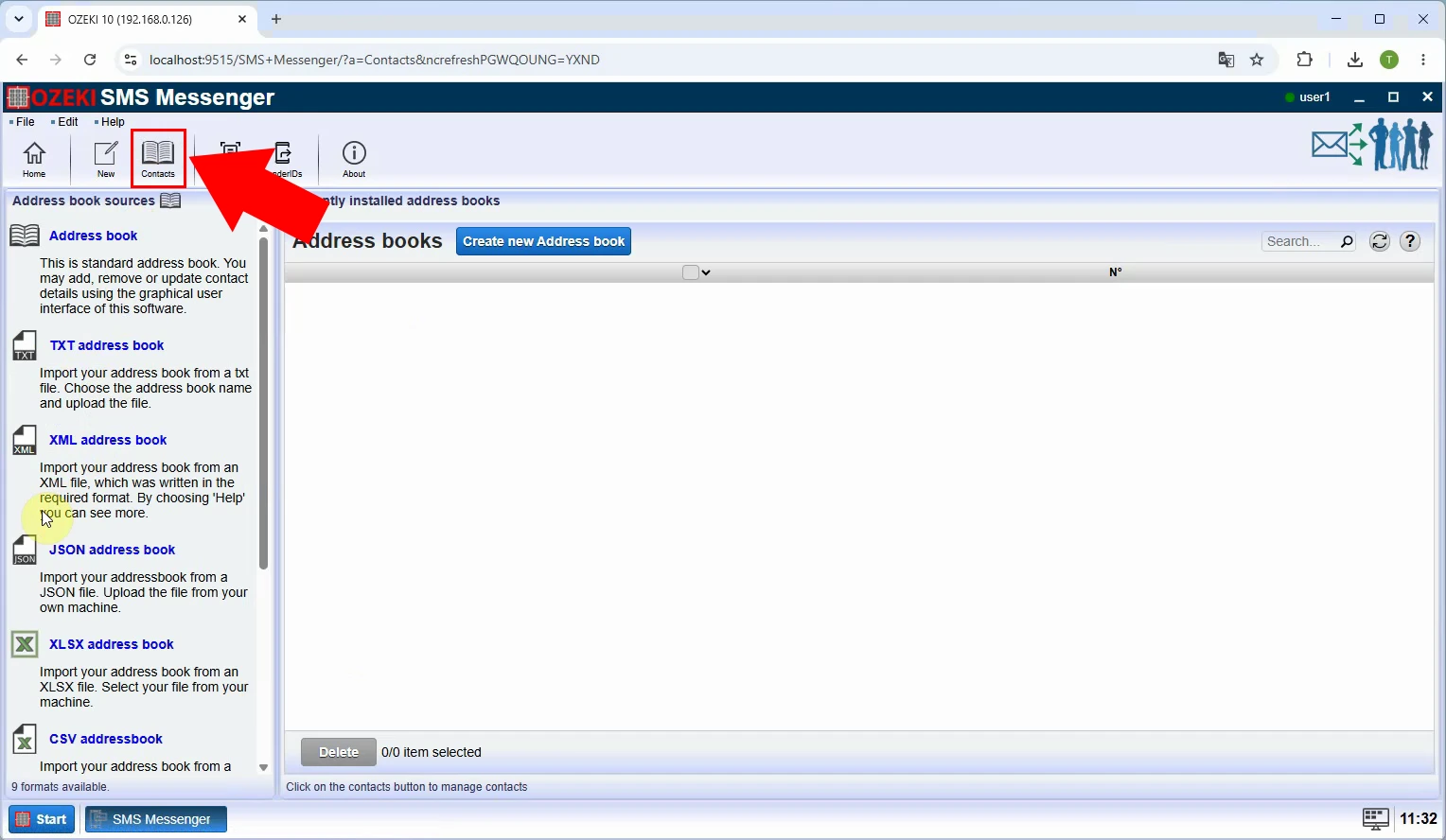
Choose the JSON address book option in Contacts. This tells SMS Messenger to create an address book from a JSON file rather than adding contacts individually.
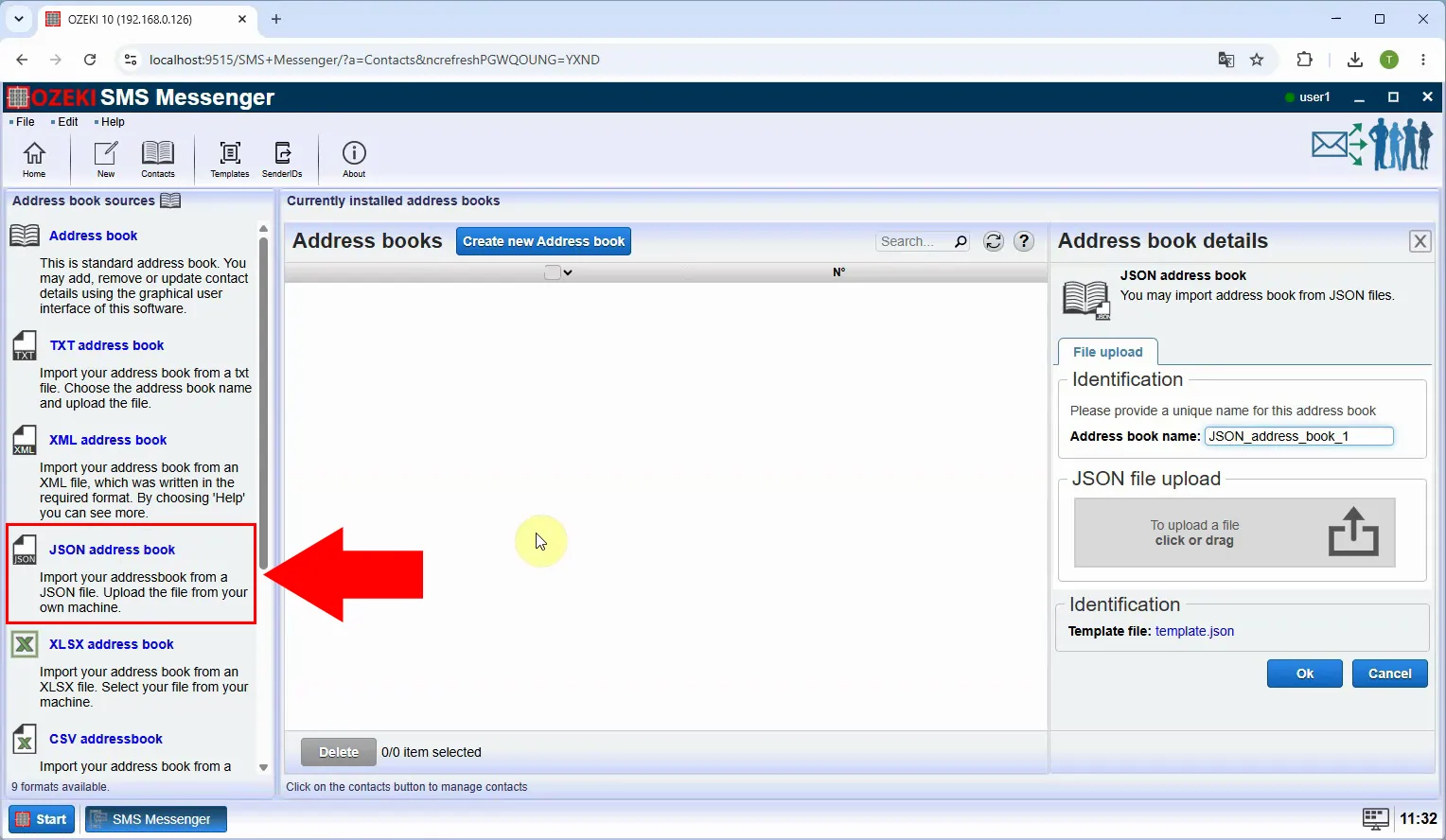
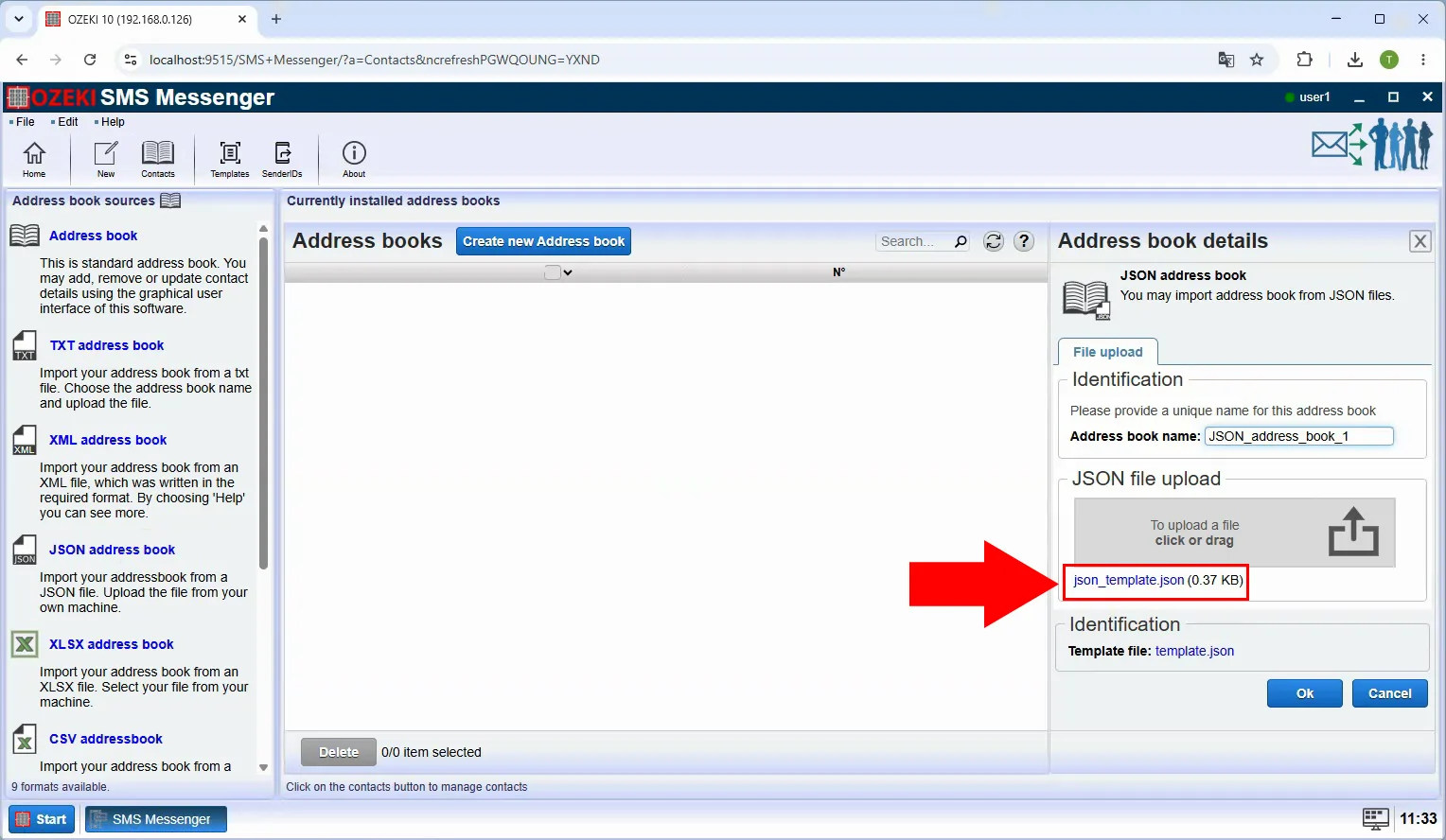
Select and upload your prepared JSON file. Check that each entry has the intended phone number in its Phone field, since those numbers will be used as SMS recipients.
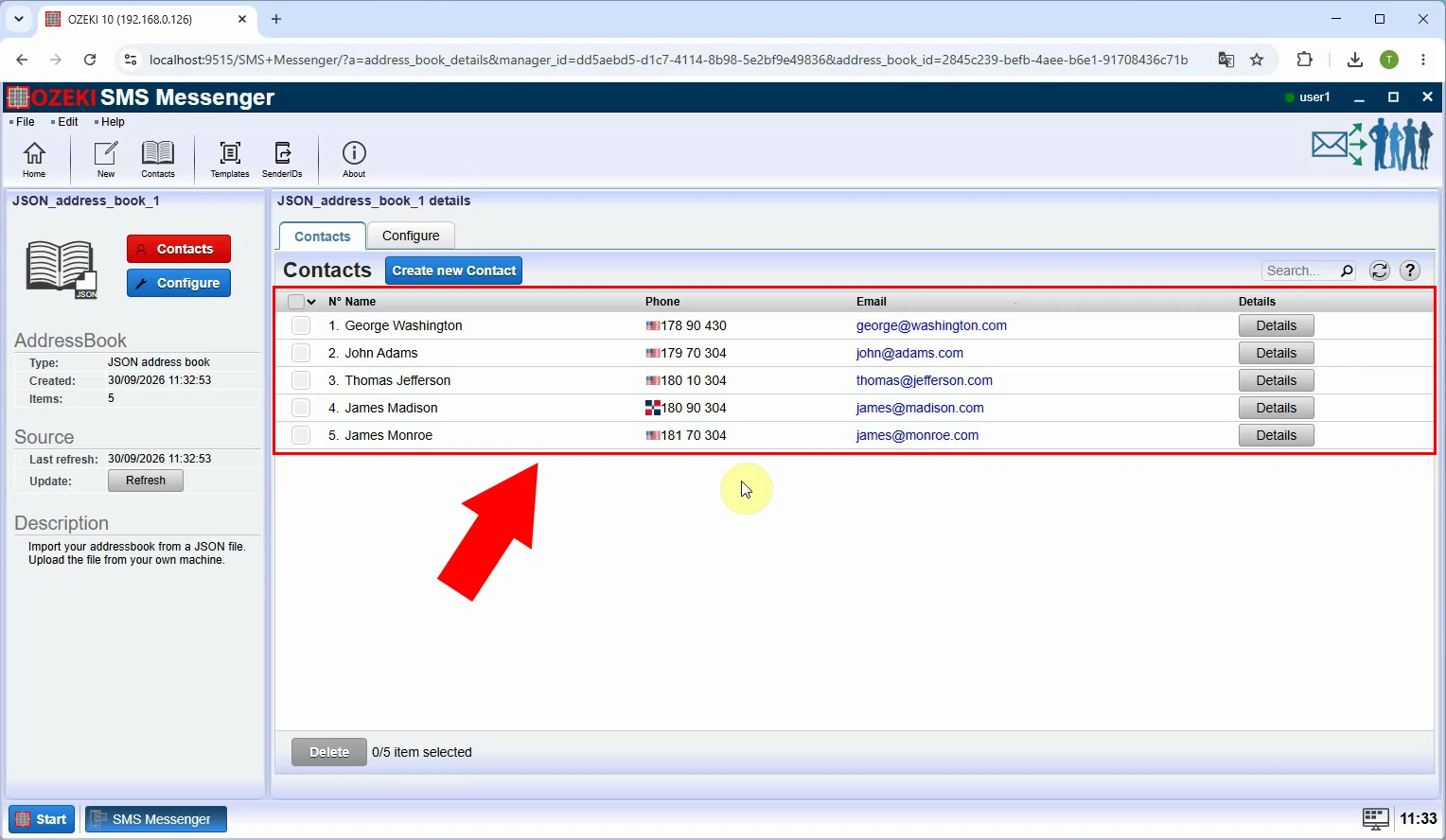
Confirm that the new address book appears in Contacts after the upload. It is now ready to use as the recipient list for a group message.
Return to the message composer and choose the imported JSON address book as the recipient. SMS Messenger will use its contacts instead of a single manually entered number.
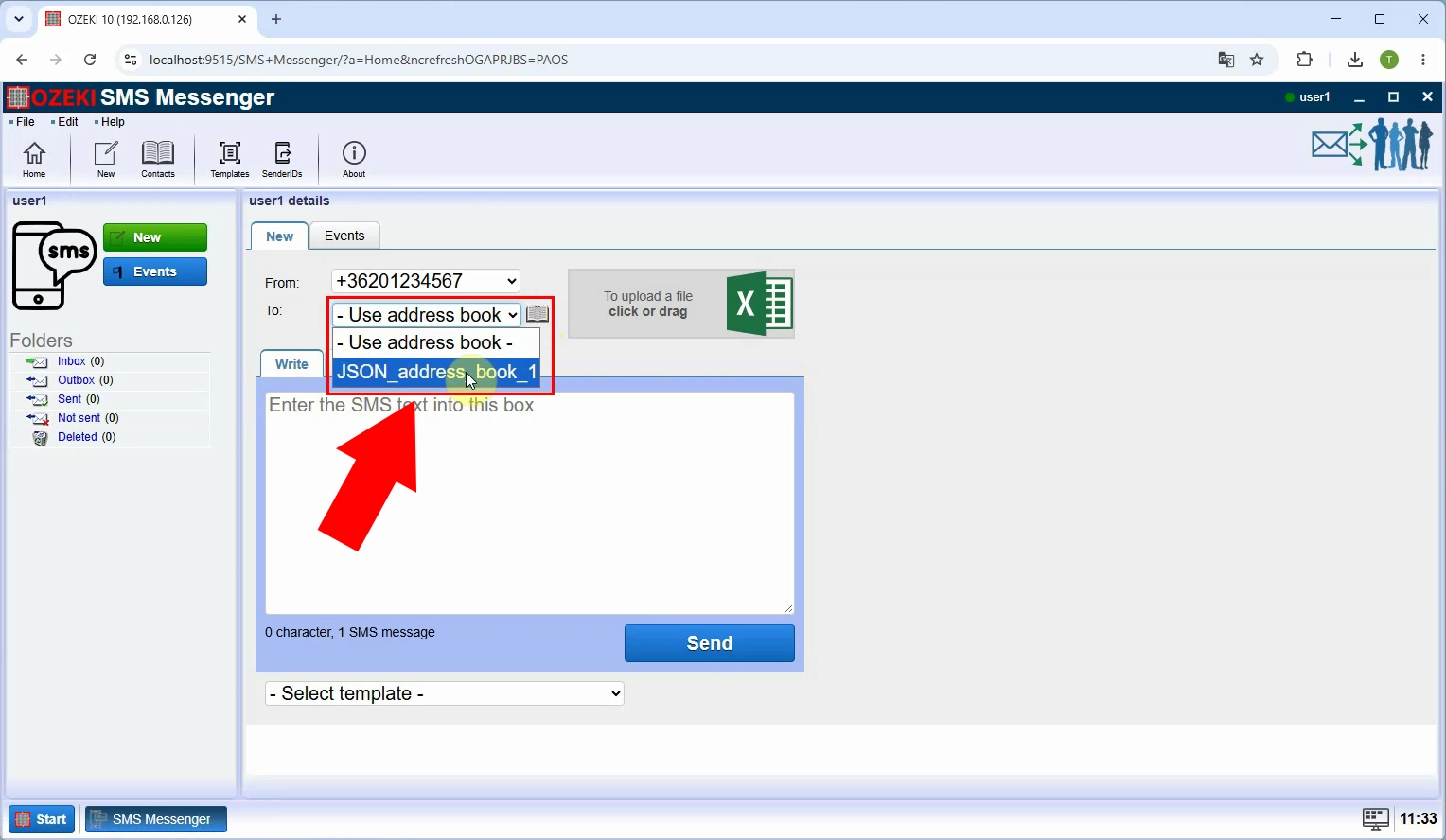
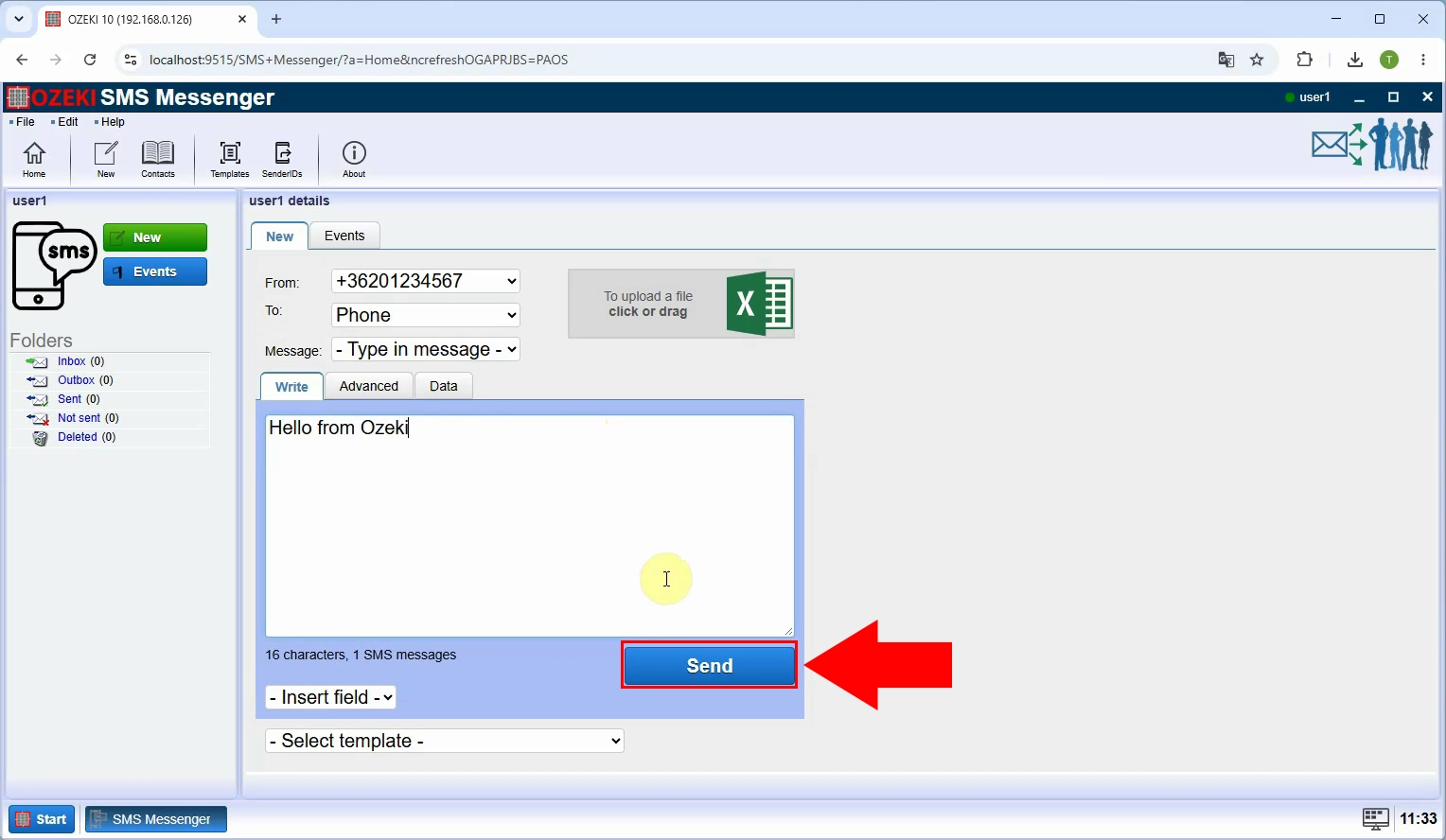
Write the SMS, review the selected address book and message text, then click Send. This submits the message for the contacts in the JSON address book.
Check the sent messages to verify that SMS Messenger created messages for the address book’s recipients. Review their send status rather than assuming every handset received the SMS.