Send SMS using CSV address book
Send an SMS to contacts in a CSV file using Ozeki SMS Gateway. This guide shows you how to upload the file as an address book in SMS Messenger, select it as the recipient, send your message, and check the results. A template CSV file is included to help you get started.
Template CSV file: csv_template.csv
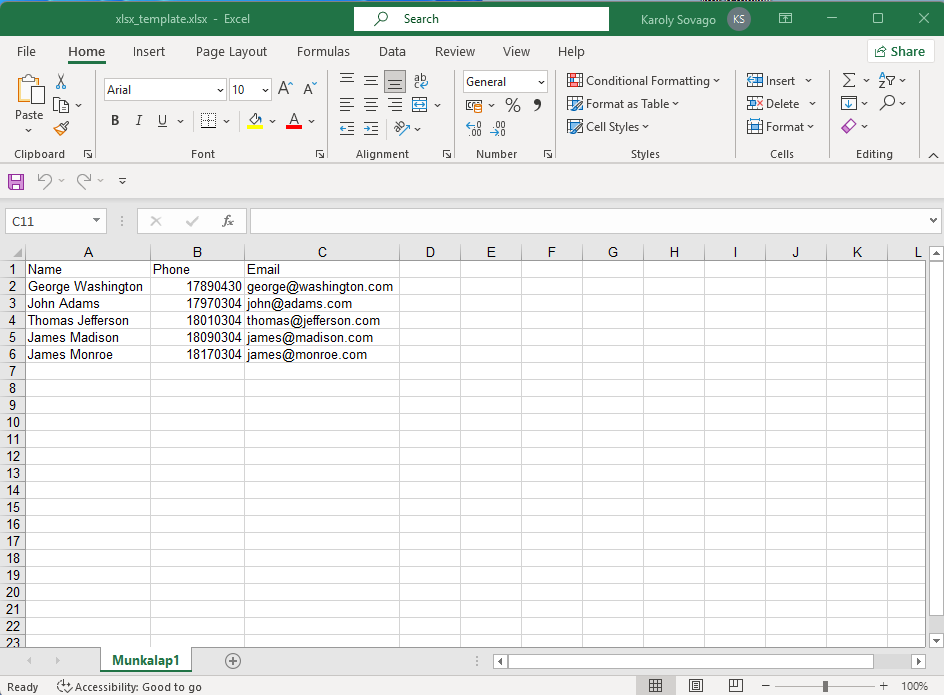
File content example:
Name				Phone		Email
George Washington	17890430	george@washington.com
John Adams		17970304	john@adams.com
Thomas Jefferson	18010304	thomas@jefferson.com
James Madison		18090304	james@madison.com
James Monroe		18170304	james@monroe.com
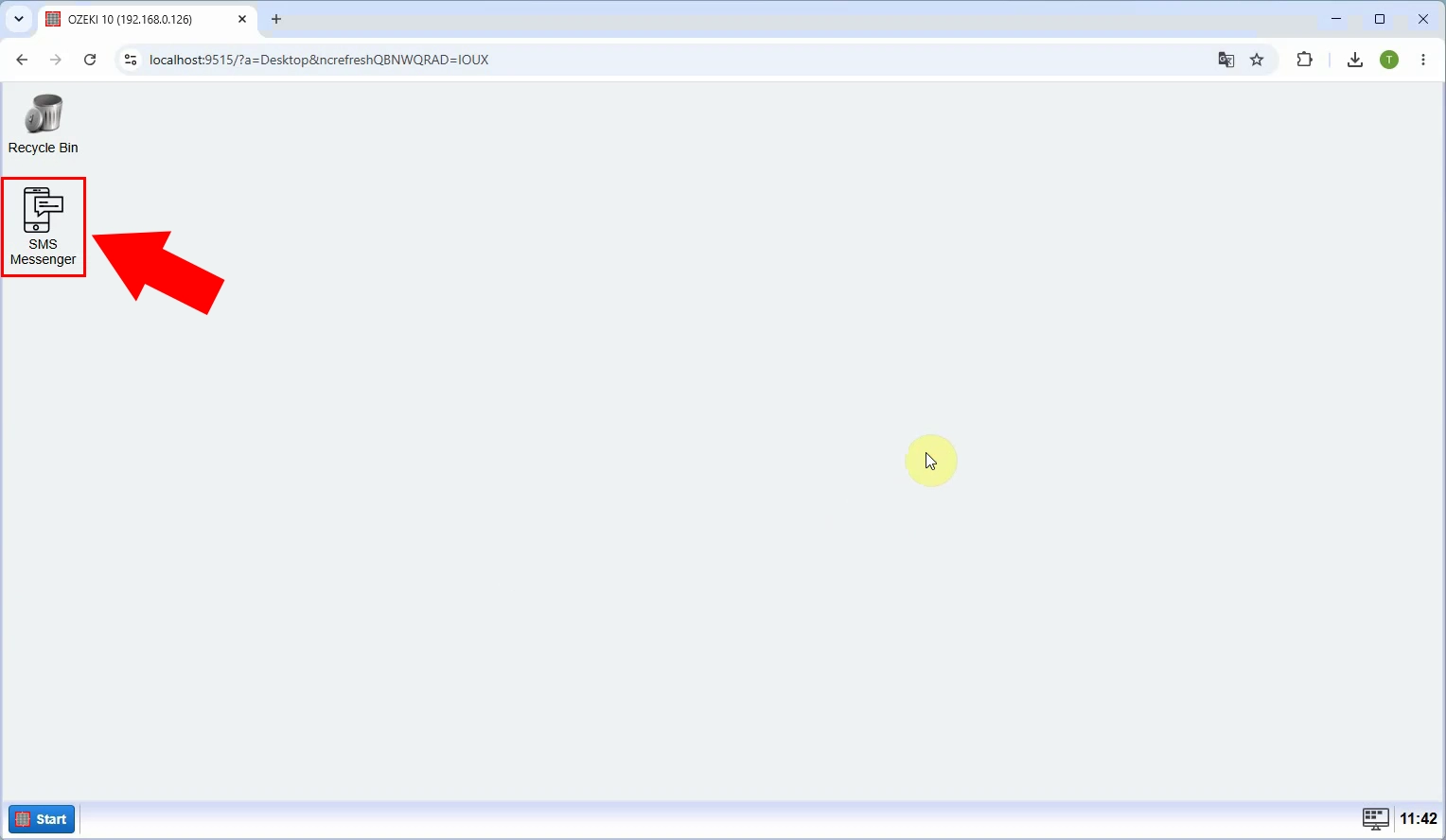
Open Ozeki SMS Gateway and launch SMS Messenger. This is where you will add the CSV address book and compose the message. Make sure the gateway has a working SMS connection before sending.
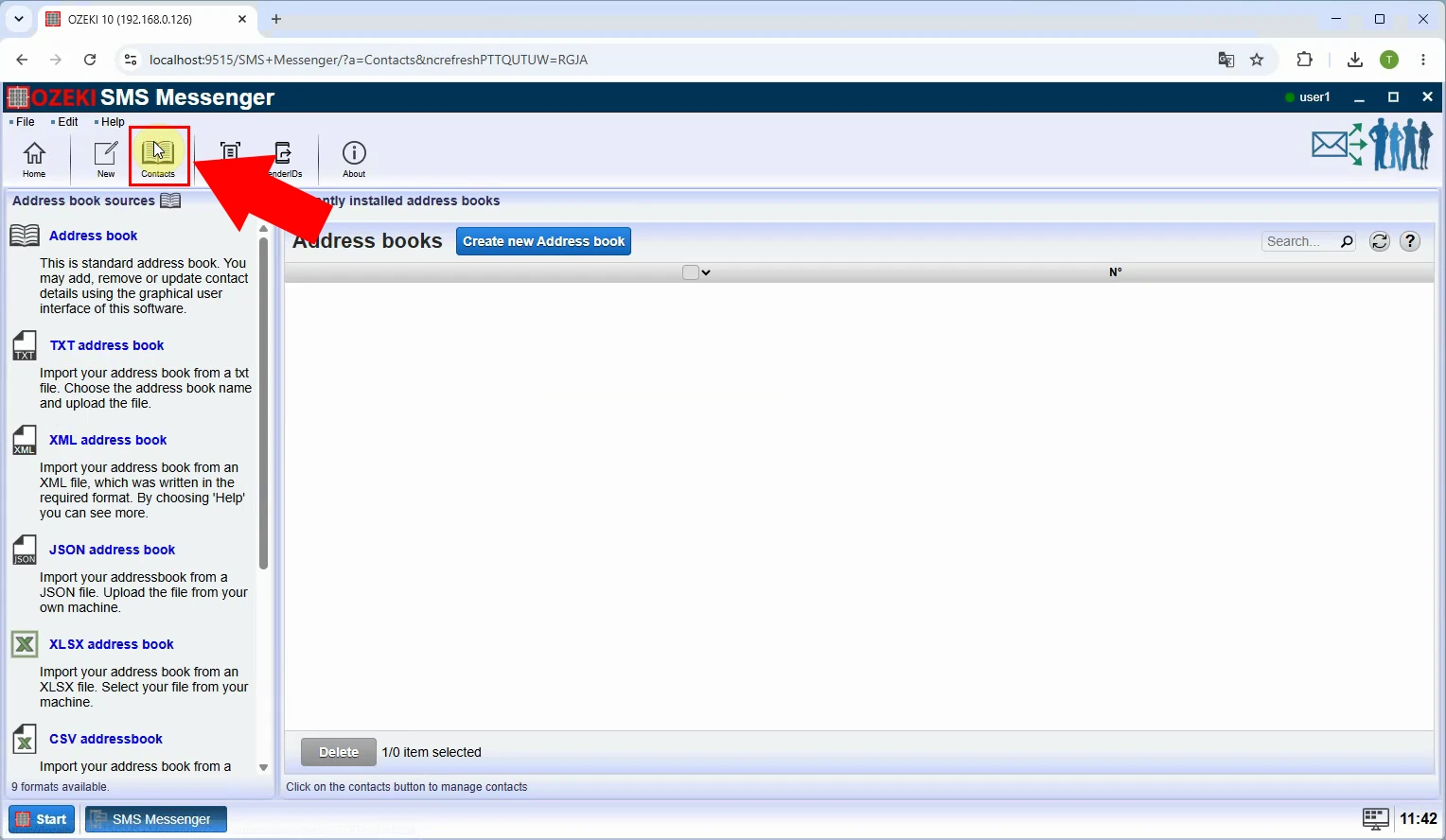
In SMS Messenger, open the Contacts menu. From here, you can create an address book that reads recipient details from a CSV file.
Select the CSV address book option. This tells SMS Messenger to use a CSV file as the source of contact names and phone numbers.
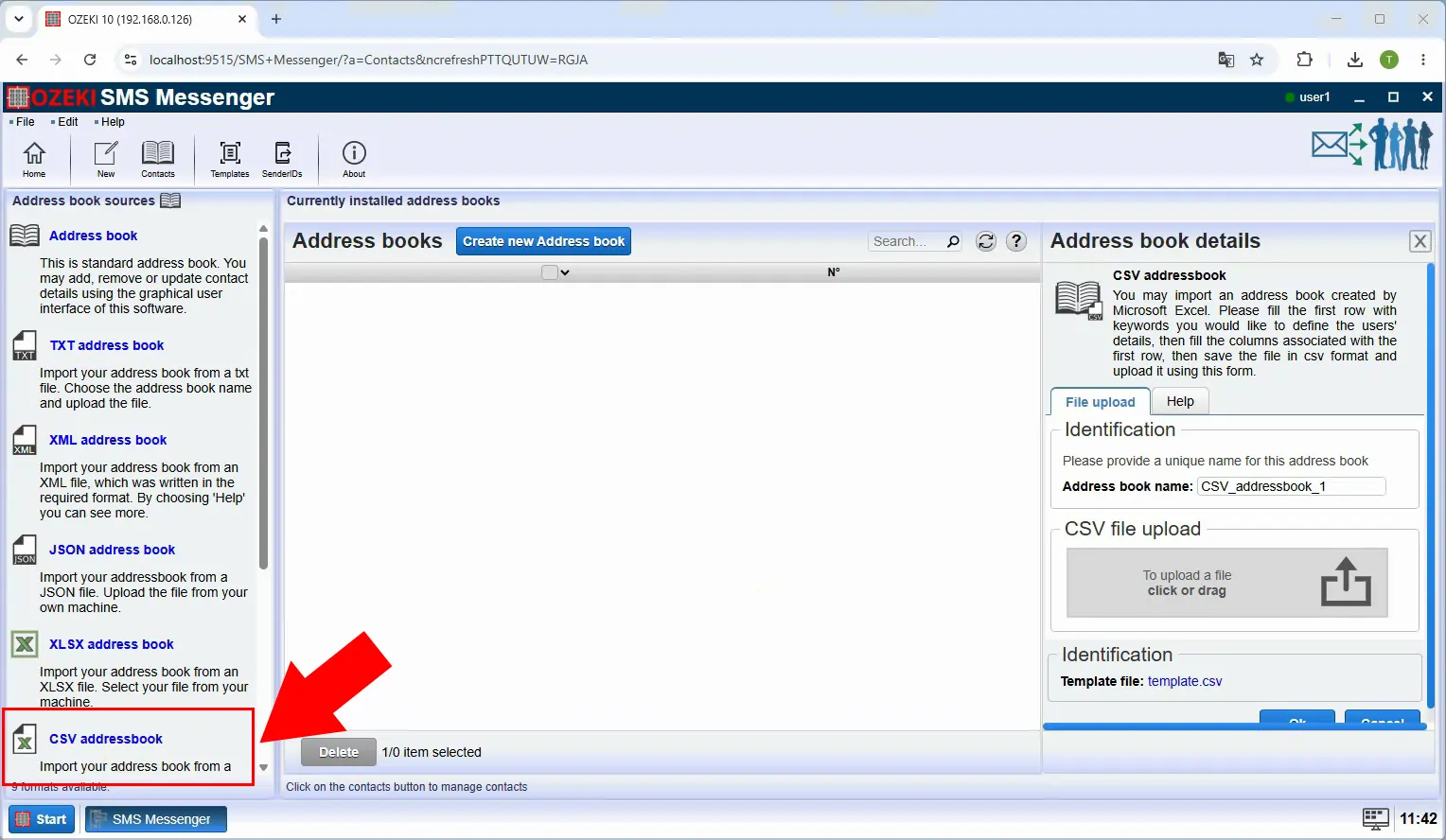
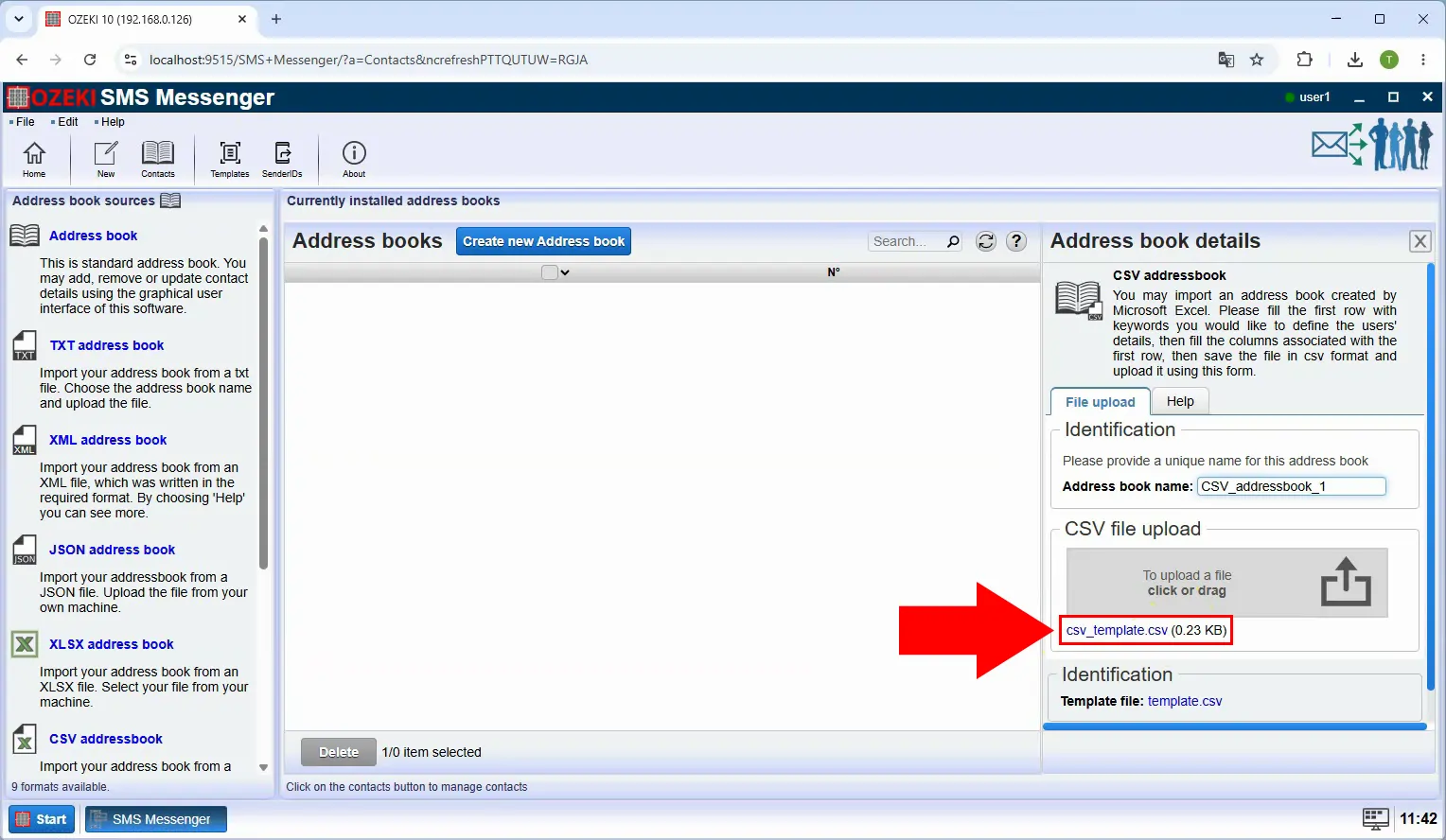
Upload your CSV file. Check that it contains the intended contacts and phone numbers; use the page’s template CSV file if you need a starting format.
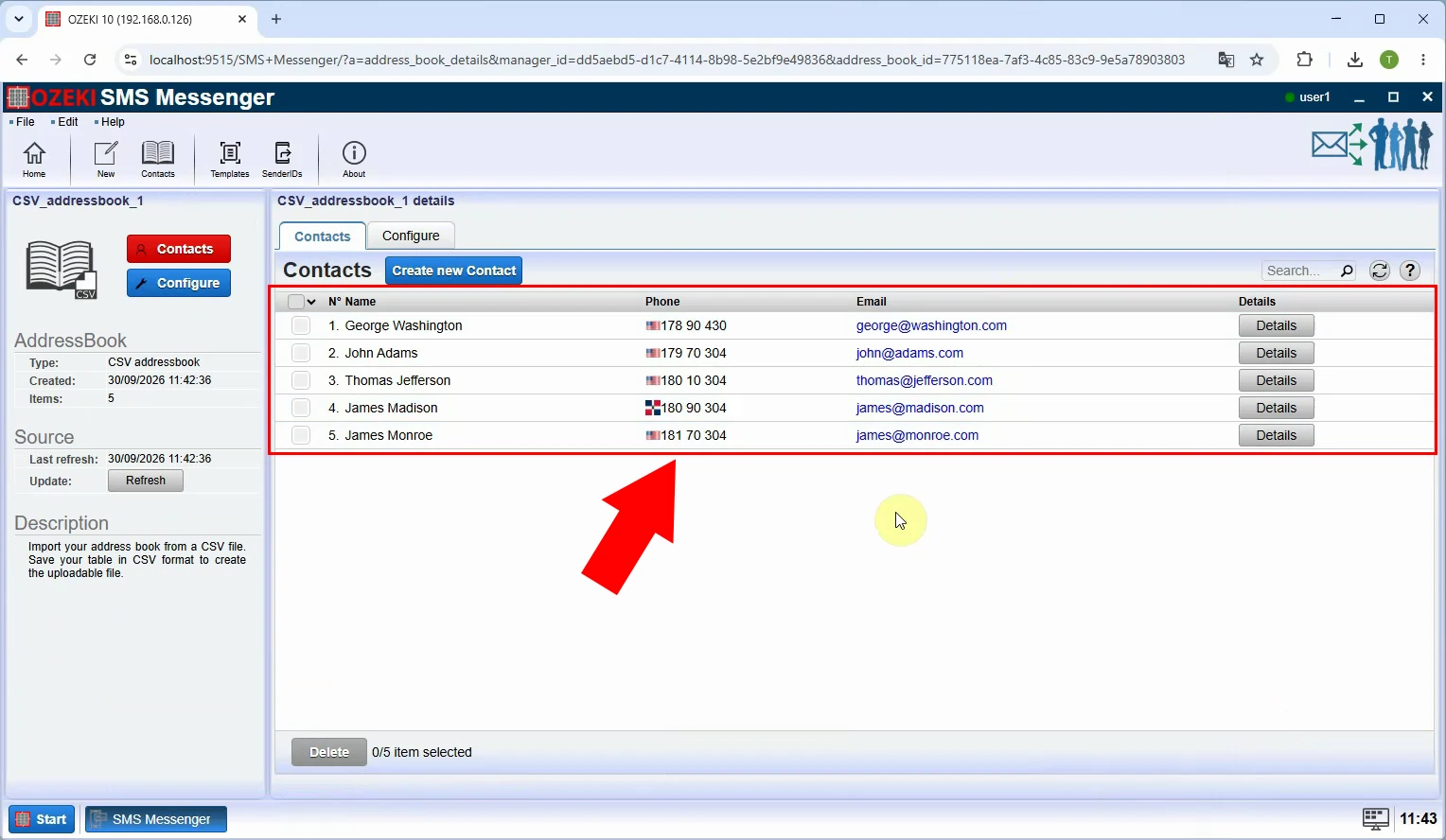
Confirm that the CSV address book has been created. Check its contacts before sending so you can catch missing or incorrect phone numbers.
Return to the message composer and select the new address book as the recipient. The message will be addressed to the contacts in that book.
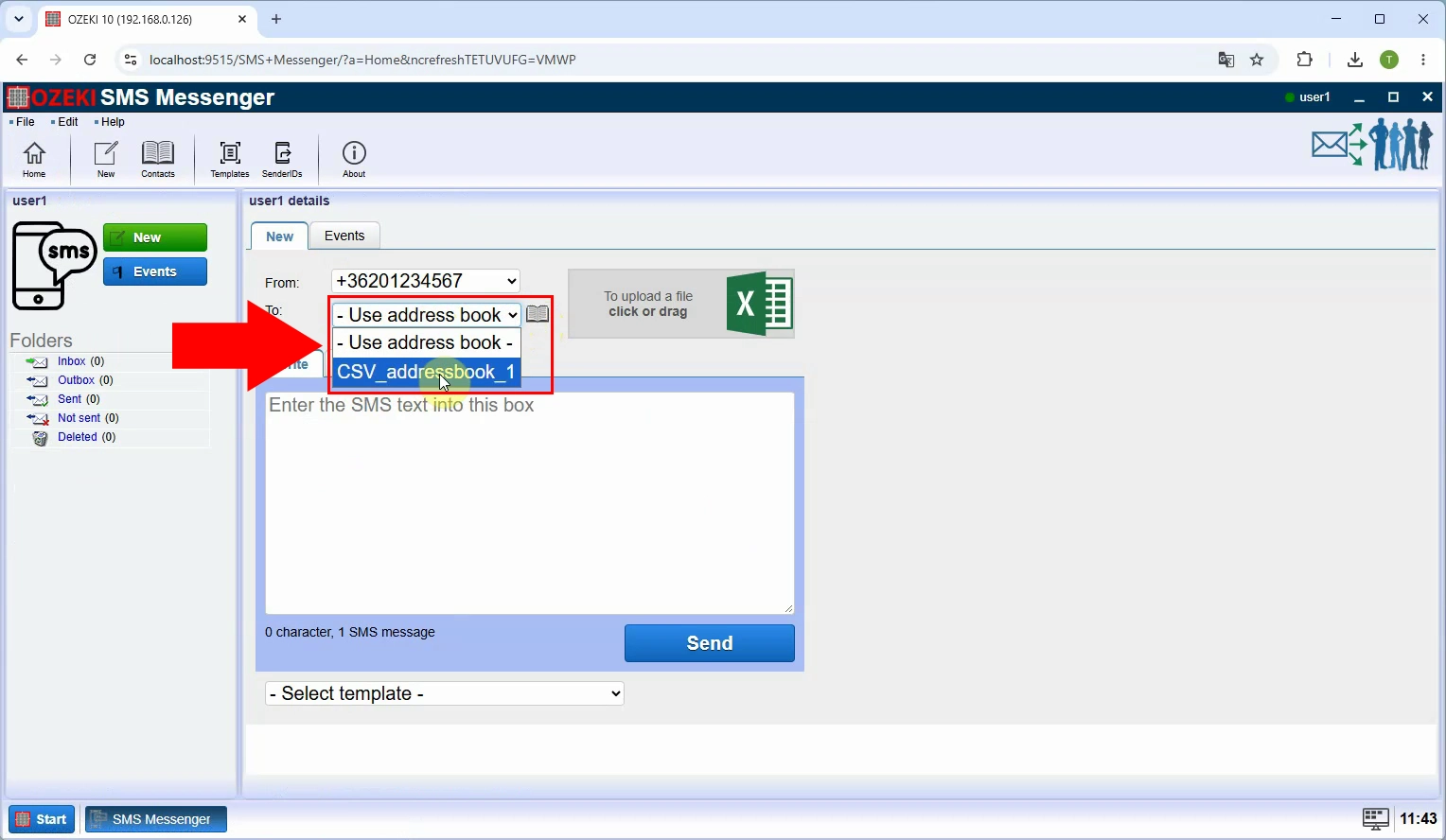
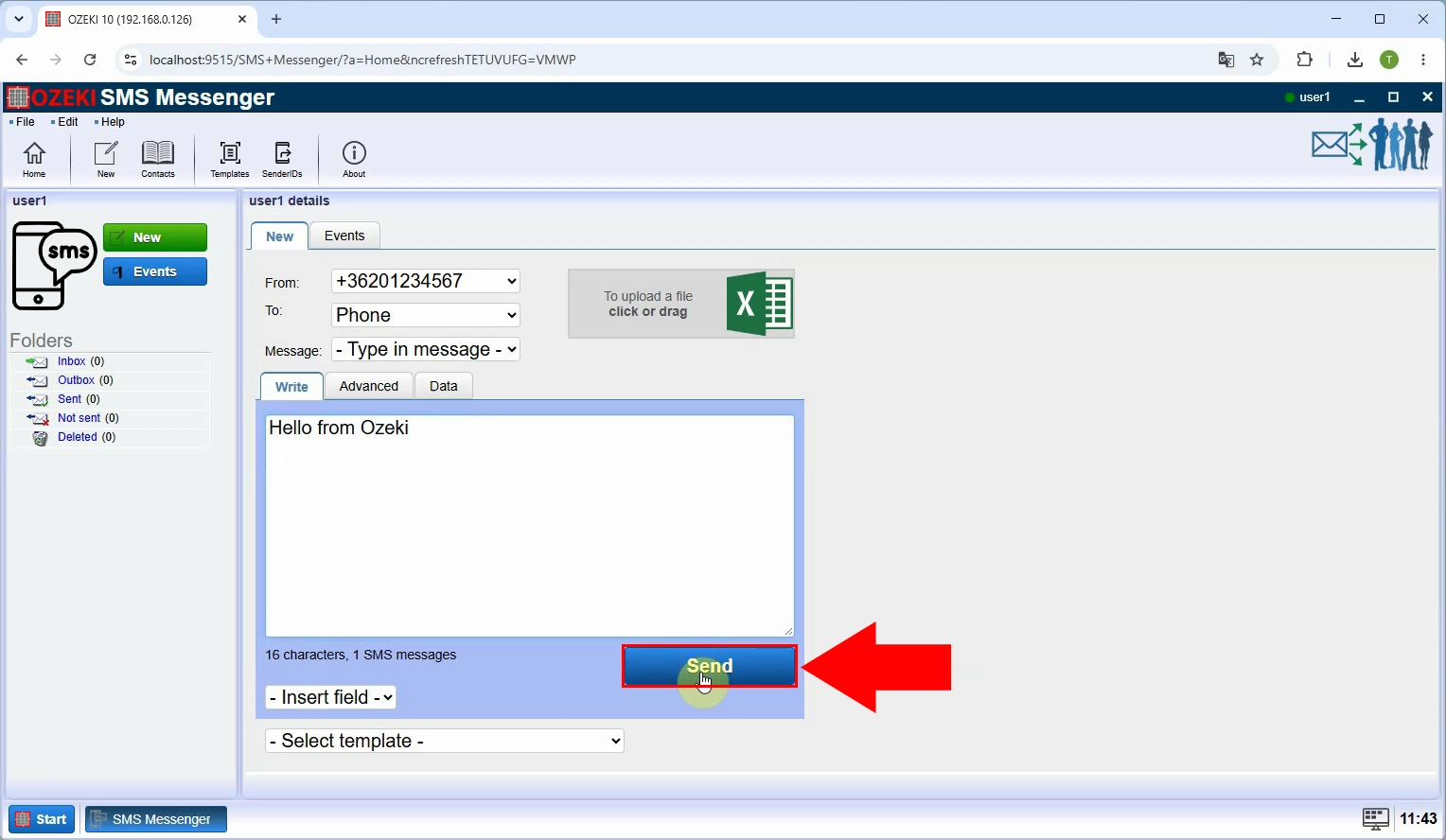
Write your SMS, review the recipient selection and message text, then click Send. This starts sending the message to the CSV address book contacts.
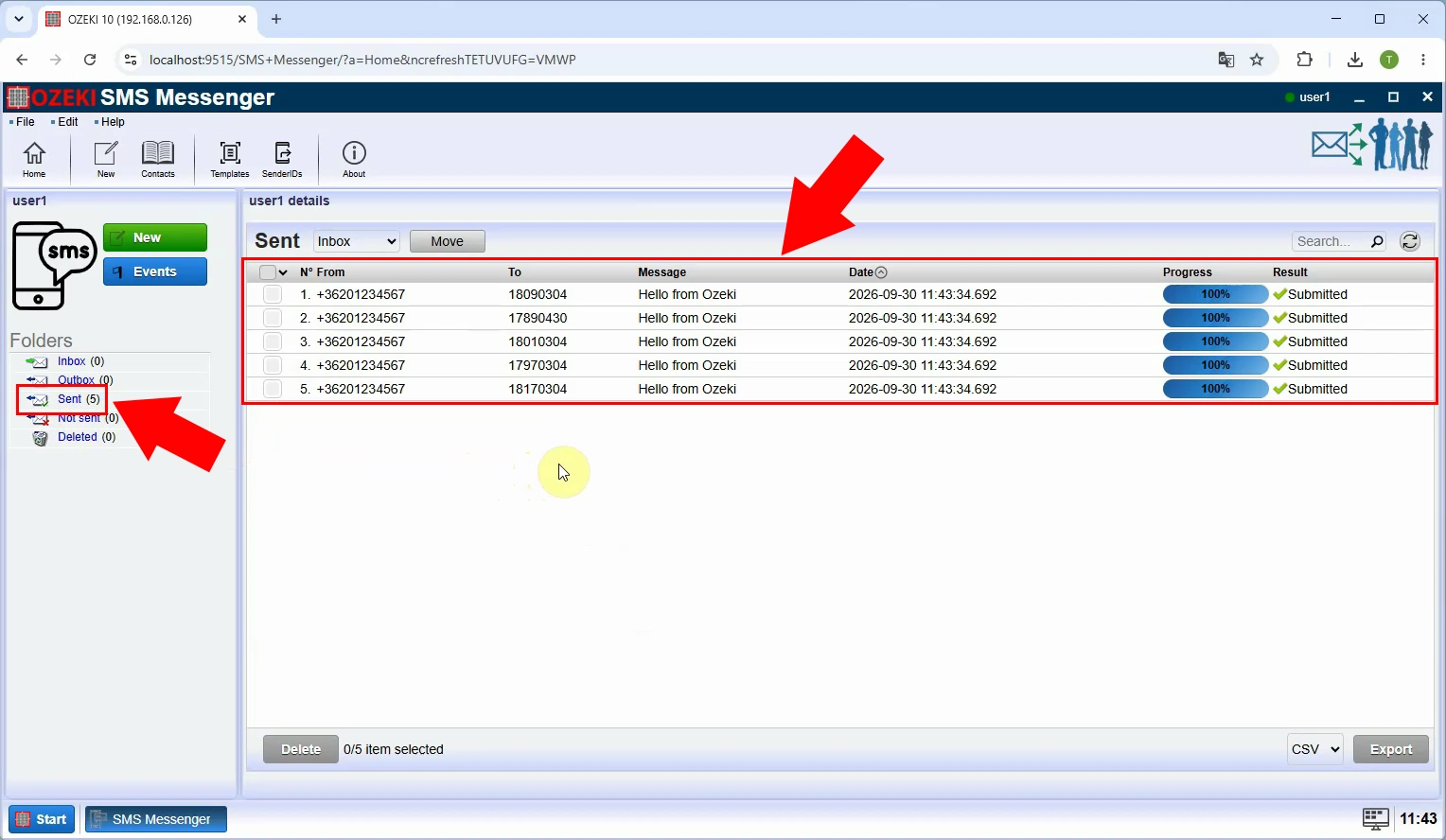
Check the sent messages to verify that the SMS was sent to all recipients. If any message failed, inspect its status before trying again.