How to send/receive MMS message in Bandwith connection using the HTTP API
This guide walks you through the complete process of sending and receiving MMS messages via a Bandwidth connection in Ozeki SMS Gateway, using the built-in HTTP API. You will learn how to locate the correct API endpoint URL within the gateway's connection settings, construct and submit a properly formatted HTTP POST request containing multimedia message data and file attachments, and verify successful delivery through the gateway's real-time event log. The guide also covers the incoming MMS flow, showing how the gateway automatically processes inbound messages from the Bandwidth network and extracts any attached media files. All received media is stored locally on the server in the dedicated MMSAttachments folder, making it straightforward to integrate MMS functionality into your existing messaging infrastructure.
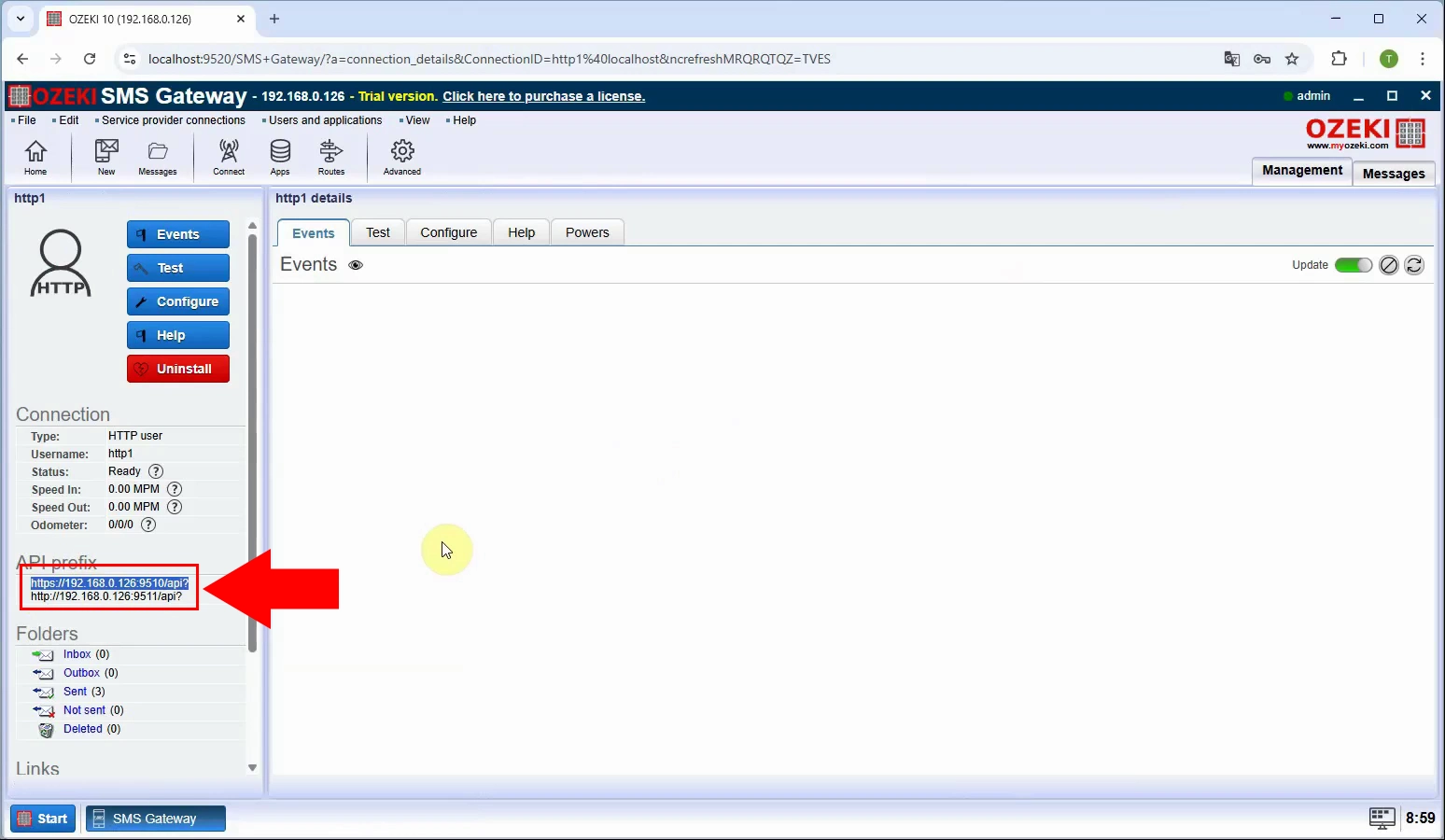
Open Ozeki SMS Gateway and navigate to the HTTP API user configuration page. In the connection details panel, locate the "API prefix" field, which displays the HTTP API URL (e.g., https://192.168.0.10:9510/api). Verify the connection status shows "Ready" before proceeding to ensure the HTTP API service is properly works in the gateway.
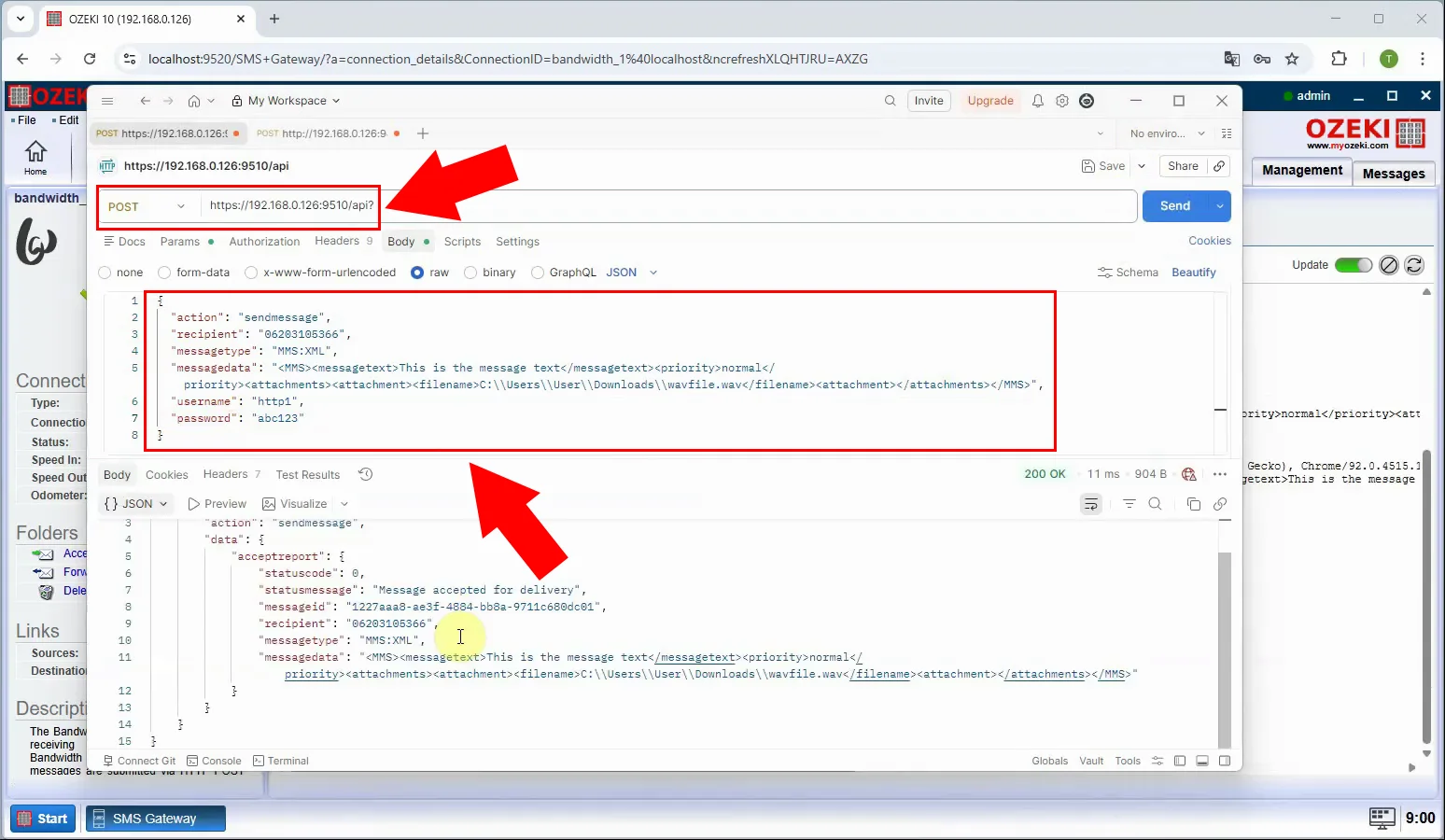
To send an MMS, open a REST client (such as Postman) and create a new POST request targeting the API prefix URL noted in Figure 1 (e.g., https://192.168.0.10:9510/api). In the request body, construct a JSON payload that includes the action sendmessage, the recipient number, MMS message data (message text, priority), and an attachment element pointing to the media file path on the server; the priority field defines two possible values for the connection: normal or high. Click Send, and a successful response (HTTP 200 OK) with a message ID confirms the MMS has been accepted for delivery.
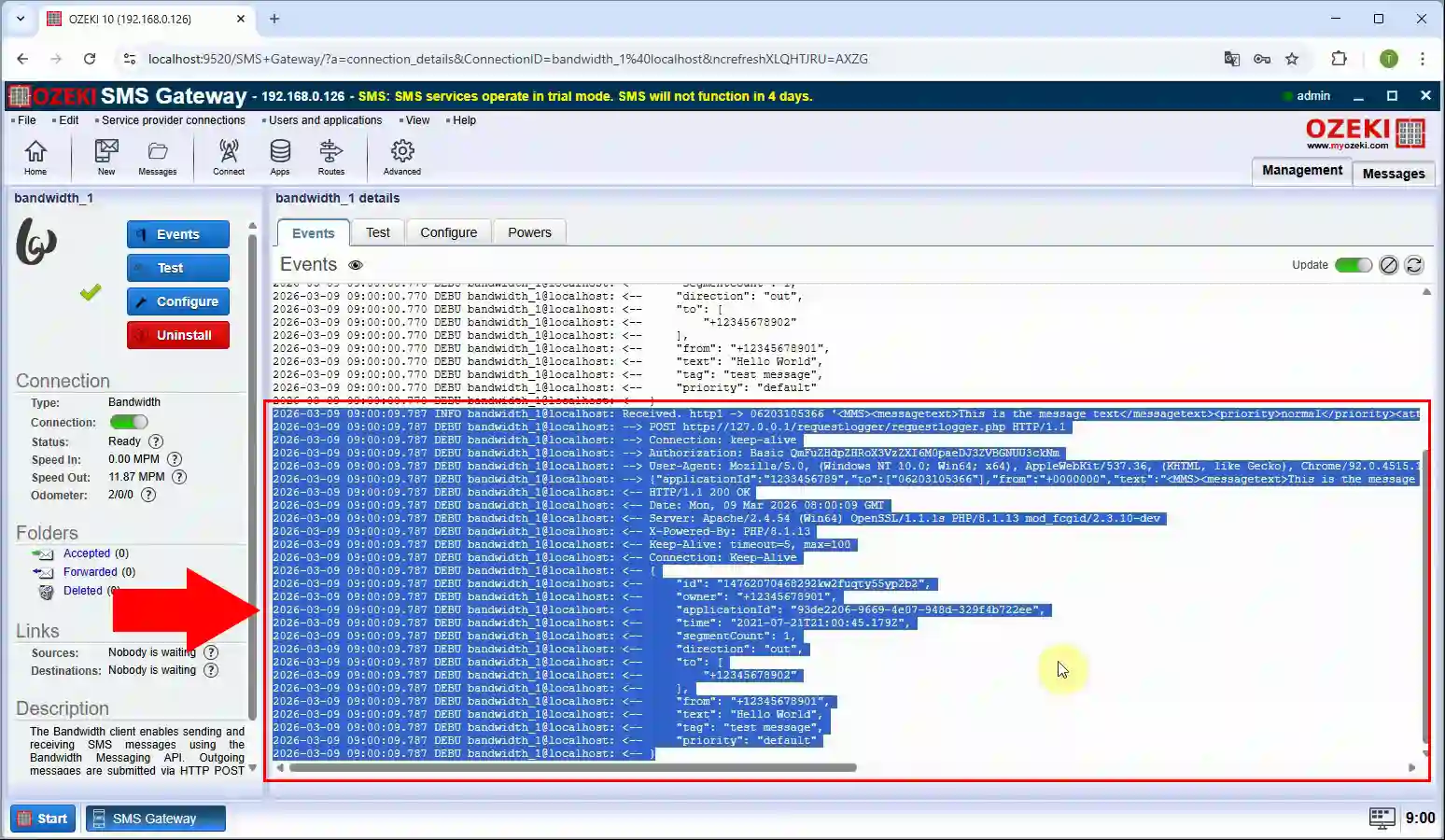
After the API call is made, navigate to the Bandwidth connection's Events tab in Ozeki SMS Gateway to monitor the outgoing message traffic. The event log will display a series of HTTP request and response entries confirming the MMS was routed through the Bandwidth service, including the JSON payload with fields like "to", "from", "tag", and "text". The Sent folder counter will increment, and the event log highlights the successful outbound transaction, confirming the MMS left the gateway.
To verify incoming MMS delivery, stay on the Bandwidth connection's Events tab and watch for inbound HTTP POST requests arriving from the Bandwidth network. The event log highlights a new incoming request block showing headers such as Content-Type: application/json, followed by a JSON body containing fields like "from", "to", "text" (e.g., "Hello World"), and "description": "Incoming message received". The Accepted and Forwarded folder counters will update, confirming the gateway has successfully received and processed the incoming MMS.
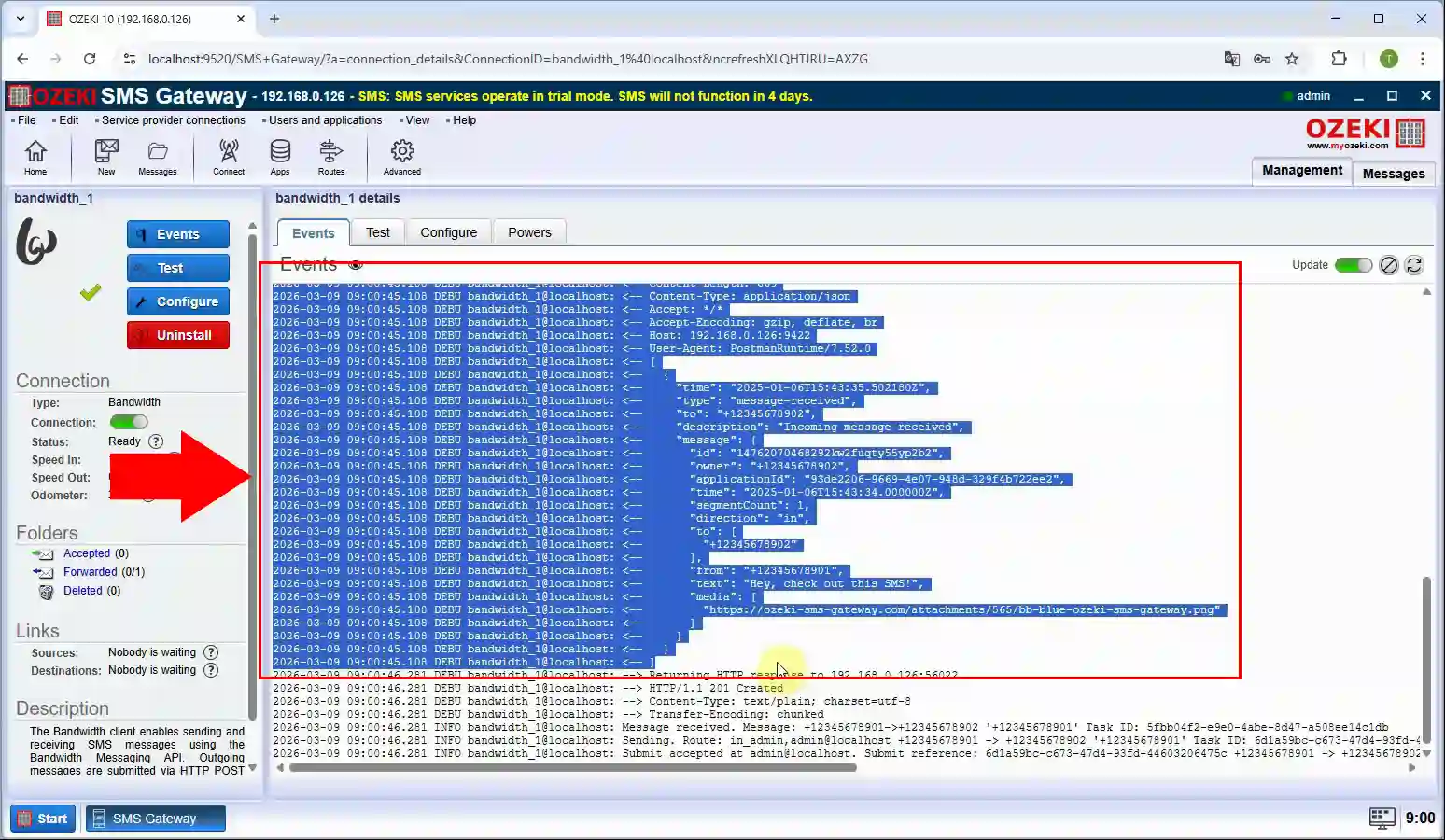
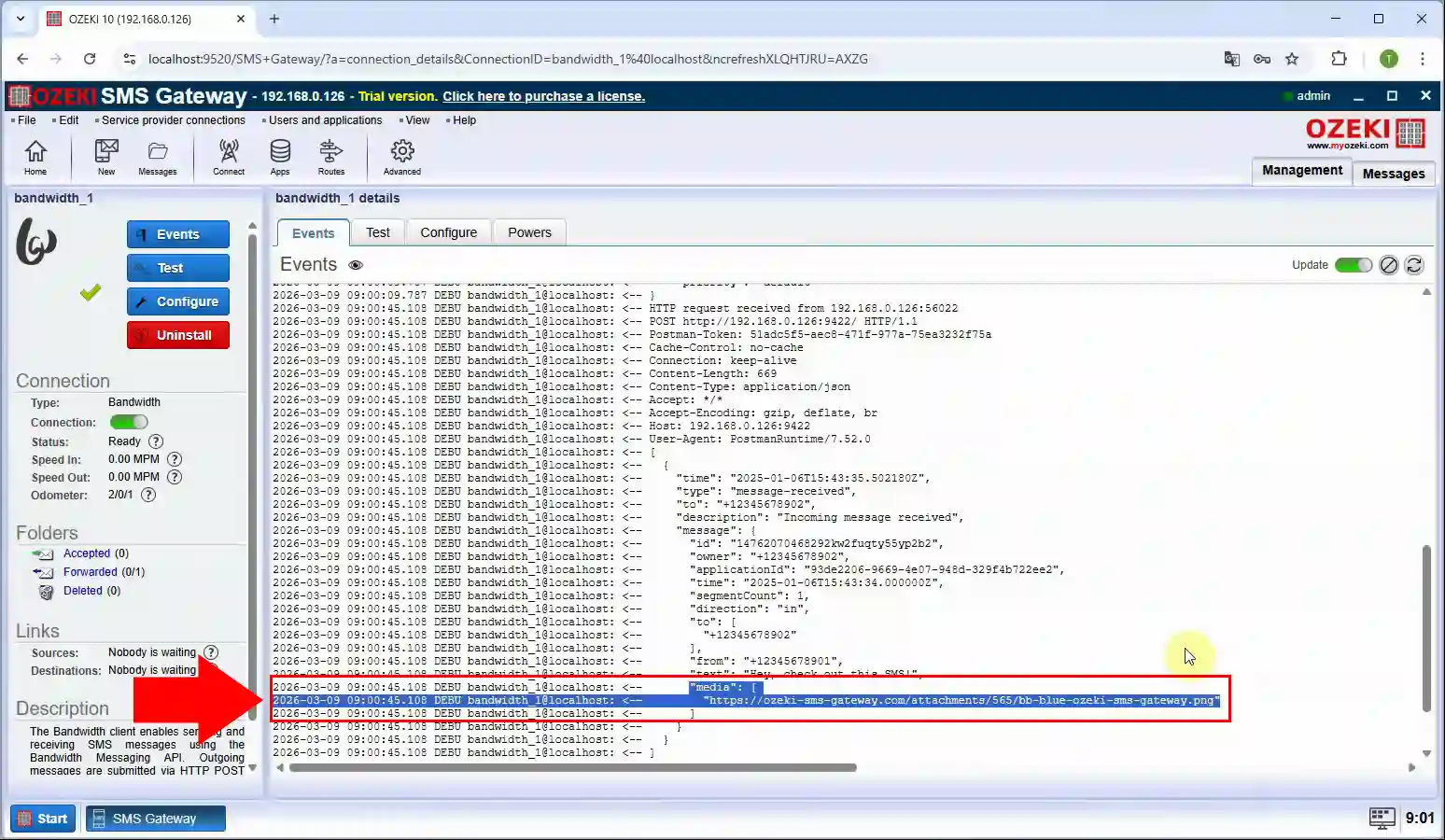
When an MMS with a media attachment is received, the Bandwidth connection's event log shows an additional line in the inbound JSON payload containing a media URL — a direct link to the attached file hosted on the Bandwidth gateway server. Ozeki SMS Gateway automatically fetches this media file by making an HTTP GET request to the provided URL, as visible in the highlighted event log entry. The gateway then stores the downloaded file locally and logs a confirmation message once the media has been successfully retrieved and saved.
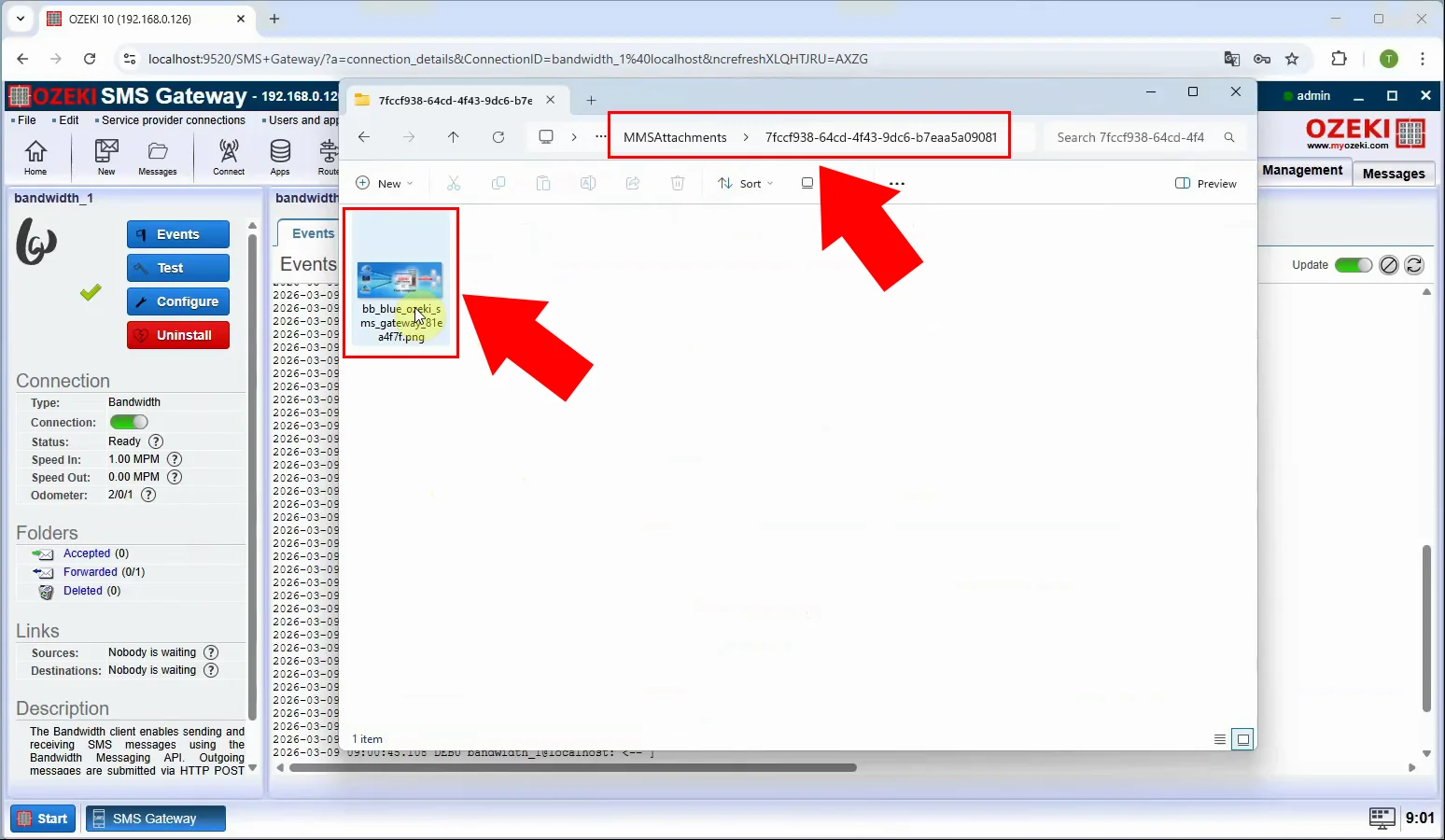
Once the media file is downloaded, by default Ozeki SMS Gateway saves it to the dedicated MMS attachments directory on the local file system: C:\Program Files\Ozeki\Data.Net8\AppData\MMSAttachments. The MMSAttachments folder containing the saved file, identified by its unique message ID. You can browse to this folder at any time to access, review, or forward the media files received through the Bandwidth MMS connection.
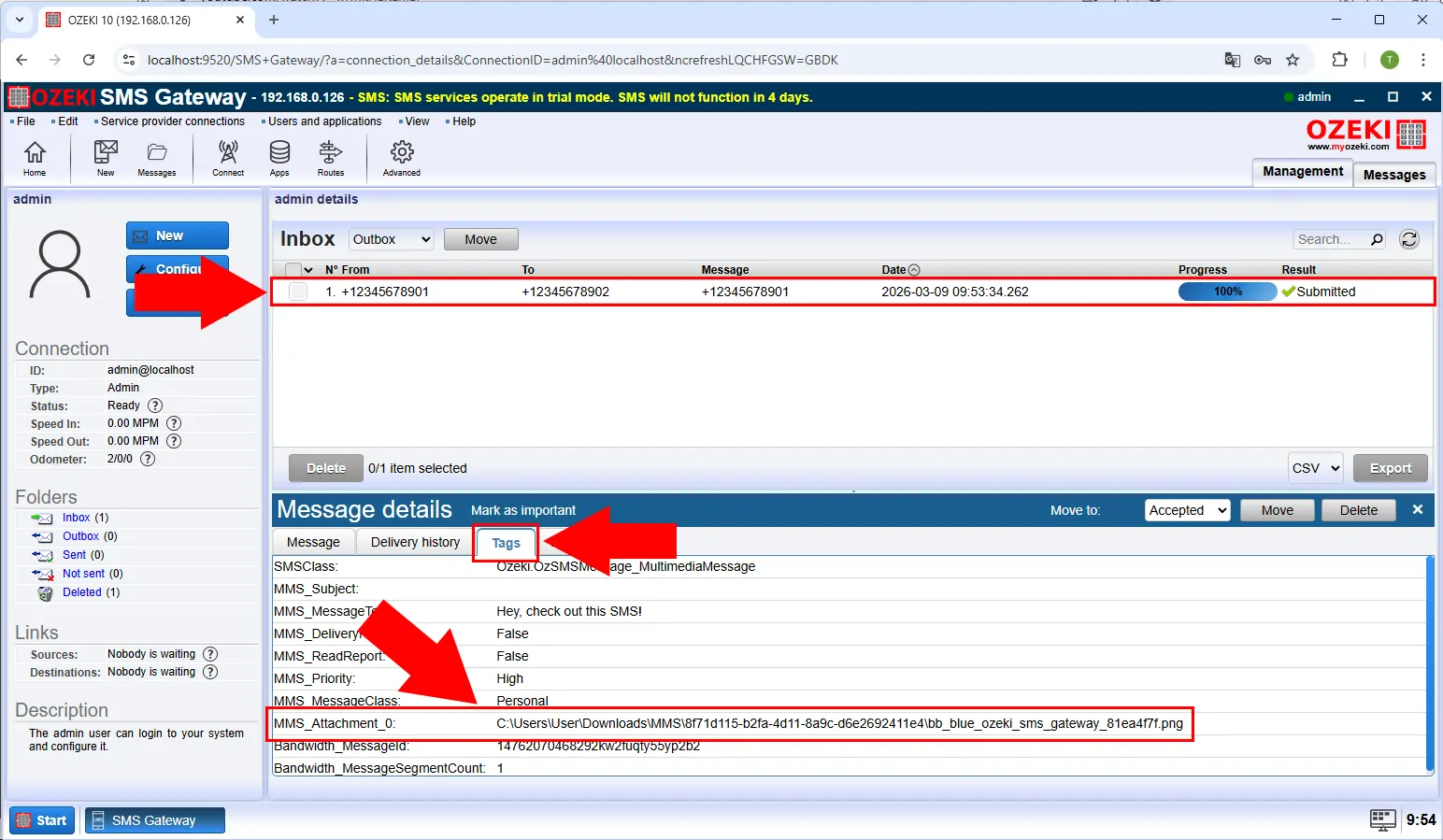
The downloaded media file location appears in the message tags section of the log entry, linked to the corresponding MMS message ID. Within this tag block, you can find a field that points to the local filesystem path of the saved media, located under the MMSAttachments directory. By checking these message tags for each received MMS, you can quickly identify exactly where the associated media file has been stored on the server.