
How to send SMS using the Bandwith SMS service connection
Bandwidth is a leading cloud communications platform that enables businesses to send and receive SMS messages programmatically through their robust Messaging API, making it an ideal choice for enterprise-level bulk SMS communications. Integrating Bandwidth with Ozeki SMS Gateway allows you to leverage this powerful service provider connection to send high-volume SMS messages over the Internet using HTTP POST requests, while maintaining full control and visibility through your local gateway infrastructure. This comprehensive guide walks you through the complete setup process, from installing and configuring the Bandwidth connection with your API credentials to enabling webhook authentication for secure message delivery. By following these step-by-step instructions, you'll be able to establish a reliable connection between Ozeki SMS Gateway and Bandwidth's SMSC, enabling you to send test messages and verify successful delivery within minutes.
How to send SMS through the Bandwith SMSC (Quick steps)
To send SMS through the Bandwith SMSC service provider:
- Download and install Ozeki SMS Gateway
- Add new connection
- Install the Bandwith connection
- Provide the Bandwith SMS service's username and password
- Turn on the connection
- Start to send new SMS message
How to send SMS through Bandwith (video tutorial)
In this video, we're going to walk you through the quick steps of setting up Ozeki SMS Gateway to send SMS messages through Telekom Slovenije's SMSC. This is a direct connection to the mobile service provider's SMSC over on Internet (IP SMS). First, we'll download and install Ozeki SMS Gateway, and then we'll dive right into adding a new connection, specifically for Bandwith. You'll see exactly where to input your Bandwith SMS service username and password. We'll also show you how to enable webhook authentication. With those settings in place, we'll turn the connection on and you'll be all set to start sending SMS messages. So, if you're ready to set your bulk SMS communication up and connecting to Bandwith, let's get started!
Add new connection
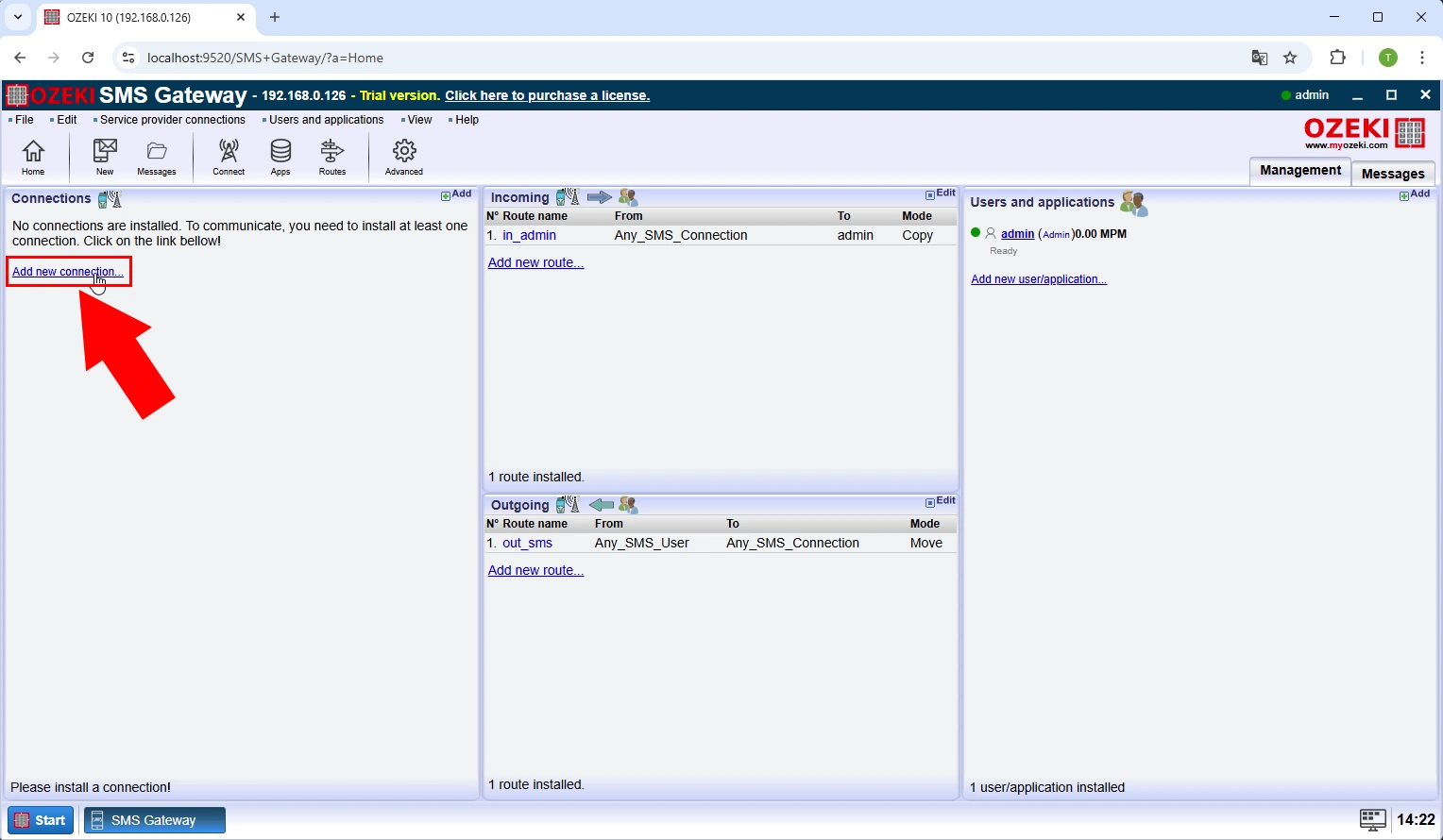
To begin setting up the Bandwidth SMS service connection, launch the Ozeki SMS Gateway application and navigate to the main Connections panel. Since no connections are currently installed, you need to click on the "Add new connection" link highlighted in the interface to initiate the connection setup process. This action will open a dialog box displaying all available SMS service provider connection types that can be configured within the gateway.
Install Bandwith connection
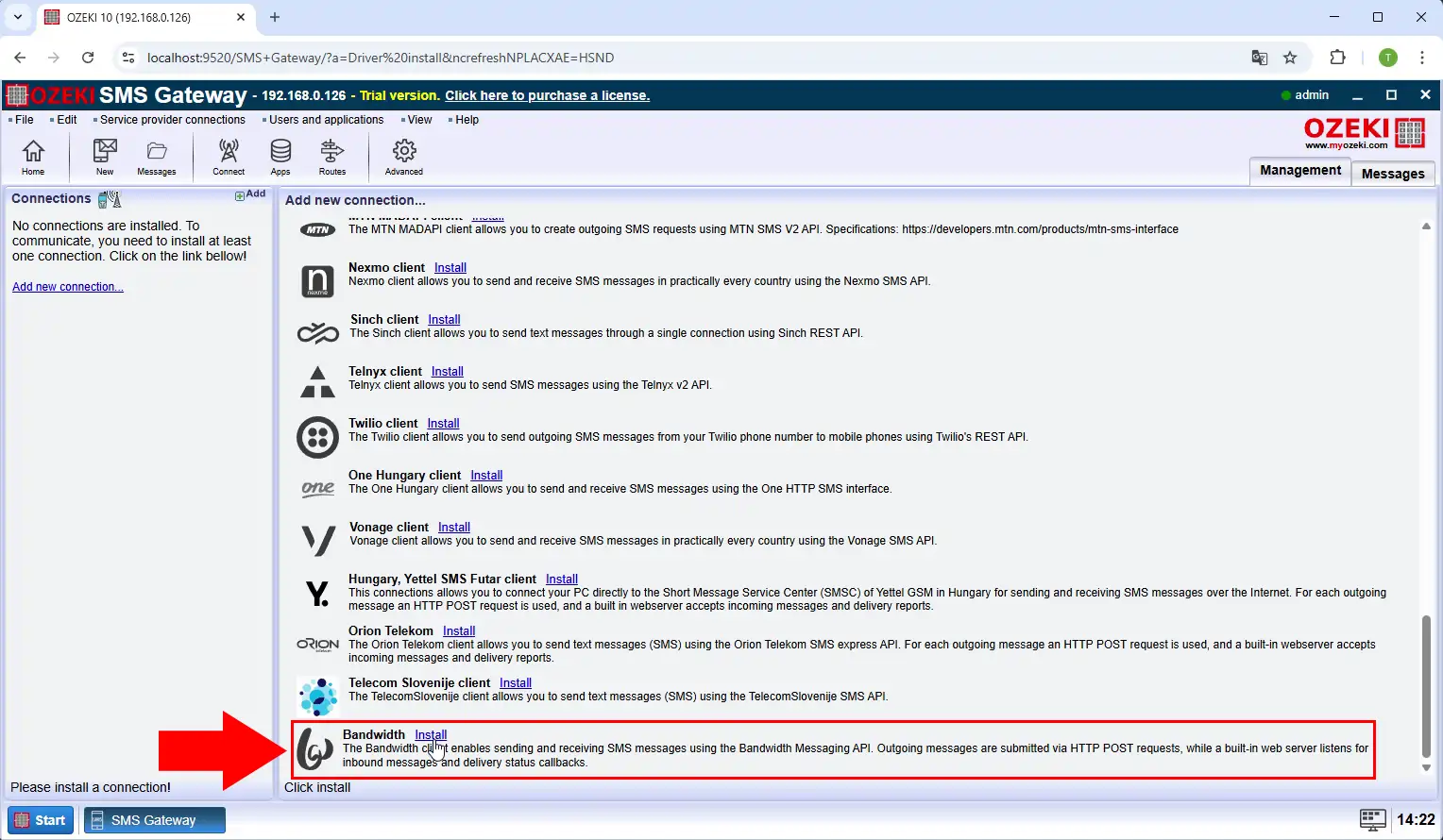
In the connection installation dialog, you will see a comprehensive list of available SMS service providers including various options like SMS MADAPI, Nexmo, Slack, Telnyx, Twilio, and others. Locate and select the "Bandwidth" option from this list, which provides sending and receiving SMS messages using the Bandwidth Messaging API through HTTP POST requests. Click the "Install" button to proceed with adding the Bandwidth connection to your Ozeki SMS Gateway configuration.
Provide API credentials
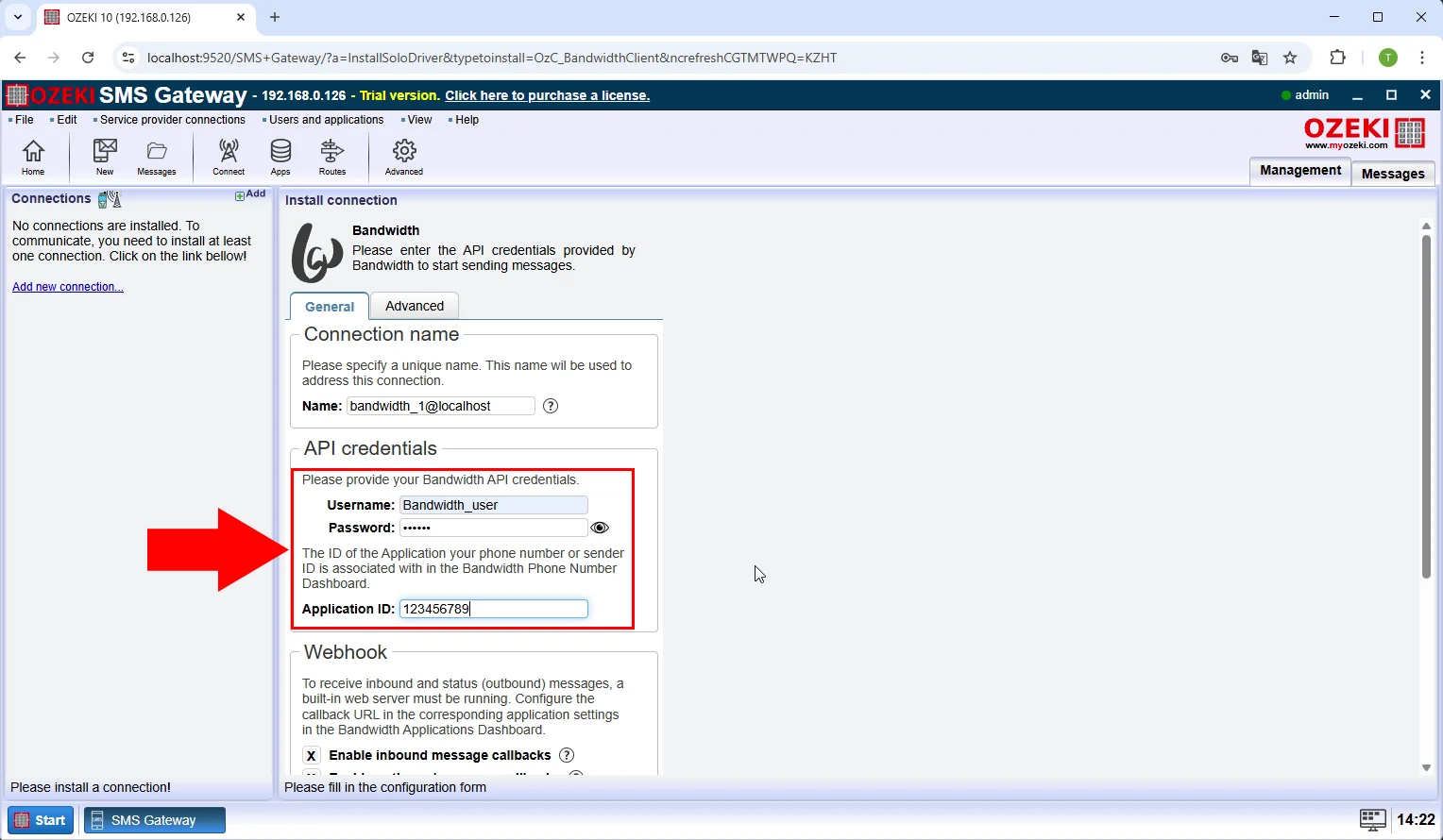
After selecting the Bandwidth connection, you must configure the connection by providing your Bandwidth API credentials in the installation form. Enter your unique connection name in the "Connection name" field, then input your Bandwidth API Username and Password in the designated "API credentials" section fields. Additionally, you need to provide your Application ID and Phone Number associated with your Bandwidth Dashboard to complete the authentication setup required for the connection.
Configure webhook authentication
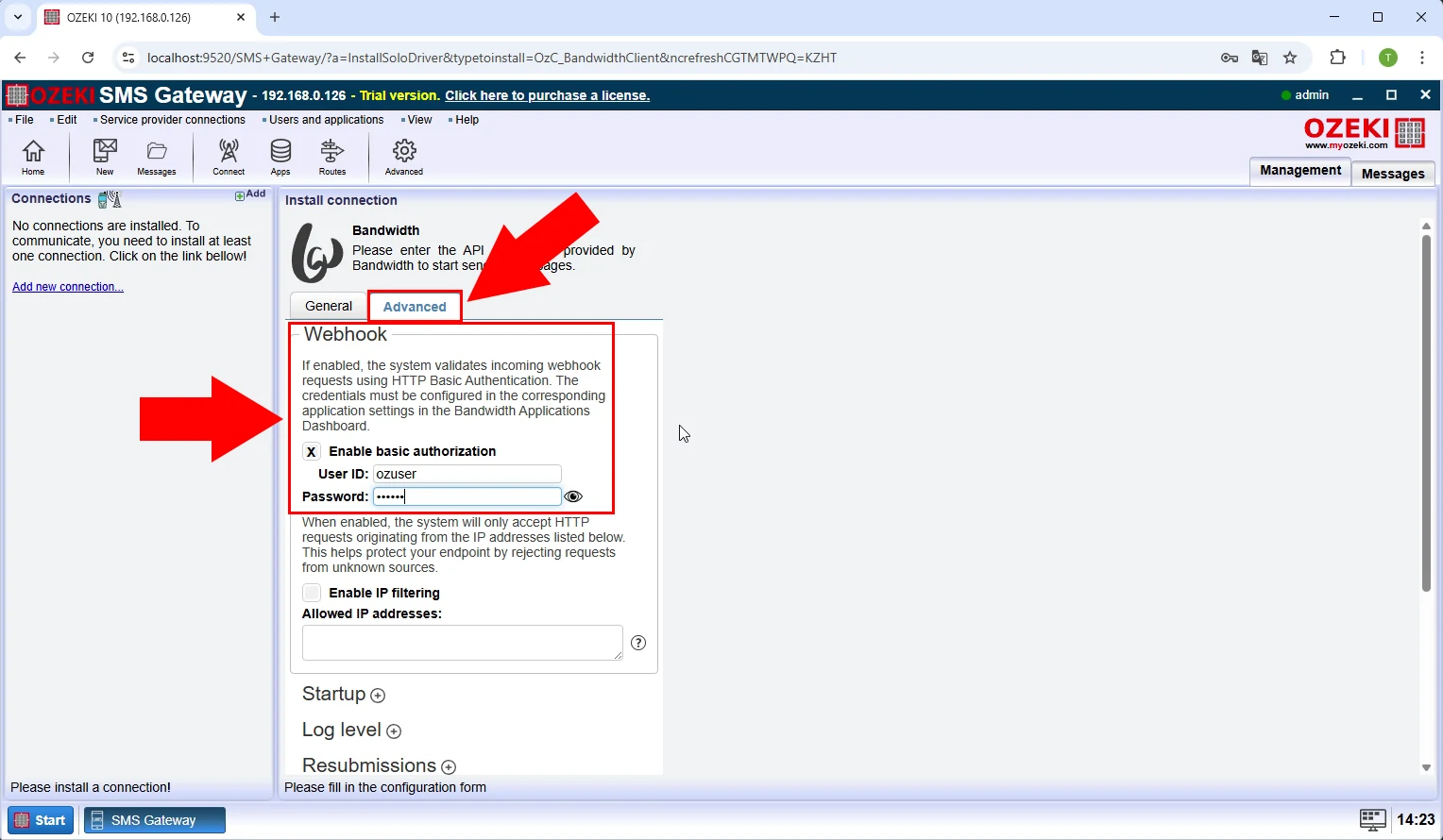
To enable secure incoming SMS message delivery, navigate to the "Advanced" tab and configure the webhook authentication settings within the connection configuration. Enable basic authentication by checking the "Enable basic authentication" option and provide a User ID and Password that the system will use to accept HTTP requests from the Bandwidth platform. These webhook settings ensure that only authenticated messages originating from your Bandwidth account will be accepted and processed by the Ozeki SMS Gateway.
Connect to Bandwith
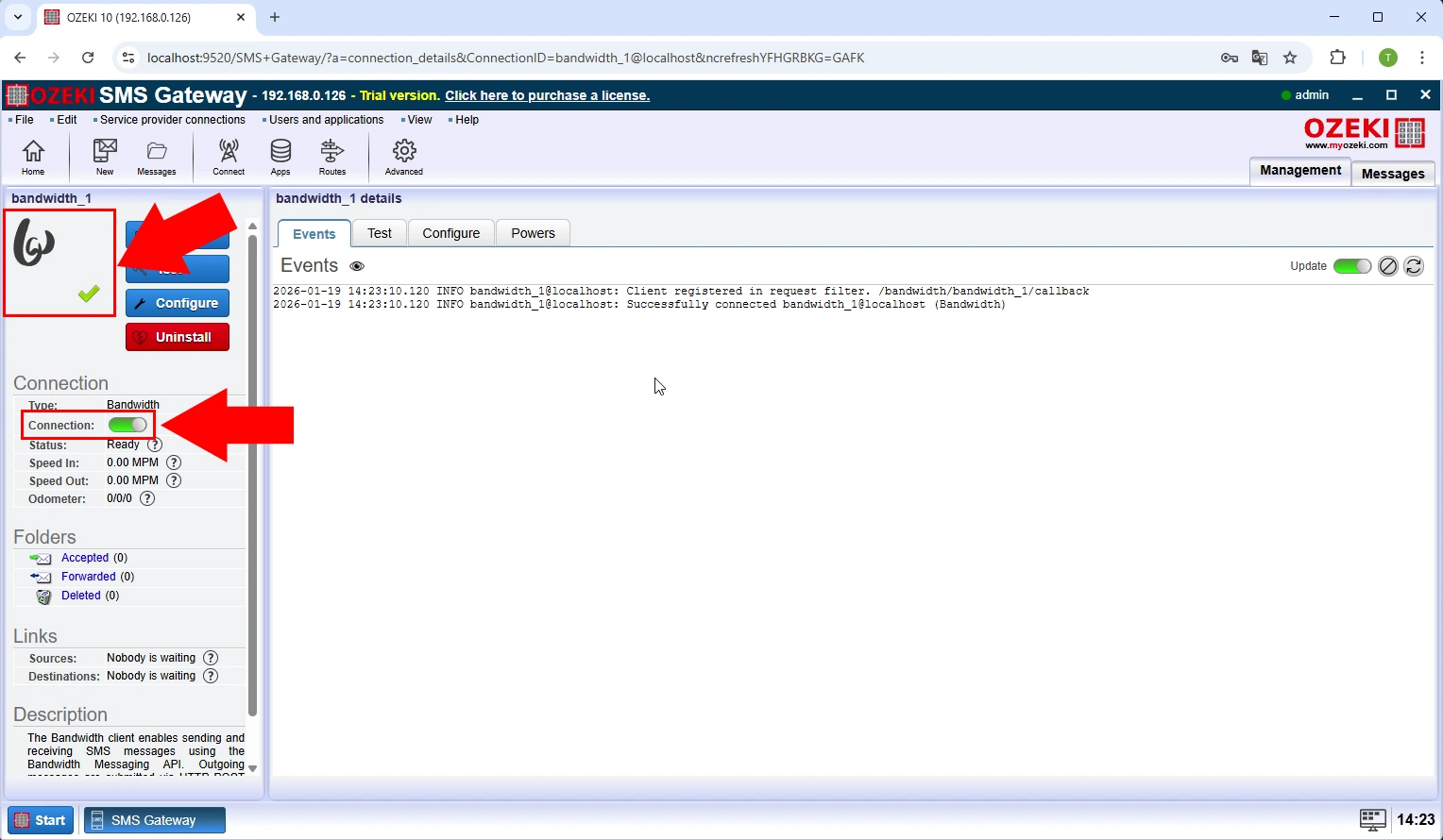
Once all configuration settings including API credentials and webhook authentication have been properly entered, activate the connection by clicking the connection status toggle to turn it on. The connection panel will display the status changing to "Ready" with a green indicator, confirming that the Bandwidth connection is now active and operational. The Events tab will show connection activity logs, and you can now proceed to send SMS messages through this established Bandwidth service connection.
Send test SMS
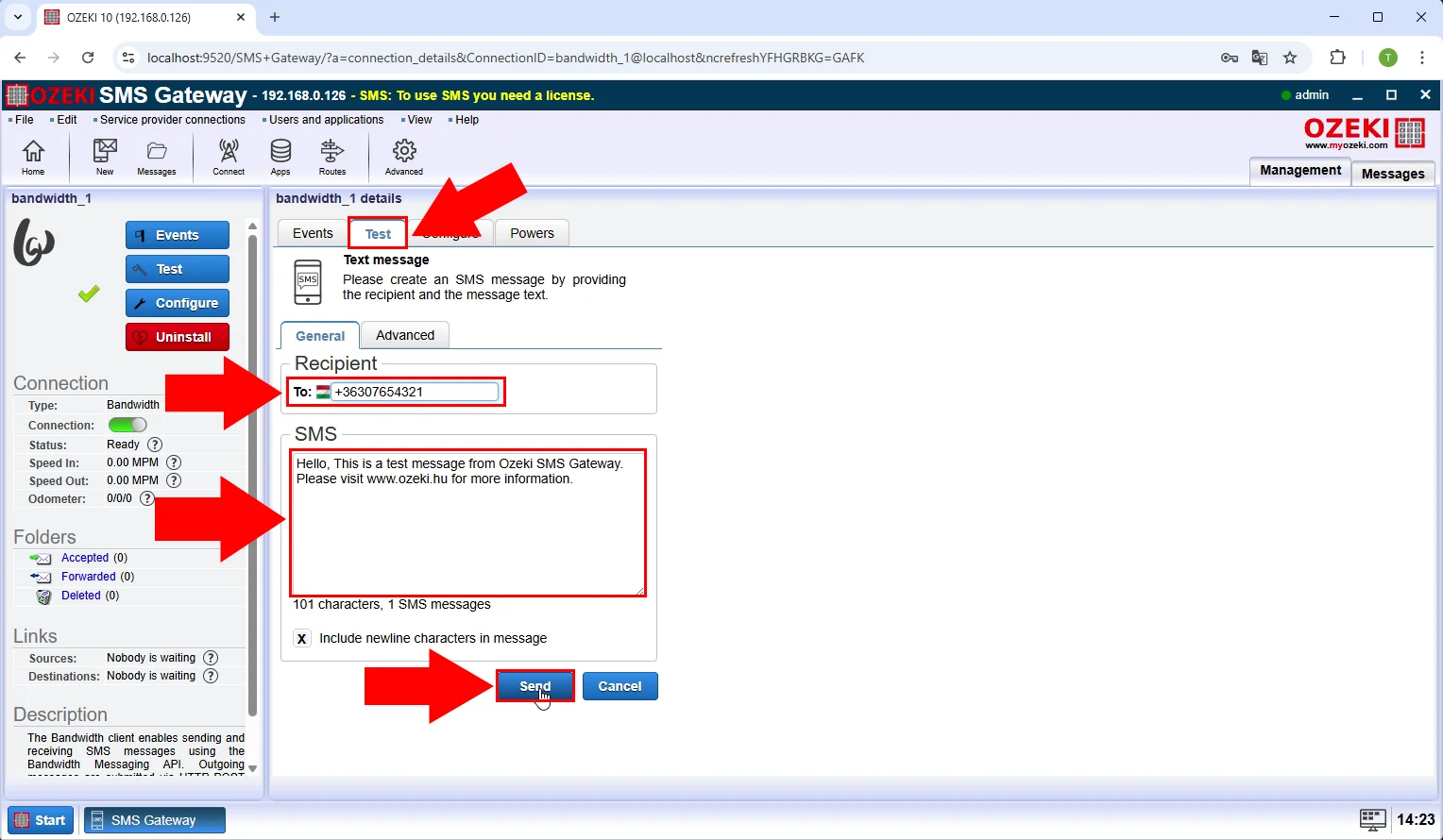
To send your first test SMS message, click on the "Test" button in the connection sidebar, then click on "Events" and select "Test" again to access the message composition interface. In the recipient field, enter the destination phone number in international format (e.g., +36307654321), and compose your test message text in the SMS field below. After reviewing your message details, click the "Send" button to transmit the test SMS through the Bandwidth connection.
Test SMS sent
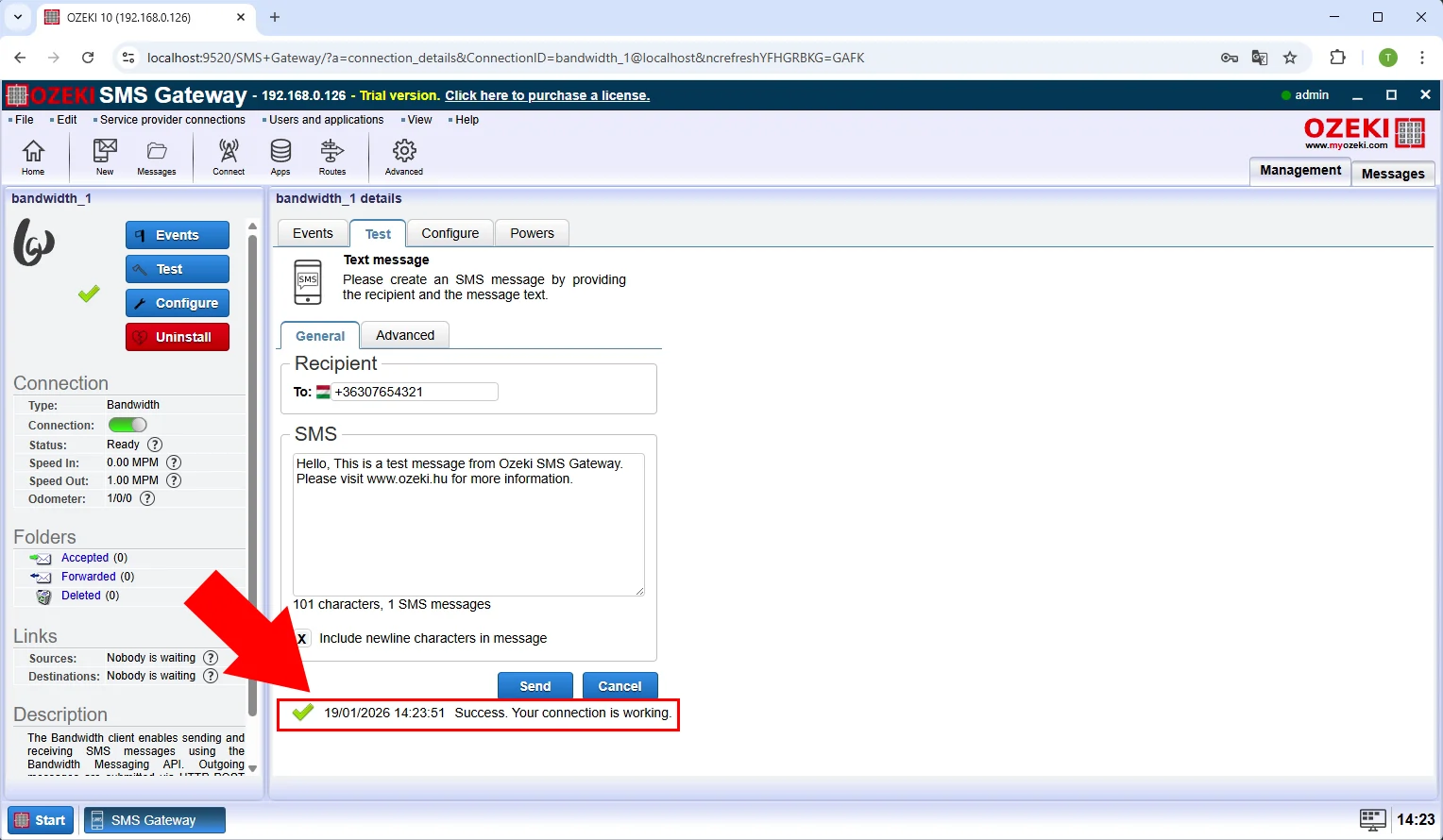
After clicking the Send button, the system will process and transmit your SMS message through the Bandwidth service connection. A success confirmation message will appear at the bottom of the interface displaying a green checkmark icon with a timestamp and the message "Success. Your connection is working." This confirmation verifies that your Bandwidth connection is properly configured and successfully sending SMS messages through the Ozeki SMS Gateway.
Check sent messages
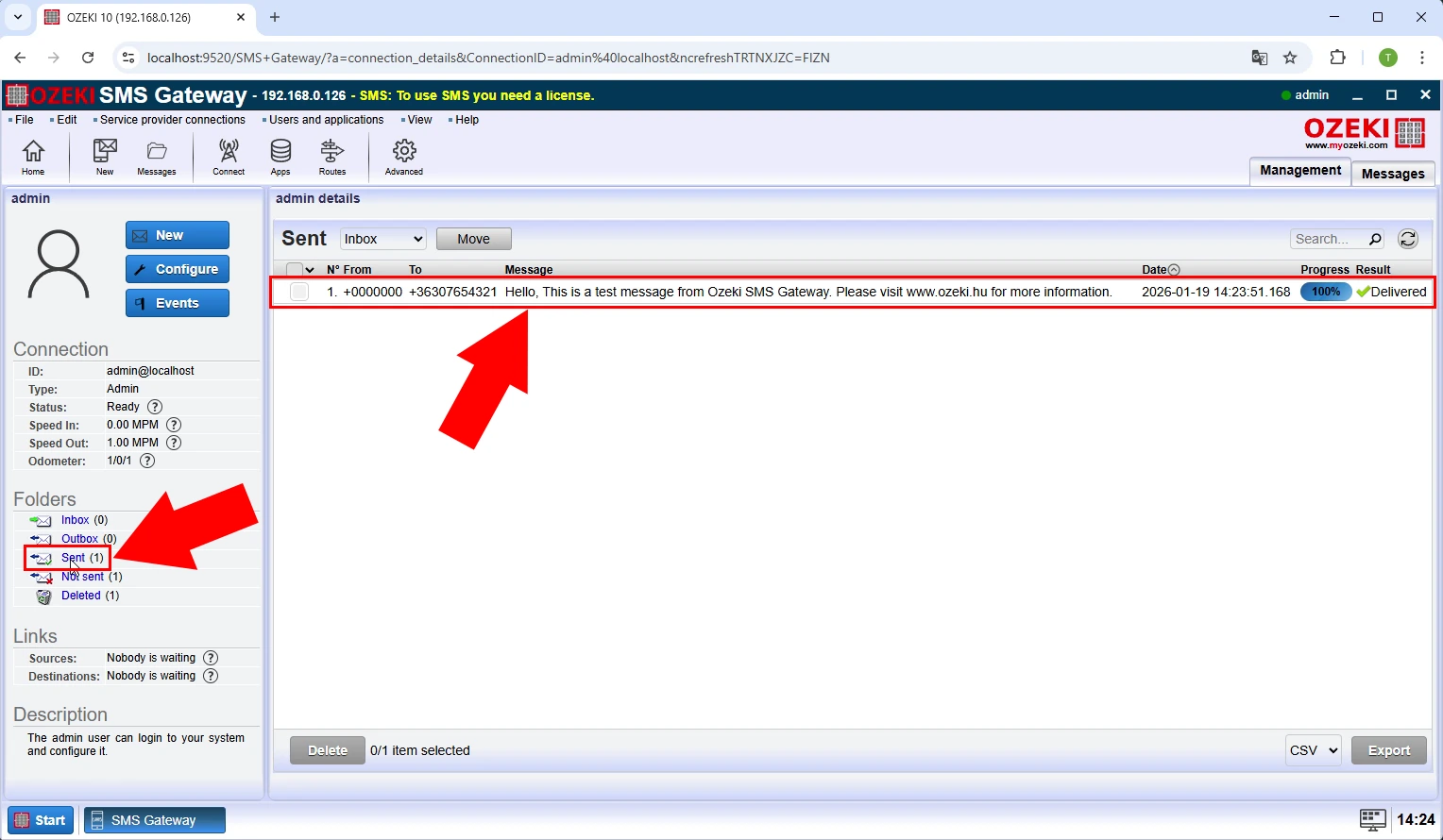
To verify that your SMS message was successfully delivered, navigate to the admin section and check the sent messages log within the Ozeki SMS Gateway interface. The message log will display detailed information about your sent SMS including the timestamp (e.g., 2026-01-19 14:23:51), recipient phone number, message content, and delivery status marked as "Delivered" in blue. This sent messages view allows you to track all SMS communications processed through your Bandwidth connection and monitor the success rate of your message delivery.
Can I connect to multiple SMS service providers simultaneously with the Ozeki SMS gateway?
Yes, with the Ozeki SMS Gateway, you can connect to multiple SMS service providers simultaneously, allowing for increased message throughput, redundancy, and cost-effectiveness. This is achieved through the gateway's support for multiple protocols (e.g., SMPP, HTTP, UCP) and its ability to manage multiple connections to different providers concurrently eg One, Sunrise, MTN.