Send SMS using XLSX address book
Send SMS messages to multiple contacts without entering each phone number manually. This guide shows you how to import an XLSX address book into Ozeki SMS Gateway, select it in SMS Messenger, compose your message, and check that it was sent to your recipients.
Template XLSX file: xlsx_template.xlsx
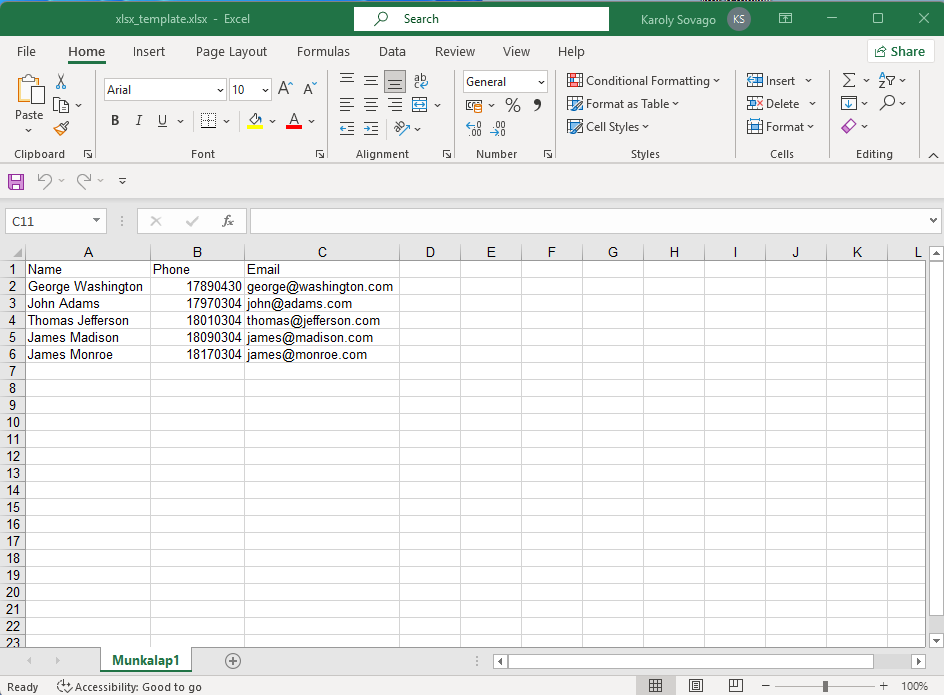
File content example:
Name				Phone		Email
George Washington	17890430	george@washington.com
John Adams		17970304	john@adams.com
Thomas Jefferson	18010304	thomas@jefferson.com
James Madison		18090304	james@madison.com
James Monroe		18170304	james@monroe.com
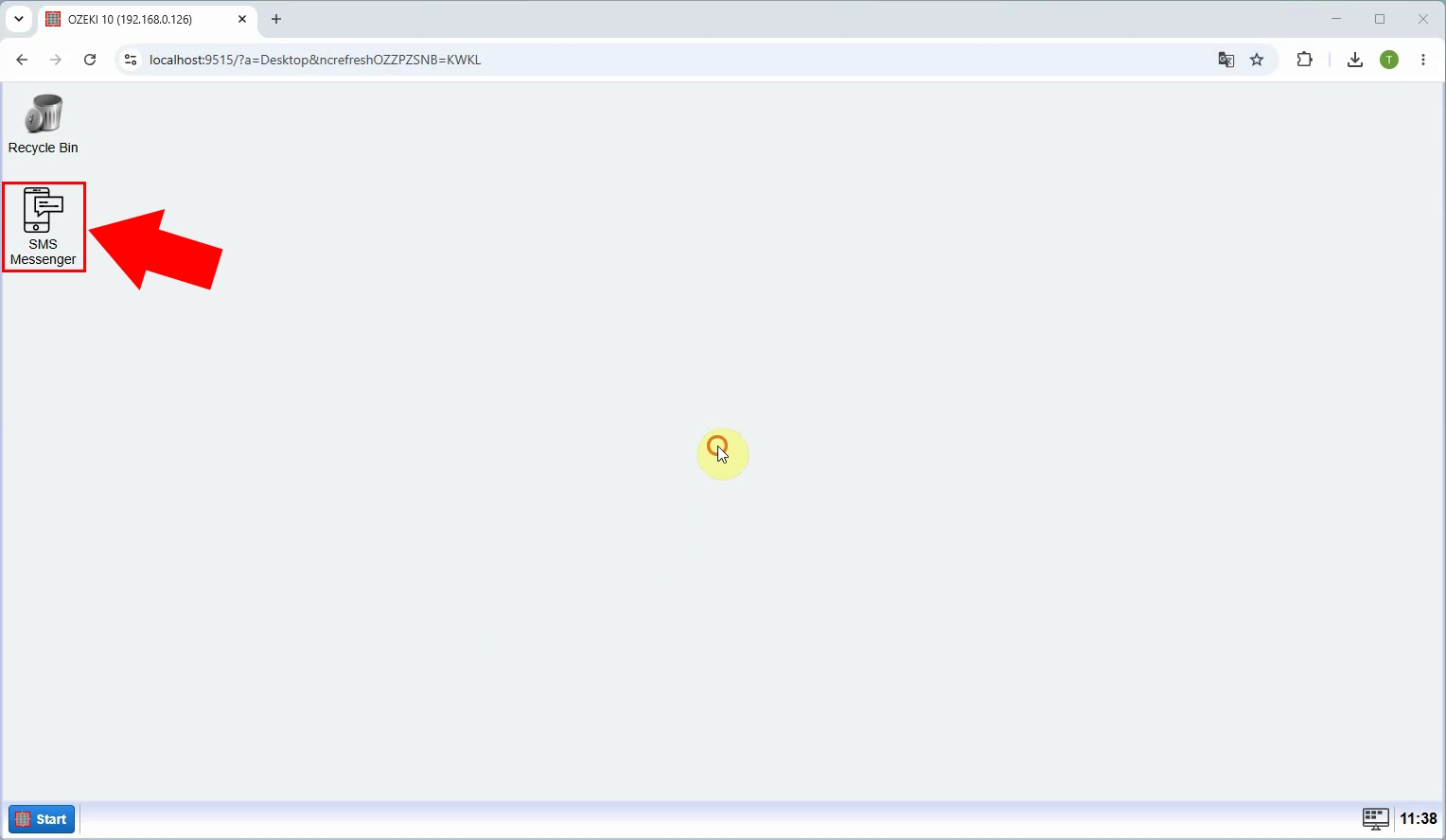
Log in to Ozeki SMS Gateway and open SMS Messenger from the Ozeki Desktop. This is where you will import the XLSX address book, select its contacts, and compose the message.
In SMS Messenger, open the Contacts menu to manage address books. From here, you can add the spreadsheet containing the names and phone numbers of your recipients.
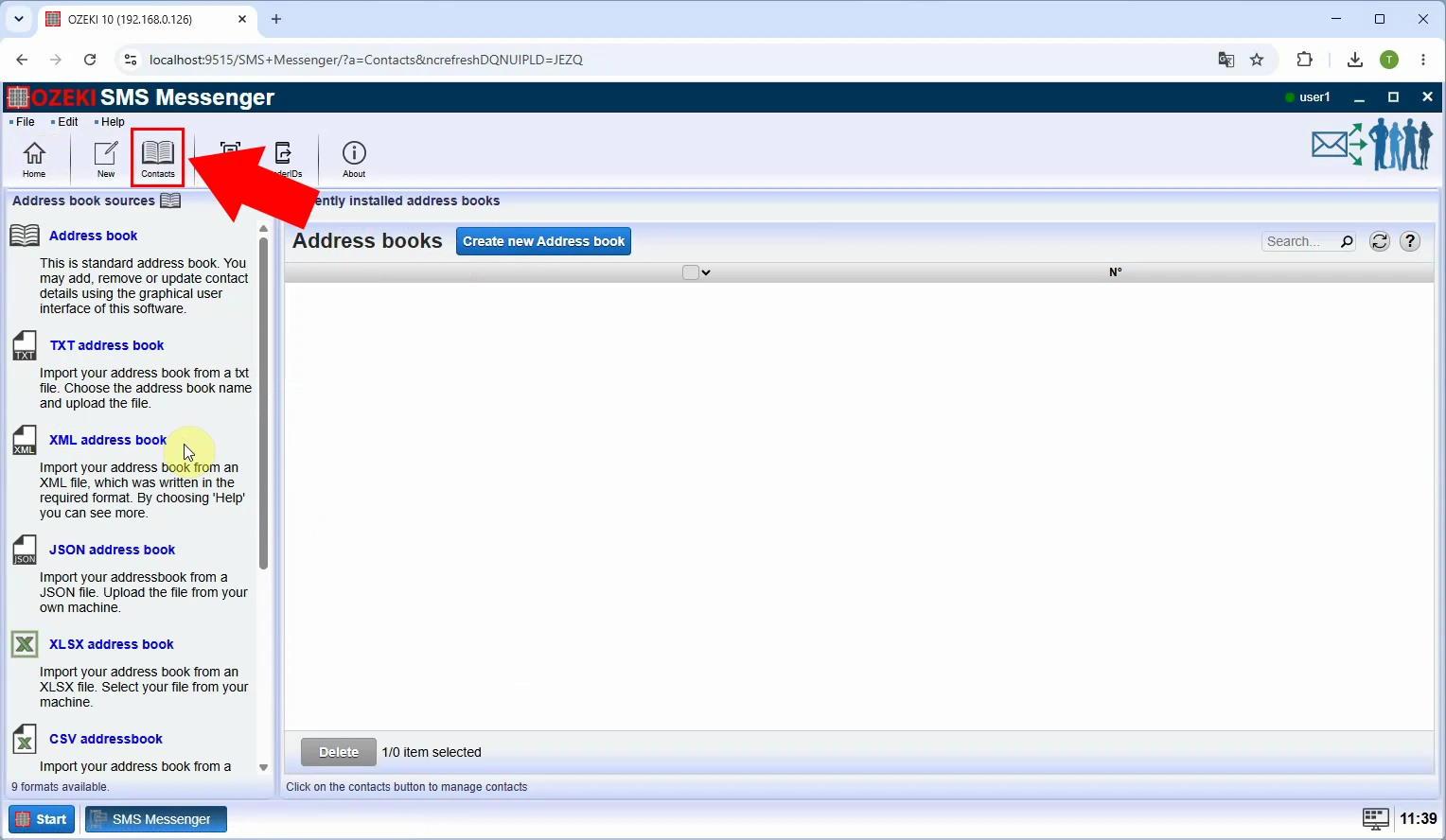
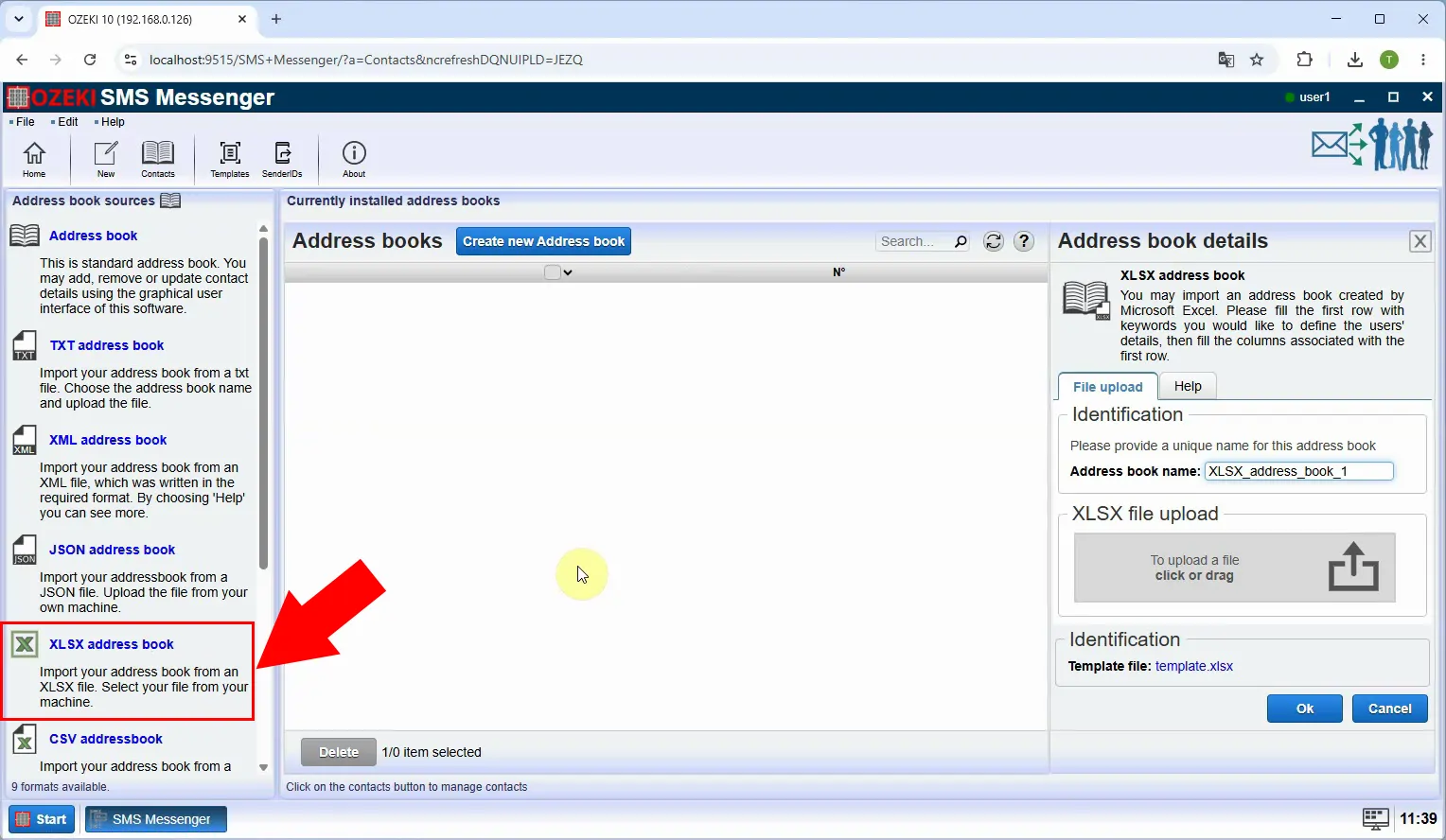
Choose the XLSX address book option. Prepare a spreadsheet with Name, Phone, and Email columns, following the page’s template, so SMS Messenger can read your recipient list.
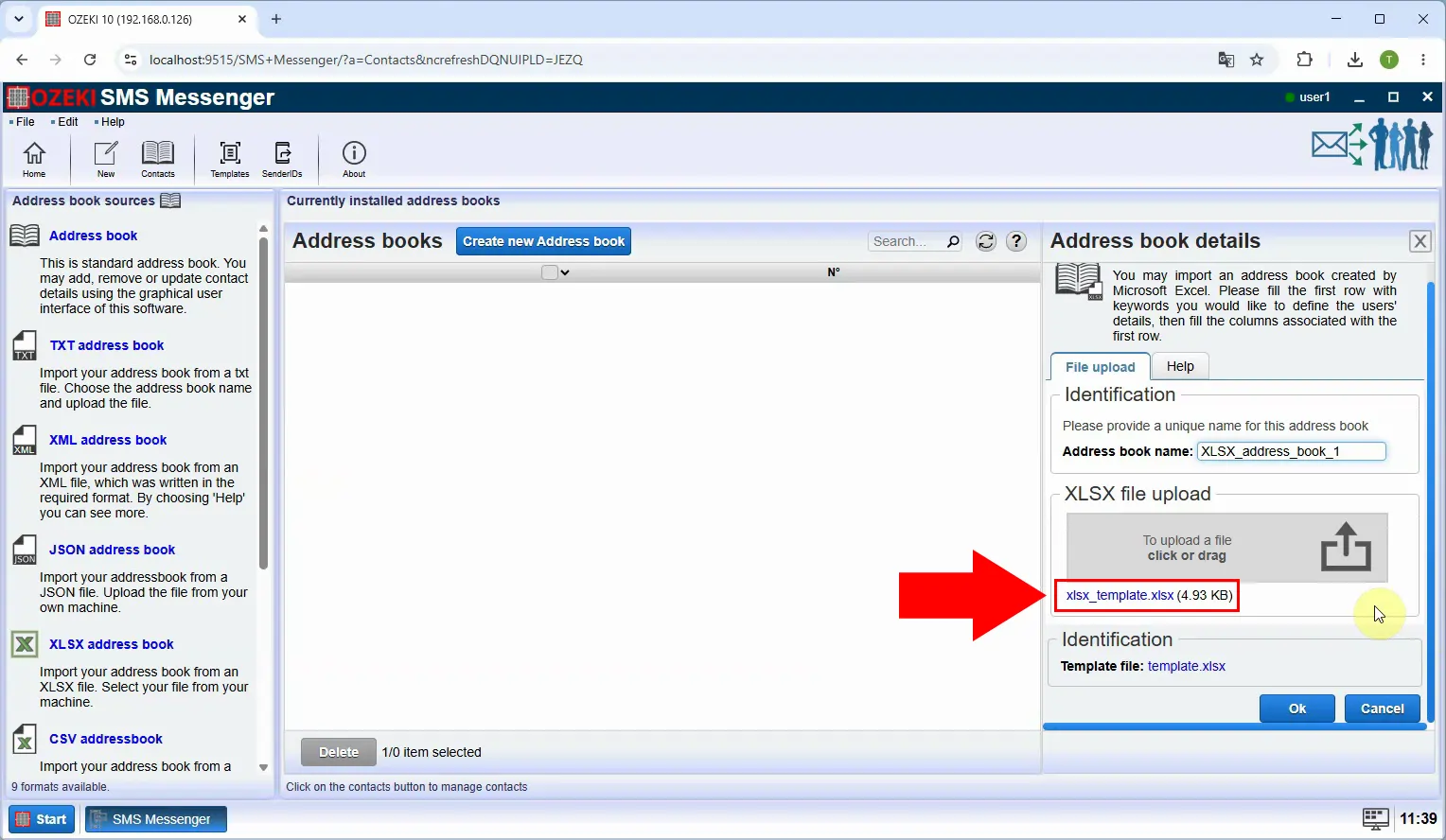
Upload the completed XLSX file to create the address book. Check that each contact has the intended phone number before using the imported list for a bulk message.
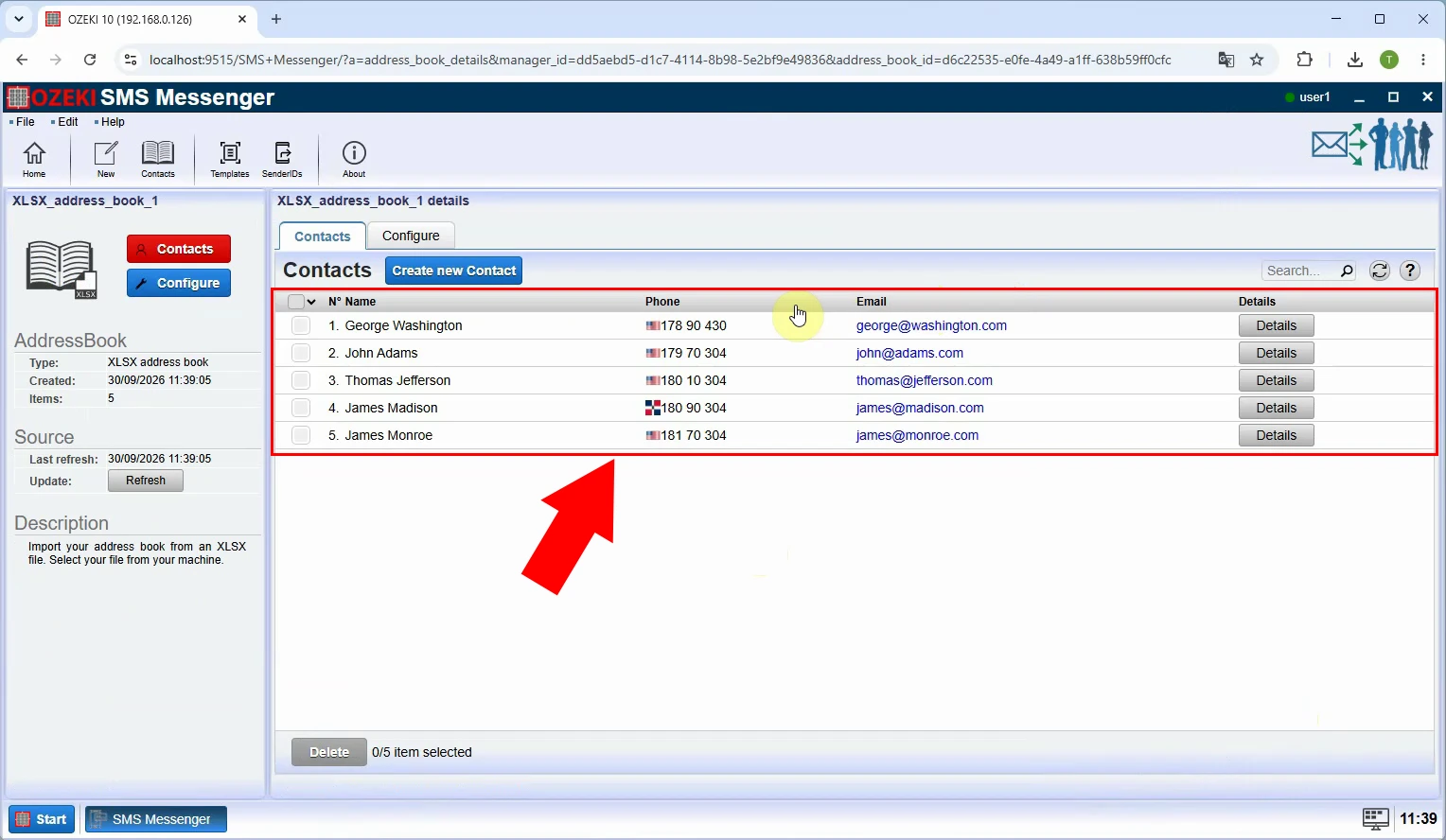
Confirm that the XLSX address book appears in Contacts after the upload. The imported recipient list is now available to select when composing an SMS.
Return to the message composer and select the imported XLSX address book as the recipient. This targets the contacts in that book instead of requiring you to enter each number manually.
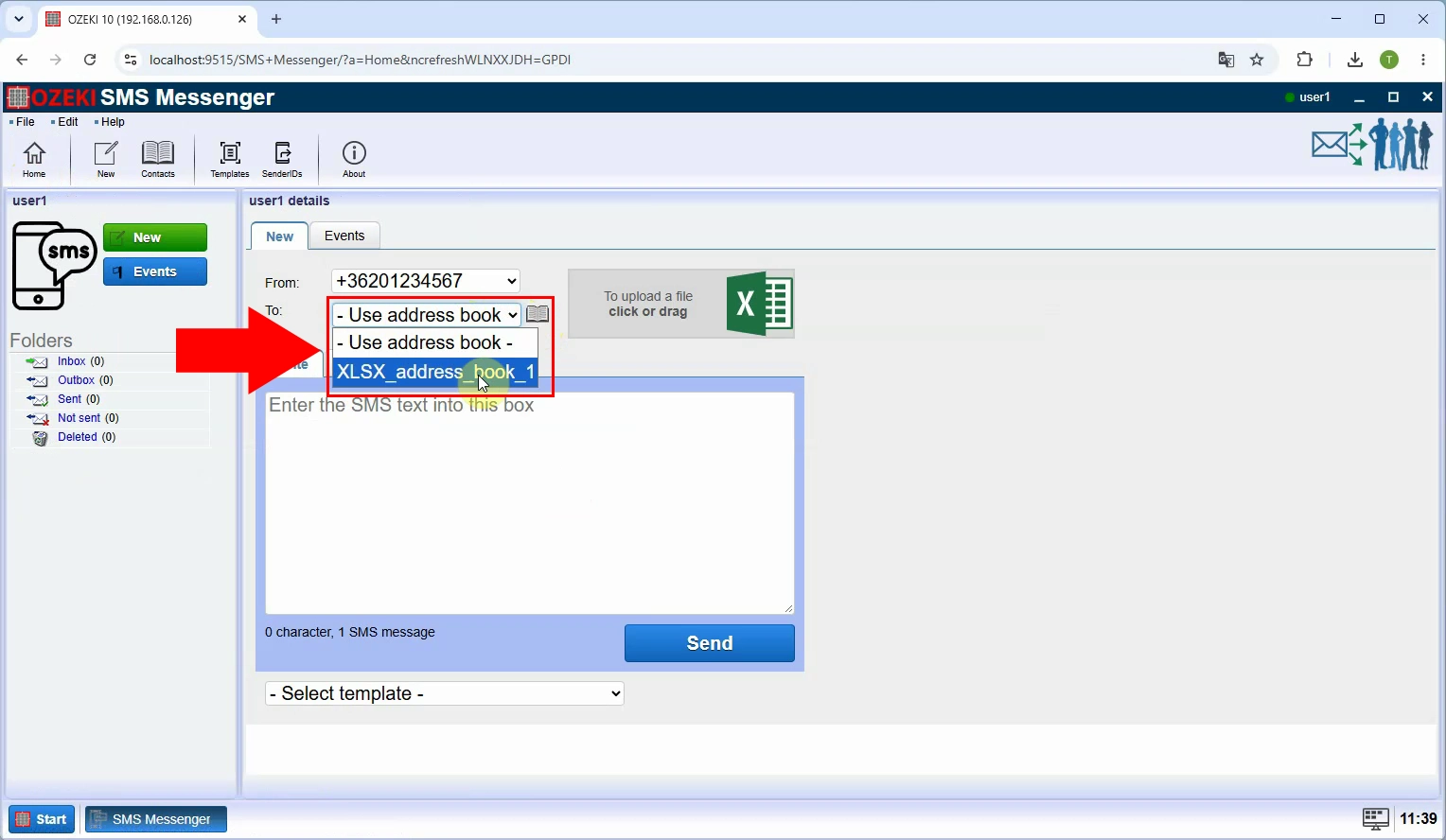
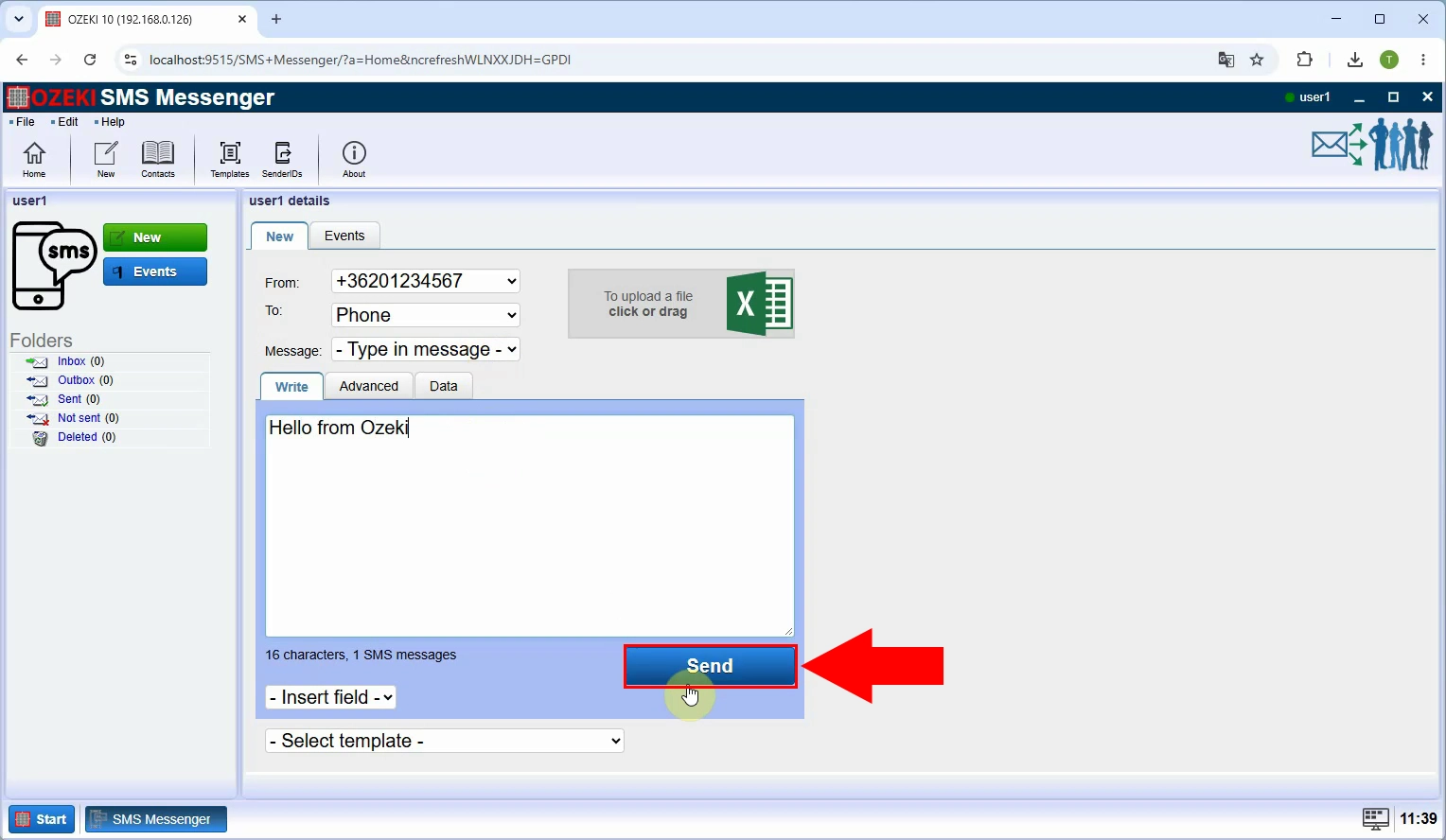
Write the SMS text, review the selected address book and message, then click Send. Ozeki SMS Gateway will submit the message for the recipients in the imported list.
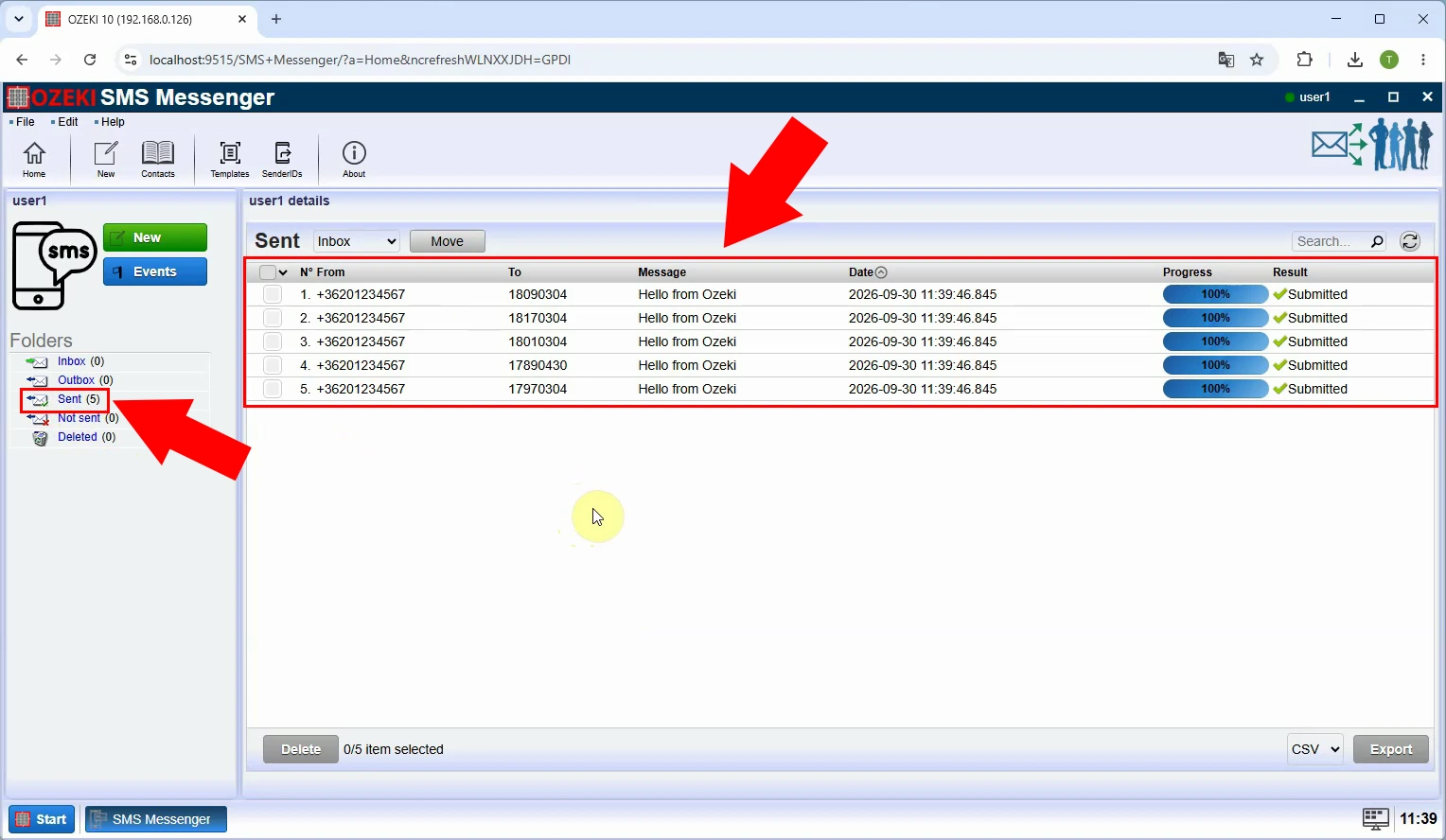
Check the result after sending to confirm that the message was sent to all recipients in the XLSX address book. Review the sent messages if you need to verify individual entries.