
Orion Telekom
Ozeki SMS Gateway supports direct integration with the Orion Telekom SMS express API, letting you send and receive SMS messages through the Serbian mobile network. Setting up the connection is straightforward: install the dedicated client from within the gateway, then enter the username and password provided by Orion Telekom. This guide walks you through each step of the process, from adding the connection to sending your first test message.
What is Orion Telekom?
Orion Telekom is a Serbian mobile network operator that offers an SMS express API for sending and receiving text messages. The corresponding client in Ozeki SMS Gateway connects to this API using HTTP POST requests for outgoing messages, and a built-in webserver for incoming messages and delivery reports.
Steps to follow
We assume Ozeki SMS Gateway is already installed on your system.
- Install Orion Telekom connection
- Provide your username and password
- Establish the connection
- Send a test message
Video tutorial
The following video shows how to set up the Orion Telekom connection and send a test message step-by-step.
Step 1 - Install Orion Telekom connection
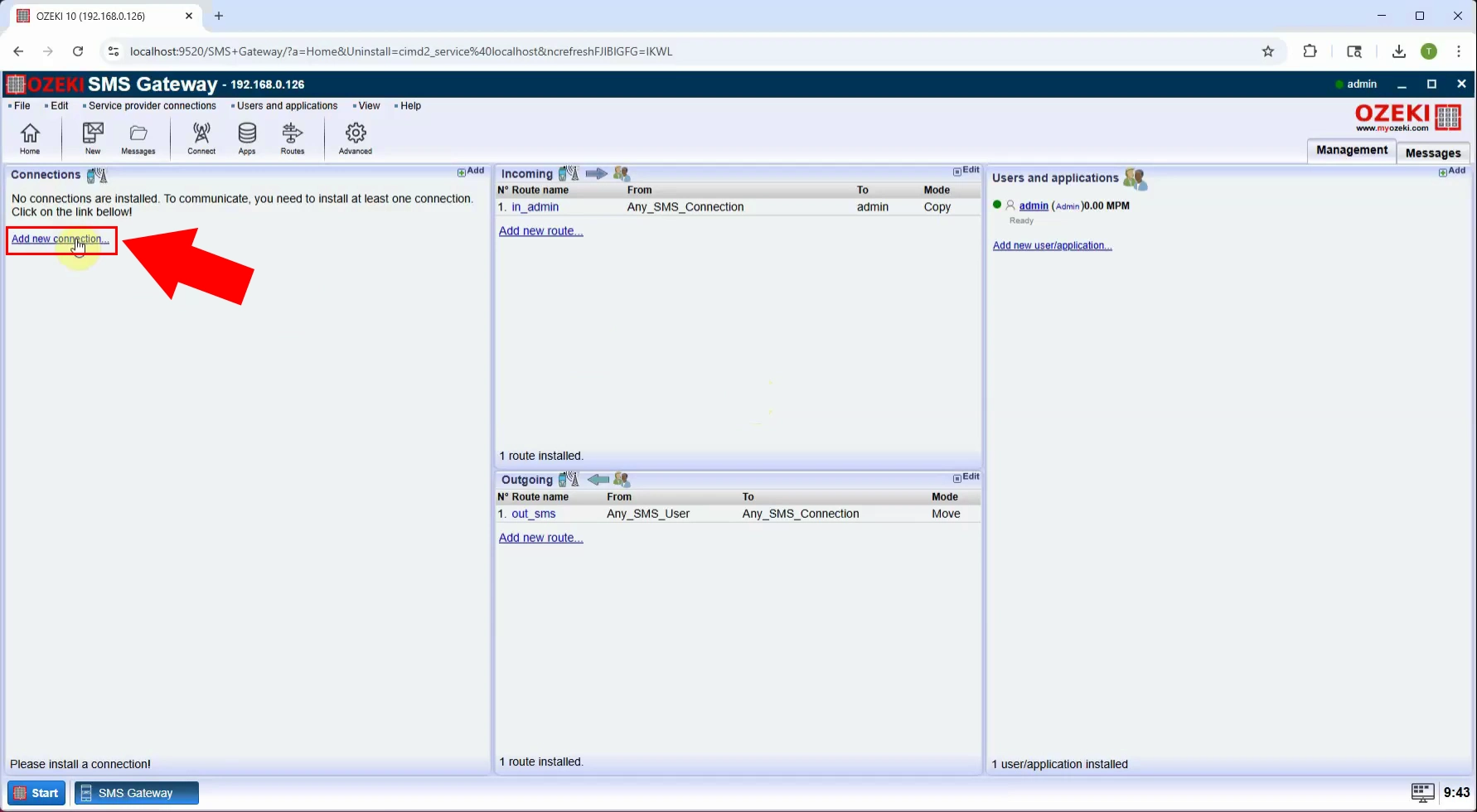
Open Ozeki SMS Gateway and locate the Connections panel on the left side. Click Add new connection to start the setup process. This opens the list of available service provider connections, where you can browse and select the one that matches your network (Figure 1).
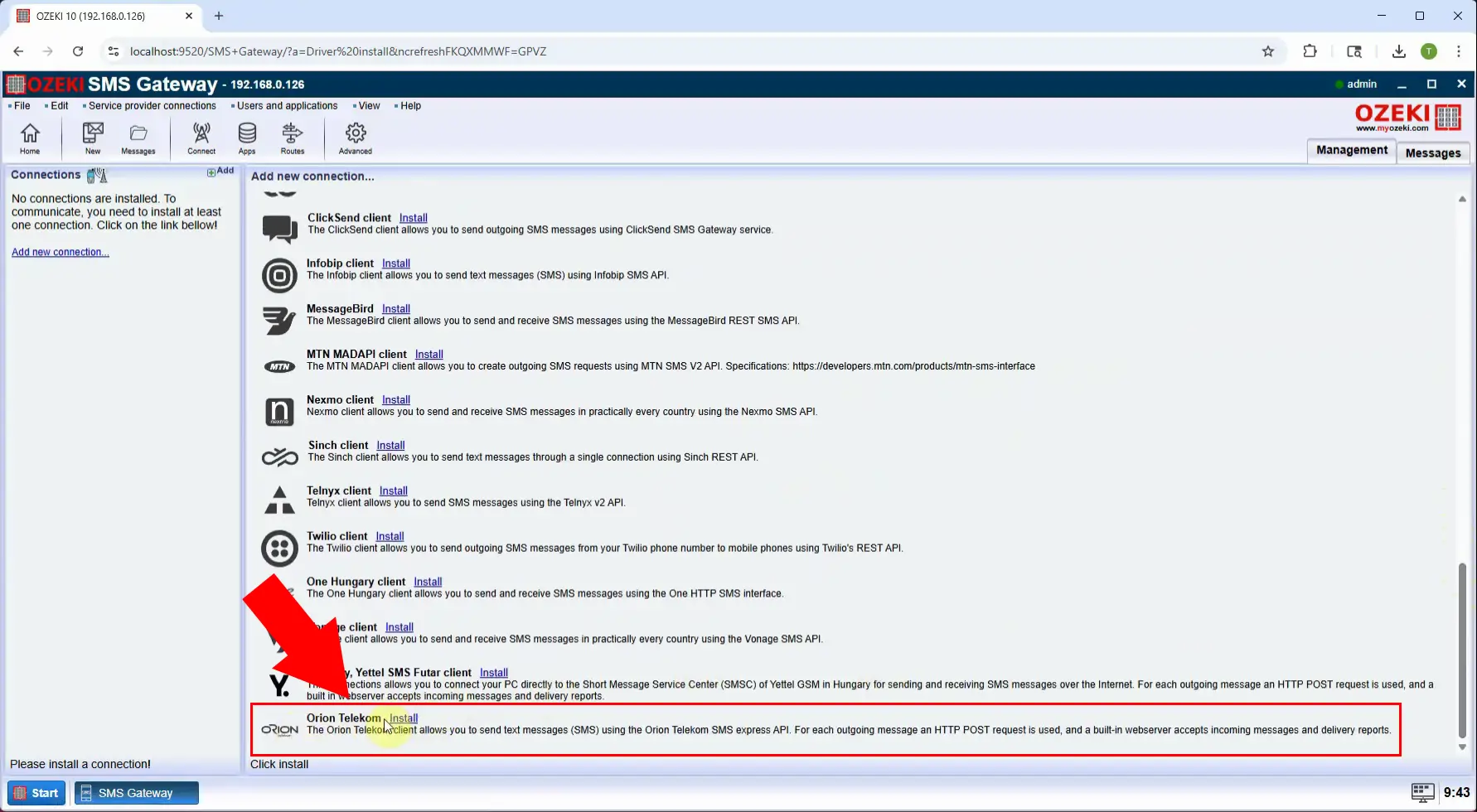
Scroll down the list of clients until you locate the Orion Telekom entry. This client lets you send messages using its SMS express API. Click the Install link next to it to start the installation (Figure 2).
Step 2 - Provide your username and password
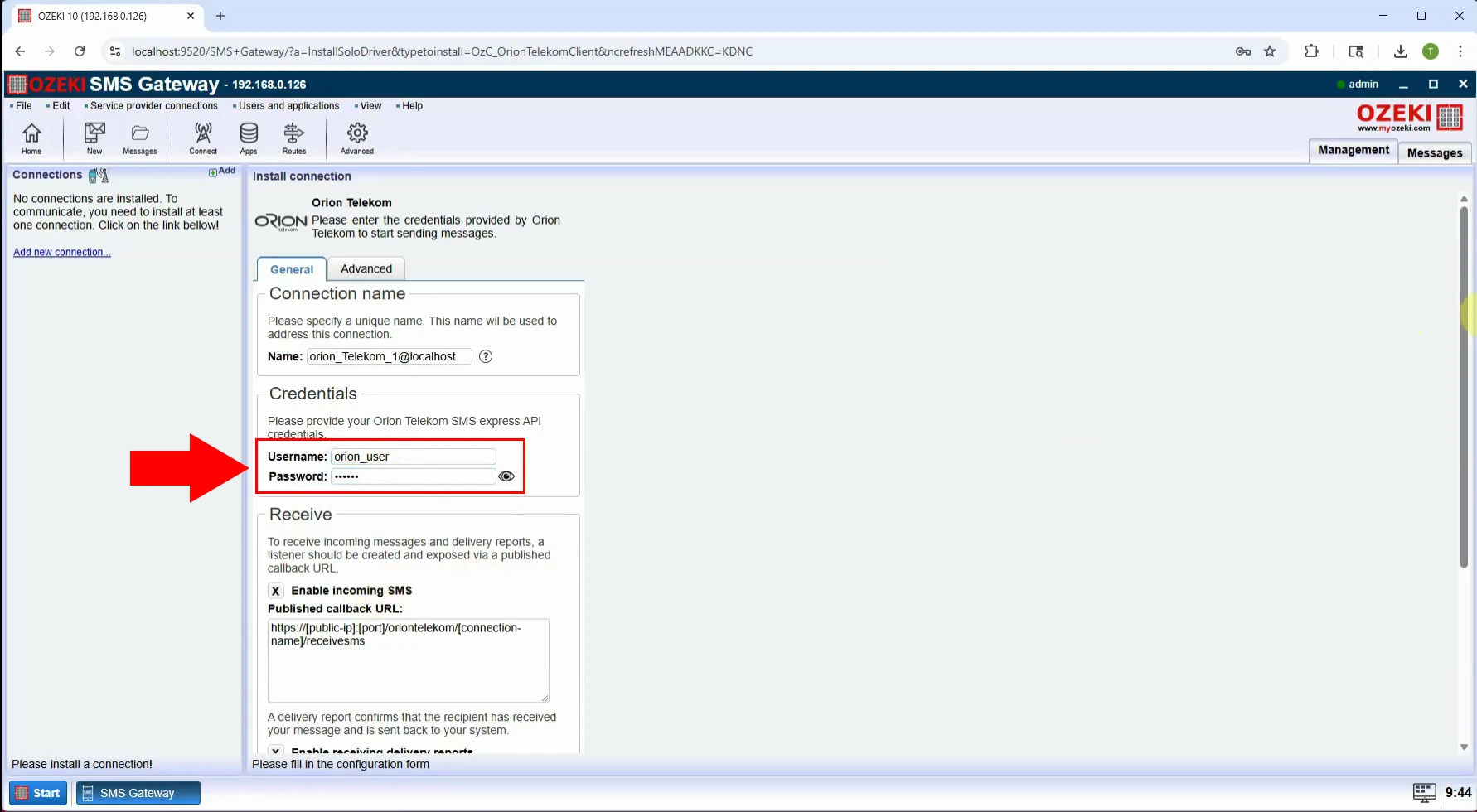
Enter the Username and Password provided by Orion Telekom in the Credentials section in the configuration form. Click OK to save the connection (Figure 3).
Step 3 - Establish the connection
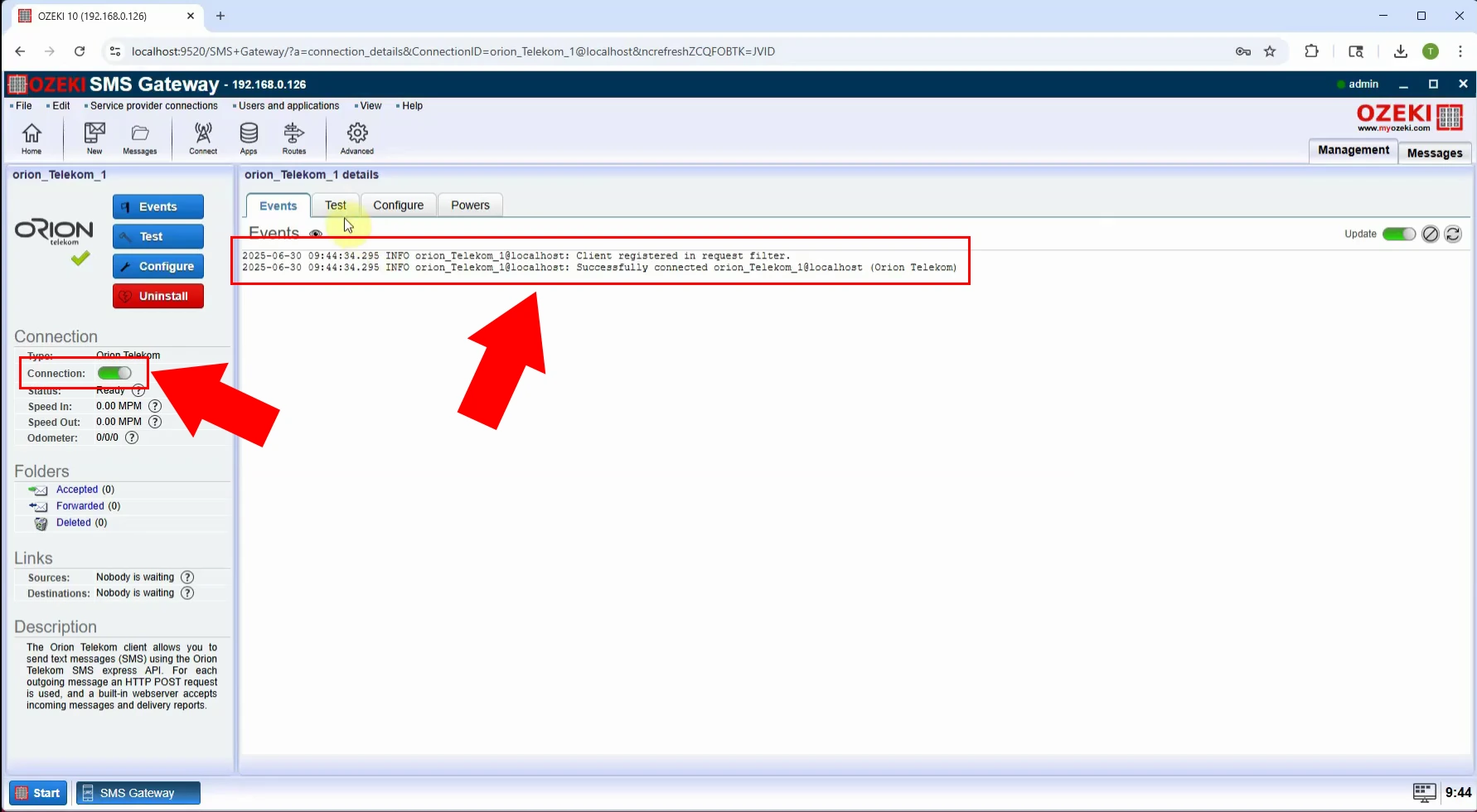
After the configuration is saved, the Events tab of the connection opens. Enable the connection by clicking the Connection toggle switch, which turns green once active. The event log then reports that the client has successfully connected to Orion Telekom (Figure 4).
Step 4 - Send a test message
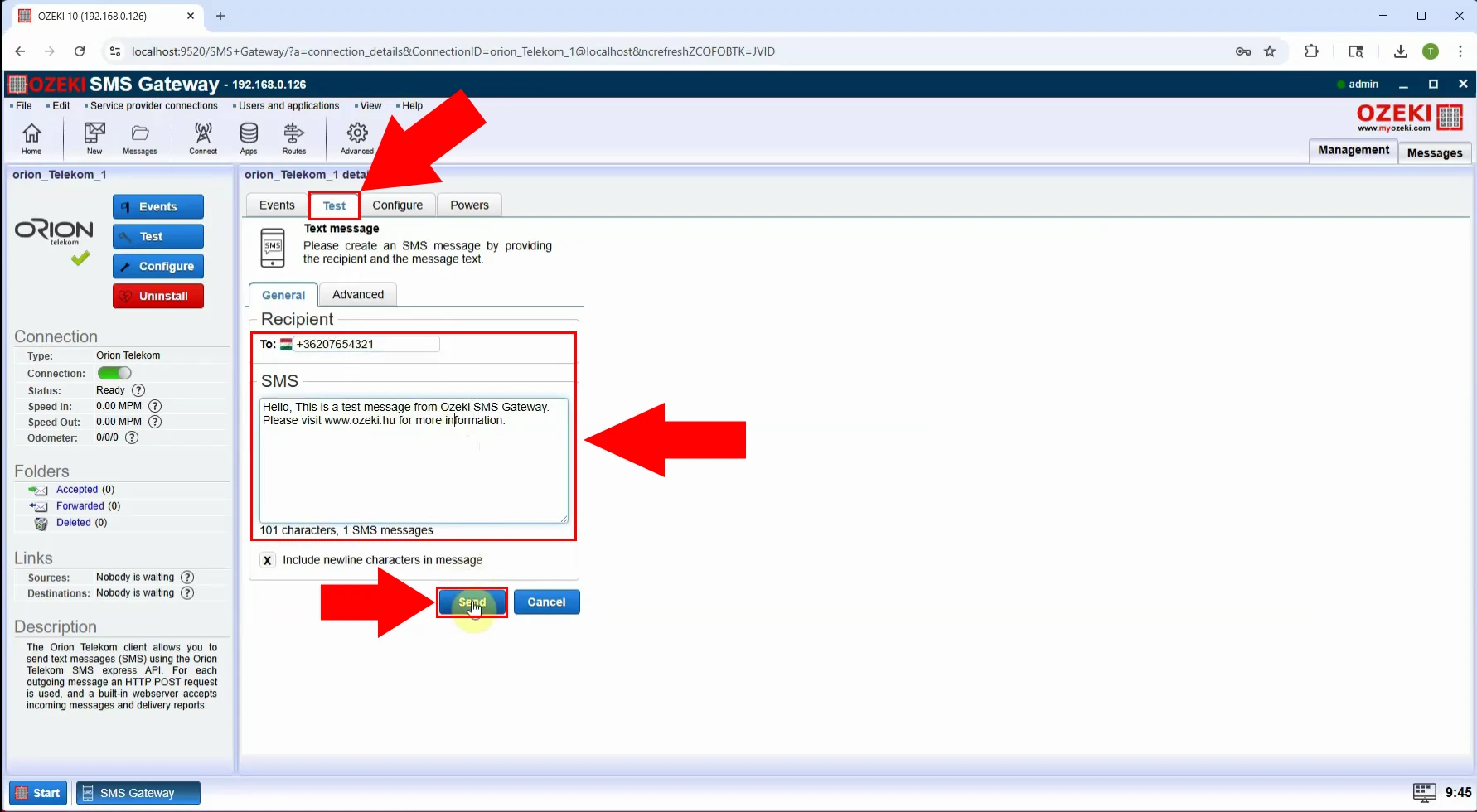
Open the Test tab of the connection to test SMS sending through Orion Telekom. Enter the recipient's phone number in the "To:" field, then type the message text in the SMS field below it, and click Send to dispatch the test message.
Conclusion
With the connection configured, Ozeki SMS Gateway is ready to send and receive SMS messages through Orion Telekom on behalf of your applications, office users or business systems. The connection can be combined with routing rules and the SMS APIs of Ozeki SMS Gateway to build a complete, automated messaging solution. Explore the other supported SMS service providers and connection types to extend your setup.