
Ozeki SMS MCP Server for AI agents
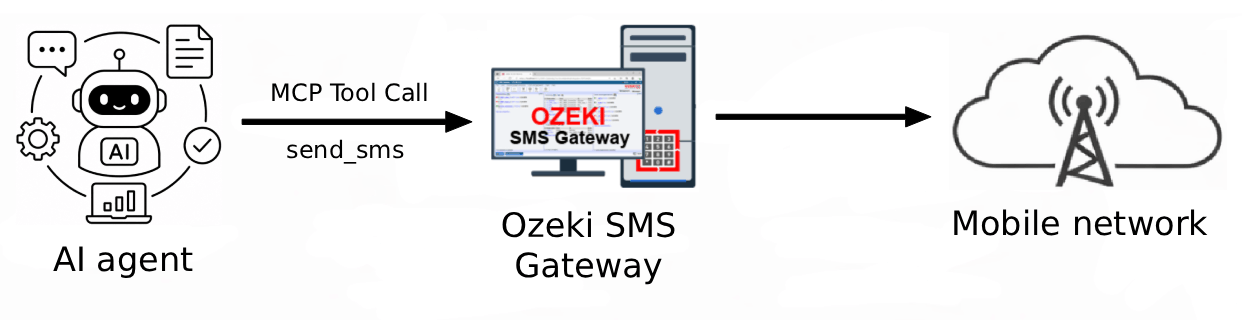
This guide explains how you can setup the SMS MCP server of Ozeki SMS Gateway and how to generate an API key that AI agents can use to send and receive SMS messages. By following this tutorial, you will be able to send and receive SMS messages from your AI agent to the mobile network through your own on-premises SMS gateway.
What is an SMS MCP Server
An SMS MCP server is a standardized software bridge that connects AI assistants (like Claude) to and SMS gateway system such as Ozeki SMS Gateway using the Model Context Protocol. It exposes tools like "send_message" or "check_delivery" that an AI can autonomously call to perform real-world texting tasks without custom coding. This allows users to simply ask an AI to "send John a reminder text" and have the AI securely execute the action through the server. The Ozeki SMS MCP server built into Ozeki SMS Gateway also makes SMS receiving possible.
What is Ozeki SMS Gateway?
Ozeki SMS Gateway is a software, you can install on Windows or Linux that offers mobile network connectivity and makes SMS sending and receiving posisble. It has a built in SMS MCP Server.
What is an MCP user account?
An MCP user account in Ozeki SMS Gateway is a user account that exposes SMS functionality to AI agents through the Model Context Protocol. Once the account is created and an API key is generated, any MCP-compatible AI agent or tool can connect to the gateway and send or receive SMS messages on behalf of your organization. This makes it straightforward to add real mobile messaging capabilities to AI-powered workflows without writing custom integration code.
Steps to follow
If you do not have Ozeki SMS Gateway installed yet, you can download it from this page and follow the installation instructions.
- Setup Ozeki SMS Gateway
- Connect it to the mobile network
- Add a new MCP user
- Enter login credentials and create user
- Open MCP user configuration
- Generate and copy the API key
How to create an MCP user account video
The following video shows how to create an MCP user account in Ozeki SMS Gateway step-by-step. The video covers adding the user, entering login credentials, generating an API key, and verifying the account on the SMS Gateway dashboard.
Step 1 - Add a new MCP user
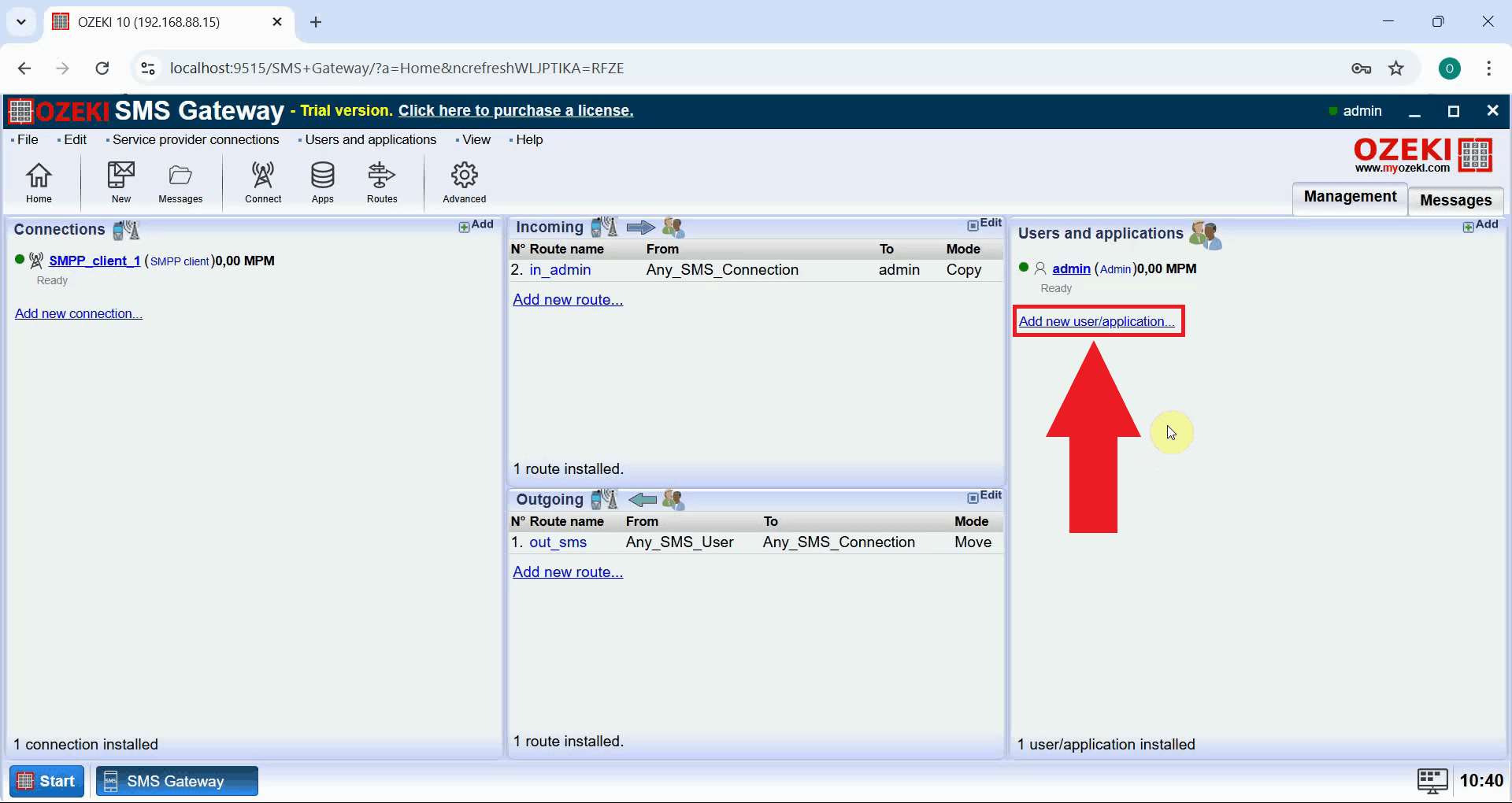
Open Ozeki SMS Gateway in your browser and log in to your administrator account. On the home screen, click the Add new user/application... option in the Users and Applications panel (Figure 1).
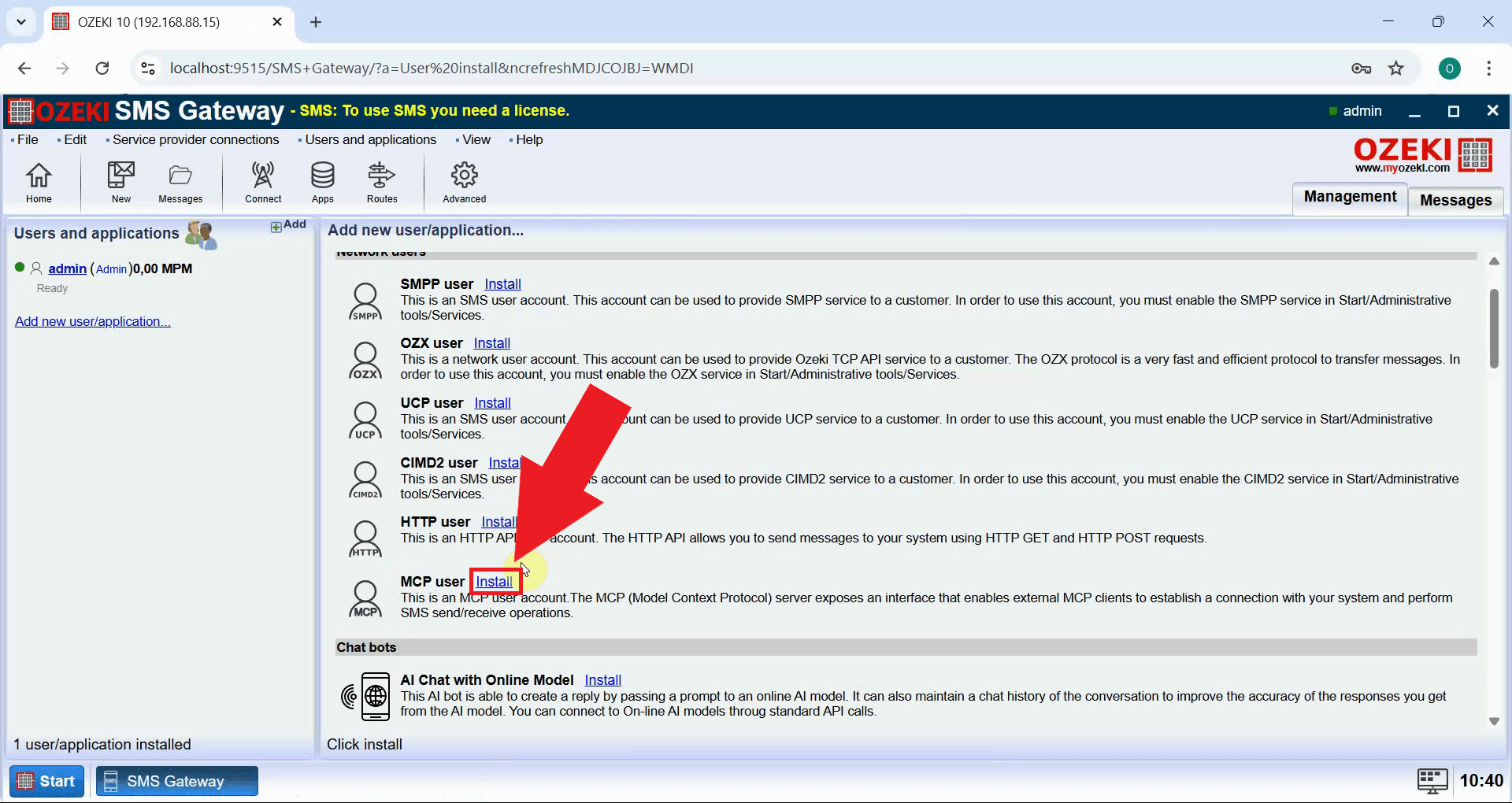
An install list will appear showing all available user types. Locate the MCP user entry and click the Install button next to it (Figure 2).
Step 2 - Enter login credentials and create user
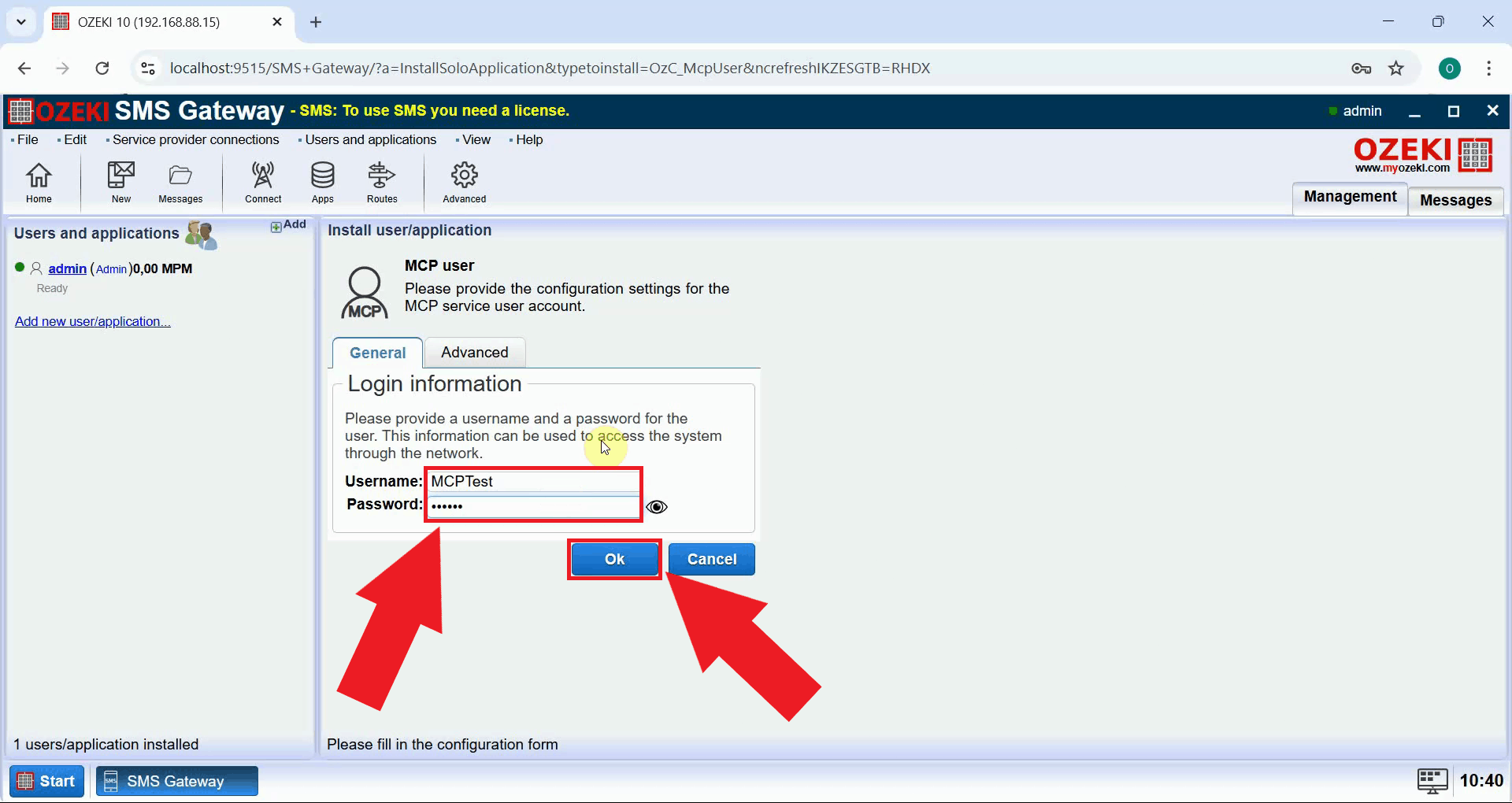
A configuration dialog will open where you need to provide a username and password for the new MCP user account. Enter your chosen credentials into the appropriate fields, then click Ok to create the account (Figure 3).
Step 3 - Open MCP user configuration
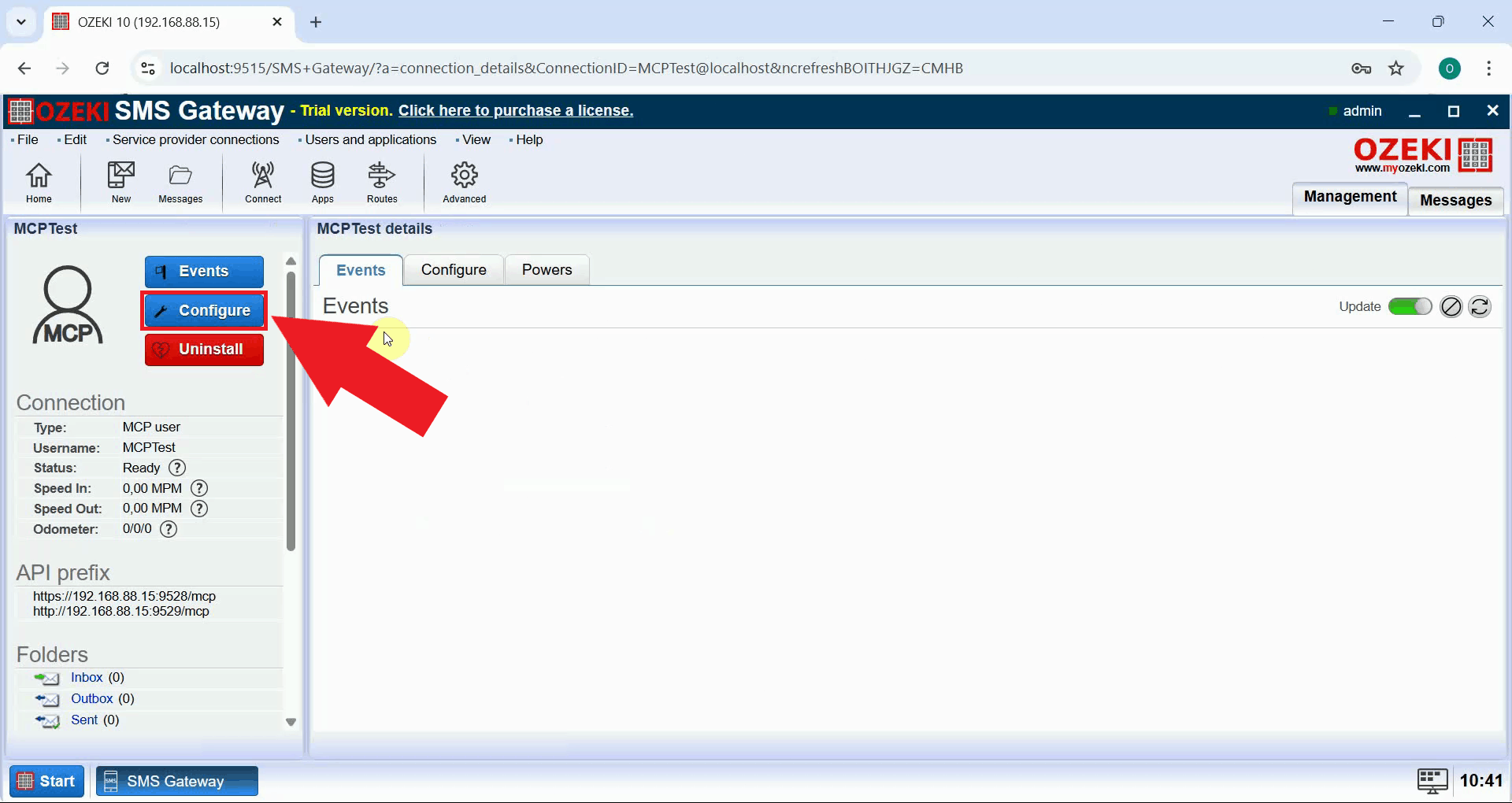
After the account is created, you will be taken to the MCP user details page. Click the Configure button to open the configuration panel (Figure 4).
Step 4 - Generate and copy the API key
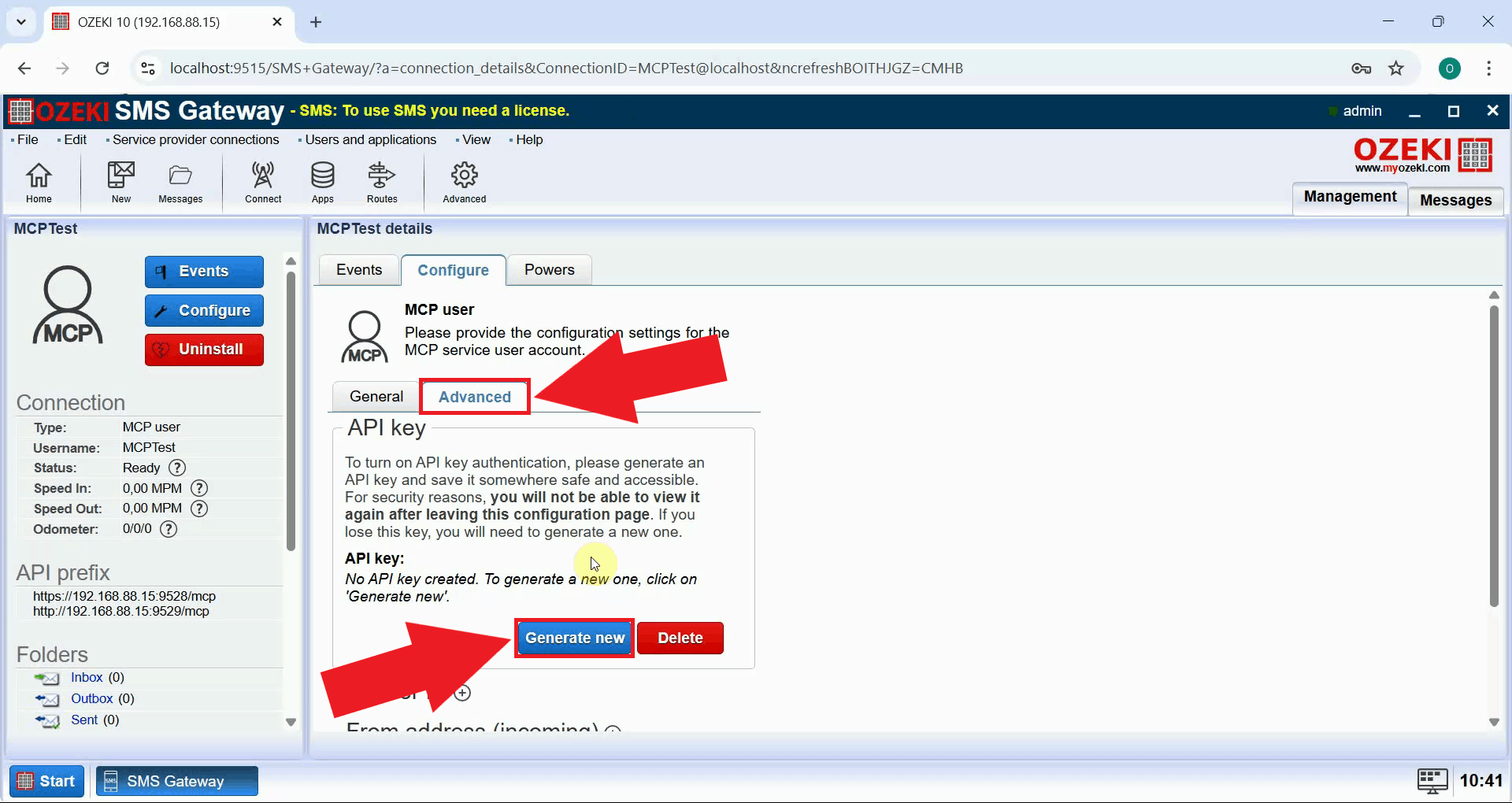
In the MCP user configuration panel, open the Advanced tab. Click the Generate new button to create a unique API key for this account (Figure 5).
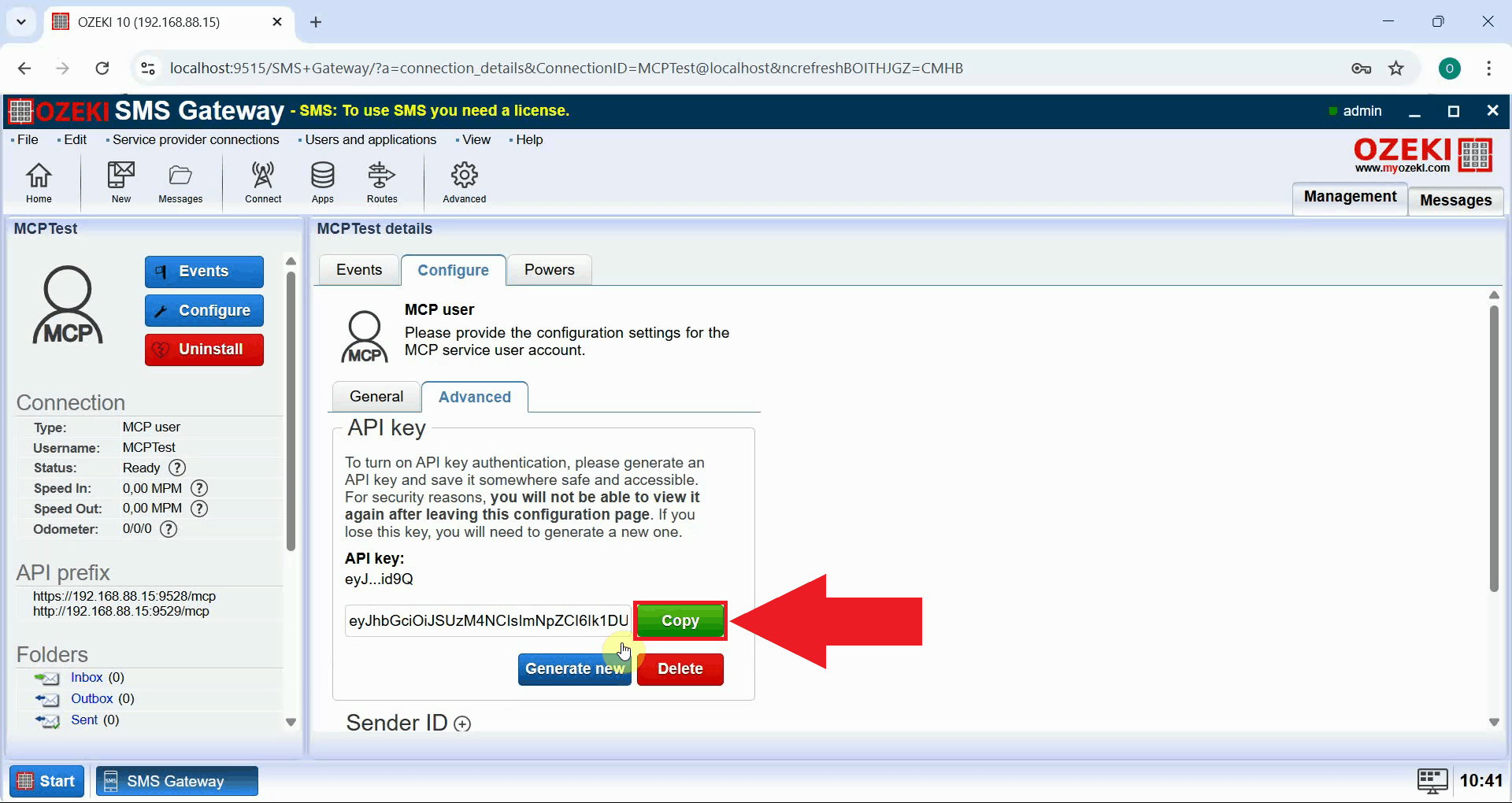
Once the key has been generated, copy it and store it in a safe location. You will need this API key when configuring your AI agent to connect to the gateway (Figure 6).
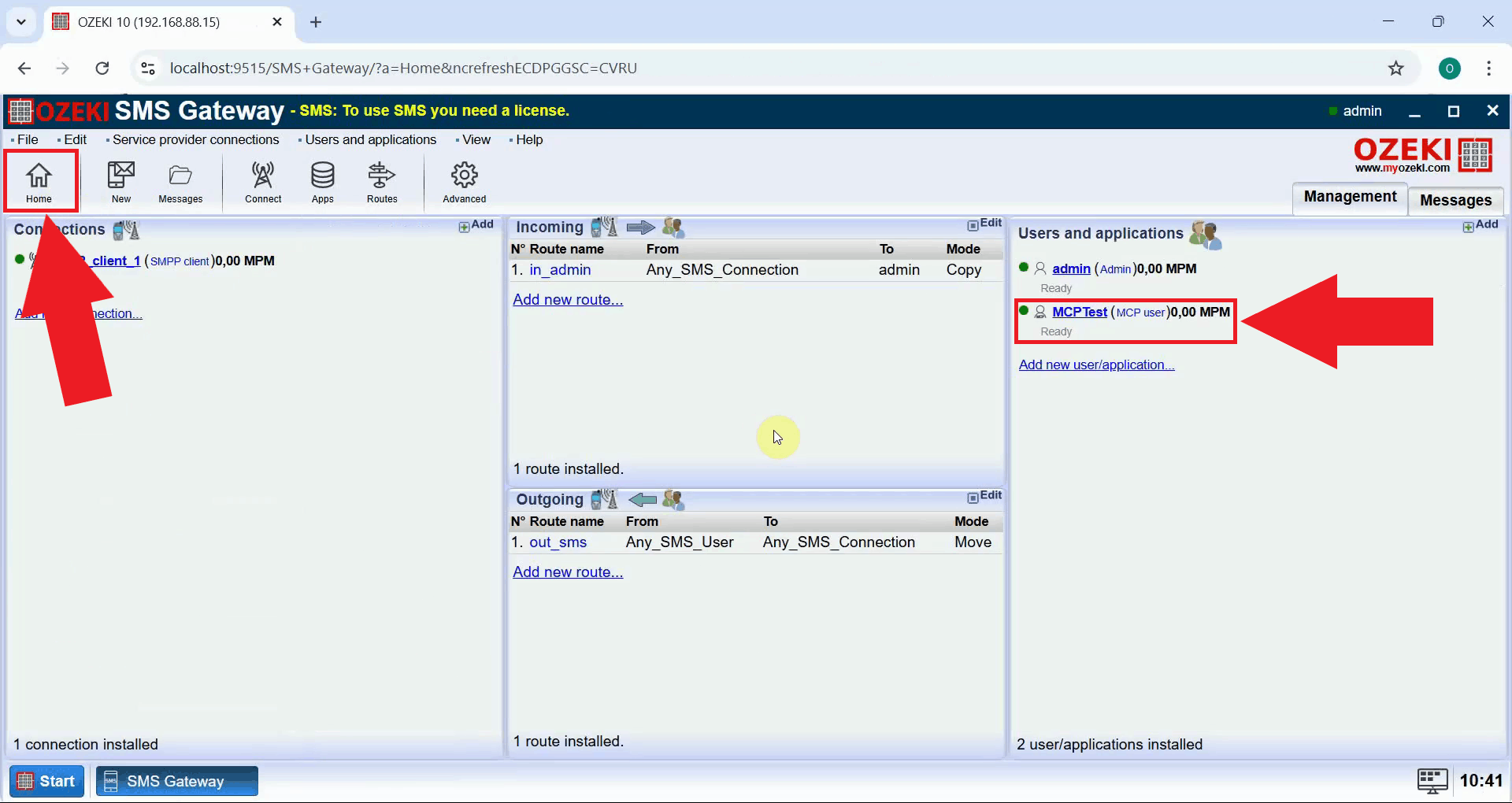
Return to the Ozeki SMS Gateway home page. You should see the newly created MCP user listed in the Users and Applications panel, confirming that the account is active and ready to be used by your AI agent (Figure 7).
How to setup the MCP user account in your AI AGENT
In your AI agent you can setup the Ozeki MCP Server like you setup any other MCP server. For example in Claude Code you would use the following configuration.
# Claude Code configuration file location:
C:\Users\{User}\.claude.json

# Add the following block inside the "mcpServers" property in .claude.json
# Replace the URL with your Ozeki SMS Gateway address and the Bearer token with your API key
"Ozeki SMS Gateway": {
    "type": "http",
    "url": "http://192.168.88.15:9529/mcp",
    "headers": {
        "Authorization": "Bearer ozkey-abc123"
    }
}
Check out the following tutorials to learn more about how you can:
- How to setup Ozeki MCP Server in Claude Code
- How to send SMS from Claude Code
- How to receive SMS with Claude Code
Summary
You have successfully created an MCP user account in Ozeki SMS Gateway and generated an API key for it. Your AI agent can now use this account to send and receive SMS messages through the gateway. Make sure your SMS service provider connection is configured and active so that messages are delivered to the mobile network correctly.