Export address book
Exporting an address book from Ozeki SMS Gateway lets you save your contacts to a file for backup or use in another application. This guide walks you through selecting an address book, exporting it, and checking the downloaded file.
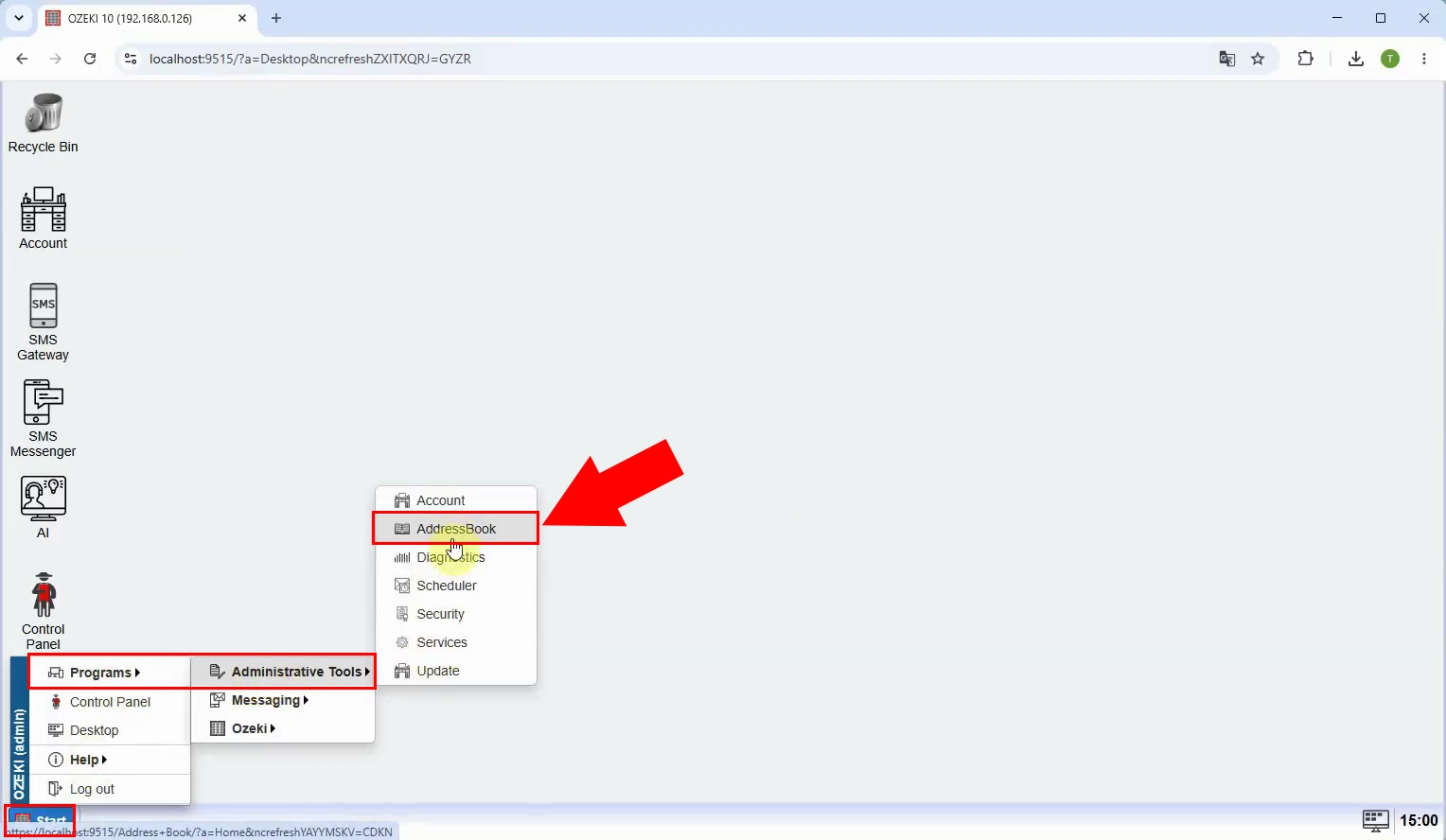
Open Ozeki SMS Gateway and locate the address book menu. Click it to view the address books available in the gateway. Choose the address book you want to export.
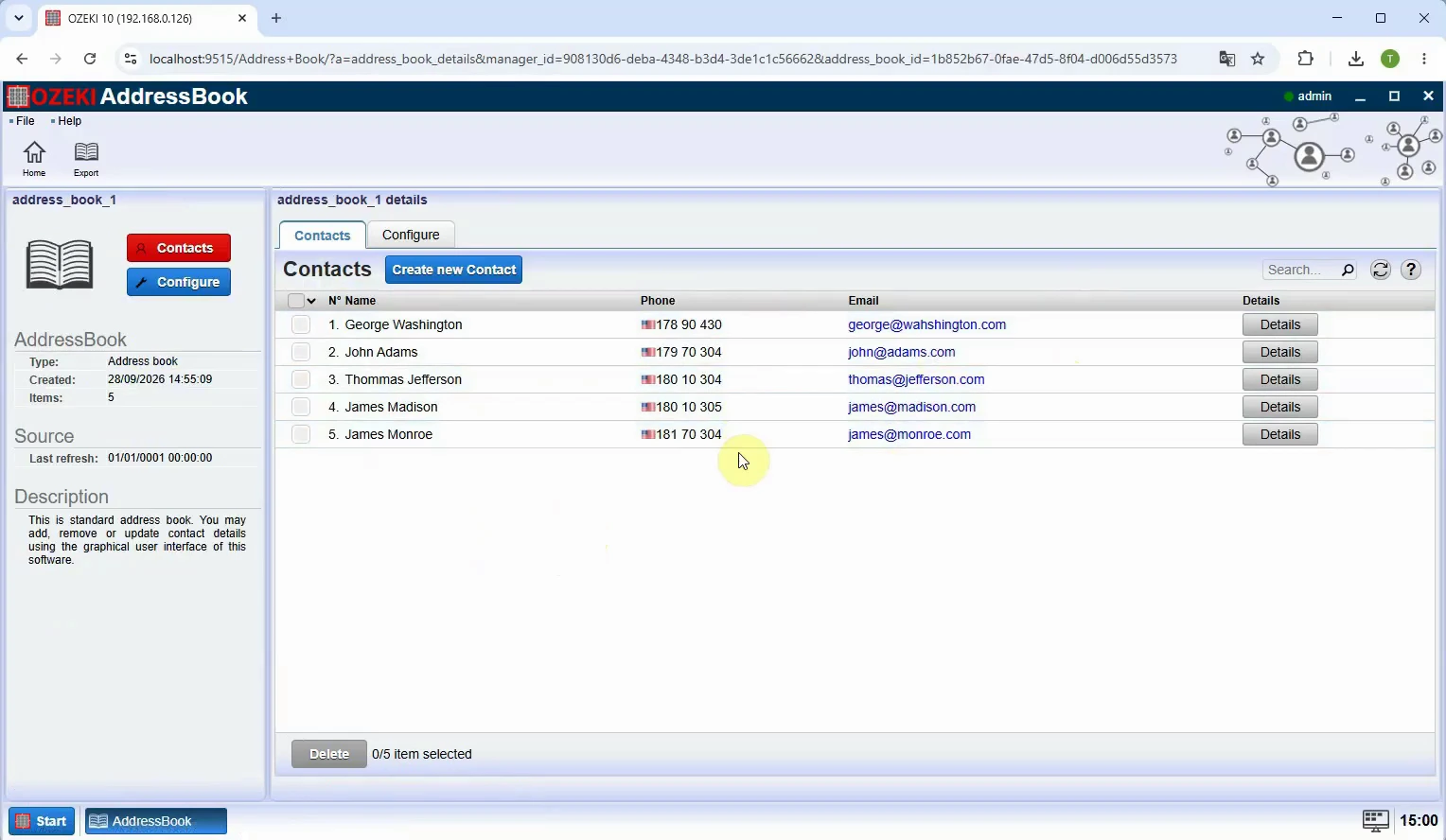
Review the contacts in the selected address book. Make sure you have opened the correct book before exporting it. Check that the entries you need are present.
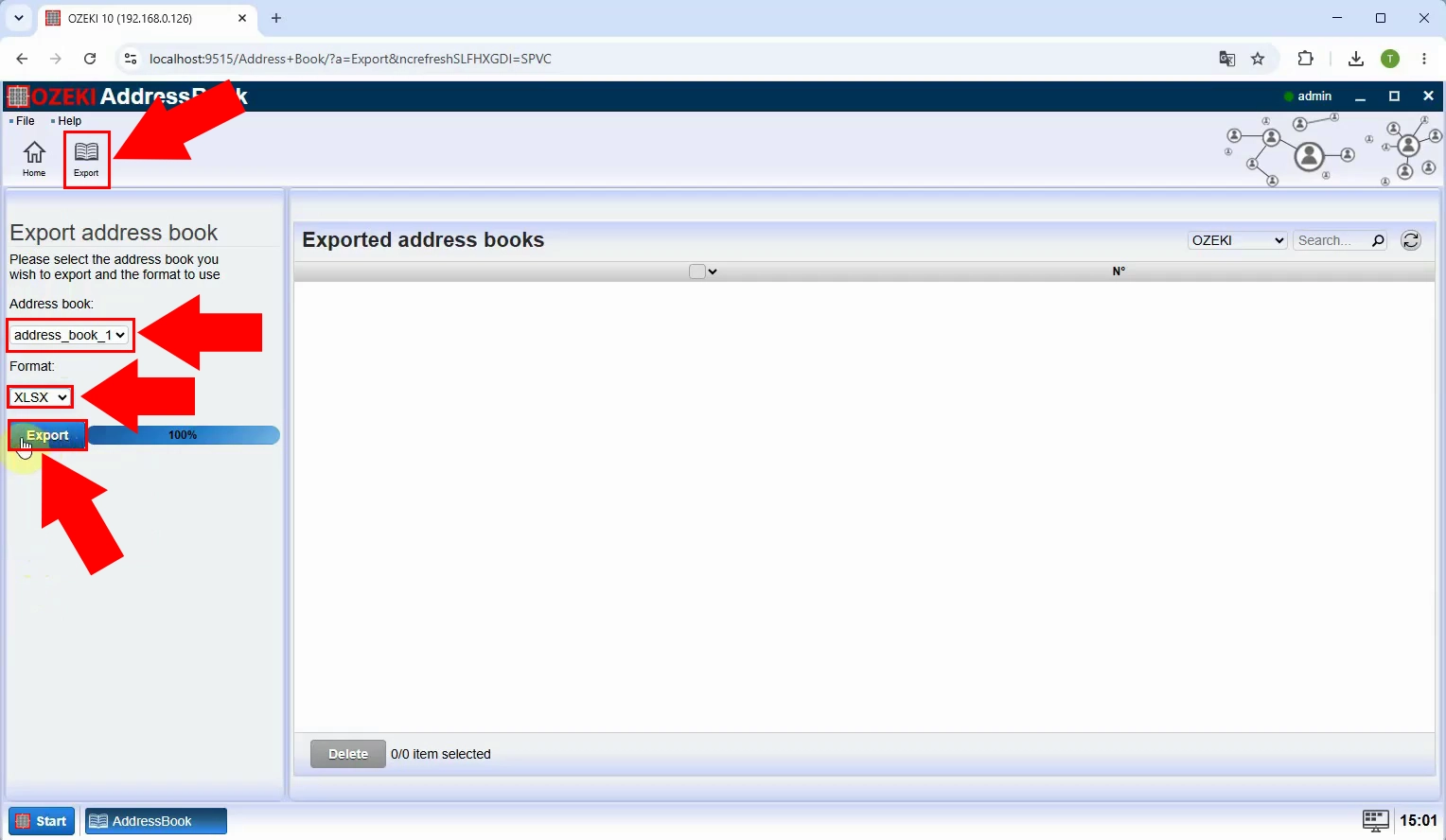
Find the export option for the selected address book. Click it to start exporting the contacts. Follow any on-screen prompt to complete the export.
Download the file produced by the export. Save it in a location where you can find it later. Check your browser’s downloads if the file does not open automatically.
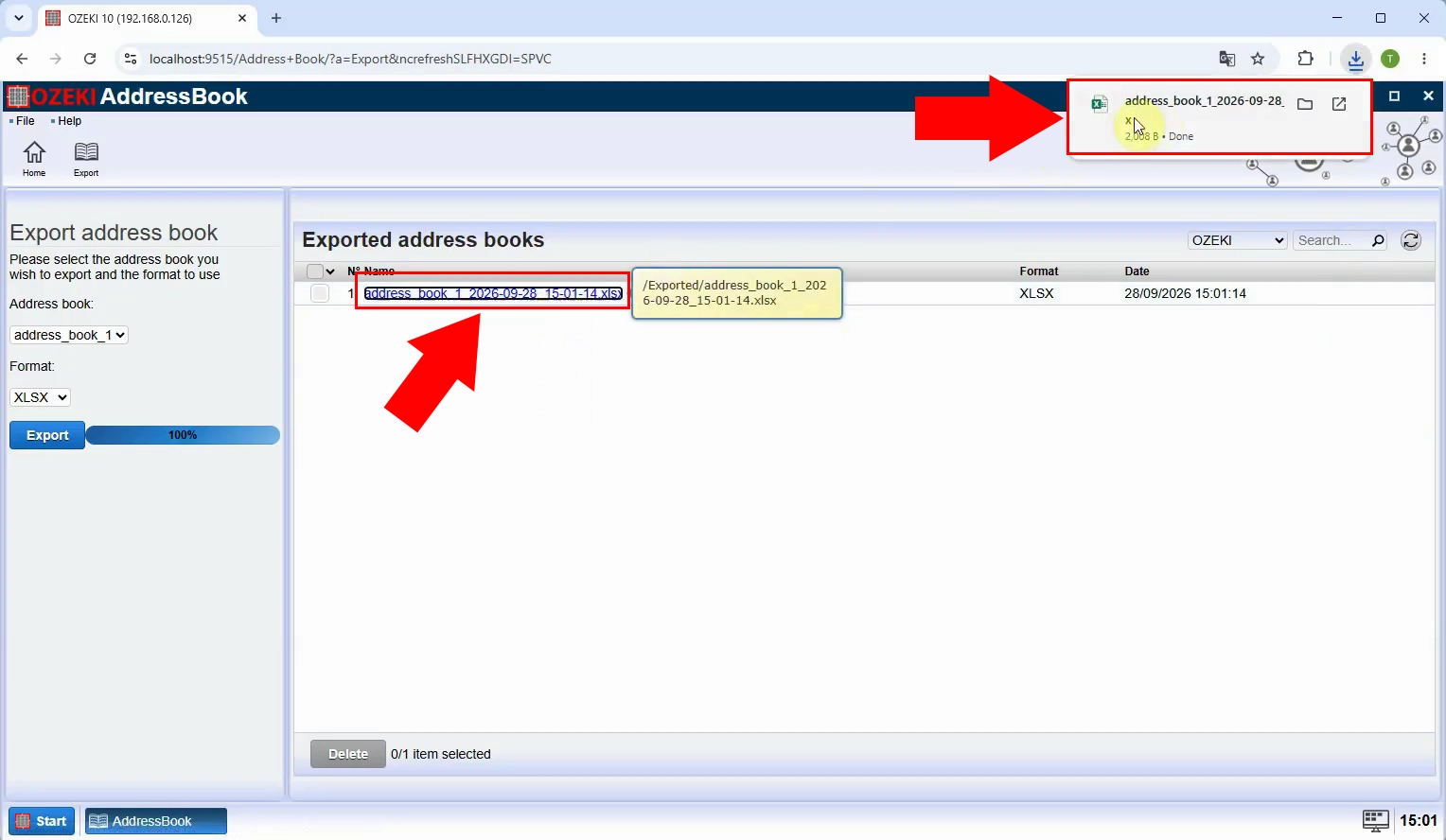
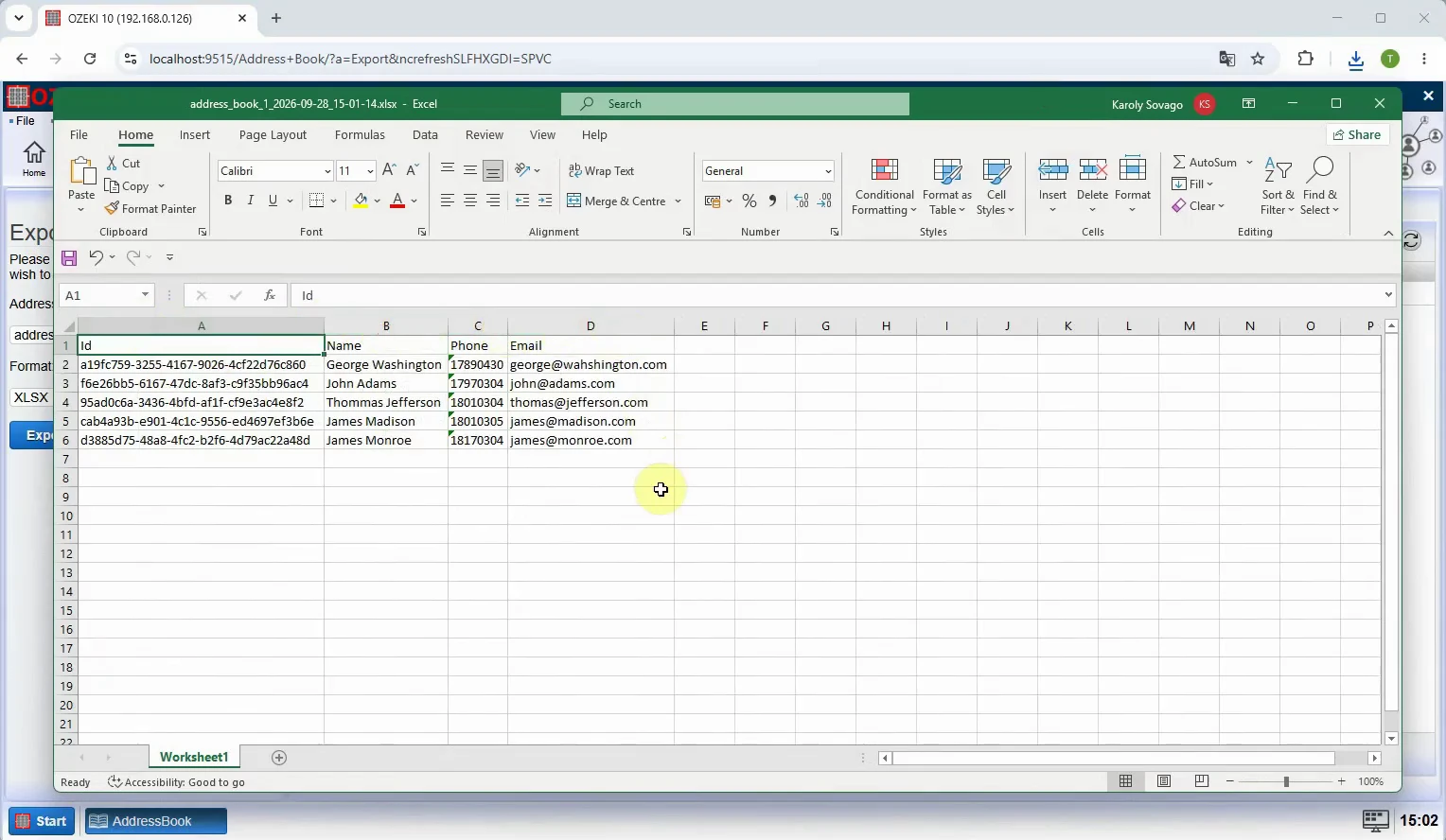
Open the downloaded address book file in Excel. Check that the contacts and their details appear as expected. Keep the file as a backup or use it for further editing.