
How to configure the Ozeki SMS MCP Server in Jan
This guide walks you through adding the Ozeki SMS MCP Server to Jan, a privacy-focused desktop application for running AI models locally. By following this tutorial, you will learn how to register the Ozeki SMS Gateway as an MCP server in Jan's settings, enable tool use for your model, and verify that the SMS tools are available in the chat interface.
What is an MCP server?
An MCP (Model Context Protocol) server exposes tools that an AI model can call during a conversation. In this setup, the Ozeki SMS MCP Server provides SMS tools such as sending messages and listing incoming SMS. Jan connects to the MCP server over HTTP using the configured URL and API key, giving the locally running AI model the ability to interact with the mobile network through your gateway.
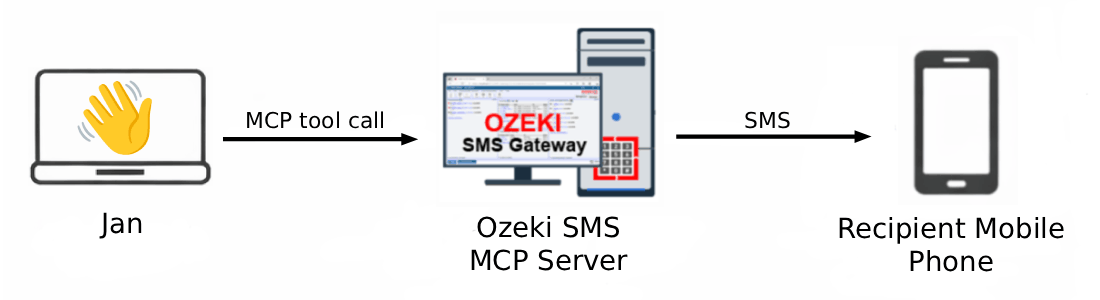
Jan MCP server configuration
# Enter the following details when adding a new MCP server in Jan settings:
Server Name: Ozeki
Transport Type: HTTP
URL: http://{address}:9529/mcp
Headers:
  Authorization: Bearer your-bearer-token
Timeout: 600 seconds

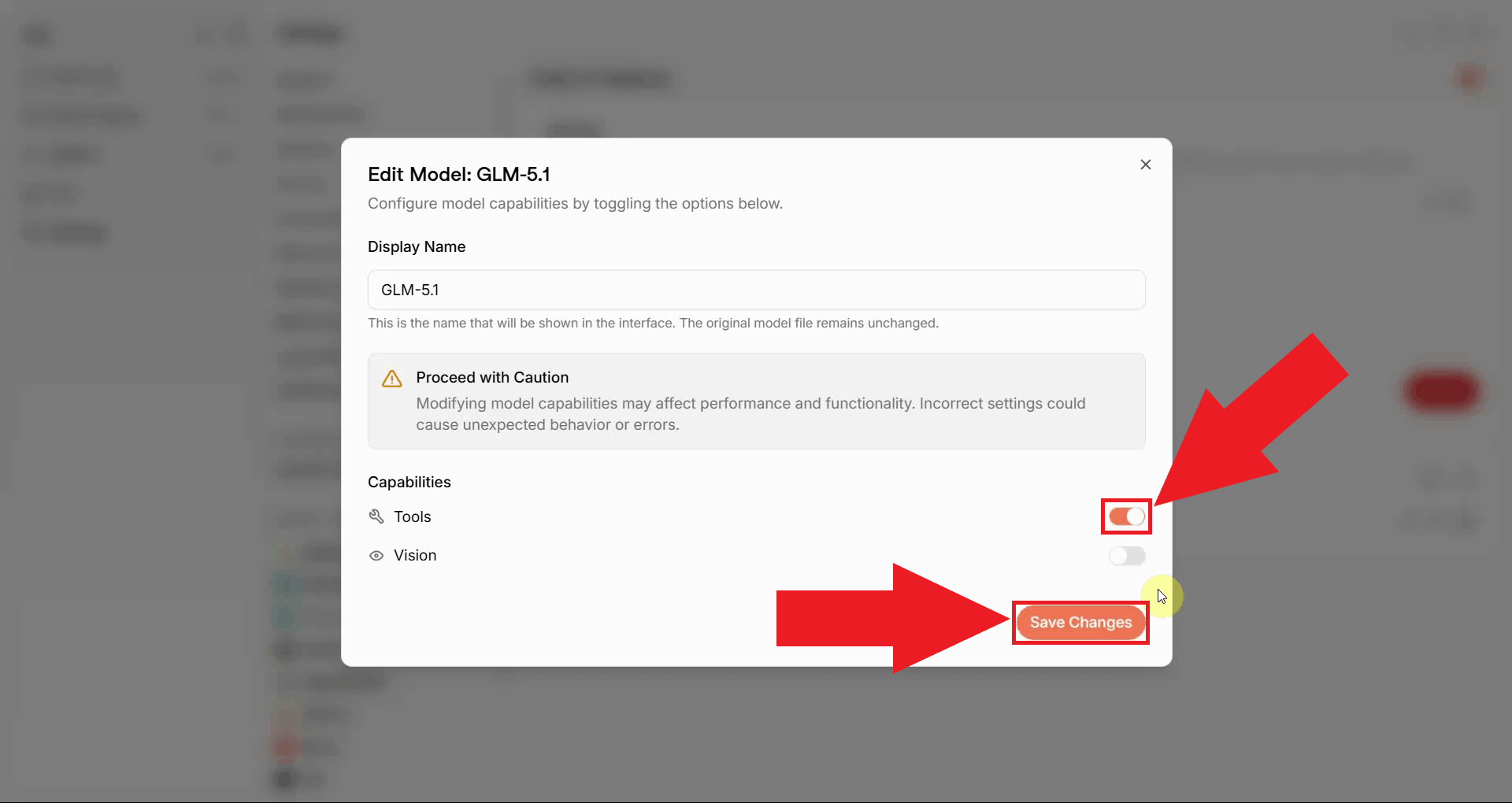
# After saving the MCP server, make sure to enable Tools in the model capabilities:
# Provider -> Models -> Edit model -> Capabilities -> enable Tools
Steps to follow
We assume Ozeki SMS Gateway is already installed on your system and you have already created an MCP user account with an API key. You will also need Jan installed on your system, you can follow our How to set up Jan with Ozeki AI Gateway guide.
- Navigate to MCP Servers in Jan settings
- Add the Ozeki SMS MCP Server
- Enable tool use for your model
- Verify the SMS tools in the chat
Video tutorial
The following video shows how to add the Ozeki SMS MCP Server to Jan step-by-step.
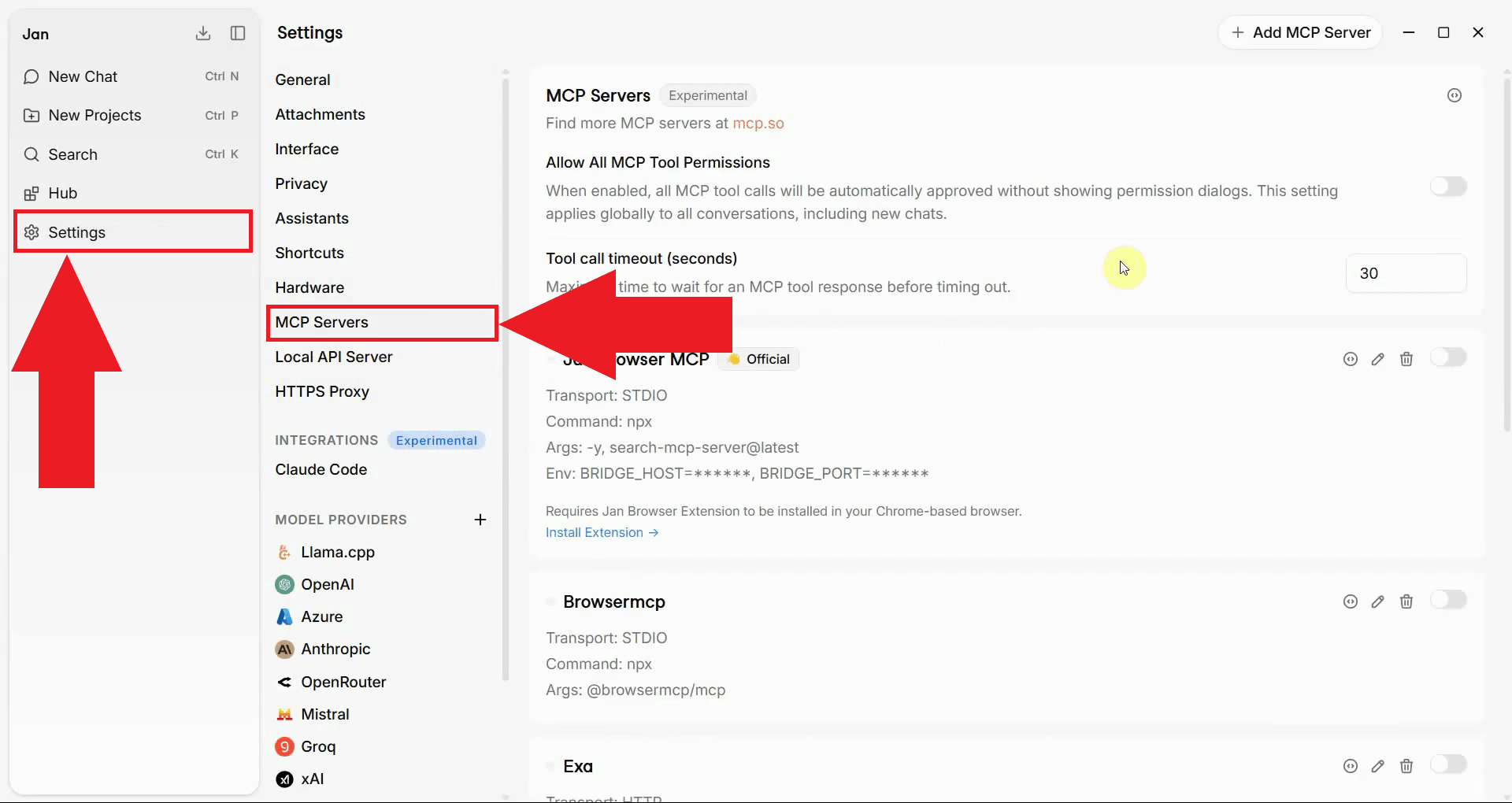
Step 1 - Navigate to MCP Servers in Jan settings
Click on the settings icon in the left sidebar to open the Jan settings. Scroll through the menu until you find the MCP Servers option and click on it to open the MCP server management page (Figure 1).
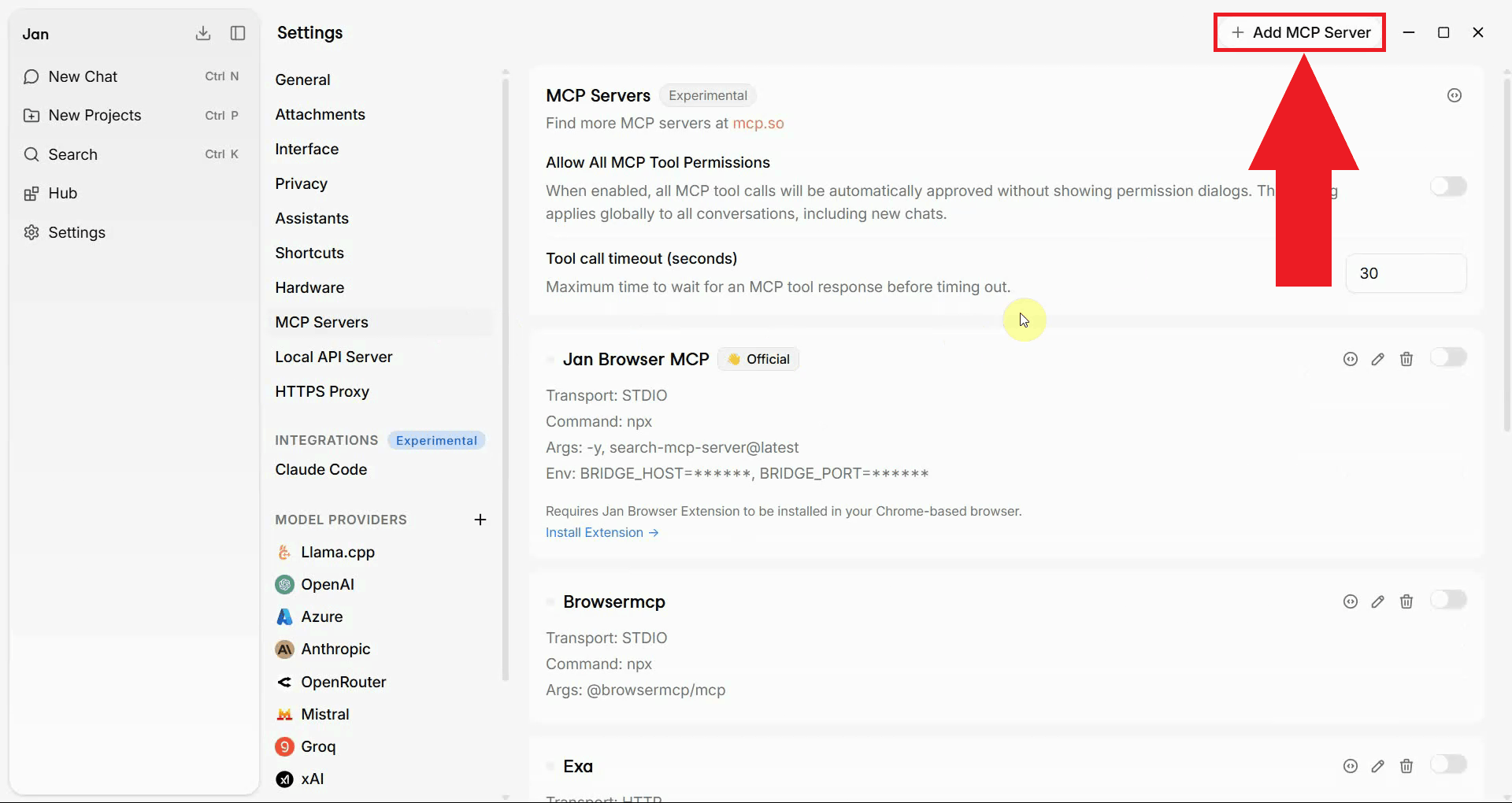
Step 2 - Add the Ozeki SMS MCP Server
On the MCP Servers page, click the Add new MCP server button to open the server entry form (Figure 2).
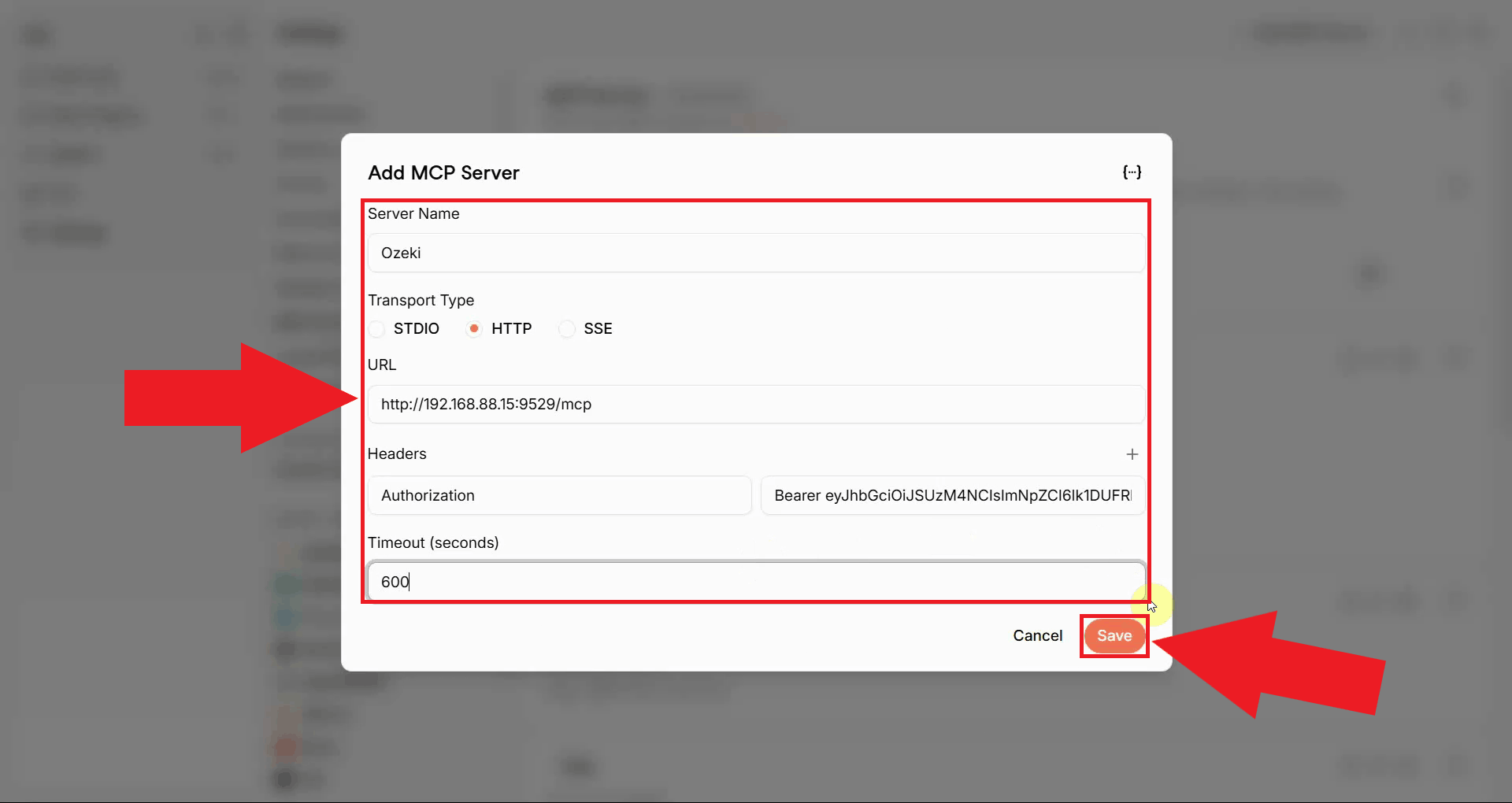
Fill in the MCP server form with the details below. Set the Server Name to
Ozeki, the Transport Type to HTTP, and enter your
gateway address in the URL field. In the Headers section, add the
Authorization key and set its value to Bearer followed by
your API key. Set the Timeout to 600 seconds, then click
Save to register the server (Figure 3).
Server Name: Ozeki
Transport Type: HTTP
URL: http://{address}:9529/mcp
Headers:
  Authorization: Bearer your-bearer-token
Timeout: 600 seconds
Step 3 - Enable tool use for your model
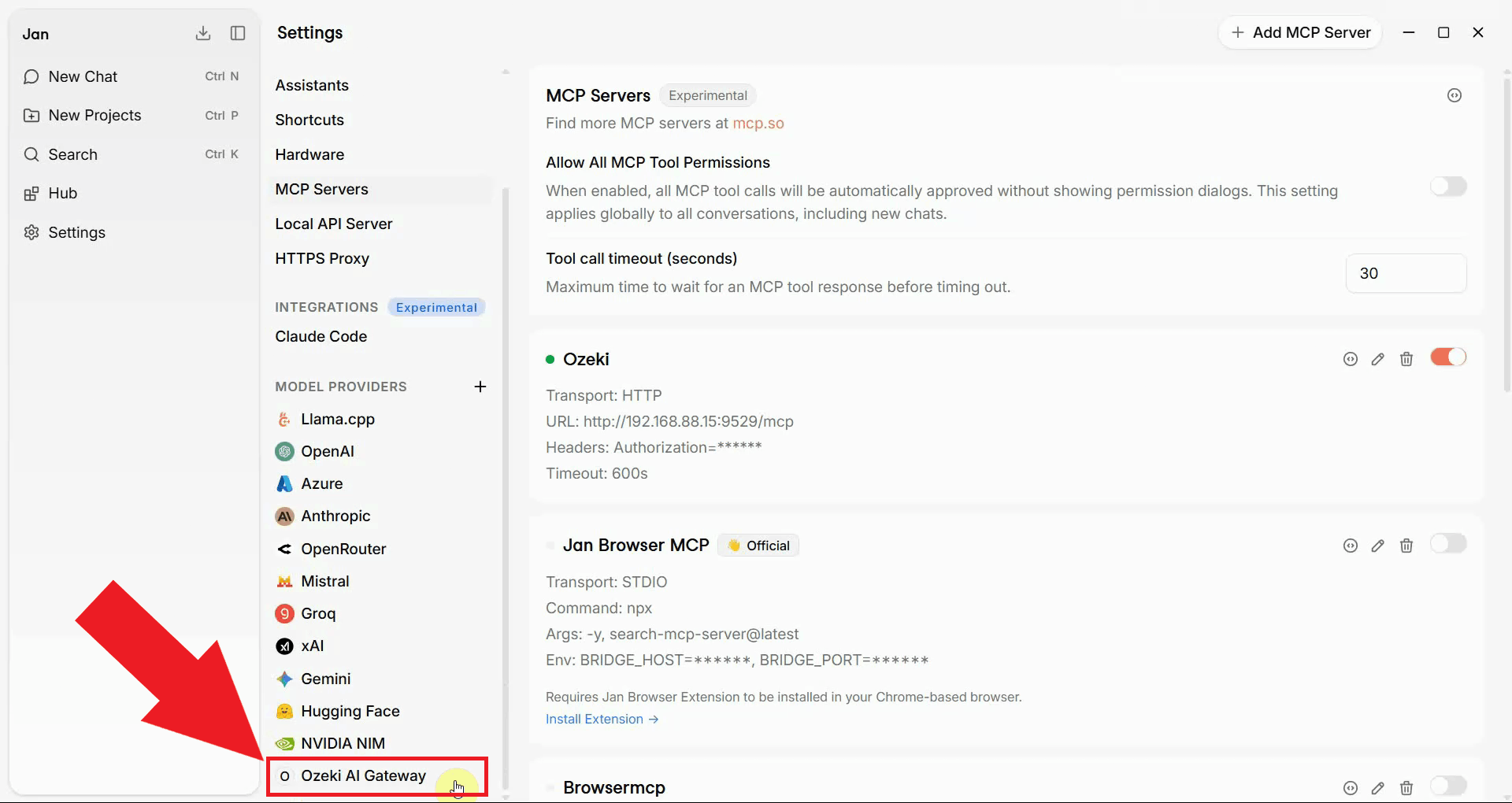
For the AI model to be able to call MCP tools, tool use must be enabled in the model's capabilities settings. In Jan's settings, navigate to your AI provider and open its configuration page. In this case, open the Ozeki AI Gateway provider that you have set up previously (Figure 4).
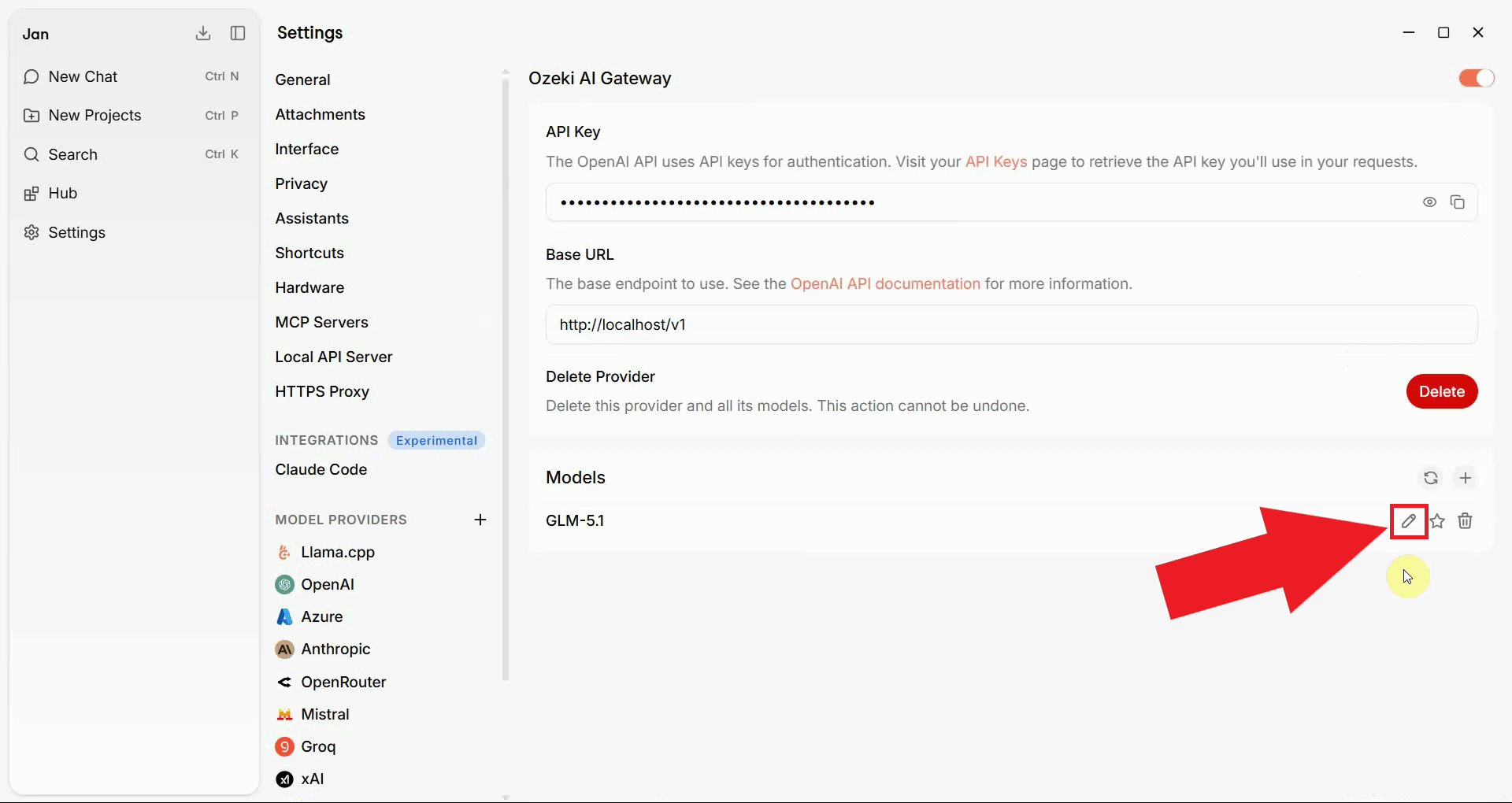
In the provider configuration, find the model you want to use and click the Edit button next to it. Each model in Jan can be individually configured with its own set of capabilities, so you can control exactly which models have access to external tools (Figure 5).
In the model edit view, enable the Tools toggle in the Capabilities section. This tells Jan that the model is allowed to call external MCP tools during a conversation. Click Save to apply the change (Figure 6).
Step 4 - Verify the SMS tools in the chat
Start a new chat in Jan and make sure the Ozeki AI Gateway provider and your configured model are selected (Figure 7).
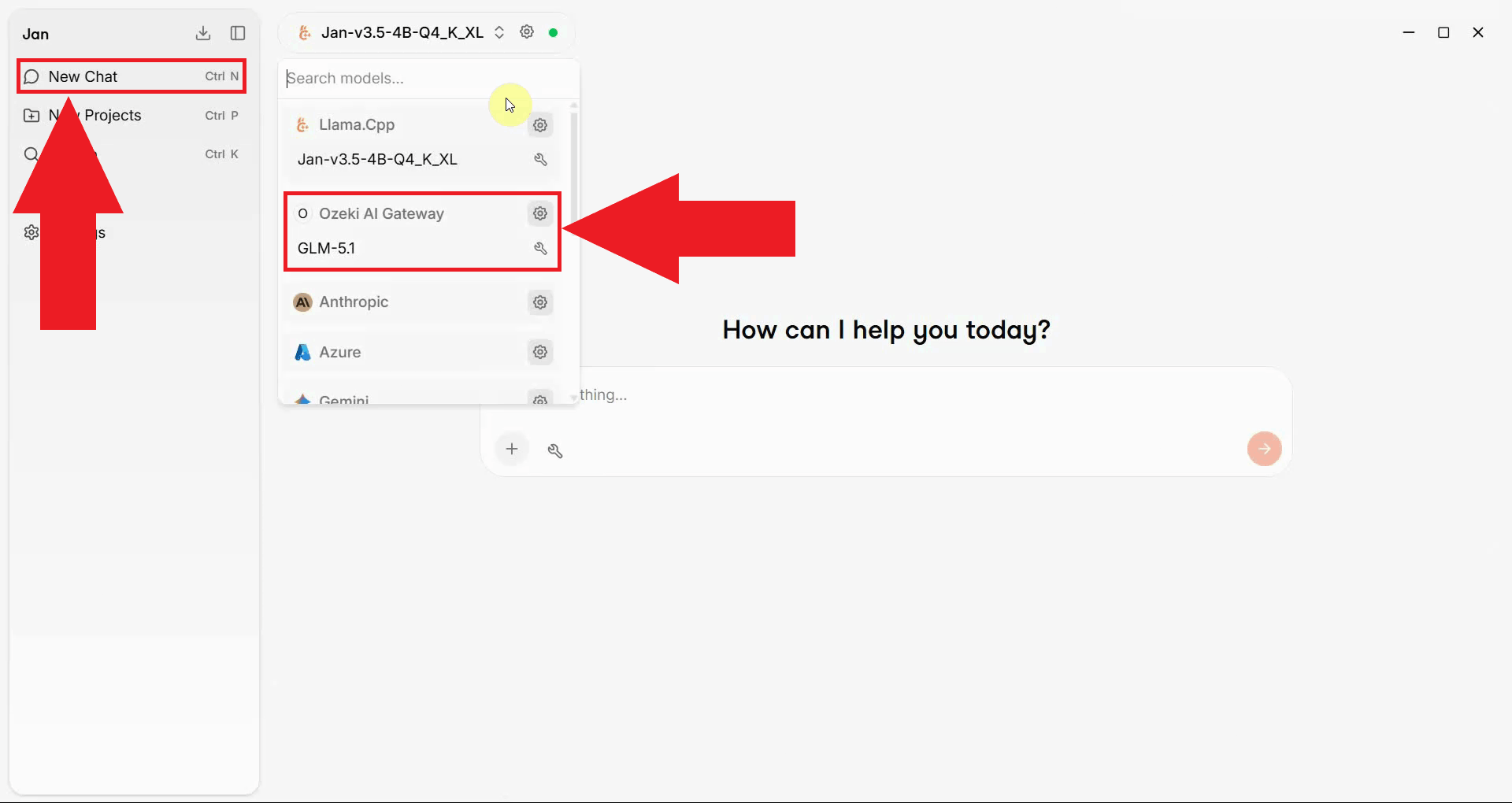
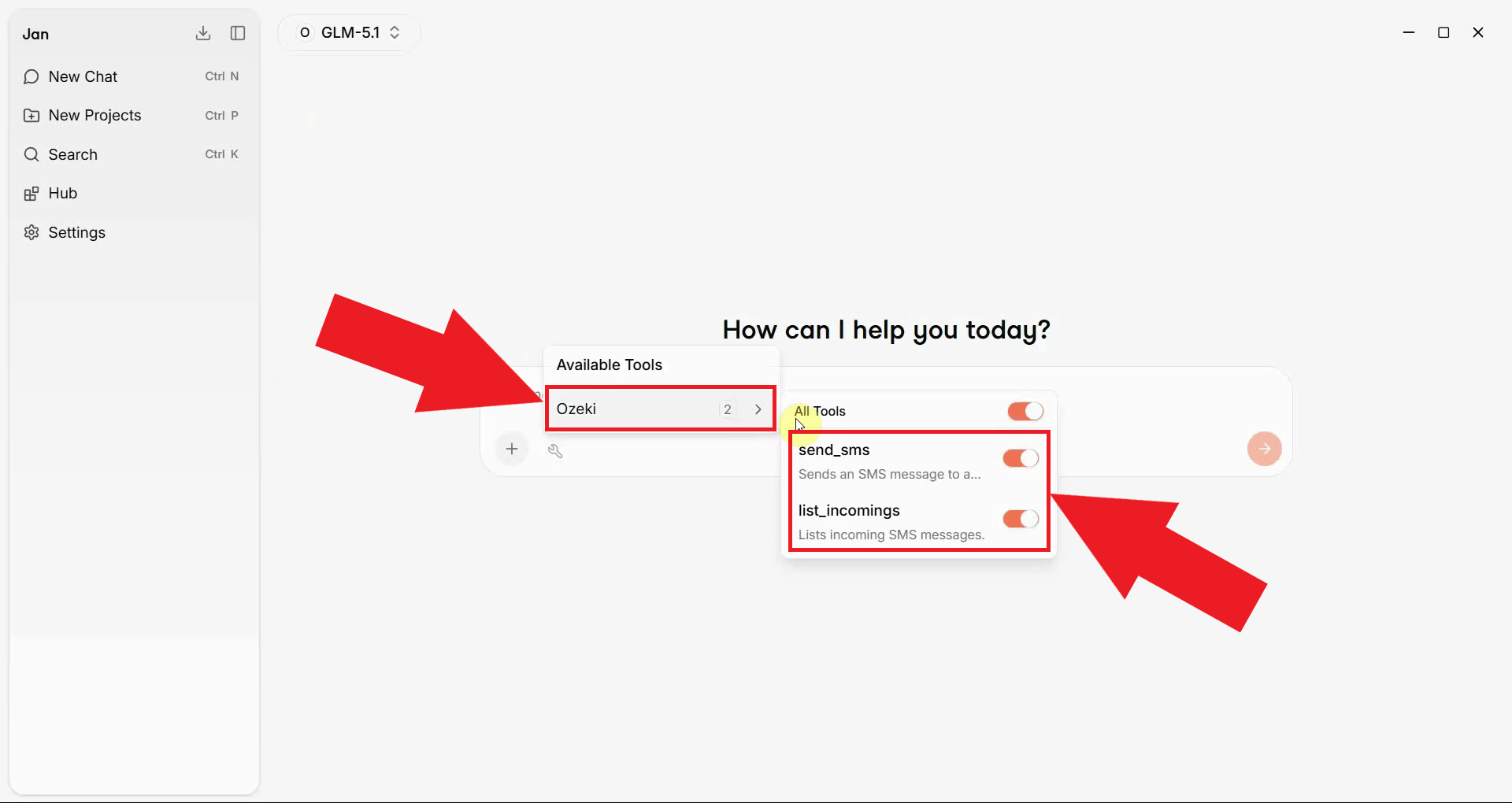
In the chat interface, you should now see the Ozeki SMS tools listed and available for the AI model to use. This confirms that Jan has successfully connected to the Ozeki SMS MCP Server and that the model is ready to send and receive SMS messages (Figure 8).
Summary
You have successfully configured the Ozeki SMS MCP Server in Jan. The AI model running in Jan can now send and receive SMS messages through your gateway using plain language prompts, making it simple to add mobile messaging capabilities to your AI setup.