
How to configure the Ozeki SMS MCP Server in Cherry Studio
This guide walks you through integrating the Ozeki SMS MCP Server with Cherry Studio, a desktop AI chat application that supports MCP servers natively through Streamable HTTP. By following this tutorial, you will learn how to navigate to the MCP Servers settings, add the Ozeki SMS Gateway as a custom server, and verify that the SMS tools are available.
What is an MCP server?
An MCP (Model Context Protocol) server exposes tools that an AI model can call during a conversation. In this setup, the Ozeki SMS MCP Server provides SMS tools such as sending messages and listing incoming SMS. Cherry Studio connects to the MCP server over Streamable HTTP using the configured URL and Bearer token.
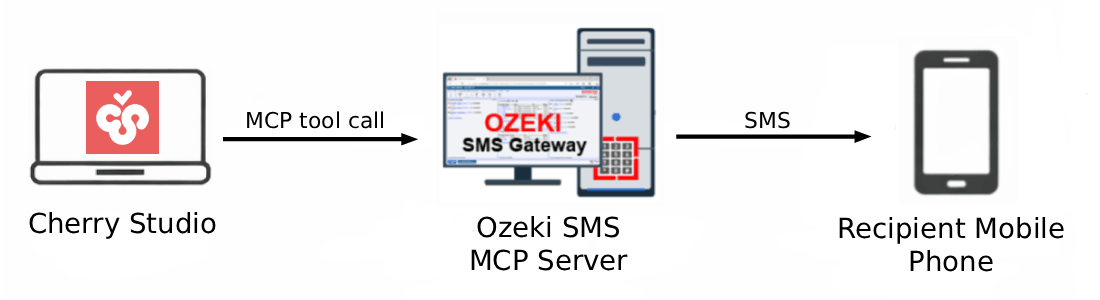
Cherry Studio MCP server configuration
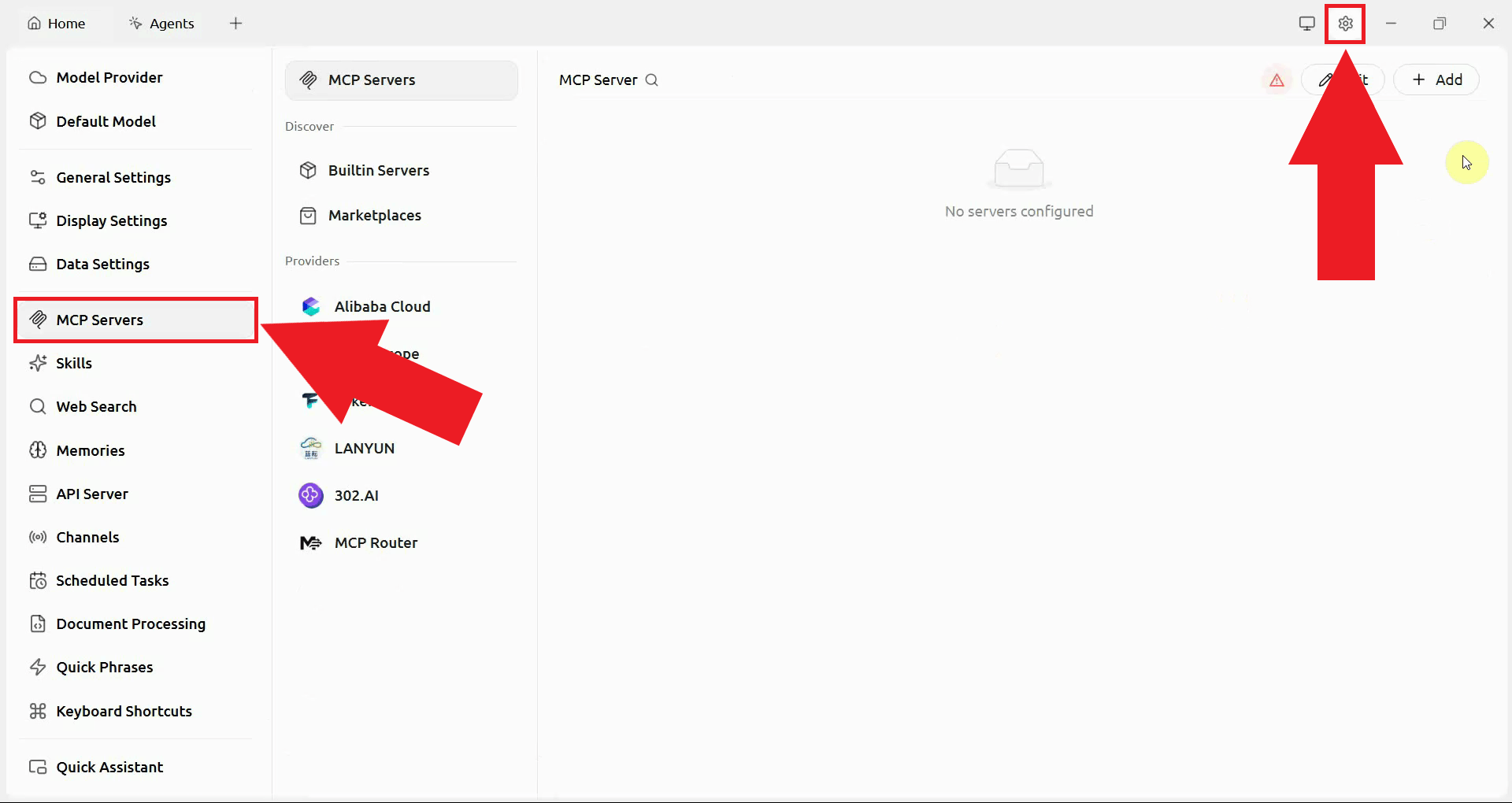
# Navigate to the following location in Cherry Studio to add the MCP server:
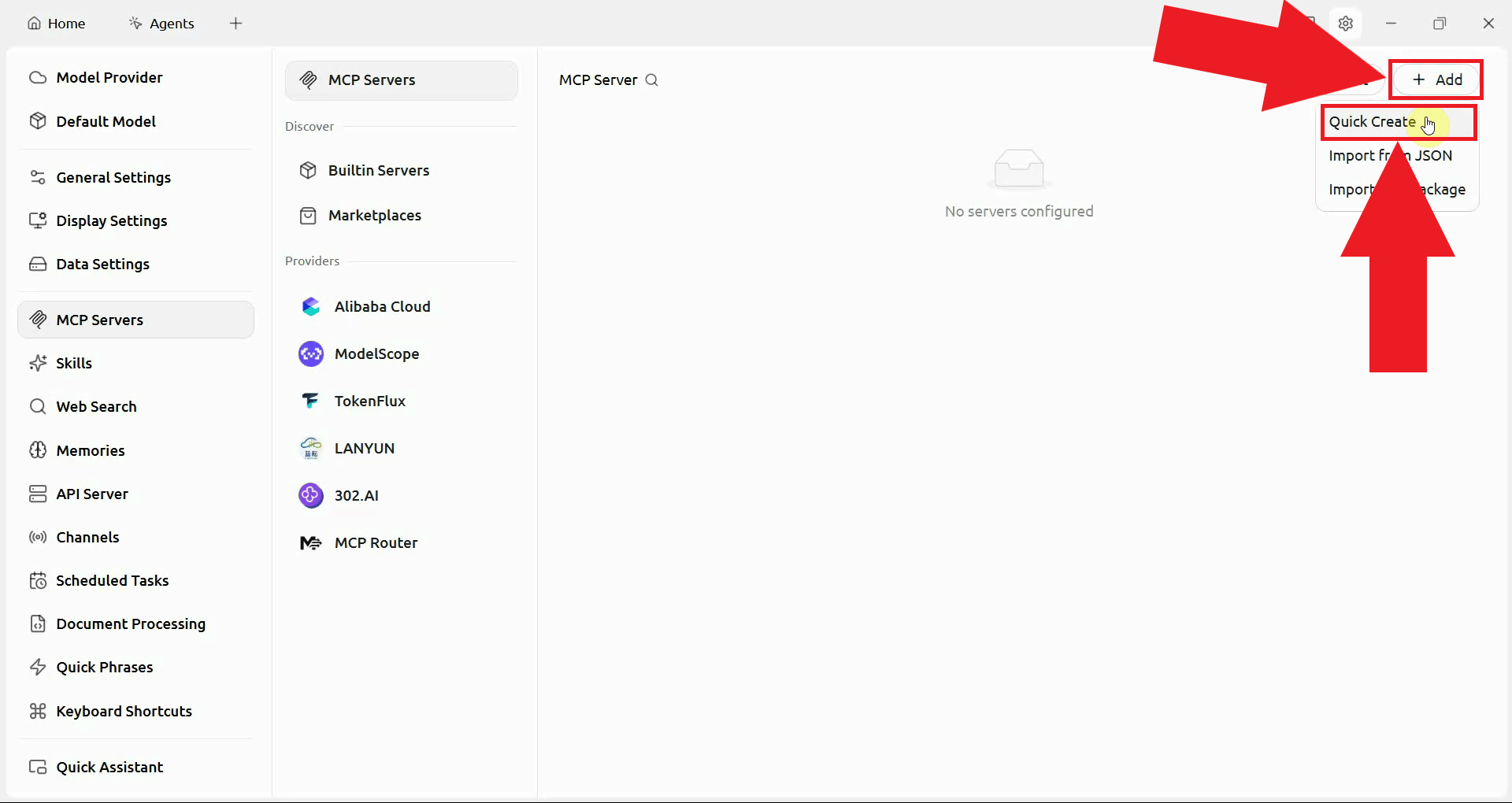
# Settings -> MCP Servers -> Add Server -> Quick Create

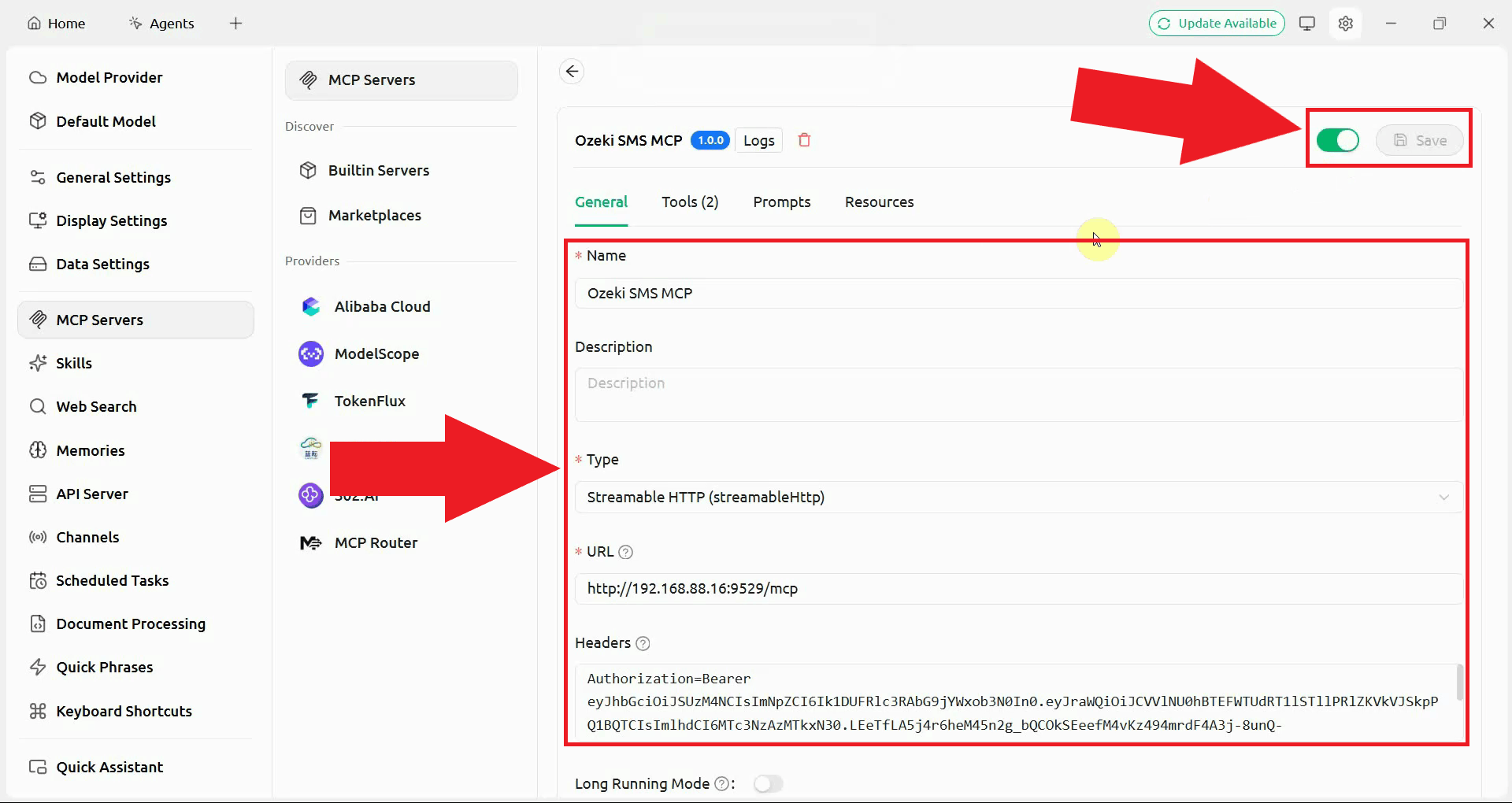
# Enter the following details in the server form:
Name: Ozeki SMS MCP
Type: Streamable HTTP
URL: http://{address}:9529/mcp
Headers: Authorization=Bearer your-bearer-token
Steps to follow
We assume Ozeki SMS Gateway is already installed on your system and you have already created an MCP user account with an API key. You will also need Cherry Studio installed on your system. If you have not installed it yet, follow our Cherry Studio installation guide.
Video tutorial
The following video shows how to add the Ozeki SMS MCP Server to Cherry Studio step-by-step.
Step 1 - Navigate to MCP Servers in settings
Open Cherry Studio and navigate to Settings. Select the MCP Servers section from the left-hand menu, where all external MCP tool servers can be registered (Figure 1).
Click the Add button and select Quick Create from the dropdown menu. This opens a streamlined form for registering a new MCP server without requiring a full JSON configuration (Figure 2).
Step 2 - Configure MCP Server
In the server form, enter Ozeki SMS MCP as the server name, set the
Type to Streamable HTTP, and enter the URL of your Ozeki SMS Gateway
in the URL field. In the Headers field, enter
Authorization=Bearer your-bearer-token, replacing
your-bearer-token with the API key you generated for your MCP user
account. Click Save then press the connection toggle (Figure 3).
Step 3 - Verify SMS tools
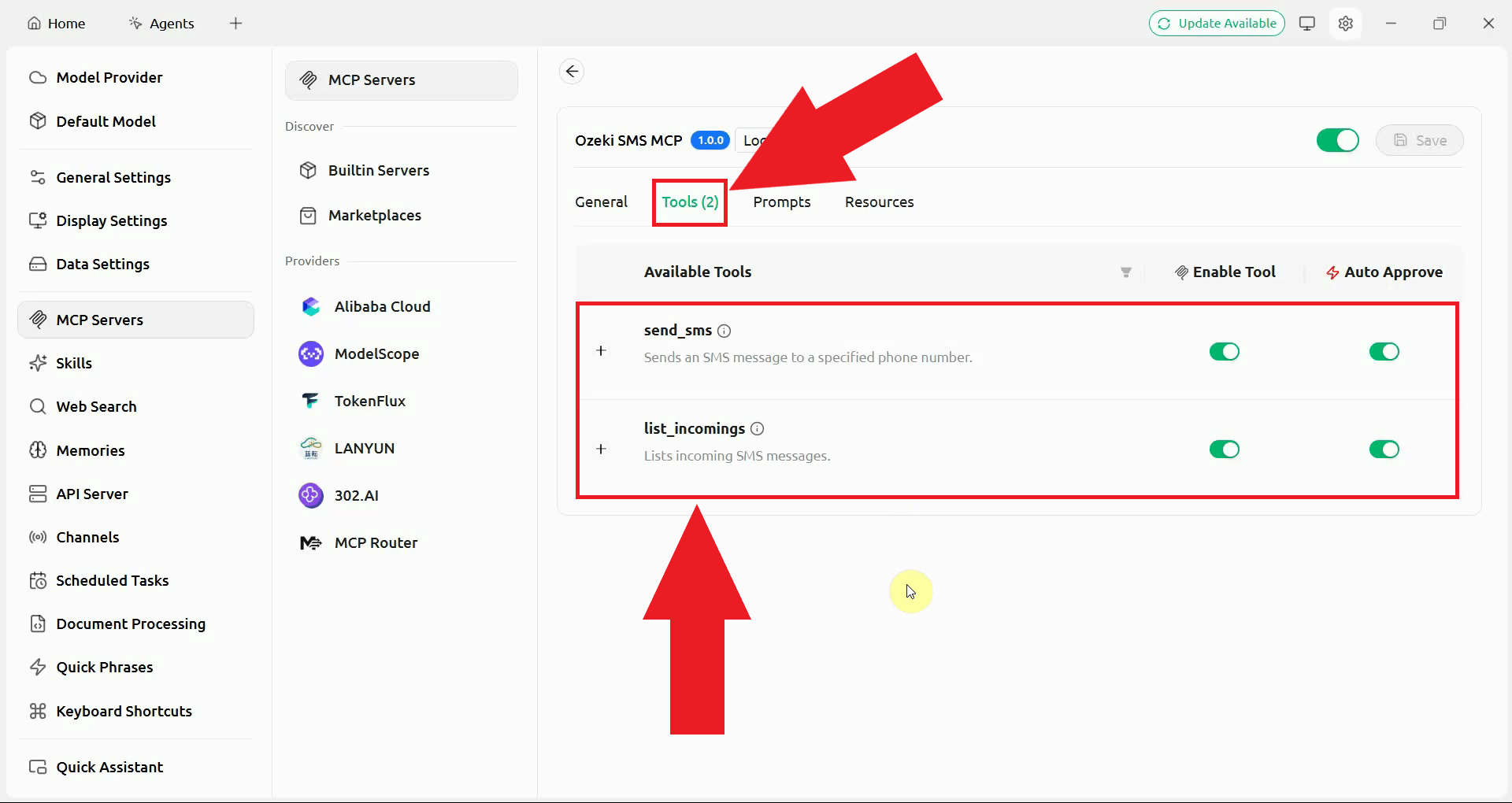
Navigate to the Tools tab in the server entry to view the tools exposed by the Ozeki SMS MCP Server (Figure 4).
Summary
You have successfully added the Ozeki SMS MCP Server to Cherry Studio. The Bearer token in the headers authenticates every request against your Ozeki SMS Gateway. With the server connected, the AI model can send and receive SMS messages through your gateway without any additional setup. Cherry Studio can now act on SMS-related instructions simply by being asked to do so in plain language.